This list shows the money movements recorded in your cash registers item by item: which cash register received or paid out how much, under which title and based on which document, and what the cash register balance was before and after the item. The list is view-only; you cannot modify items here.
If no item matches your conditions, you see this message instead of the list: the results list is empty or contains no items to display.
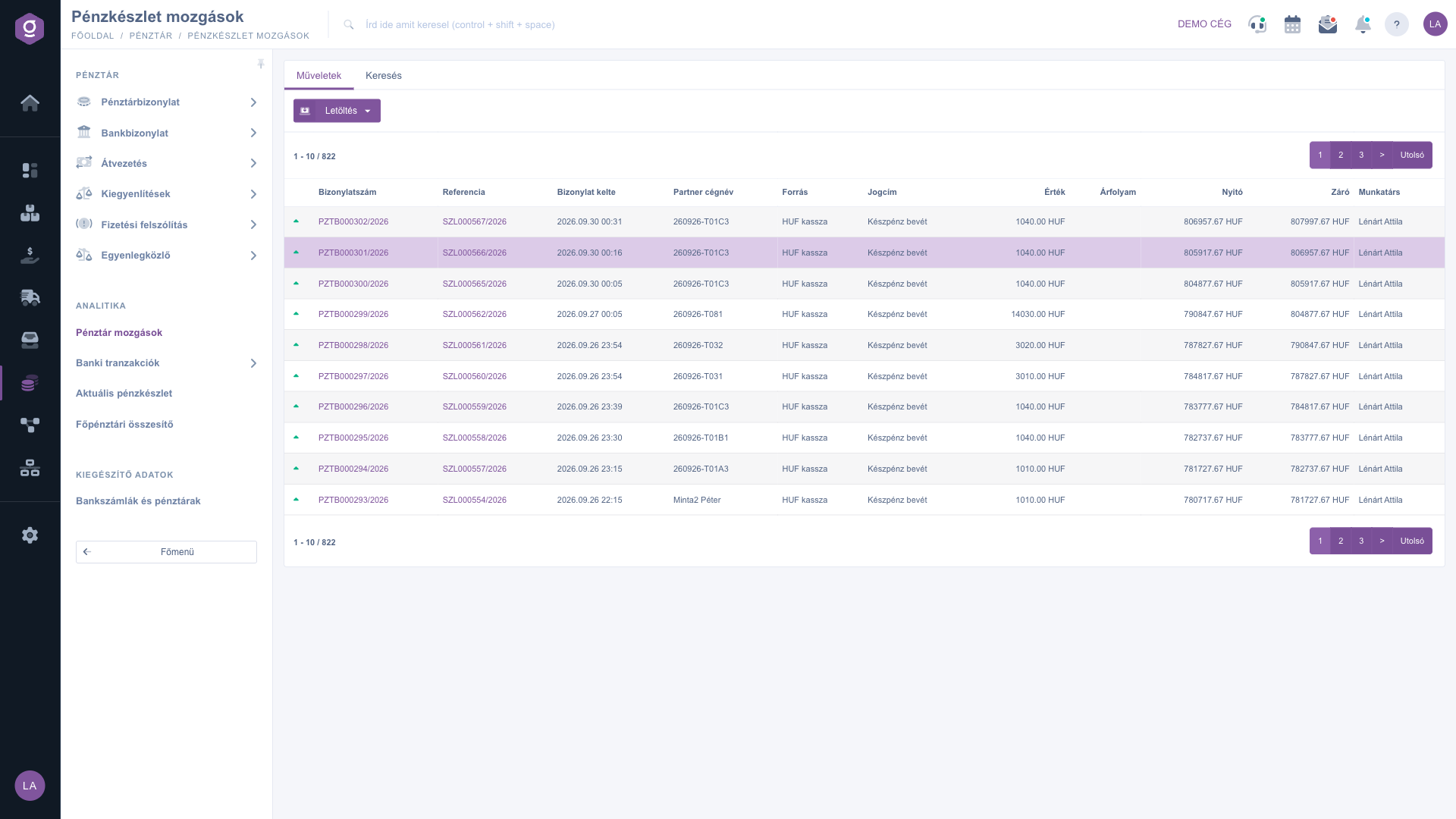
Click Main menu / Cash register / Cash register movements (you find it in the Analytics group). The list opens with the latest items, 10 rows per page; above and below the list there is a pager that also shows the total number of results.
Open the Search tab, enter one or more conditions, then click the Search button. The conditions narrow each other down. The Expand button cannot be used on this page.
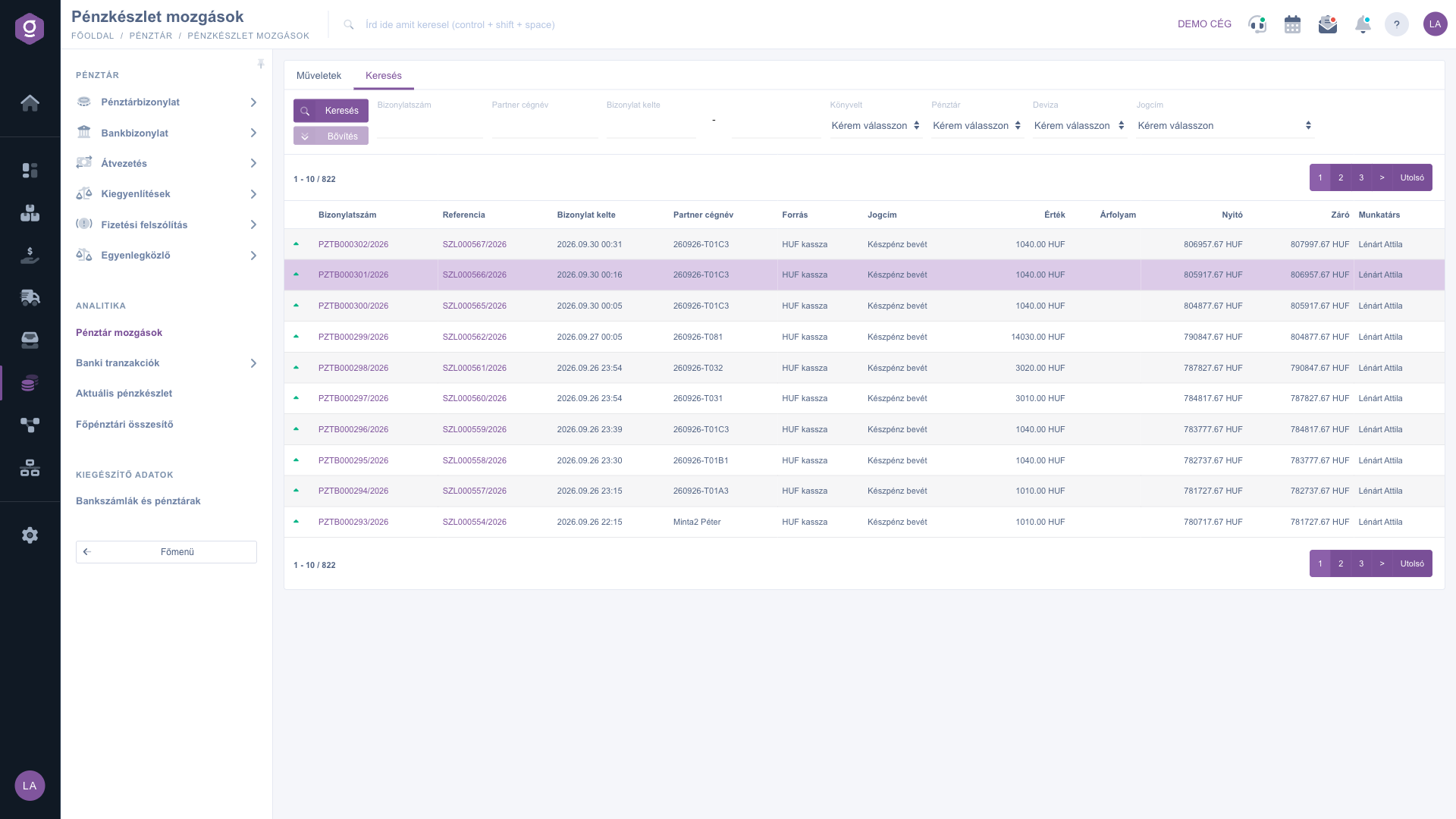
One row is one money movement. The Document number is a link to the cash register document, and the Referencia leads to the invoice or document the item is linked to; both open in a new tab. The Opening column shows the balance of the cash register before the item, the Closing column shows the balance after the item.
On the Actions tab click the Download button, then choose XLSX lista. The download contains all results, not only the current page, but it only takes the Document number, Partner company name and Document date filters into account.
The XLSX lista ignores the Cash register, Booked, Deviza and Title filters. If you only need the items of one cash register, filter the downloaded file further yourself.

The columns of the list and their meaning. The columns are fixed, there is no View and layout setting on this page, so every column is always visible. The labels Referencia and Deviza are displayed in Hungarian in every language:
| Column | Visible by default | Description |
|---|---|---|
| Arrow icon (the first column without a title) | Green arrow pointing up: income. Red arrow pointing down: expense. | |
| Document number | The identifier of the cash register document; click it to open the document in a new tab. | |
| Referencia | The identifier of the invoice or document linked to the item; click it to open it in a new tab. | |
| Document date | The time the item was recorded (year.month.day hour:minute). | |
| Partner company name | The name of the partner the money movement relates to. | |
| Source | The name of the cash register in which the item was recorded. | |
| Title | The title of the money movement, for example cash income. | |
| Value | The amount of the item with the short name of the currency. | |
| Exchange rate | The exchange rate recorded for the item. | |
| Opening | The balance of the cash register before the item. | |
| Closing | The balance of the cash register after the item. | |
| Employee | The name of the employee who recorded the item. |
Yes returns the items that are linked to an invoice and are already closed. No returns the items that have no invoice linked or are not closed yet.
This list is for viewing only. To change an item, click the Document number link: the cash register document opens in a new tab, where you can work with it depending on the status of the document.
Most likely the filters are too narrow, or there are no cash items in the given period. Clear the filters, then click the Search button again. If you see the empty list after paging, go back to the first page.
The cash register document list shows the data per document, while the Cash register movements list shows the money movements recorded in the documents, item by item. You can read about the documents in the Cash register document list guide.
On the Main menu / Cash register / Current cash balance page, which is described in the Current cash balance guide.
The XLSX download only takes the Document number, Partner company name and Document date filters into account, not the others (for example the Cash register or Title filter). Therefore the file can contain more items than the screen.
The menu item only appears under Main menu / Cash register if the module is assigned to your user. If you cannot find it, ask your system administrator to enable it.
Don't want to spend hours searching for a solution? Choose the most efficient way: book a personalized, 45-minute online training session dedicated entirely to you. Whether it's a walkthrough of the basics or a detailed setup of a specific module, our expert colleague will guide you through the whole process, step by step.
Don't waste your time - ask for help!
Our goal is to get you using our system as quickly and efficiently as possible. Whether you're completely new to us or stuck on a specific setting, don't hesitate to ask for help!
Create your account now,
pay later!

