Current cash balance

See the current balance of all your cash registers and bank accounts in one table: starting value, current value, bank balance and the time of the last movement.

Function overview

This page shows the current state of all your cash registers and bank accounts in a single table: the starting value, the current value, the balance reported by the bank and the time of the last movement. The page is view-only: you cannot change data here, and there is no filter or search, so all rows are always shown.

The states of the values:

  • Bank balance – a number: a balance queried from the bank is available for this row.
  • Bank balance – the - sign: there is no bank balance data for this row, for example a cash register that holds cash.
  • Empty list: no cash register or bank account has been added yet.

If there is no row at all, you see this message instead of the table: the results list is empty or contains no items to display.

Step by step

1. Open the page

Click Main menu / Cash register / Current cash balance (you find it in the Analytics group). Each cash register and bank account has its own row in the table.
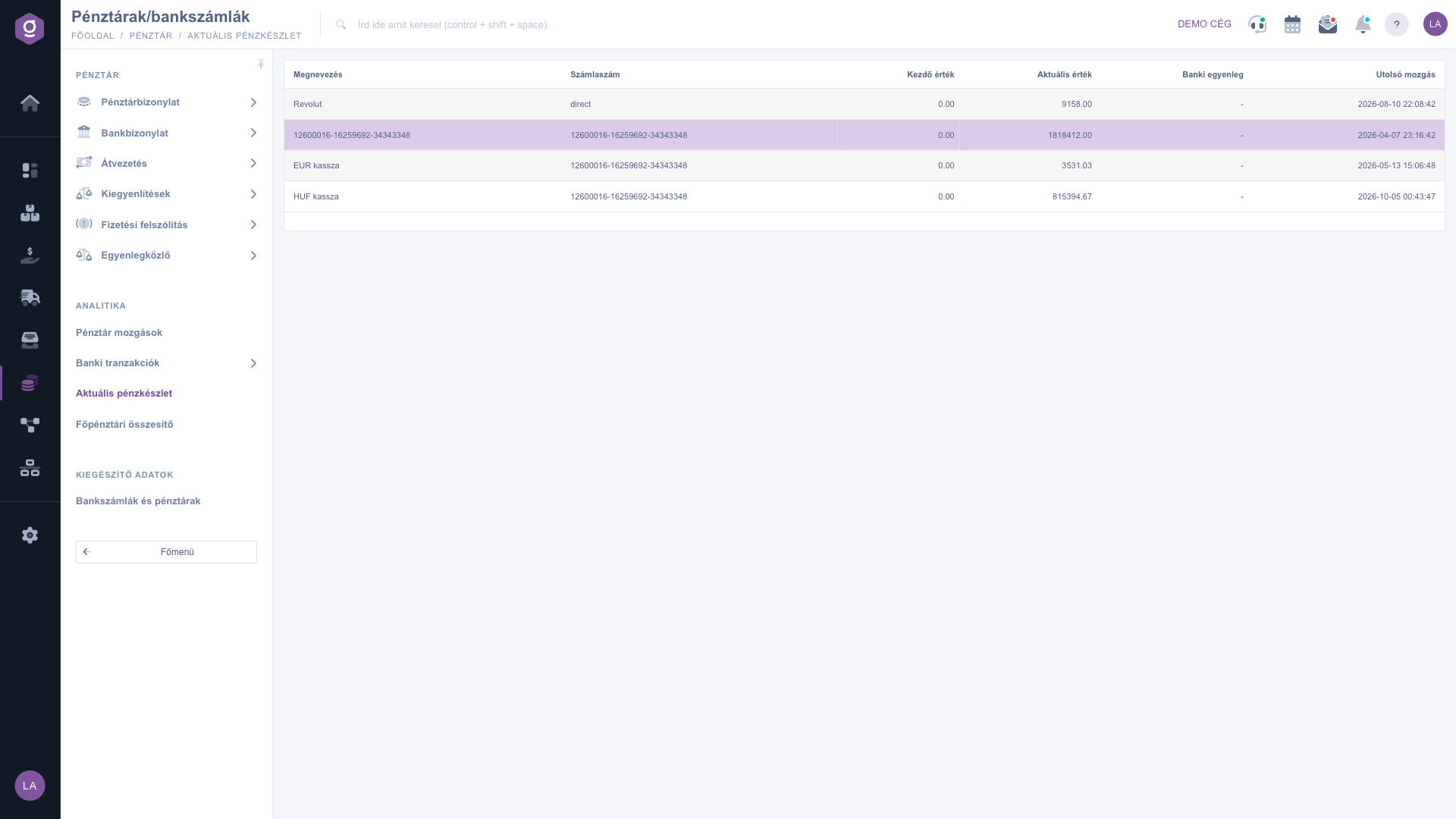
The Current cash balance page

2. Reading the balances

The Current value column shows the balance of the cash register or bank account in the system, the Starting value column shows the starting value. The Banki egyenleg column is the balance queried from the bank. It is worth comparing the Current value and the Banki egyenleg columns, because a difference may mean that a bank item is not yet closed or processed.

3. Refreshing the bank balance

You can refresh the value of Banki egyenleg on the Bank transactions page with the Sync integrated banks link. The data exchange runs asynchronously, so the new value appears after a few minutes; reload the page.

4. Finding the reason for a change

The items that changed the balance are on the Cash register movements and Bank transactions pages. If the Last movement date of a row is recent, that is where to look.

Tip


By comparing the Current value and the Banki egyenleg you can quickly spot a bank item that is not yet recorded in the system.


You can read about cash register items in the Cash register movements guide and about bank items in the Bank transactions guide.

Field reference

The columns of the table and their meaning. The check mark shows that the column is visible by default; the page has no column picker, so every column is always visible.

ColumnVisible by defaultDescription
NameThe name of the cash register or bank account.
Invoice numberDespite its label, it shows the bank account number; it may be empty for a cash register.
Starting valueThe starting value of the cash register or bank account.
Current valueThe balance in the system.
Banki egyenlegThe balance queried from the bank; if there is no such data, the - sign is shown. The column header is shown in Hungarian in every language.
Last movementThe time of the last change of the balance.

Filters

This page has no Search and Actions tab and no download: the table always shows the full list.

Frequently asked questions

It means there is no bank balance data for this row, for example because it is a cash register that holds cash. For a bank account a number may appear after Sync integrated banks.

The page is view-only. The balance is formed from the recorded items, so it is determined by the items recorded on the Cash register movements and Bank transactions pages.

No cash register or bank account has been added yet. Add one under Bank accounts and cash registers in the Cash register menu, then the rows appear.

A bank item may not be processed or closed yet. Check the Bank transactions list; you can read more in the Bank transactions guide.

You can view cash register items in the Cash register movements guide and bank items in the Bank transactions guide lists.

The Main menu / Cash register / Current cash balance item appears only if its module is assigned to your user. If you cannot find it, ask your system administrator to enable it.

Need personalized help?

Don't want to spend hours searching for a solution? Choose the most efficient way: book a personalized, 45-minute online training session dedicated entirely to you. Whether it's a walkthrough of the basics or a detailed setup of a specific module, our expert colleague will guide you through the whole process, step by step.

Don't waste your time - ask for help!
Our goal is to get you using our system as quickly and efficiently as possible. Whether you're completely new to us or stuck on a specific setting, don't hesitate to ask for help!

Logzi warehouse management software

Get in touch with us

Interested in our software? Feel free to write to us!

Need help?

If you can't find the answer and need assistance

Create your account now,
pay later!

Try it free for 3 days, no risk, no obligation!
