Incoming delivery note analytics

Get to know the Logzi Incoming delivery note analytics: goods receipts by suppliers and products, purchase price change monitor, receipts waiting for the supplier invoice, lead times and workload by colleague.

Feature overview

The Incoming delivery note analytics is the statistics page of the goods received from suppliers. It does not list single documents but summarizes them: it shows how much goods you received, in what value, from whom, from which products and at what price. It helps you answer questions such as:

  • From which supplier do you receive the most goods, and how dependent are you on the three biggest ones?
  • Which product became more expensive compared with its average purchase price, and how much extra cost does this mean?
  • For which goods receipt has no supplier invoice arrived yet?
  • How many goods receipt documents did you delete?
  • Overview: daily, weekly, monthly, yearly and total receipts, the main indicators compared with the previous period, the monthly trend and the split by status.
  • Suppliers: top suppliers, Pareto ranking, new and returning suppliers, inactive suppliers.
  • Products: top products, split by category and warehouse.
  • Purchasing: ratio of linked documents, lead times, receipts waiting for the supplier invoice and the purchase price change monitor.
  • Colleagues and time: split by colleague, job number and department, creation time heatmap.

The possible statuses of an incoming delivery note are: Draft, Closed, Cancellation, Cancelled, Used. The statistics count the Closed and Used documents in the value and the number. Drafts and Cancellation/Cancelled documents are left out but you see them in separate indicators. Deleted documents are measured by the Deleted ratio indicator.

Step by step

1. Opening the page and filtering

Click Main menu / Transport / Analytics / Incoming delivery note analytics to open the page. On the Search tab you can narrow the data with the Document date field pair, a part of the company name typed into the Supplier field and the Employee list, then click the Search button. When you open the page, the period from 1 January of the current year to today is shown. The filter works the same way on every tab. The screenshots are taken from the Hungarian demo interface.

2. Overview

The top strip shows the number and the value of the receipts for Today, This week, This month, This year and All (independent of the filter). Below it the indicators of the selected period follow: number and value of documents compared with the previous period of the same length, average document value, items and quantity, the estimated Weight (kg), the Storno ratio, the Drafts and the Deleted ratio. A high Deleted ratio often means that you started many documents and then discarded them, so it is worth checking the process.
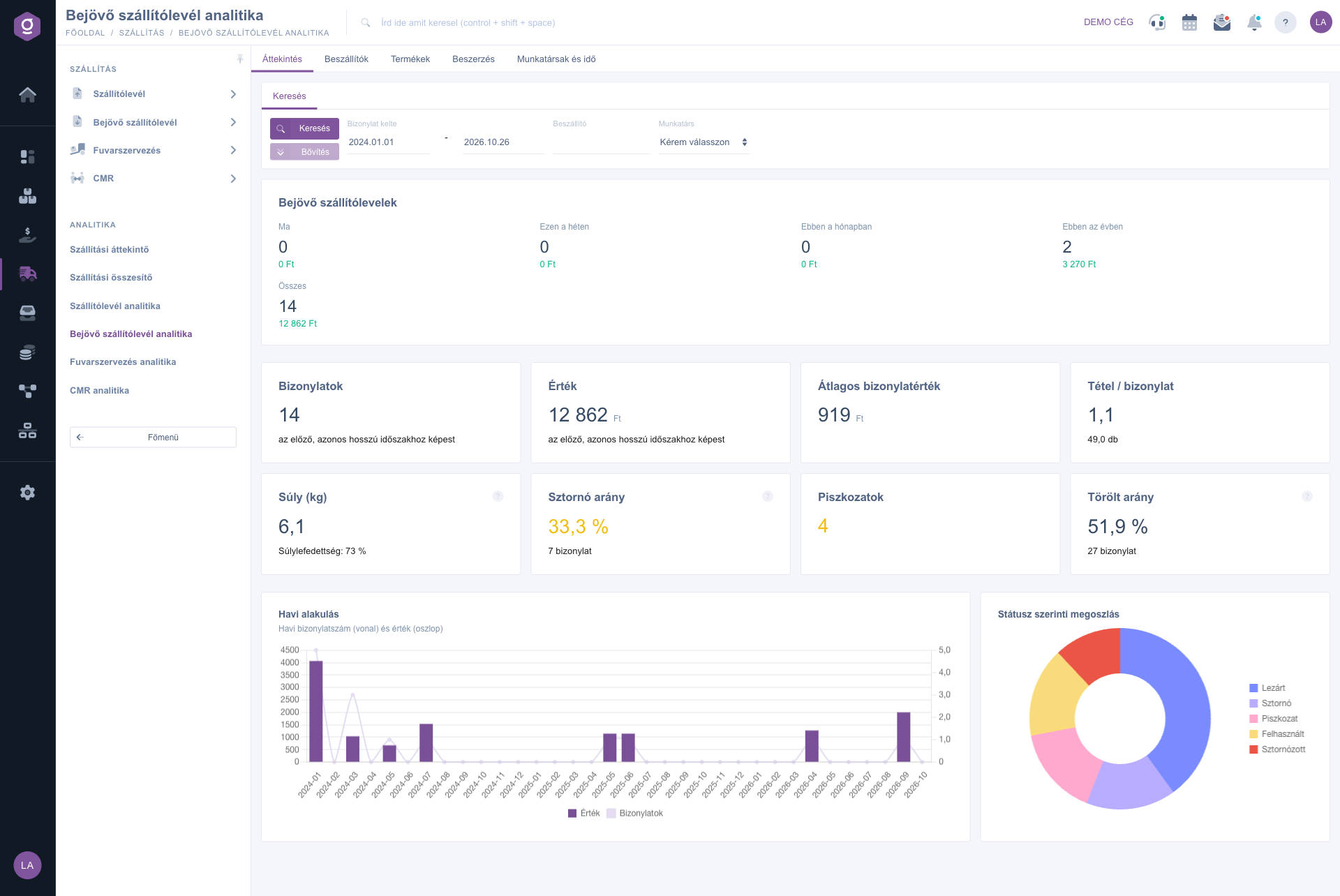
Incoming delivery note analytics – Overview tab (Áttekintés)

3. Suppliers

The TOP3 share is the combined value share of the three biggest suppliers: above 60 % it turns yellow because it indicates a purchasing dependency. The Top suppliers chart ranks by value, the New and returning chart shows monthly how many suppliers appeared for the first time. The last column of the ranking table is the cumulative share (Pareto). The Inactive suppliers are those from whom you have received nothing for 90+ days; the list does not depend on the period.
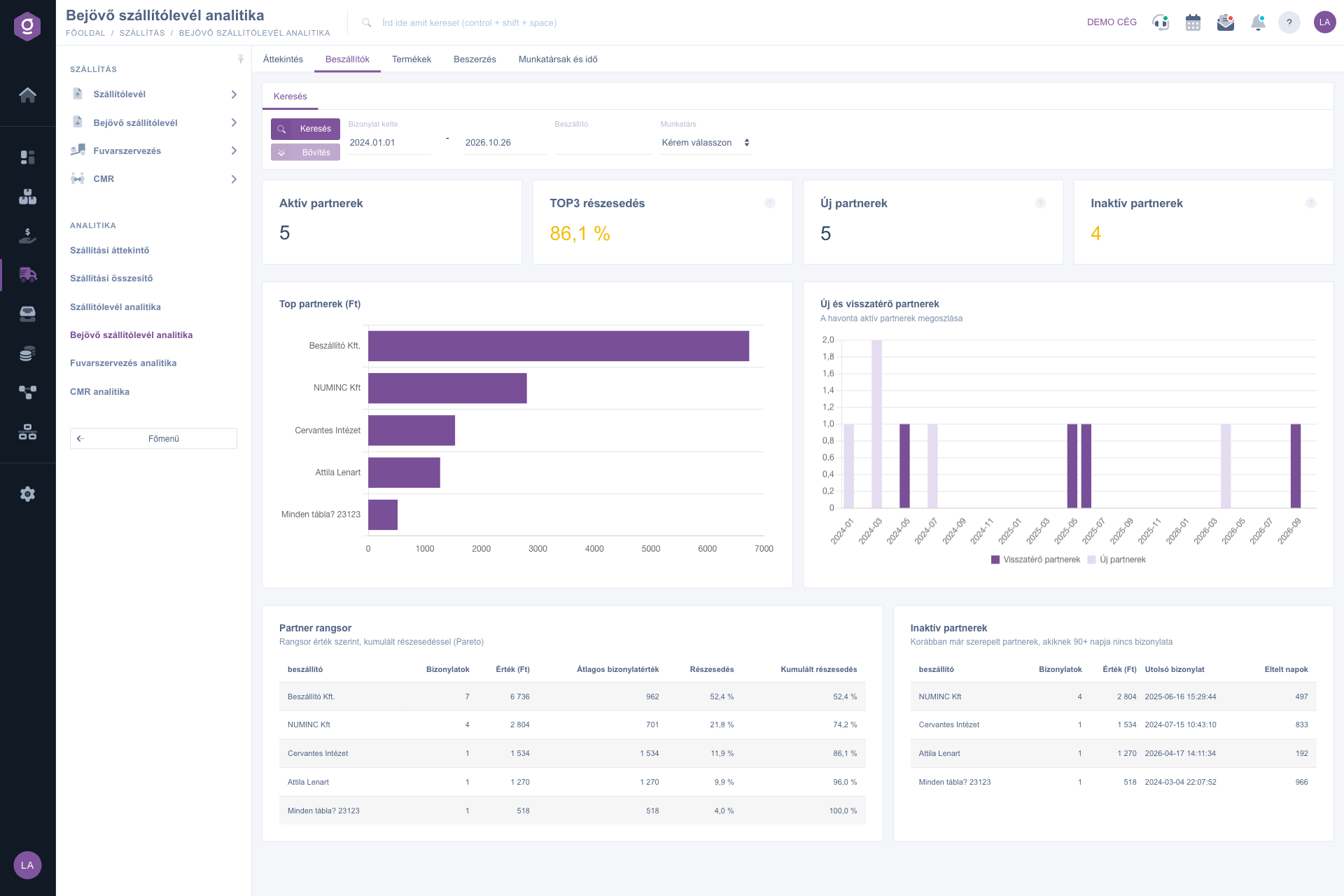
Incoming delivery note analytics – Suppliers tab (Beszállítók)

4. Products

The Top products chart and table rank the received products by value (with quantity and weight), the Product category split shows the value of the categories, and the Split by warehouse shows to which warehouse the goods arrived.
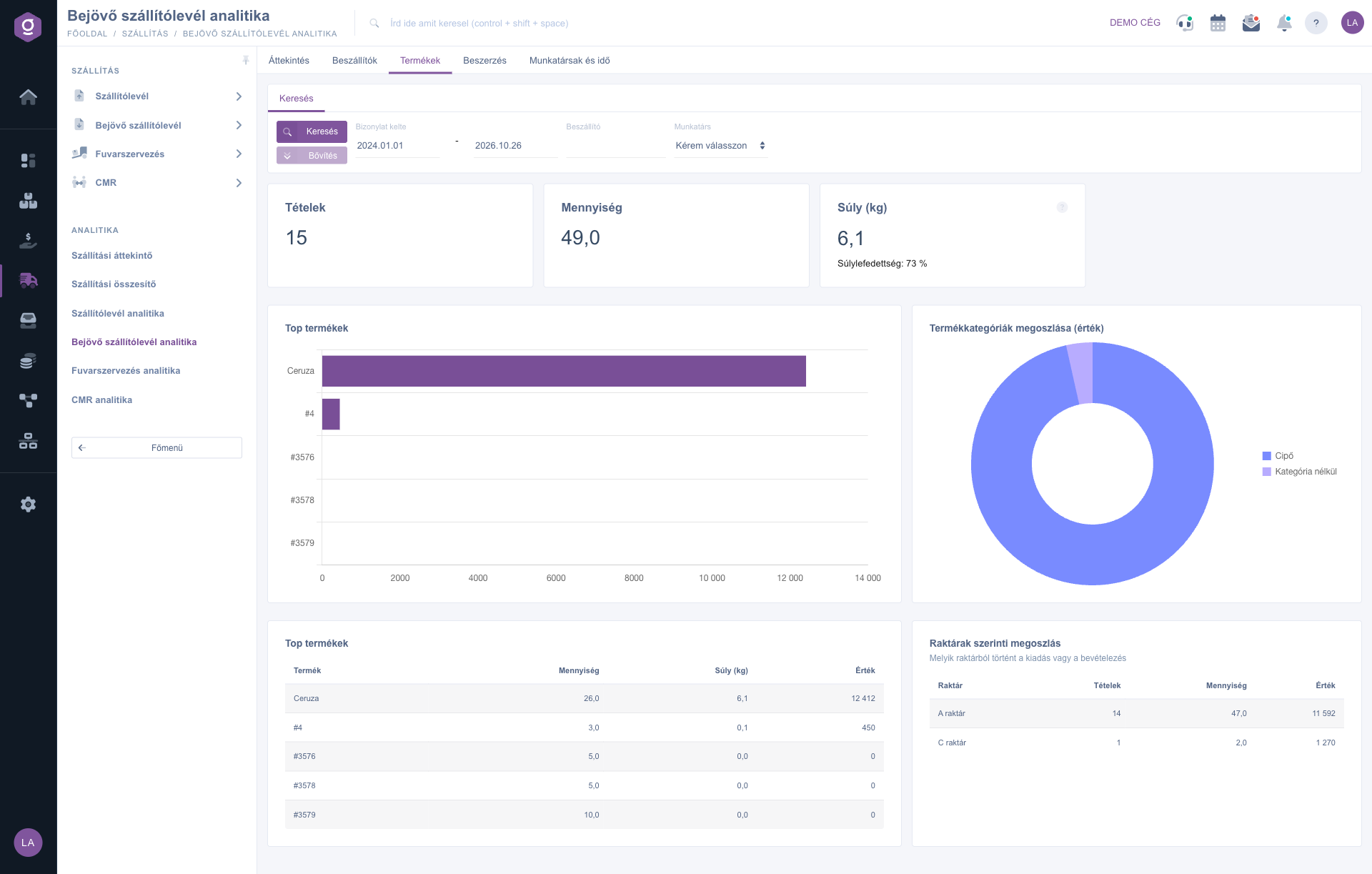
Incoming delivery note analytics – Products tab (Termékek)

5. Purchasing

The Ratio of linked documents shows for what percentage of the receipts a Supplier order, Goods receipt, Incoming invoice and Warehouse receipt exists in the same business process. The Lead times table gives the days between the steps with average and median. The Receipts waiting for the supplier invoice are the closed incoming delivery notes that have no incoming invoice yet, in an aging split and with the list of the oldest ones. The Purchase price change monitor compares the received unit price with the average purchase price of the product: the Change column shows the difference in percent, the Extra cost shows it in the currency of the document (a positive number means a price increase). The monitor appears only for products whose average purchase price is known.
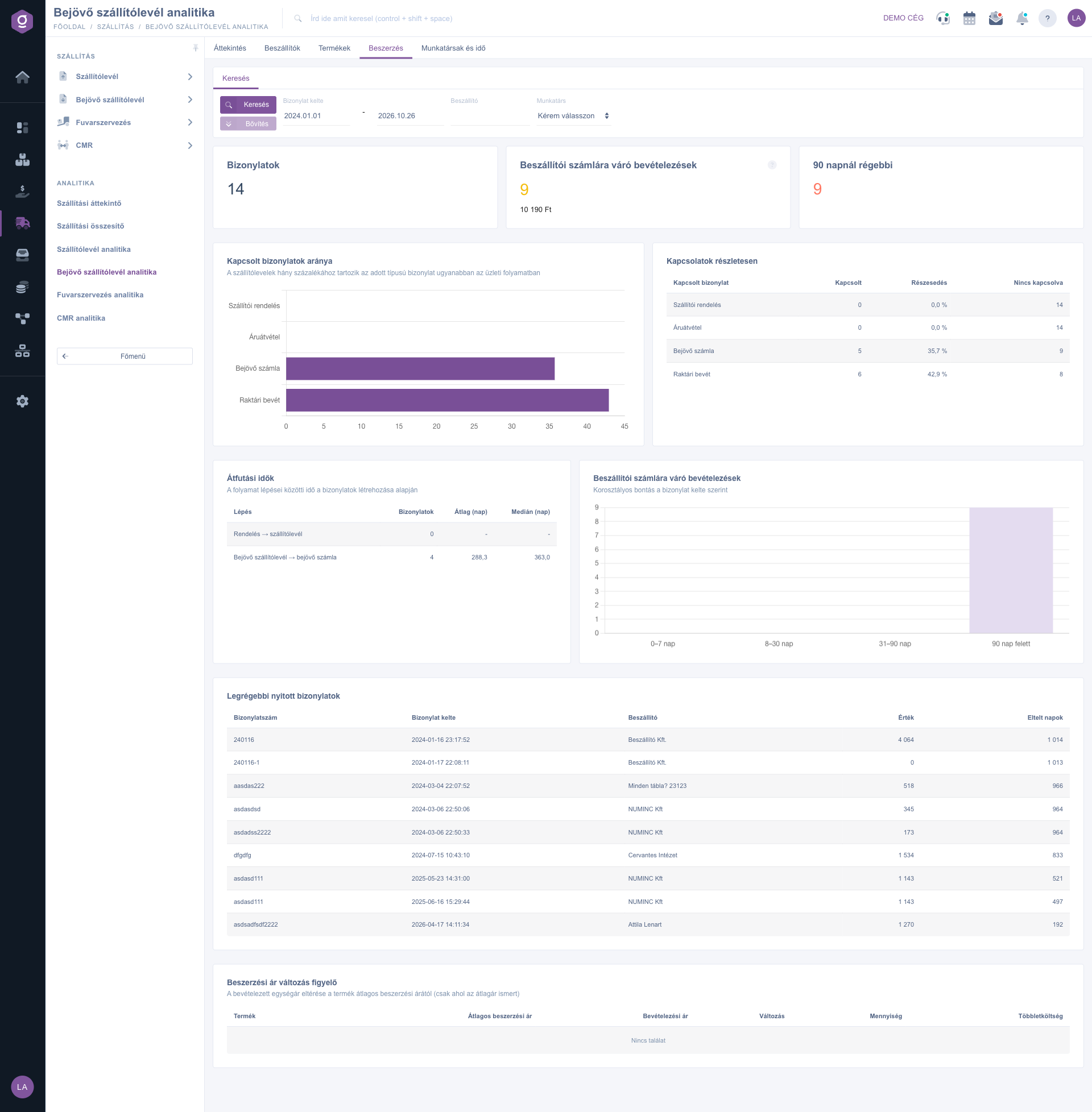
Incoming delivery note analytics – Purchasing tab (Beszerzés)

6. Colleagues and time

The Creation time (weekday x hour) heatmap shows when the receipts are created, the colleague table gives the number, value and average value of documents, and the job number and department tables split the data by internal cost centres. Where nothing is set, the row goes to Unknown.
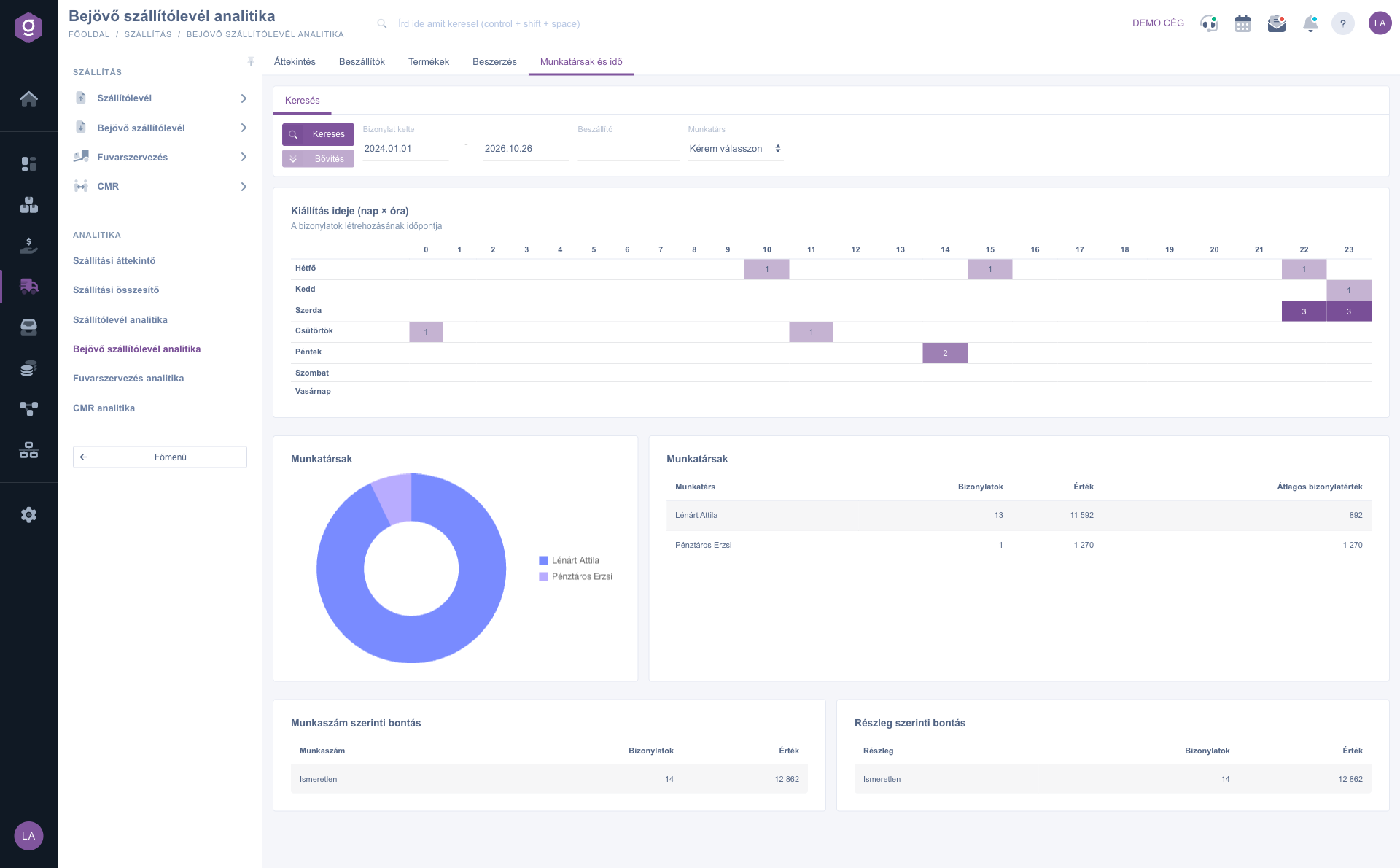
Incoming delivery note analytics – Colleagues and time tab (Munkatársak és idő)

Tip


Before a purchasing negotiation open the Purchasing tab: if the monitor shows that a product is 8 % more expensive than its average purchase price, the Extra cost column immediately tells you what a better deal is worth with the quantity of the last year.


You can read about managing goods receipts in the Incoming delivery note list guide, and the whole logistics picture is given by the Logistics overview.

Field reference

The elements of the Search tab and their meaning:

Field / ElementRequiredDescription
Document date (from – to)The date of issuing the incoming delivery note. By default 1 January of the current year and today.
SupplierA part of the company name of the supplier. Left empty, all suppliers are shown.
EmployeeThe colleague who issued the document. The Please choose row means all colleagues.
Search buttonReloads the active tab with the given filters.

The meaning of the main indicators:

IndicatorWhat it showsHow it is calculated
ValueThe gross value of the receipts.The amount of the document in the default currency, converted with the exchange rate of the document.
Deleted ratioThe ratio of deleted documents.Deleted / (deleted + valid + cancellation + draft) in the period.
TOP3 shareThe share of the three biggest suppliers.The value of the first three suppliers as a percentage of the total value.
Receipts waiting for the supplier invoiceClosed receipts without an invoice.Closed status, and no incoming invoice in the process.
ChangeThe difference of the received price from the average purchase price.(average received price – average purchase price) / average purchase price, in percent.

Frequently asked questions

The menu item appears if both the Shipping summary module and the Incoming delivery note module are assigned to you. If one of them is missing, ask your administrator to check your module assignment.

The monitor examines only the items for which the system knows the average purchase price of the product and which differ from the received price. If every item arrived exactly at the average price, or there is no average purchase price yet, the list is empty. This is not an error.

A deleted document is not traffic, so it is included neither in the value nor in the number; only the Deleted ratio shows it. If the ratio is high, many test documents or wrongly started receipts were probably created. Look at the split by colleague on the Colleagues and time tab, and teach them to cancel or finalize the wrong document.

The system pairs the incoming invoice with the receipt through the link of the business process. If you recorded the invoice independently of the receipt, without a link, the system cannot see the connection. On the Ratio of linked documents chart you can check for what percentage of the receipts an incoming invoice exists.

Need personalized help?

Don't want to spend hours searching for a solution? Choose the most efficient way: book a personalized, 45-minute online training session dedicated entirely to you. Whether it's a walkthrough of the basics or a detailed setup of a specific module, our expert colleague will guide you through the whole process, step by step.

Don't waste your time - ask for help!
Our goal is to get you using our system as quickly and efficiently as possible. Whether you're completely new to us or stuck on a specific setting, don't hesitate to ask for help!

Logzi warehouse management software

Get in touch with us

Interested in our software? Feel free to write to us!

Need help?

If you can't find the answer and need assistance

Create your account now,
pay later!

Try it free for 3 days, no risk, no obligation!
