With worksheet states you track where a worksheet currently stands in the workflow (for example Received, In progress, Waiting for parts, Done). You select the state in a separate field on the worksheet, and in the worksheet list you can filter by several states at once.
The state of a worksheet is independent of the document status (for example open or closed): the state is a freely selectable, informative piece of data that does not restrict editing or closing the worksheet.
Click Main menu / Settings / System settings / Worksheet state. Above the list you will find the New, Open and Delete buttons. The table columns are ID, Sort order and Name. The screenshots were taken in the Hungarian interface.
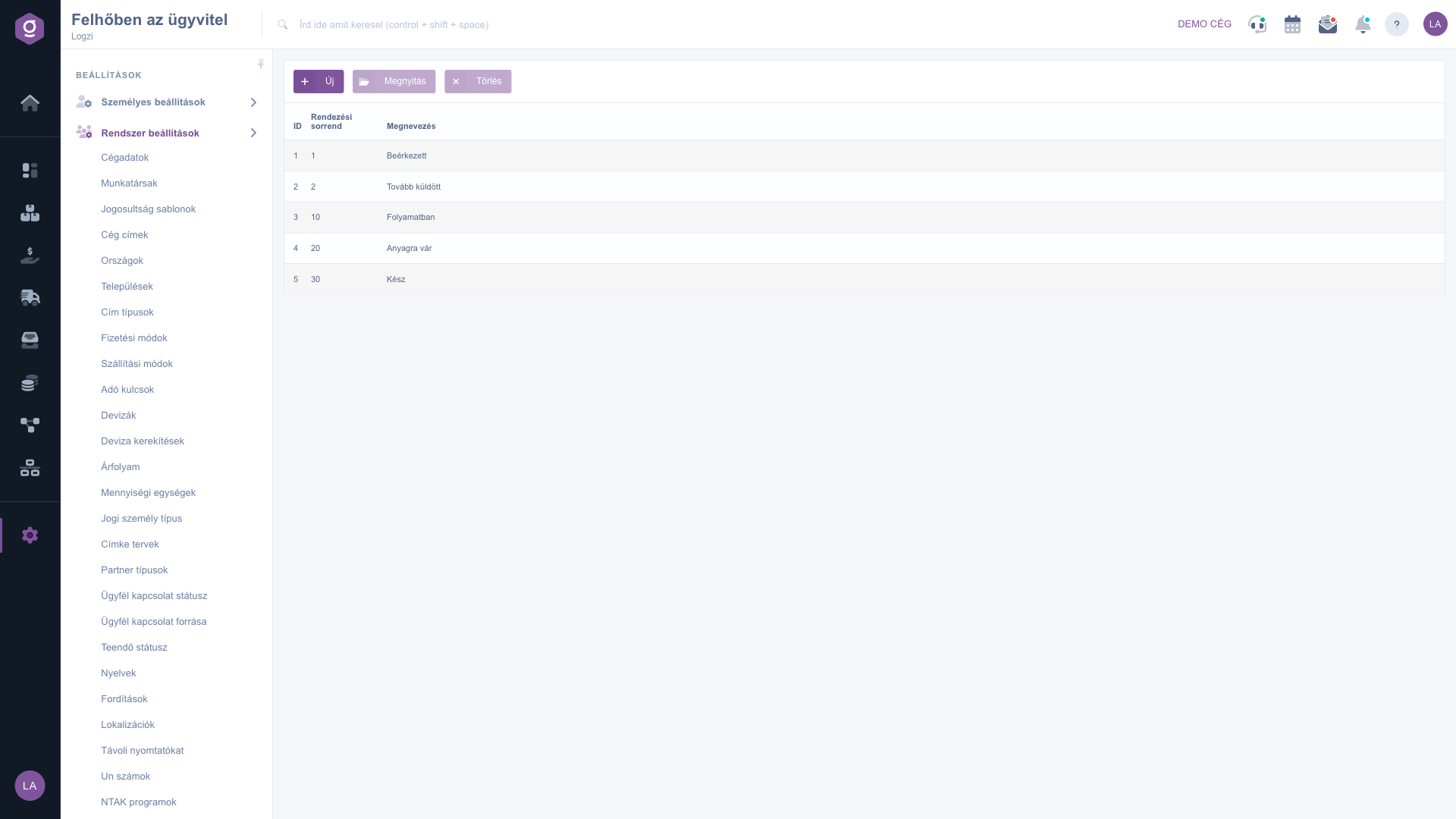
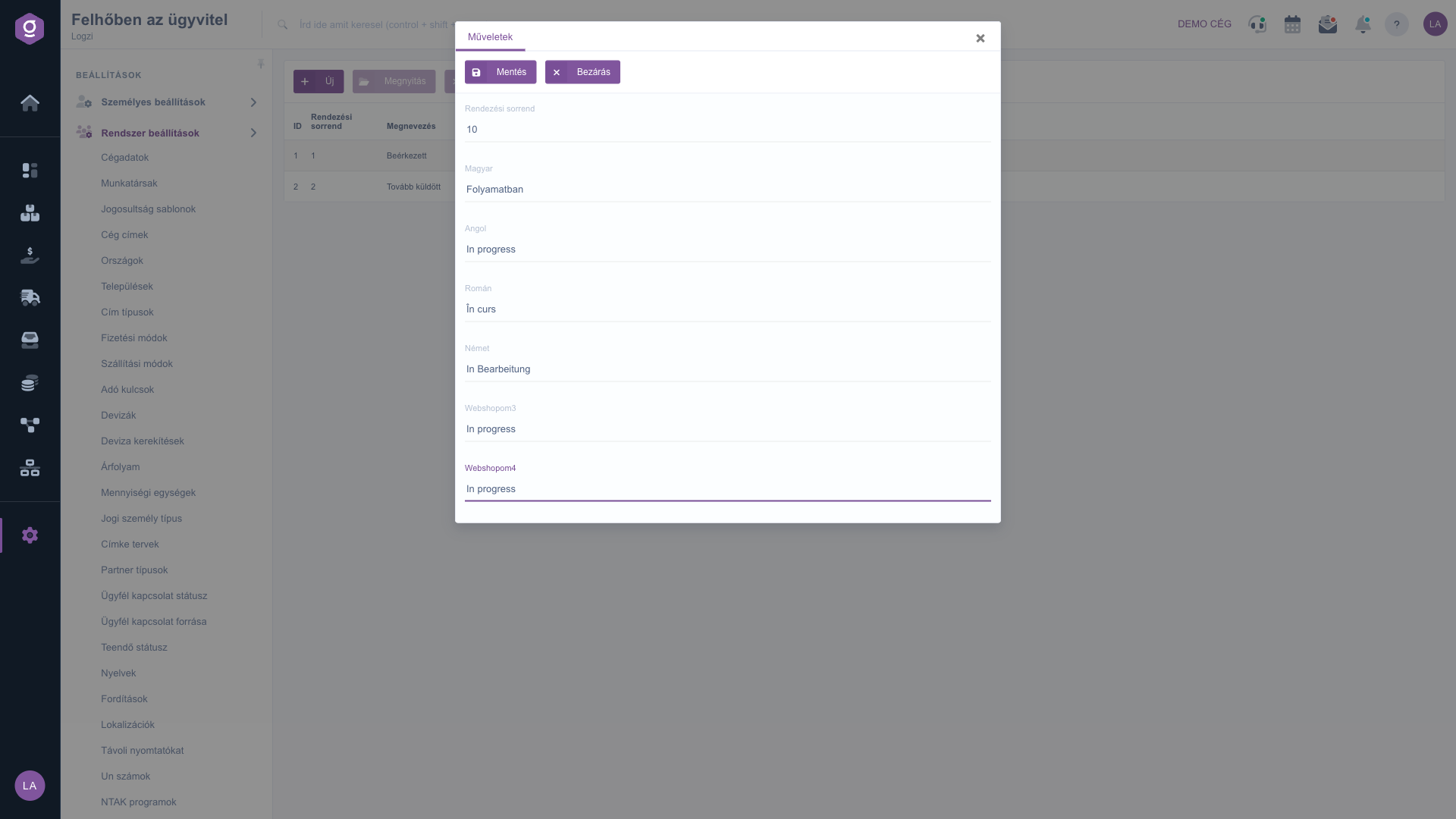
Click New, or select a row and click Open. On the Actions tab enter the Sort order, then the name of the state in a separate field for each displayed language, at least 2 characters long. Use Save to save, or Close to close the window without saving.
Select the row you want to delete, click Delete and confirm the action. A deleted state can no longer be selected on worksheets.
On the worksheet document you will find the Worksheet state field below the dates. Click the + button next to the field to open this page in a new browser tab, so you can add a new state while you work — afterwards reload the worksheet page so that it appears in the selection list. In the worksheet list, on the Search tab you can filter by several states at once with the Worksheet state field, and in the Columns settings you can switch on the Worksheet state column in the table.
Enter the sort order in steps of ten (10, 20, 30), so you can later insert a new state between two existing ones — for example 15 between In progress and Waiting for parts — without having to renumber everything.

The following fields are available when editing a state.
| Field | Required | Description |
|---|---|---|
| Sort order | A whole number. The smaller it is, the earlier the state appears in the list and in the selection fields. If you leave it empty, it becomes 0. | |
| Name (per language) | The name of the state in each displayed language, at least 2 characters per language. |
The document status (for example open or closed) is managed by the system and determines what you can change on the worksheet. The state, on the other hand, is your own freely defined category for tracking the workflow, and it does not restrict editing the worksheet.
No, the field can be left empty. If you do not select a state for a worksheet, the Worksheet state column stays empty in the list.
The worksheet page loads the list of states when it is opened. If you added the state in the new browser tab opened with the + button, reload the worksheet page. Also check that you filled in the name in the current interface language too, because only states named in that language are shown.
The worksheets are kept. A deleted state can no longer be selected, so if you open a worksheet that had this state, the Worksheet state field appears empty, and when you save the worksheet the state is removed from it as well. Select another state instead.
The menu item only appears if the system settings module is assigned to your user. Ask the administrator to check your permissions.
Don't want to spend hours searching for a solution? Choose the most efficient way: book a personalized, 45-minute online training session dedicated entirely to you. Whether it's a walkthrough of the basics or a detailed setup of a specific module, our expert colleague will guide you through the whole process, step by step.
Don't waste your time - ask for help!
Our goal is to get you using our system as quickly and efficiently as possible. Whether you're completely new to us or stuck on a specific setting, don't hesitate to ask for help!
Create your account now,
pay later!

