Worksheet priority

Here you manage the worksheet priorities with which you show how urgent a worksheet is. For each priority you can enter its name in all displayed languages, its color and its sort order.

Function overview

With worksheet priorities you show how urgent a worksheet is (for example Low, Normal, Urgent). You select the priority in a separate field on the worksheet, you see it as a colored badge in the worksheet list, and you can filter by several priorities at once.

  • Name: the name of the priority, which can be entered in every displayed language.
  • Color: the color of the priority badge in the worksheet list, which can be set with a color picker or with a code in #RRGGBB format.
  • Sort order: defines the order in which the priorities appear in the list and in the selection fields.
  • ID: the identifier of the priority, which the list shows automatically.
  • Freely expandable: you can add as many priorities as you need, there are no predefined priorities.

The priority is informative data: it does not restrict editing or closing the worksheet, nor the document status.

Step by step

1. Opening the page

Click Main menu / Settings / System settings / Worksheet priority. Above the list you will find the New, Open and Delete buttons. The table columns are ID, Sort order, Name and Color (the code highlighted with the selected color). The screenshots were taken in the Hungarian interface.
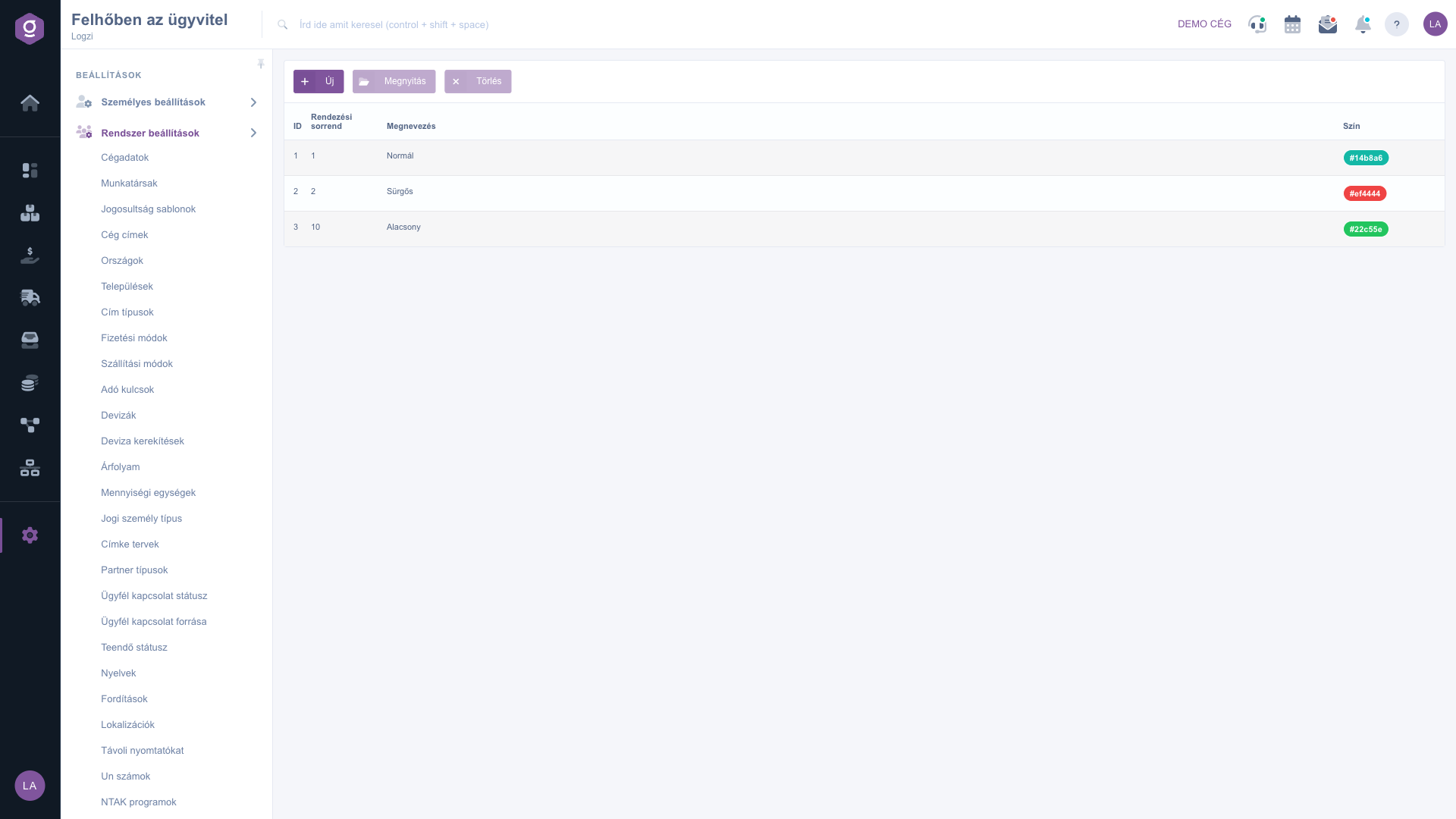
List of worksheet priorities

2. Adding or editing a priority

Click New, or select a row and click Open. On the Actions tab enter the Sort order, choose the Color, then enter the name of the priority in a separate field for each displayed language, at least 2 characters long. Use Save to save, or Close to close the window without saving.

You have three ways to choose the color:

  • Color palette: click one of the colored squares to set that color immediately — this is the fastest way.
  • Color picker: click the colored field below the palette to pick any custom shade.
  • Color code: in the field next to it you can type a code in #RRGGBB format directly (for example #ef4444) if you want to use an exact company color.

Use the × button next to the color code to remove the color. The small badge in the window shows live how the priority will look in the worksheet list.
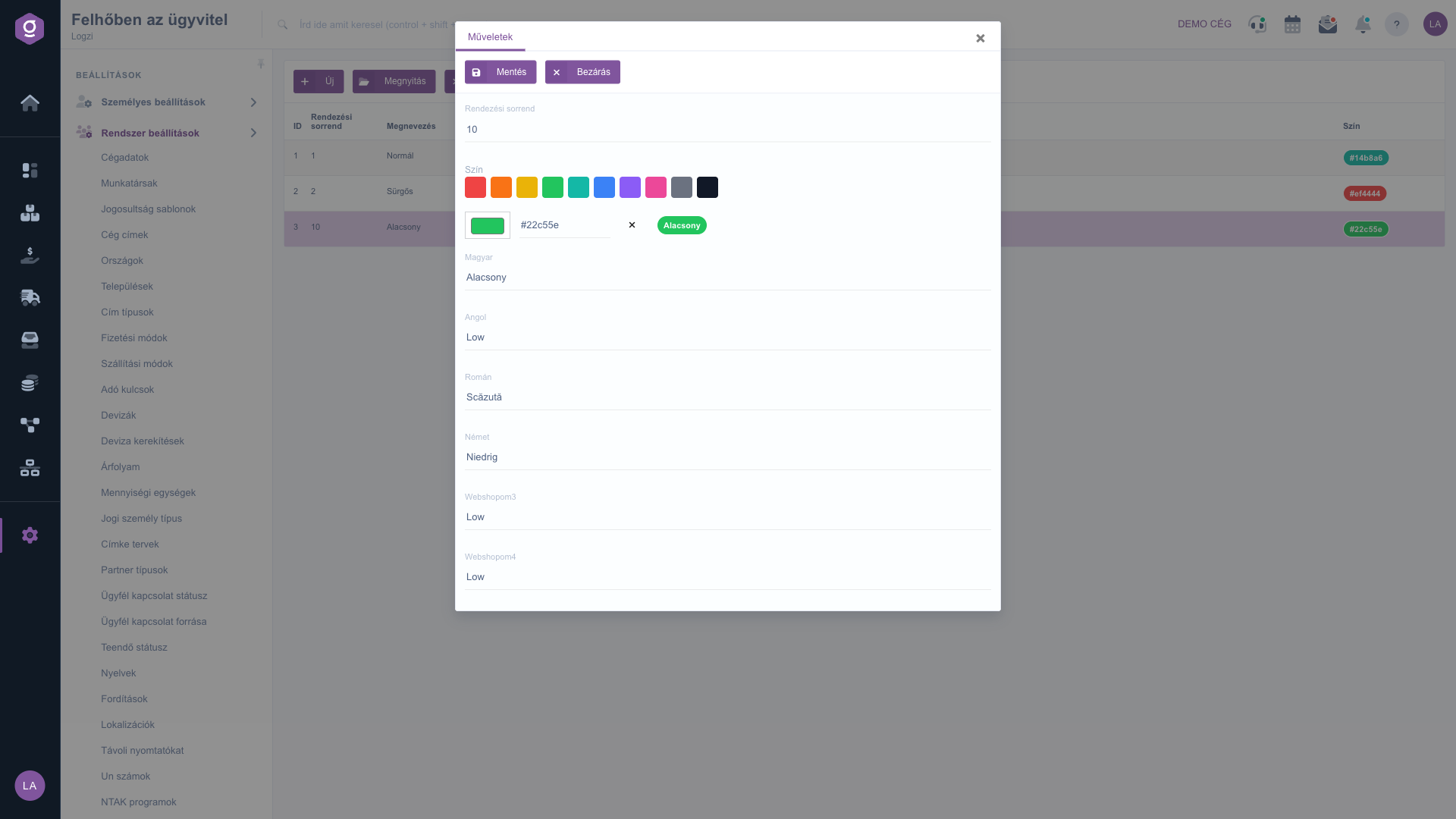
The worksheet priority editing window with the color picker

3. Deleting a priority

Select the row you want to delete, click Delete and confirm the action. A deleted priority can no longer be selected on worksheets.

4. Using the priority on a worksheet

On the worksheet document you will find the Worksheet priority field below the Worksheet state field. Click the + button next to the field to open this page in a new browser tab, so you can add a new priority while you work — afterwards reload the worksheet page so that it appears in the selection list. In the worksheet list, on the Search tab you can filter by several priorities at once with the Worksheet priority field, and in the Columns settings you can switch on the Worksheet priority column: there the priority appears as a badge in the selected color, and the text color of the badge adjusts automatically so that it stays readable on both light and dark backgrounds.

You can read about filling in a worksheet in detail in the Worksheet document guide, and about the list in the Worksheet list guide.

Tip


Use traffic-light coloring: green for Low, yellow for Normal, red for Urgent. This way you spot at a glance in the worksheet list which worksheet to deal with first. Enter the sort order in steps of ten (10, 20, 30), so you can later insert a new priority between two existing ones.


Field descriptions

The following fields are available when editing a priority.

FieldRequiredDescription
Sort orderA whole number. The smaller it is, the earlier the priority appears in the list and in the selection fields. If you leave it empty, it becomes 0.
ColorThe color of the priority badge in #RRGGBB format. You can choose it from the palette or the color picker, or type it in by hand. If you leave it empty, a gray badge appears in the worksheet list.
Name (per language)The name of the priority in each displayed language, at least 2 characters per language.

Frequently asked questions

No. If you do not set a color, the priority appears as a gray badge in the worksheet list. For a better overview it is worth choosing a separate color for each priority.

Yes. With the color picker you can choose any shade, or you can type the desired color directly into the color code field in #RRGGBB format (for example #14b8a6). The system only accepts a six-digit code starting with a hash sign; with any other format the color is not saved.

The worksheet page loads the list of priorities when it is opened. If you added the priority in the new browser tab opened with the + button, reload the worksheet page. Also check that you filled in the name in the current interface language too, because only priorities named in that language are shown.

The worksheets are kept. A deleted priority can no longer be selected, so if you open a worksheet that had this priority, the Worksheet priority field appears empty, and when you save the worksheet the priority is removed from it as well. Select another priority instead.

The menu item only appears if the system settings module is assigned to your user. Ask the administrator to check your permissions.

Need personalized help?

Don't want to spend hours searching for a solution? Choose the most efficient way: book a personalized, 45-minute online training session dedicated entirely to you. Whether it's a walkthrough of the basics or a detailed setup of a specific module, our expert colleague will guide you through the whole process, step by step.

Don't waste your time - ask for help!
Our goal is to get you using our system as quickly and efficiently as possible. Whether you're completely new to us or stuck on a specific setting, don't hesitate to ask for help!

Logzi warehouse management software

Get in touch with us

Interested in our software? Feel free to write to us!

Need help?

If you can't find the answer and need assistance

Create your account now,
pay later!

Try it free for 3 days, no risk, no obligation!
