1. Adding a new scheduled rule
Click Main menu / Settings / Automatic rules, then the New button. On the Actions tab of the window, choose the Időszakos szabály futtatása type (scheduled rule) from the Type list. The screenshots are taken from the Hungarian demo interface.
2. Setting the task and the schedule
On the Settings tab, choose the Termék feed letöltés task (product feed download) from the Defined task list. In the CRON rule field enter the schedule, or click a quick button (for example Every 4 hours). Below the field the system shows in plain text when the rule will run.
3. Choosing the product feed source
After you choose the Termék feed letöltés task, the Product feed source list appears. You can choose between two options:
- All feeds in order: choose this if the rule should process every feed source one after the other. Pick it when a single schedule is enough for all feeds.
- One feed source: choose this if you want to schedule only that feed (for example the supplier whose stock changes quickly). Pick it when the feeds should be updated at different times or with different frequency.
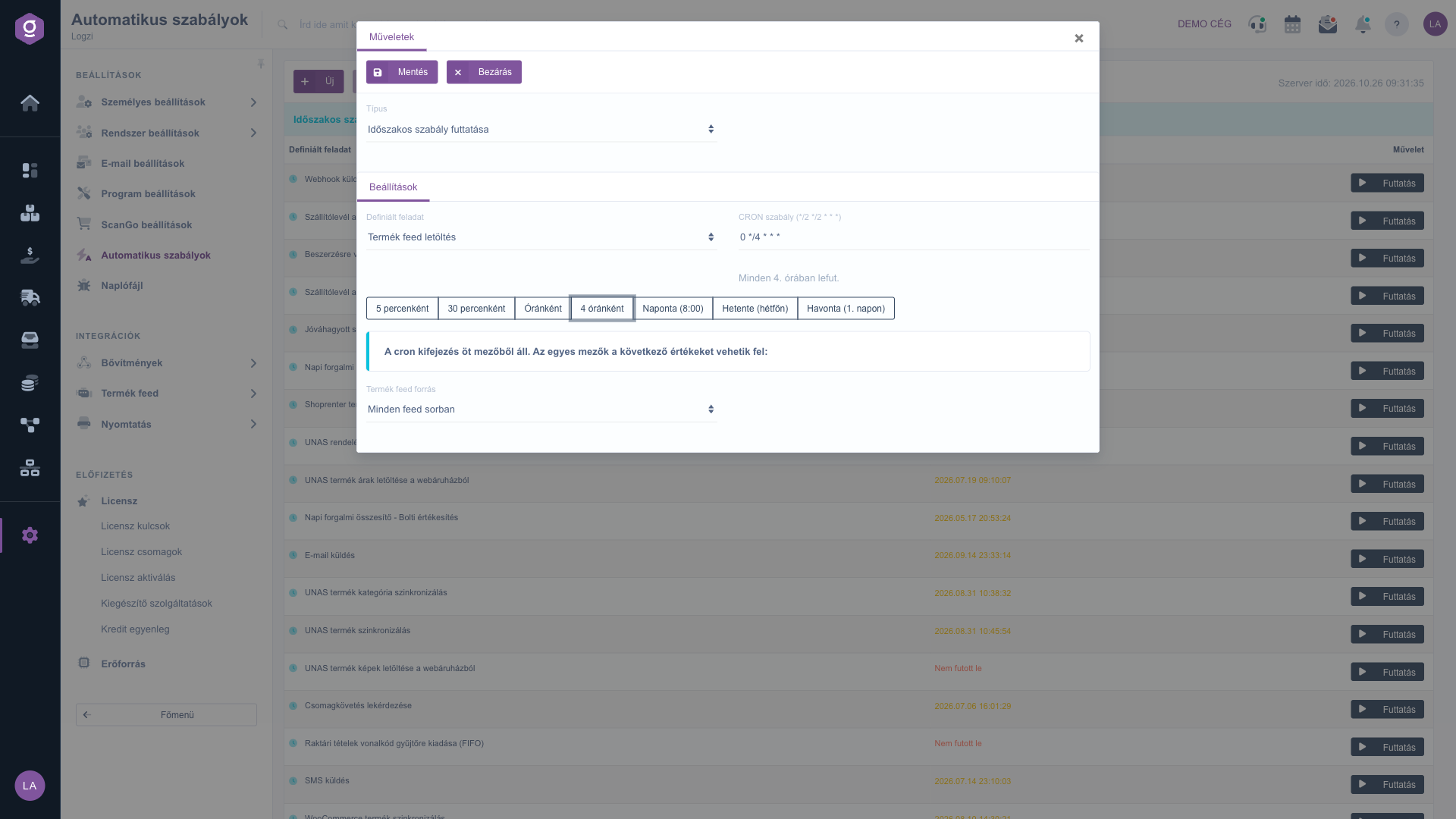
Product feed download rule: All feeds in order (Minden feed sorban)
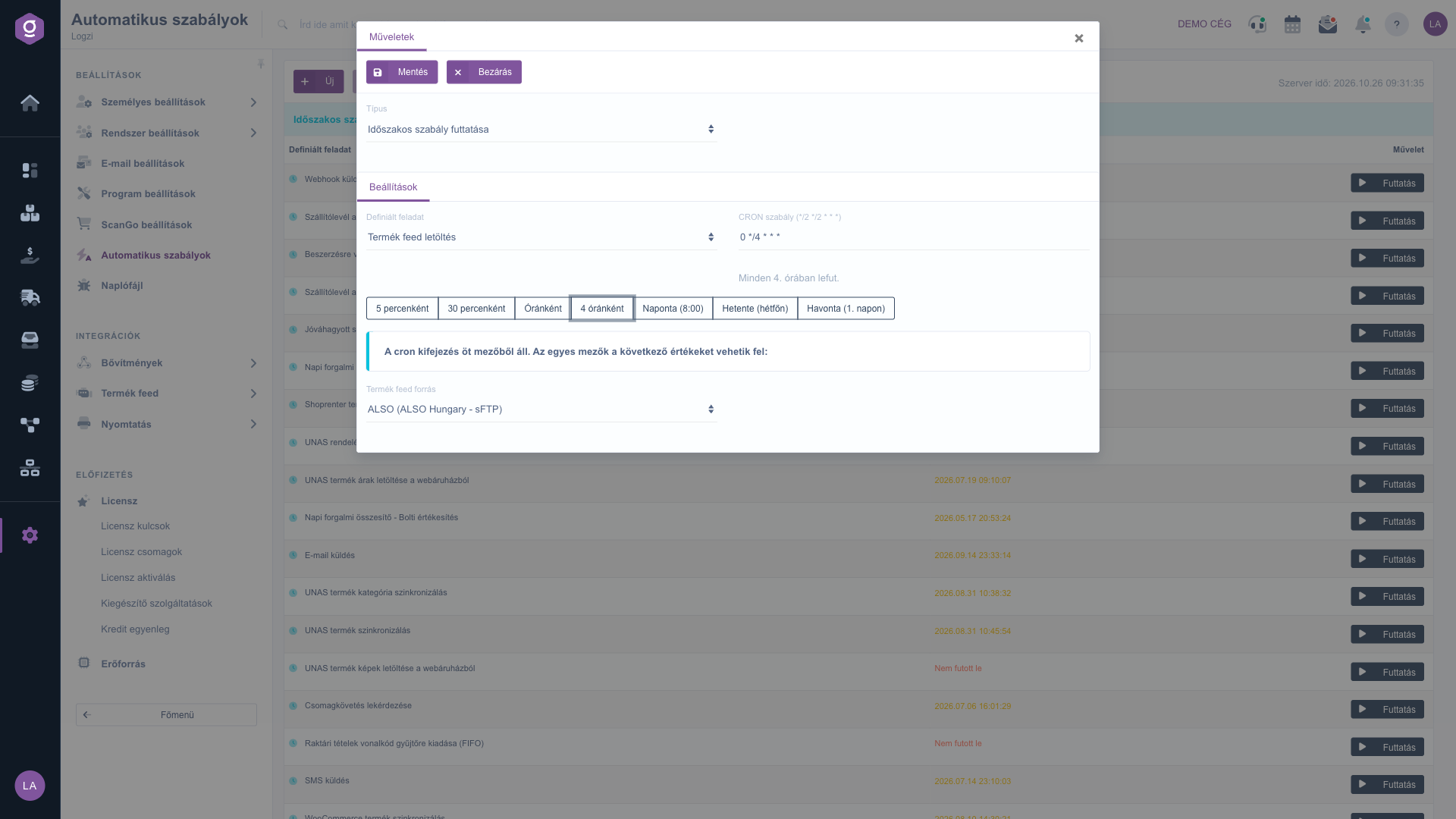
Product feed download rule with one specific feed source
Use Save to store the rule. If you cannot find the feed source in the list, first create it under Main menu / Integrations / Product feed / Install new feed.
4. Several feeds with separate schedules
You can add any number of rules for the same task, each with a different feed source and a different CRON rule. For example, one rule can download the ALSO feed with the 0 */4 * * * schedule (every 4 hours), and another one the Crocs feed with 0 8 * * * (daily at 8:00 AM).
Tip
Put a large, long-running feed into a separate rule with a night-time schedule (for example 0 2 * * *), and a feed with fast-changing stock into another rule that runs every hour. This way the heavy feed does not hold up the update of the other feeds, because the All feeds in order option processes the feeds one after the other.
5. The rules in the list and manual run
In the list of the Automatic rules, the Defined task column of a scheduled rule shows the name of the selected feed source next to the task name (for example Termék feed letöltés - ALSO). If the rule processes all feeds, only the task name is shown. With the Run button at the end of the row you can start the rule immediately, independently of the schedule: in this case too only the selected feed source runs (or all of them if All feeds in order is set).
6. Editing an existing rule
Click the row of the rule, then Open. In the Product feed source list you can change the source, or switch back to All feeds in order, then store it with Save. If you choose another task in the Defined task list, the feed source setting is not kept on the rule.



