Automatic rules

Learn how to set up automatic rules in Logzi: document creation, printing, stock check, webhook, webshop status change and scheduled (CRON) tasks.

Function overview

On the Automatic rules page you set up rules that Logzi carries out without human intervention: it creates a document, prints, checks the stock, sends a webhook, or runs a task on a schedule.

  • Event-driven rules: they apply when a document is closed, saved or deleted (for example, an invoice is created automatically when an order is closed).
  • Scheduled rules: they run according to a CRON schedule (for example, sending e-mails hourly or a daily synchronization).
  • Webshop rules: actions tied to a status change in the external webshop.

Step by step

1. Opening the page

Click Main menu / Settings / Automatic rules. At the top you see the New, Open and Delete buttons, and on the right the Server time. The rules are grouped by type under a colored header; the table columns are Defined task, Last call time and Action. For scheduled rules the date of the last call is shown (or Not run yet), for event-driven rules the text Continuous. The screenshots were taken in the Hungarian interface; the rule type names are shown in Hungarian in every language, so they are given here with an English explanation.
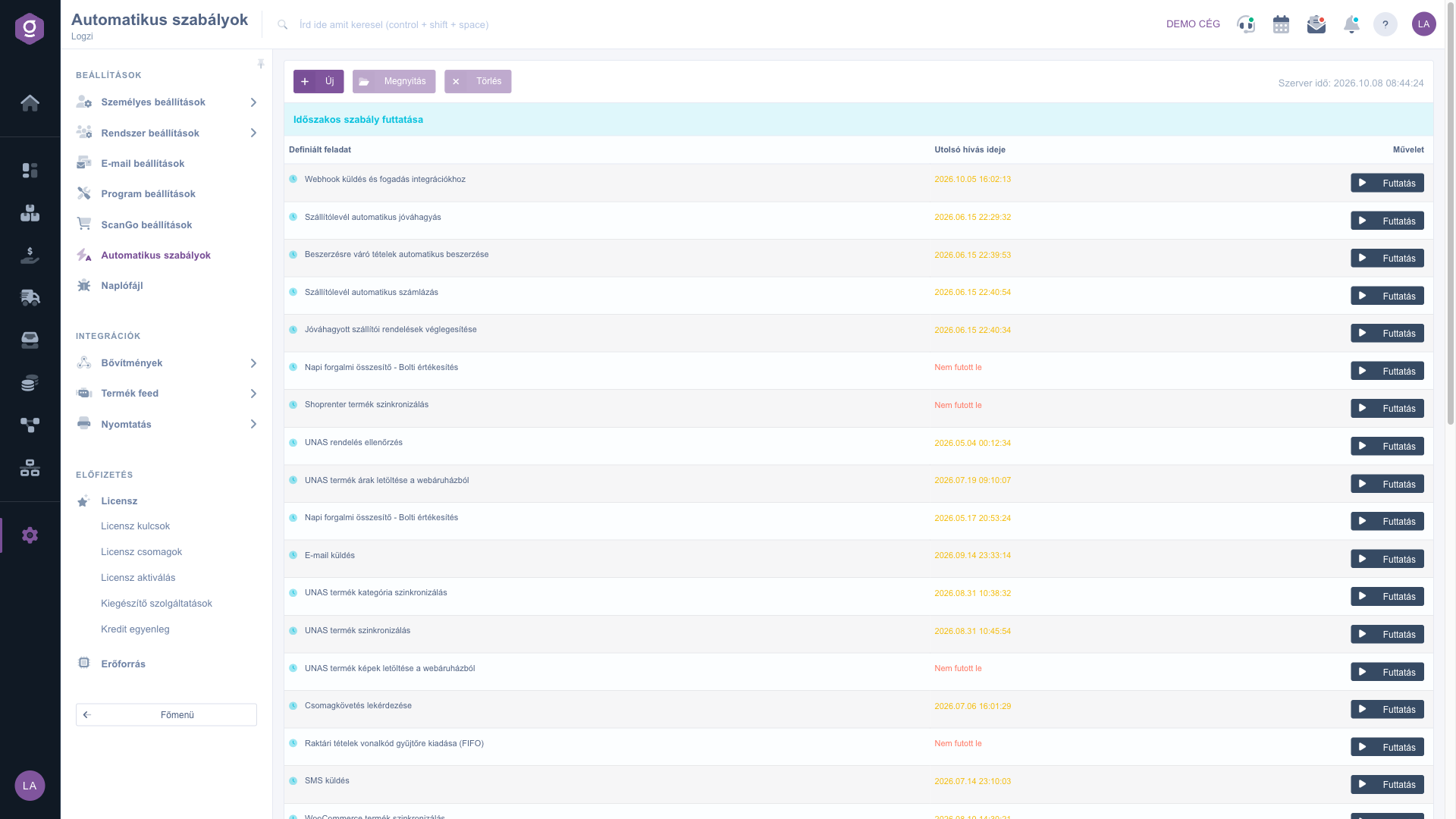
The Automatic rules list grouped by type

2. Adding a new rule

Click New. In the window, the Actions tab contains the Save and Close buttons, and below them the Type list. Choose the type of the rule, then on the Settings tab enter the settings belonging to that type. Use Save to store the rule. To edit an existing rule, click its row (it gets selected) and then Open; to remove it, click Delete.

3. Document creation on close or delete

For the Automatikus bizonylat készítés - Lezárás műveletre (automatic document creation on close) and Törlés műveletre (on delete) types, in the Source list you choose the document type whose closing (or deletion) triggers the rule, and in the Destination list the document that the system creates automatically. The available destinations depend on the source: for example an Order source can create an Invoice, Outgoing, Goods issue or Stock reservation. With Close destination document set to Yes, the created document is closed immediately. In the Hungarian interface the labels are Forrás bizonylat, Cél bizonylat and Cél bizonylat lezárás.
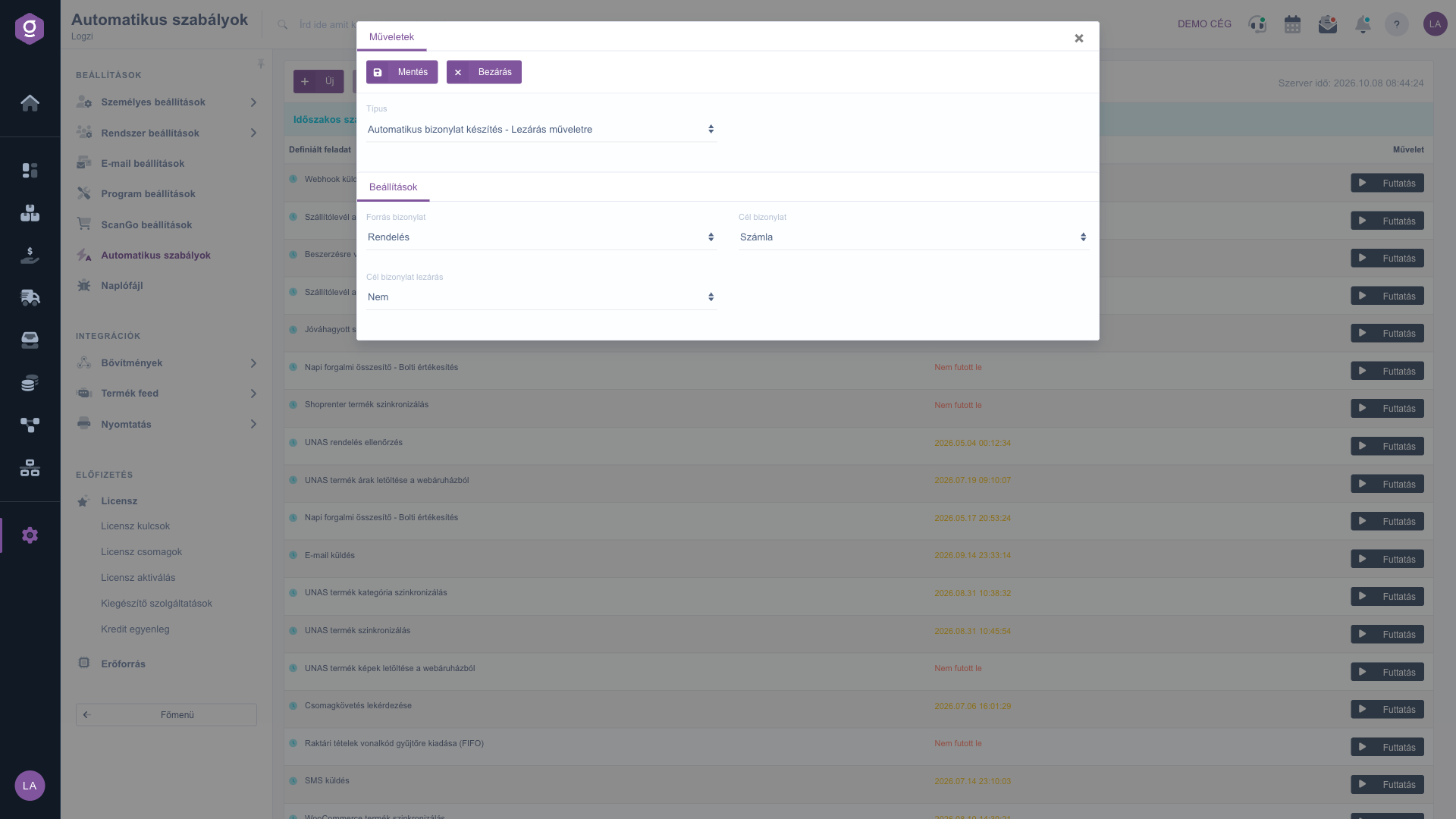
Automatic document creation rule: Invoice from Order

4. Automatic printing and parcel label

For the Automatikus nyomtatás - Lezárás műveletre and Törlés műveletre types (automatic printing on close or delete), choose the Document type and the Printer, and the document is printed automatically. For Automatikus nyomtatás - Csomagcímke (parcel label printing) only the Printer is needed. For Automatikus csomagcímke készítés - Lezárás műveletre (automatic parcel label creation) you also set the Type, the Partner, the Partner shipping type and the External webshop status. For a remote printer, follow the information text shown on the page.

5. Stock check

For the Készlet ellenőrzés - Lezárás műveletre type (stock check on close), after choosing the Document type you switch the checks on with No/Yes: Physical stock cannot be negative, Location code stock cannot be negative, Available stock check, Cannot be less than the minimum stock and Cannot be more than the maximum stock. The document can then be closed only if the conditions are met.

6. Sending a webhook

For the Webhook - Mentés műveletre, Lezárás műveletre and Törlés műveletre types (webhook on save, close, delete) you fill in the Document type, the Webhook URL and the Webhook header (1 key:value per line). When the event occurs, Logzi sends the data to the given address.

7. Webshop status change

For the Külső webshop státuszváltás type (external webshop status change), the External webshop status and the Type define which action runs when the webshop status of an order changes. For the Külső webshop státuszváltás (inverz) type, the status change triggers an action in Logzi on the order: closing it, deleting it or setting its payment status to successful.

8. Scheduled rule (CRON)

For the Időszakos szabály futtatása type (scheduled rule), you pick the scheduled task from the Defined task list (for example E-mail sending, webshop synchronization, creating recurring invoices, bank synchronization, parcel tracking) and set the timing in the CRON rule field. Below the field the system shows in plain text when it will run, and the quick buttons give ready-made schedules: Every 5 minutes, Every 30 minutes, Every hour, Every 4 hours, Daily (8:00 AM), Weekly (on Monday), Monthly (on the 1st). The help explains the five CRON fields (minute 0-59, hour 0-23, day of month 1-31, month 1-12, day of week 0-6); for example 0 * * * * runs hourly and */2 */2 * * * every two hours, every two minutes. Some tasks (such as issuing stock items to a barcode collector) show additional task-specific settings.
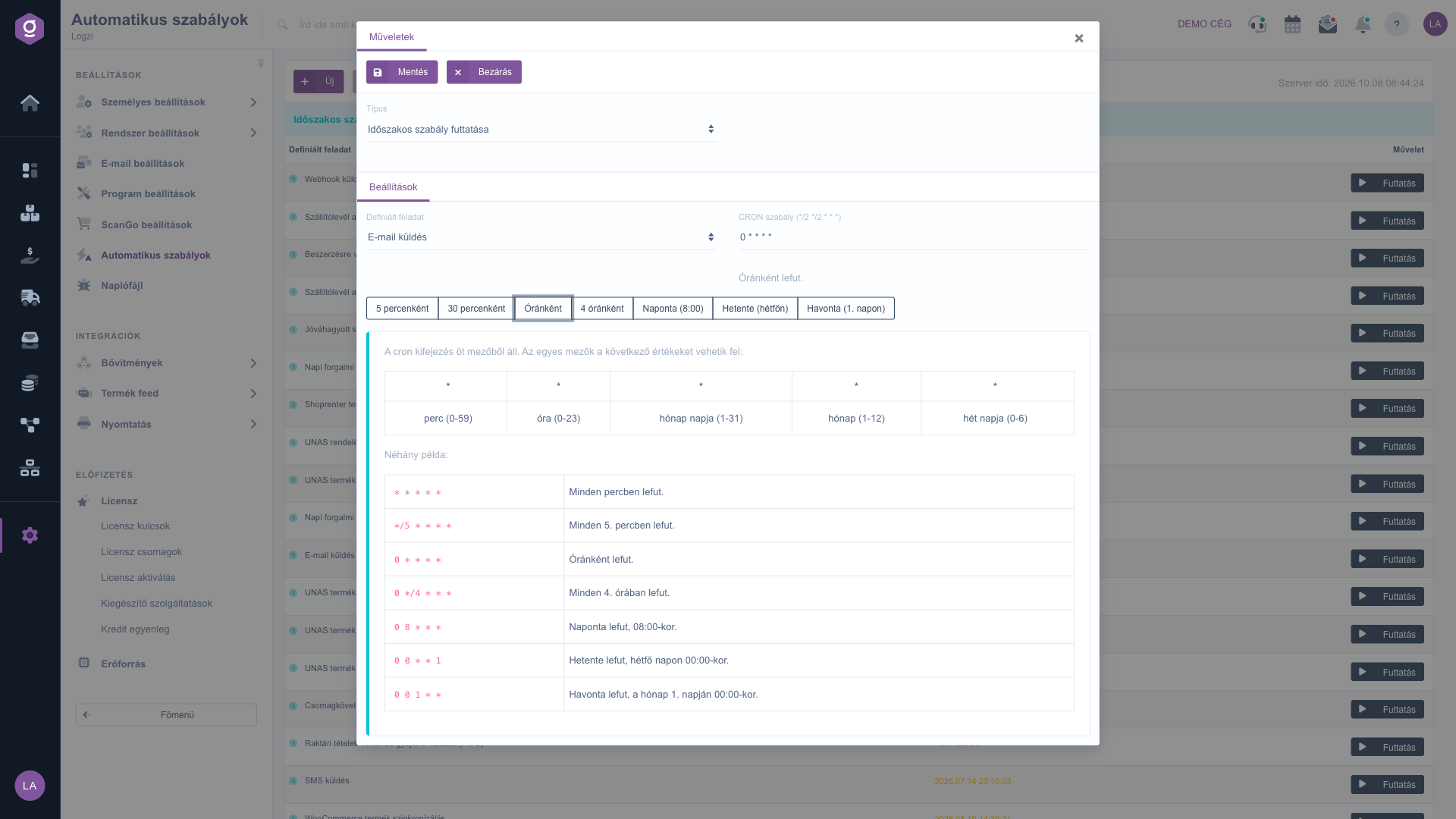
Scheduled rule with CRON timing and quick buttons

9. Running manually

With the Run button in the row of a scheduled rule you can start the task immediately, regardless of the schedule. For some tasks a window first asks for the Date, and the run starts with Save.

Tip


For a new scheduled rule, first set the timing with one of the quick buttons (for example Every hour) and try the task once with the Run button. If it works as expected, you can fine-tune the CRON rule afterwards.


Field description

The available rule types. The type names appear in Hungarian in every language.

Rule typeRequiredDescription
Automatikus bizonylat készítés - Lezárás műveletreWhen the source document is closed, the destination document is created automatically.
Automatikus bizonylat készítés - Törlés műveletreWhen the source document is deleted, the destination document is created automatically.
Automatikus csomagcímke készítés - Lezárás műveletreOn close, a parcel label is created with the given partner and shipping type.
Automatikus nyomtatás - CsomagcímkeThe created parcel label is printed on the selected printer.
Automatikus nyomtatás - Lezárás műveletreA document of the selected type is printed automatically on close.
Automatikus nyomtatás - Törlés műveletreA document of the selected type is printed automatically on delete.
Időszakos szabály futtatásaRuns a scheduled task according to a CRON rule.
Készlet ellenőrzés - Lezárás műveletreOn close, the system checks the stock conditions.
Külső webshop státuszváltásWhen the webshop status of an order changes, the selected action runs.
Külső webshop státuszváltás (inverz)The webshop status change closes, deletes or changes the payment status of the order.
Webhook - Mentés műveletreOn save, data is sent to the given webhook address.
Webhook - Lezárás műveletreOn close, data is sent to the given webhook address.
Webhook - Törlés műveletreOn delete, data is sent to the given webhook address.

The settings of the rules. The required fields depend on the type.

FieldRequiredDescription
TypeThe type of the rule; the content of the Settings tab depends on it.
SourceThe document type whose closing or deletion triggers the rule (Forrás bizonylat).
DestinationThe document created automatically; the available values depend on the source (Cél bizonylat).
Close destination documentNo or Yes: whether the created document is closed immediately (Cél bizonylat lezárás).
Document typeThe document type to which printing, stock check or webhook applies (Bizonylat típus).
PrinterThe target of the printing (Nyomtató).
Webhook URLThe address to which the data is sent.
Webhook header (1 key:value per line)Custom headers, one key:value pair per line.
External webshop statusThe webshop status the rule is linked to (Külső webshop státusz).
Defined taskThe task run by the scheduled rule (Definiált feladat).
CRON ruleThe timing of the run with five fields: minute, hour, day of month, month, day of week.
Physical stock cannot be negativeNo/Yes: physical stock must not drop below zero.
Location code stock cannot be negativeNo/Yes: stock on a location code must not drop below zero.
Available stock checkNo/Yes: checks the available stock.
Cannot be less than the minimum stockNo/Yes: stock must not fall below the product minimum stock.
Cannot be more than the maximum stockNo/Yes: stock must not exceed the product maximum stock.

Frequently asked questions

Event-driven rules do not run on a schedule but when the event (close, save, delete) happens, so they have no last run date. Only scheduled rules show a date or the text Not run yet.

The available destination documents depend on the selected source. If a combination is not in the list, the system cannot create that document automatically from that source.

For a scheduled rule click the Daily (8:00 AM) quick button, or type 0 8 * * * in the CRON rule field. The system shows below the field when it will run.

Yes, with the Run button in its row. For some tasks the system first asks for a Date.

The menu item is under Main menu / Settings. If you cannot see it, the required module or permission is probably not assigned to your user or subscription; ask your administrator to check the settings.

Need personalized help?

Don't want to spend hours searching for a solution? Choose the most efficient way: book a personalized, 45-minute online training session dedicated entirely to you. Whether it's a walkthrough of the basics or a detailed setup of a specific module, our expert colleague will guide you through the whole process, step by step.

Don't waste your time - ask for help!
Our goal is to get you using our system as quickly and efficiently as possible. Whether you're completely new to us or stuck on a specific setting, don't hesitate to ask for help!

Logzi warehouse management software

Get in touch with us

Interested in our software? Feel free to write to us!

Need help?

If you can't find the answer and need assistance

Create your account now,
pay later!

Try it free for 3 days, no risk, no obligation!
