Log file

Learn about the Log file page: here you can follow the errors and events recorded by the system and search them by keyword, content, type, integration and date.

Function overview

On the Log file page you see the error and event messages recorded by Logzi in chronological order, newest first. The list is meant for troubleshooting: if saving a document, an extension or a print job does not work as expected, you find the system message here.

  • List: creation date, type, status, key and content of every message.
  • Search: by keyword, content, type, integration and creation date.
  • Pagination: 10 messages are shown per page.

Step by step

1. Opening the page

Click Main menu / Settings / Log file. At the top of the page there is the Search tab with the search fields, and below it the list of messages. The screenshot was taken in the Hungarian interface.
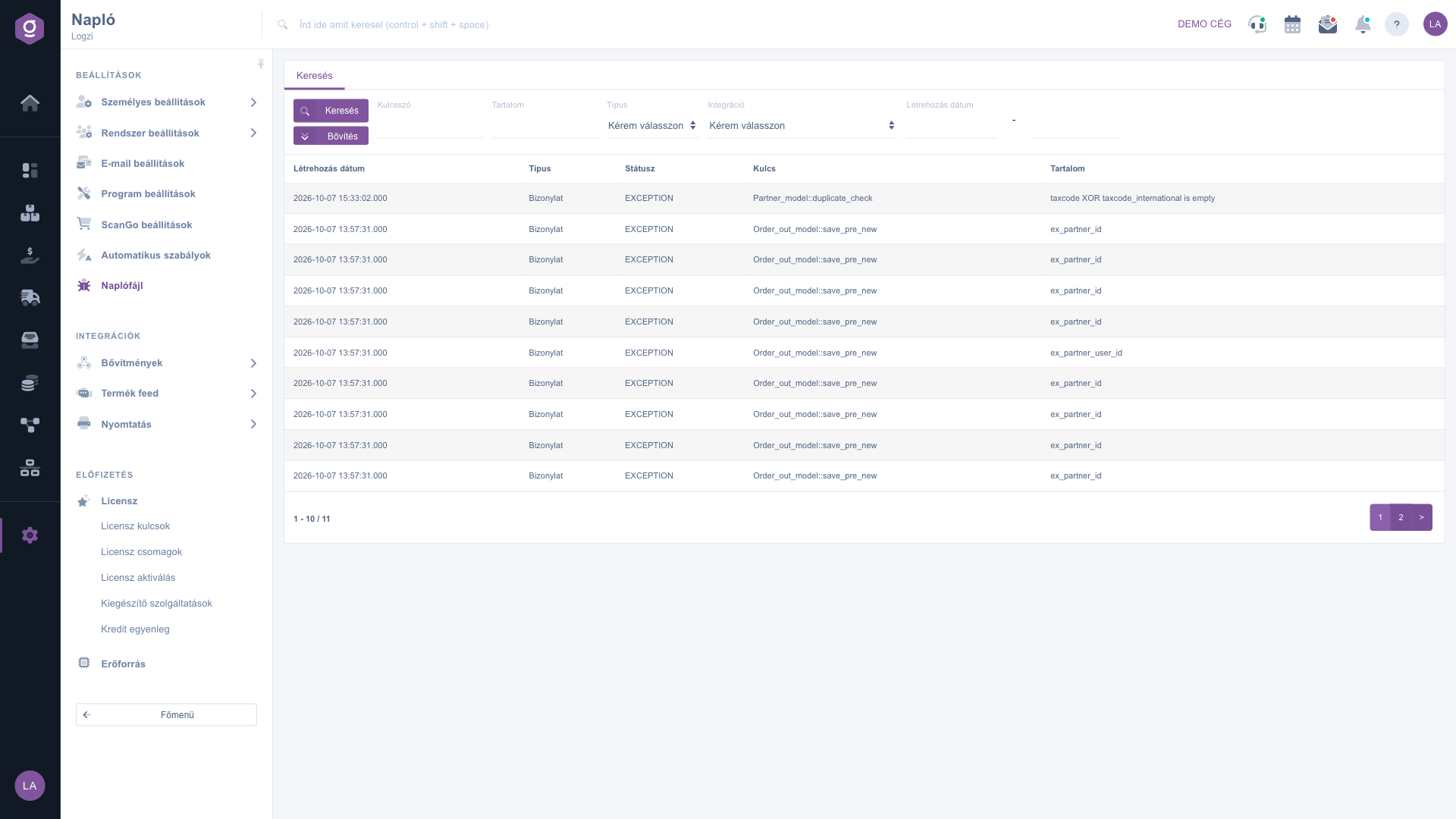
The Log file page with the search and the list of messages

2. The columns of the list

The columns are: Creation date (when the message was created), Type (which area it comes from: Bővítmény – extension, Nyomtatási sor – print queue or Bizonylat – document), Status (for example EXCEPTION, that is an error), Key (the source of the error, for example the module and function name) and Content (the text of the message).

3. Searching

Enter the search conditions and click Search. The Keyword field searches the Key column, the Content field the text of the message. With the Type list you filter extension, print queue or document messages, with the Integration list the messages of a given integration. The Creation date pair of fields filters by period (from - to).

4. Pagination

Use the pager at the bottom of the list to move between pages; next to it you see the number of displayed items (for example 1 - 10 / 11). If the search has no result, the empty list notice with the possible reasons appears instead of the list.

Tip


When you report an error, copy the Key and Content values of the affected row from the log and send them to support together with the Creation date. This way the error can be identified quickly.


Field description

The search fields and the columns of the list. Filling in the search fields is not required.

Field / ColumnRequiredDescription
KeywordSearches the Key column (the source of the error).
ContentSearches the text of the message.
TypeThe type of the message: Bővítmény (extension), Nyomtatási sor (print queue) or Bizonylat (document).
IntegrationFilters the messages of a given integration.
Creation dateFilter by period: start and end date.
Status (column)The status of the message, for example EXCEPTION (error).
Key (column)The source of the error, for example the module and function name.
Content (column)The text of the message.

Frequently asked questions

EXCEPTION marks an error recorded by the system: an operation could not complete properly. The Key and Content columns tell you where and why.

No, the page is only for viewing and searching. The entries are recorded by the system.

Choose Bővítmény in the Type list and the given integration in the Integration list, then click Search.

The list is empty if there are no errors or events, or if nothing matches your search conditions. Change the search or go to the first page.

The menu item is under Main menu / Settings. If you cannot see it, the required permission is probably not assigned to your user; ask your administrator to check the settings.

Need personalized help?

Don't want to spend hours searching for a solution? Choose the most efficient way: book a personalized, 45-minute online training session dedicated entirely to you. Whether it's a walkthrough of the basics or a detailed setup of a specific module, our expert colleague will guide you through the whole process, step by step.

Don't waste your time - ask for help!
Our goal is to get you using our system as quickly and efficiently as possible. Whether you're completely new to us or stuck on a specific setting, don't hesitate to ask for help!

Logzi warehouse management software

Get in touch with us

Interested in our software? Feel free to write to us!

Need help?

If you can't find the answer and need assistance

Create your account now,
pay later!

Try it free for 3 days, no risk, no obligation!
