On the License packages page you find the licenses available for purchase. The packages appear in three groups, each on its own card with the price and the main features:
The Purchase button adds the package to the cart, where you can complete the order.
Open the Main menu / Subscription / License / License packages menu item. At the top of the page the system licenses are shown, below them the data collector and point of sale application licenses. Each card shows the package name, the price and the main features. The screenshots were taken in the Hungarian interface.
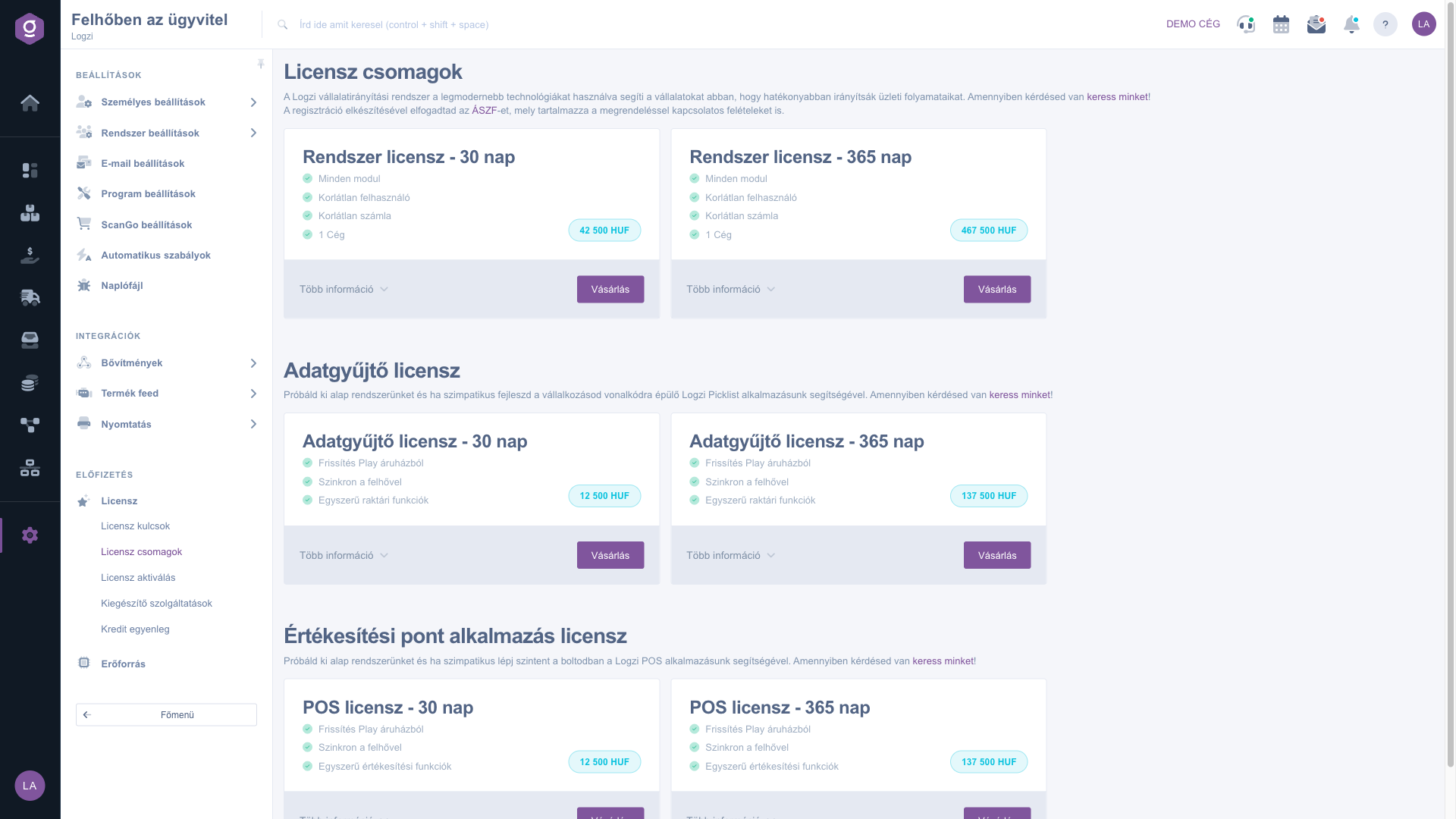
On a card click the More information button: the card expands and shows the detailed description of the package. With the Less information button you can collapse it again, and the Short description is shown.
Click the Purchase button of the chosen package. The system puts the package in the cart, where you can check the items and complete the order.
The purchased license appears on the License keys page. From there you can start the activation with the Activate button.
If you want to renew an expiring license, you can also use the Renew button on the License keys page: it puts the same package in the cart.

There is no field to fill in on this page; every package card shows the following elements.
| Field | Required | Description |
|---|---|---|
| Package name | The name of the license, for example Rendszer licensz 30 nap or 365 nap. The name comes from the product data, so it is shown in Hungarian. | |
| Price | The price of the package in HUF, in the badge of the card. | |
| Features | The main properties of the package in a list, for example Minden modul (All modules), Unlimited users, Unlimited invoices, 1 Company. | |
| More information / Less information | Expands and collapses the card. When expanded, the detailed description of the package is shown. | |
| Purchase | Puts the package in the cart. |
The License packages cover the whole system with all modules. The Data collector license belongs to the Logzi Picklist mobile app, the Point of sale application license to the POS app. Each can be purchased separately.
The package is put in the cart. You can complete the order in the cart; the purchased license then appears on the License keys page.
The names and descriptions of the packages come from the product data, which cannot be translated in the interface. The buttons and titles are shown in the selected language.
You have to activate a purchased license to be able to use it. You can do this on the License keys page with the Activate button, or on the License activation page.
The menu item is in the Subscription group of the Settings menu. If you do not see it, you probably do not have permission; ask the administrator to enable access.
Don't want to spend hours searching for a solution? Choose the most efficient way: book a personalized, 45-minute online training session dedicated entirely to you. Whether it's a walkthrough of the basics or a detailed setup of a specific module, our expert colleague will guide you through the whole process, step by step.
Don't waste your time - ask for help!
Our goal is to get you using our system as quickly and efficiently as possible. Whether you're completely new to us or stuck on a specific setting, don't hesitate to ask for help!
Create your account now,
pay later!

