Settlements of retail sales

Learn how to list, search and manage the settlements of retail sales in Logzi.

Feature overview

In this module you can review the Settlements of retail sales: how much of the total of cash-register sales has been settled. Each row of the list shows one settlement: its own identifier, the settled retail sale and the settled amount. If the document has no partner, the Partner company name column stays empty.

  • Clear list: settlements are shown by document number, date and amount in a paginated table.
  • Quick actions: you can open the selected settlement for viewing or delete it.
  • Export: the list can be downloaded as an XLSX file.
  • Customisable view: you can set the columns, the number of rows per page and the sorting.

The status of a settlement is Posted. A deleted settlement stays visible in the list as a struck-through row. There is no import option on this list. The settlements of all document types together are described in the guide Settlements list.

Step by step

1. Viewing the list and the actions available for settlements

Click Main menu / Cash register / Settlements / Retail sales to see the settlements of retail sales. On the Actions tab above the table you find the buttons for the selected settlement:

  • Open: shows the details of the selected settlement in a read-only window (details below).
  • Delete: deletes the selected settlement. The system asks you to confirm and deletes one selected item at a time. Use it if you recorded a settlement by mistake.
  • Download: XLSX lista downloads the list as a spreadsheet, taking the currently filled search conditions into account.
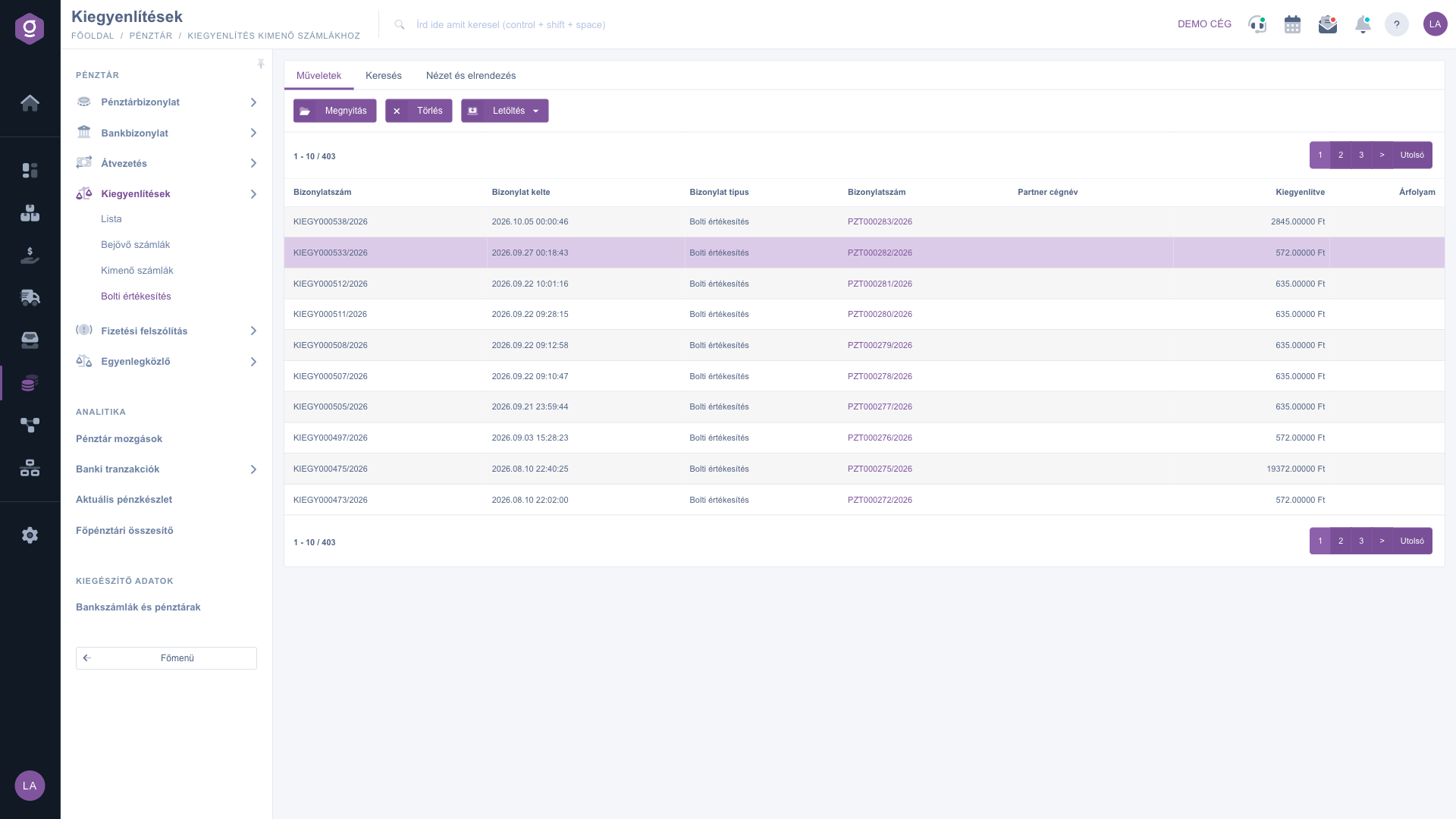
Settlements of retail sales – Actions tab (Műveletek)

Searching among settlements

On the Search tab you can narrow the list with the following conditions:

  • Partner company name: by the name of the partner.
  • Document number: by the number of the document.
  • Document date: by giving a period (from – to).

Run the search with the Search button; the given conditions narrow the results together. The Expand button is not active on this list.
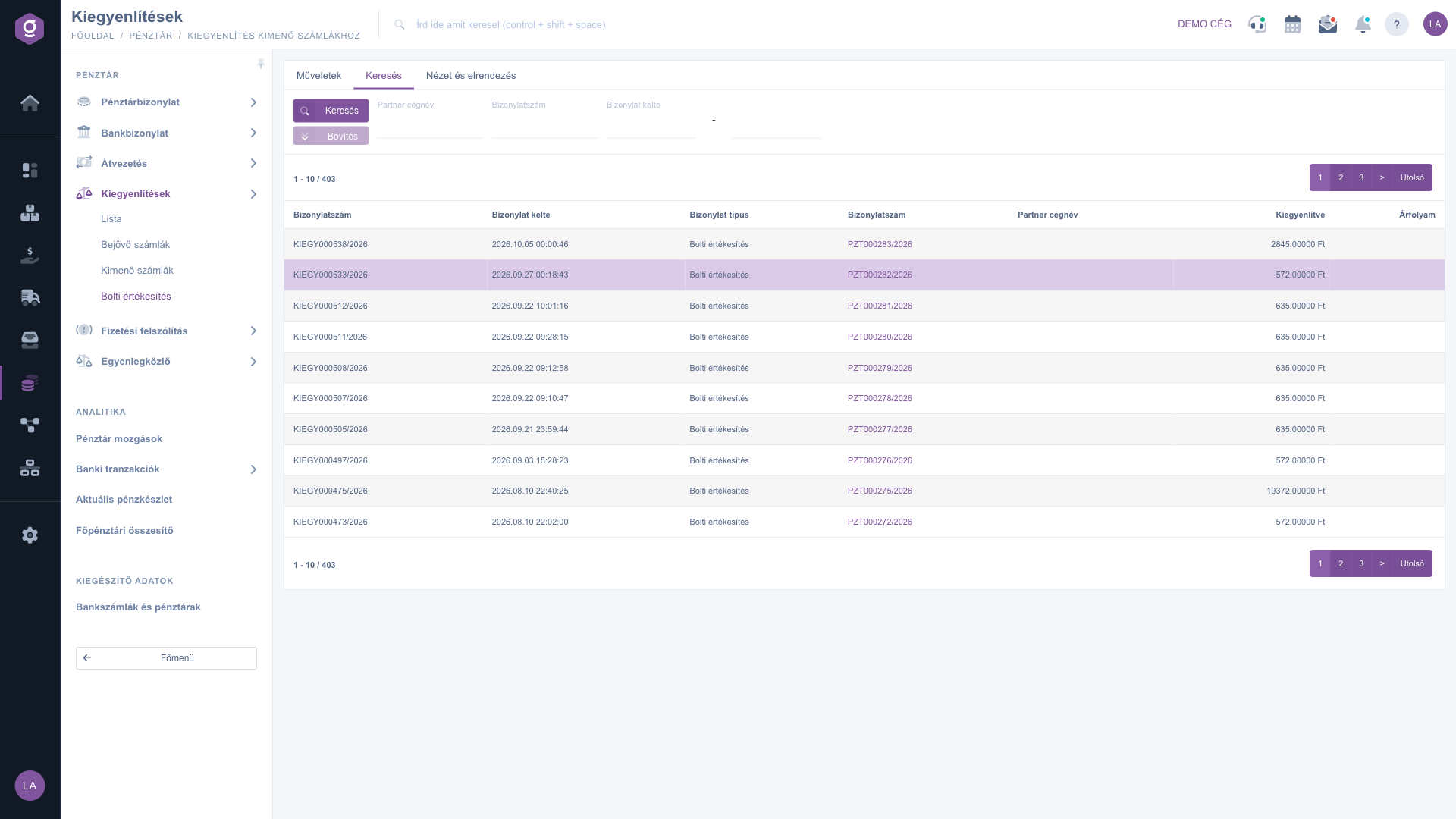
Settlements of retail sales – Search tab (Keresés)

Customising the view

On the View and layout tab you can adjust how the list looks to suit your work:

  • Oszlopok (Columns): choose which columns are shown and drag them to change their order. In the Name and Active table you can also search among the columns; the Default, Select all and Deselect all buttons give quick choices, and the Save button stores the setting.
  • Sorok (Rows): in the Visible rows field you can choose 10, 25, 50 or 100 rows per page.
  • Sorting: by giving the Selected column and the Sort order (Ascending or Descending). By default the most recently recorded settlements are at the top.

After saving, the page reloads with the new settings. The setting is kept for the duration of your session, and each of the four lists (List, Incoming invoices, Outgoing invoices, Retail sales) stores its own setting.
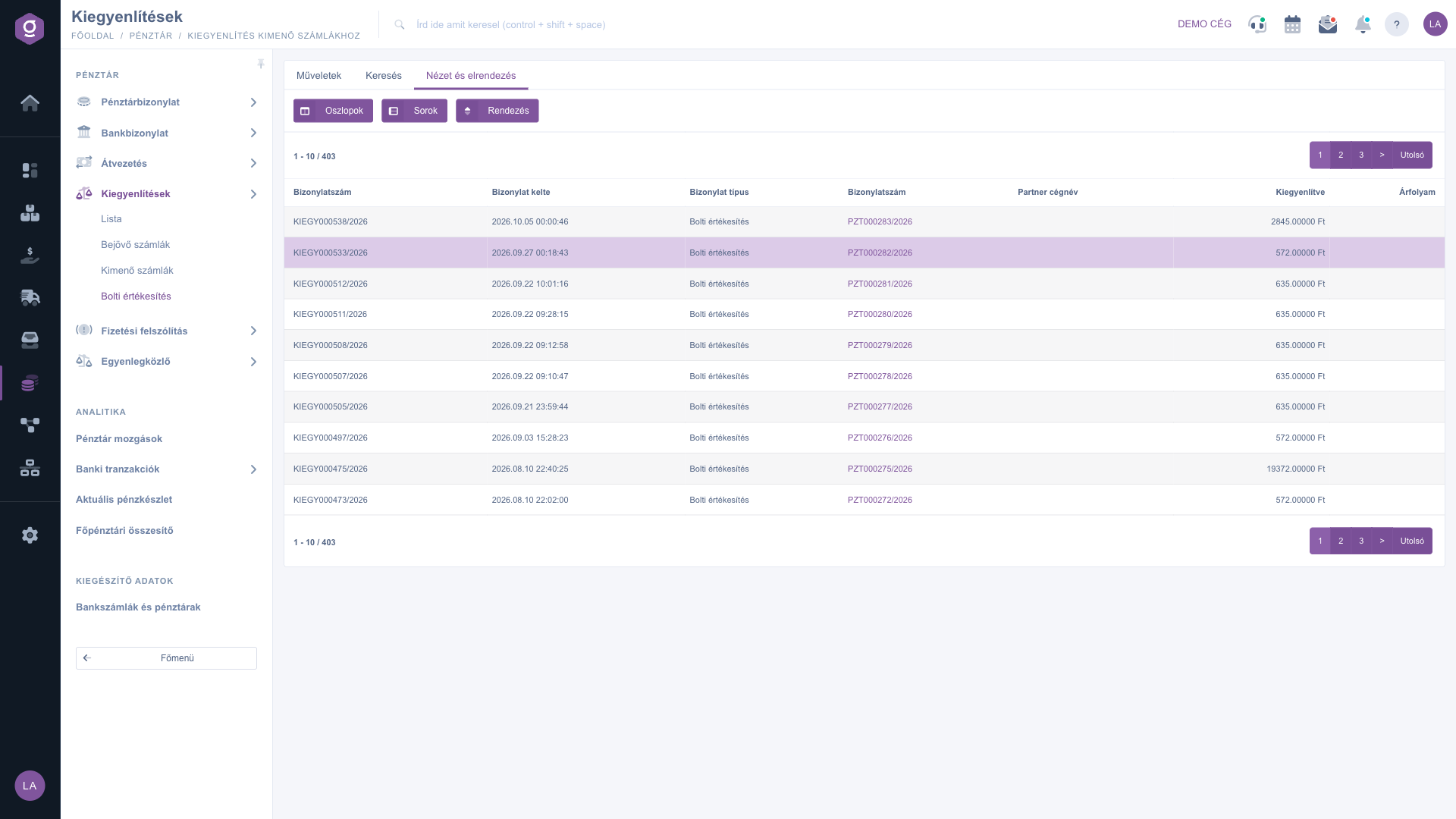
Settlements of retail sales – View and layout tab (Nézet és elrendezés)

The Open window

The Open button opens the Settlement window with the caption “Information about the posted settlement”. The window is read-only, and its only button is Close. It consists of three blocks:

  • the basic data: Identifier, Value, Posting date, Status (Posted) and Colleague;
  • Invoice information: appears only if an invoice belongs to the settlement: the type, identifier, value and issue date of the invoice, and the data of the partner and the contact person;
  • Cash desk/Bank document information: appears only if a cash or bank item belongs to the settlement: the identifier, the ledger accounts, the direction, the comment and the transaction identifier.

In the two linked blocks the Identifier is a link; click it to open the related document.

Tip


The second Document number column is a link: click it to open the settled document in a new tab, so you can check it without leaving the list.


The settlements of all document types are described in the guide Settlements list, the list of retail sales in the guide In-store sale list.

Field descriptions

The default columns of the list and their meaning:

Field / ElementRequiredDescription
Document number (first column)The own identifier of the settlement.
Document dateThe date and time the settlement was created.
Document typeThe type of the settled document.
Document number (second column)The number of the settled document. A link that opens the document in a new tab.
Partner company nameThe name of the partner of the document.
SettledThe settled amount with the currency sign.
Exchange rateThe value of the exchange rate.

The basic data block of the Open window:

Field / ColumnRequiredDescription
IdentifierThe identifier of the settlement.
ValueThe settled amount.
Posting dateThe date the settlement was posted.
StatusThe state of the settlement (Posted).
ColleagueThe colleague belonging to the settlement.

The Invoice information block (only if an invoice belongs to the settlement):

Field / ColumnRequiredDescription
TypeThe type of the invoice.
IdentifierThe identifier of the invoice. A link that opens the invoice.
ValueThe value of the invoice.
Invoice issue dateThe date the invoice was issued.
Invoice partnerThe partner of the invoice.
Invoice contact personThe contact person of the invoice.
Invoice contact person’s email addressThe email address of the contact person.
Invoice contact person’s phone numberThe phone number of the contact person.

The Cash desk/Bank document information block (only if a cash or bank item belongs to the settlement):

Field / ColumnRequiredDescription
IdentifierThe identifier of the cash or bank item. A link that opens the item.
Title ledgerThe ledger account of the title belonging to the item.
Bank/Cash desk ledgerThe ledger account of the bank or the cash desk.
Invoice/Receipt/Supplier ledgerThe ledger account of the invoice, receipt or supplier.
DirectionThe direction of the transaction.
Transaction comment (note)The comment belonging to the transaction.
Transaction identifierThe identifier of the transaction.

Frequently asked questions

Most likely no row is selected. In that case the system shows the warning „Kérlek válassz egy tételt a listából!” (Please select an item from the list!). Select a row and click again. Delete handles exactly one selected item at a time.

A struck-through row is a deleted settlement. It stays visible in the list and cannot be deleted again.

The window is for reading only, and its only button is Close. You can open the related document by clicking the Identifier link. If you recorded a settlement by mistake, you can remove it with the Delete button; it then stays visible as a struck-through row.

Check the conditions given on the Search tab: the filters narrow the results together. If no settlement matches, the list is empty. The XLSX lista download also follows the values currently filled in on the Search tab.

The list of retail sales is described in the guide In-store sale list. The settlements of all document types are shown together under Main menu / Cash register / Settlements / List, described in the guide Settlements list.

The menu item appears under Main menu / Cash register if the Settlement module is assigned to your user. If you do not see it, ask your administrator.

Need personalized help?

Don't want to spend hours searching for a solution? Choose the most efficient way: book a personalized, 45-minute online training session dedicated entirely to you. Whether it's a walkthrough of the basics or a detailed setup of a specific module, our expert colleague will guide you through the whole process, step by step.

Don't waste your time - ask for help!
Our goal is to get you using our system as quickly and efficiently as possible. Whether you're completely new to us or stuck on a specific setting, don't hesitate to ask for help!

Logzi warehouse management software

Get in touch with us

Interested in our software? Feel free to write to us!

Need help?

If you can't find the answer and need assistance

Create your account now,
pay later!

Try it free for 3 days, no risk, no obligation!
