UN numbers

The master list of UN numbers of dangerous goods in Logzi: entering the identifier, barcode, name and description.

Function overview

On the UN numbers page you maintain the four-digit United Nations identifiers (UN numbers) of dangerous goods so that you can refer to them on products or in transport.

  • Identifier: the UN number.
  • Barcode: a barcode that can be assigned to the item.
  • Name and description: the name of the substance and a free-text description.

Step by step

1. Opening the page

Click Main menu / Settings / System settings / UN numbers. At the top you see the New, Open and Delete buttons, below them the list with the ID, Identifier, Barcode and Name columns. Click a row to select the item. The screenshots were taken in the Hungarian interface.
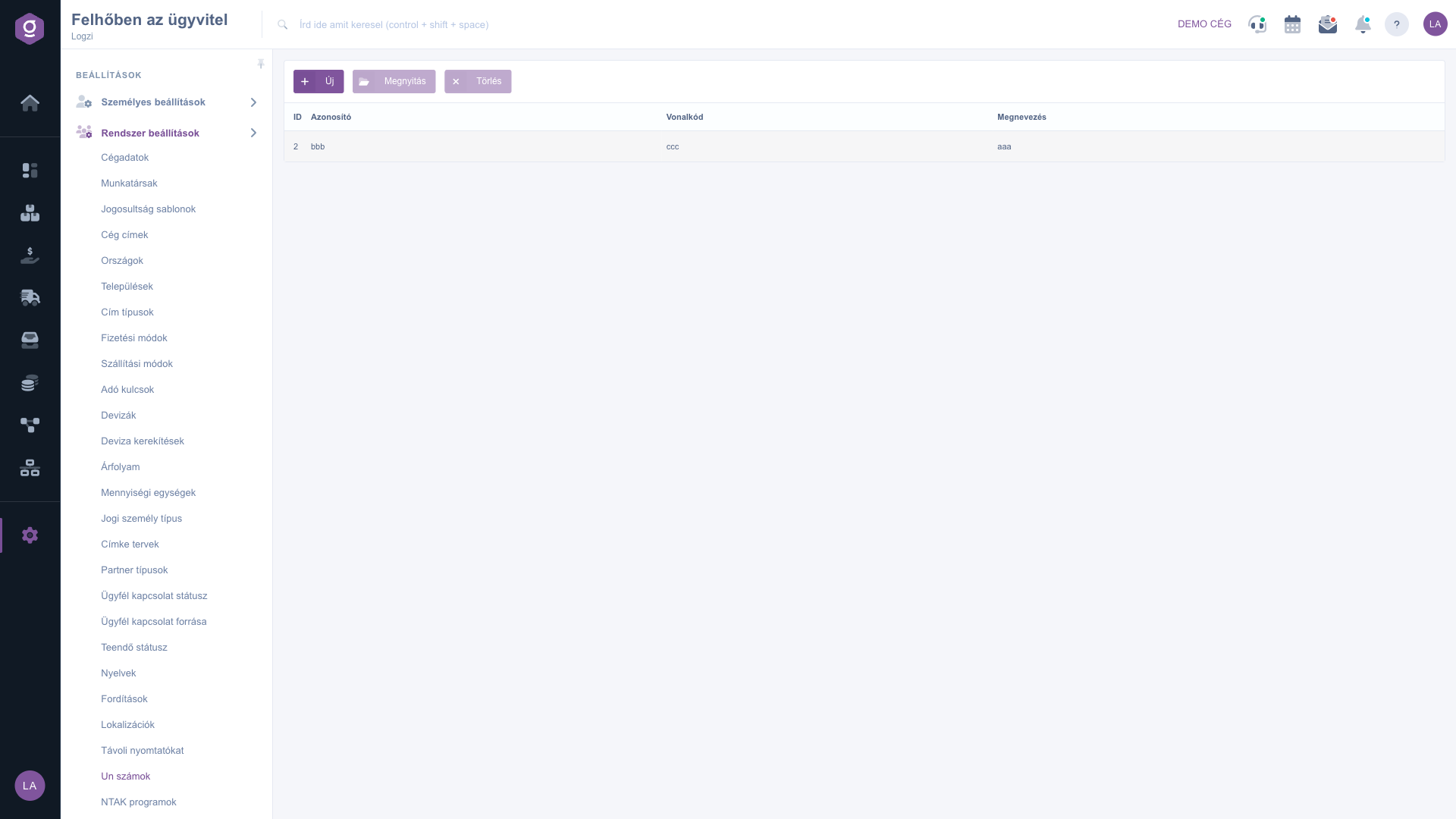
The UN numbers list
The UN numbers list

2. Adding or editing a UN number

Click New, or select a row and click Open. On the Actions tab of the window that opens, below the Save and Close buttons, fill in the Name, Identifier, Barcode and Description fields, then click Save.
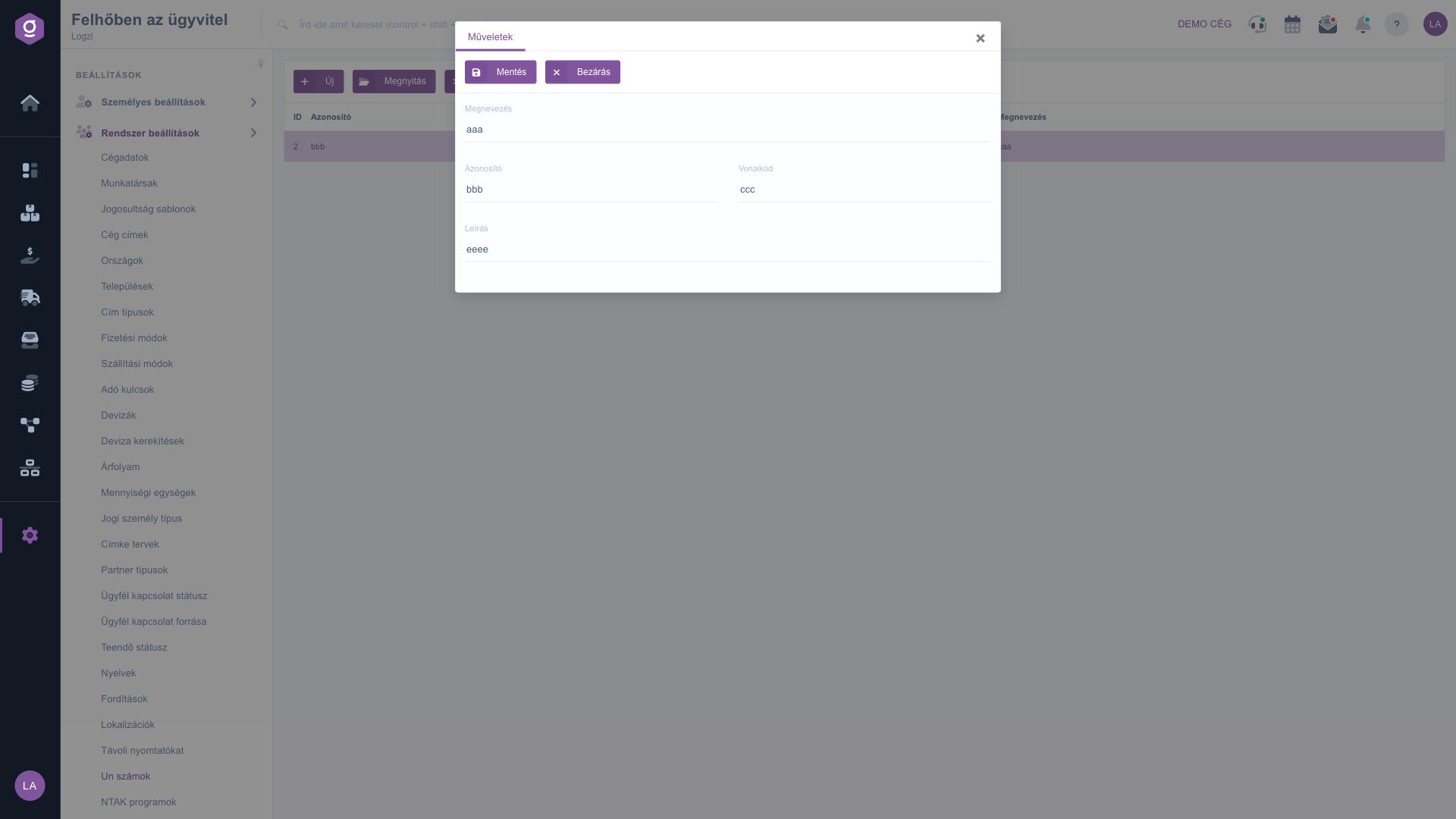
UN number form with name, identifier, barcode and description

3. Deleting a UN number

Select the row and click Delete. Before deleting, check whether any product still refers to this UN number.

Tip


Enter the four digits of the UN number as the identifier and the official name of the substance as the name, so the list is easy to search later.


Field description

The fields of the UN number form.

FieldRequiredDescription
NameThe name of the substance or goods.
IdentifierThe UN number, for example the four-digit UN identifier.
BarcodeA barcode that can be assigned to the item.
DescriptionAdditional free-text description.

Frequently asked questions

The four-digit international United Nations identifier of dangerous substances and goods, used in transport.

The UN number of the substance, for example four digits. Enter the name of the substance in the Name field.

No, the Barcode field is optional; fill it in only if you want to assign a barcode to the item.

Yes, select the row, click Open, change the data and save.

The menu item is located under Main menu / Settings / System settings. If you do not see it, your user probably does not have the required permission; ask your administrator to check the settings.

Need personalized help?

Don't want to spend hours searching for a solution? Choose the most efficient way: book a personalized, 45-minute online training session dedicated entirely to you. Whether it's a walkthrough of the basics or a detailed setup of a specific module, our expert colleague will guide you through the whole process, step by step.

Don't waste your time - ask for help!
Our goal is to get you using our system as quickly and efficiently as possible. Whether you're completely new to us or stuck on a specific setting, don't hesitate to ask for help!

Logzi warehouse management software

Get in touch with us

Interested in our software? Feel free to write to us!

Need help?

If you can't find the answer and need assistance

Create your account now,
pay later!

Try it free for 3 days, no risk, no obligation!
