Shipping methods

Setting up shipping methods in Logzi: type, courier service or logistics partner, direct shipping, package count, status change and shipping cost rules.

Function overview

On the Shipping methods page you set up the shipping options you can choose on orders and documents (for example home delivery, personal pickup, parcel point). For a shipping method you can specify the courier service and the rules for calculating the shipping cost.

  • Type and carrier: the type of the shipping method and the courier service or logistics partner.
  • Operation settings: direct shipping, entering the number of packages and the status change when the order is picked.
  • Pricing rules: determining the net shipping cost by value or by volume.
  • Name per language: the name of the shipping method can be entered in every language.

Step by step

1. Opening the page

Click Main menu / Settings / System settings / Shipping methods. At the top you see the New, Open and Delete buttons, and below them the list with the ID and Name columns. Click a row to select the shipping method. The screenshots were taken in the Hungarian interface.
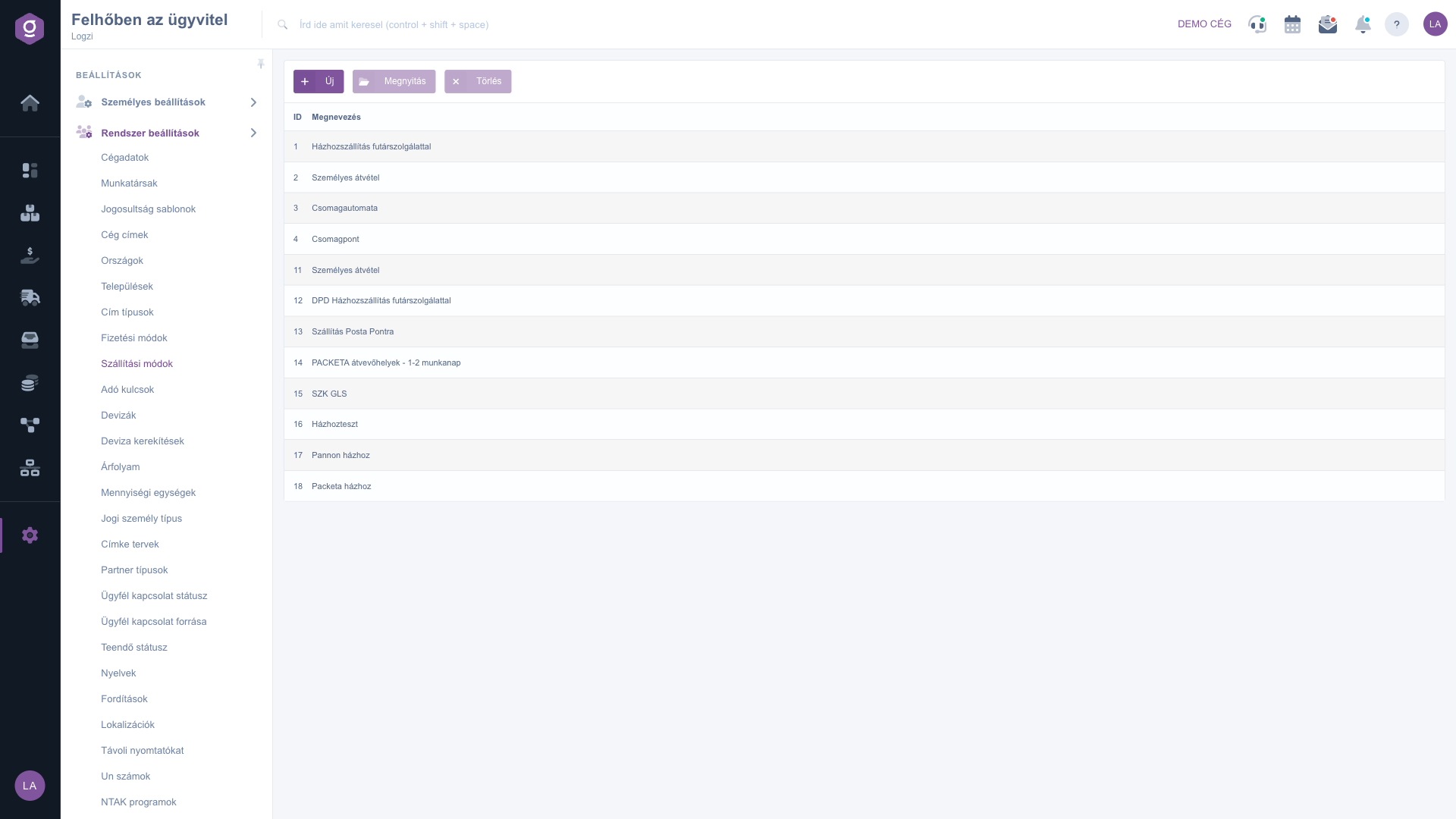
The Shipping methods list

2. Adding or editing a shipping method

Click New, or select a row and click Open. On the Actions tab enter the Web name of the shipping method (up to 100 characters), choose the Shipping method type, in the Shipping field the courier service or logistics partner, and the Shipping type. Set the Direct shipping and Package count can be entered fields (Yes or No), and finally in Status change when picked choose what happens when the order is picked: No, Prepared or Ready for pickup. Use Save to store the shipping method.
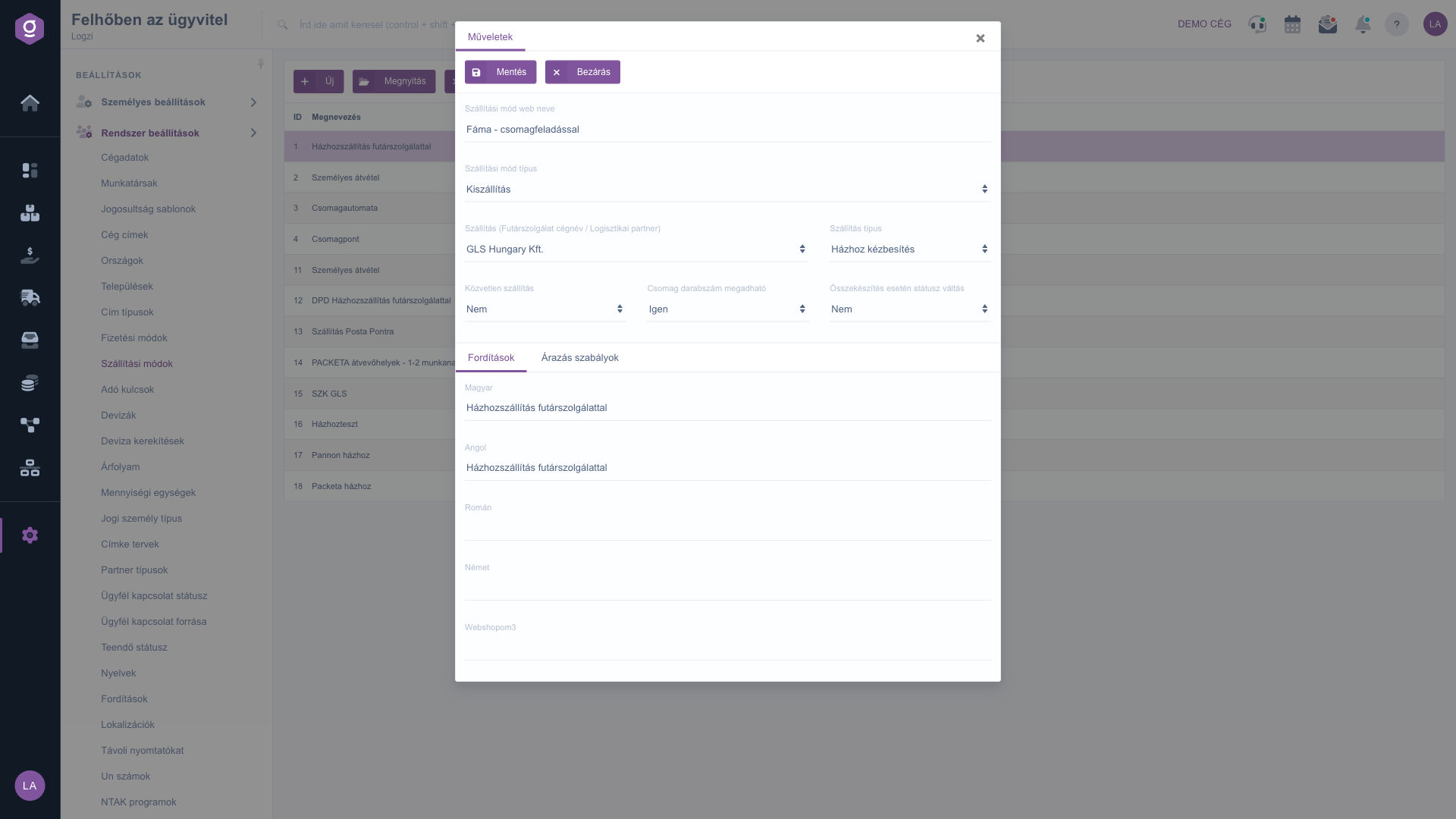
Shipping method sheet on the Actions tab

3. Translating the name and pricing rules

On the Translations tab you can enter the name of the shipping method in every language. On the Pricing rules tab you choose the calculation method in the Shipping cost type field, you can enter the Net shipping cost, or use the New rule button to create bands by minimum and maximum value, or by minimum and maximum volume (cm³), each with a net shipping cost. The system calculates the shipping cost for orders entered in your system; for external orders (for example from a webshop) the price calculated by the external system is received.

Tip


If the courier service is not in the Shipping list, first create it as a partner with the courier category. Only partners with the courier category appear in the selection list.

You can manage the categories of partners on the Partner types page.

Field description

The main fields of the shipping method sheet.

FieldRequiredDescription
Web name of the shipping methodThe name used in the webshop, up to 100 characters.
Shipping method typeThe type of the shipping method from the selection list.
Shipping (courier service company name / logistics partner)The partner performing the shipping; you can choose from partners in the courier category.
Shipping typeThe type of the shipping from the selection list.
Direct shippingDefines whether the shipping is direct.
Package count can be enteredIf Yes, the number of packages can be entered on the document.
Status change when pickedNo, Prepared or Ready for pickup: the new state of the order when it is picked.
Shipping cost typeOn the Pricing rules tab you choose how the shipping cost is calculated.
Net shipping costThe net cost of shipping; it can also be set per band in the rules.

Frequently asked questions

Only partners in the courier category appear in the list. Create the courier service as a partner and assign the right category to it.

On the Pricing rules tab choose the shipping cost type, then use the New rule button to enter the minimum and maximum value with the net shipping cost belonging to it.

The pricing rules apply to orders entered in your system. For orders arriving from an external system, for example a webshop, the shipping cost calculated by the external system is transferred.

You can set that when the order is picked it automatically moves to the Prepared or Ready for pickup state. With No the status does not change.

The menu item is under Main menu / Settings / System settings. If you cannot see it, the required permission is probably not assigned to your user; ask your administrator to check the settings.

Need personalized help?

Don't want to spend hours searching for a solution? Choose the most efficient way: book a personalized, 45-minute online training session dedicated entirely to you. Whether it's a walkthrough of the basics or a detailed setup of a specific module, our expert colleague will guide you through the whole process, step by step.

Don't waste your time - ask for help!
Our goal is to get you using our system as quickly and efficiently as possible. Whether you're completely new to us or stuck on a specific setting, don't hesitate to ask for help!

Logzi warehouse management software

Get in touch with us

Interested in our software? Feel free to write to us!

Need help?

If you can't find the answer and need assistance

Create your account now,
pay later!

Try it free for 3 days, no risk, no obligation!

