Document schemas let you add custom, additional fields to your document types. You can store data in them that the basic document fields do not cover.
Click Main menu / Settings / System settings / Document schemas. Above the list you will find the New, Open and Delete buttons. The table columns are ID, Field name, Field type, Field unit and Field order. The screenshots were taken in the Hungarian interface.
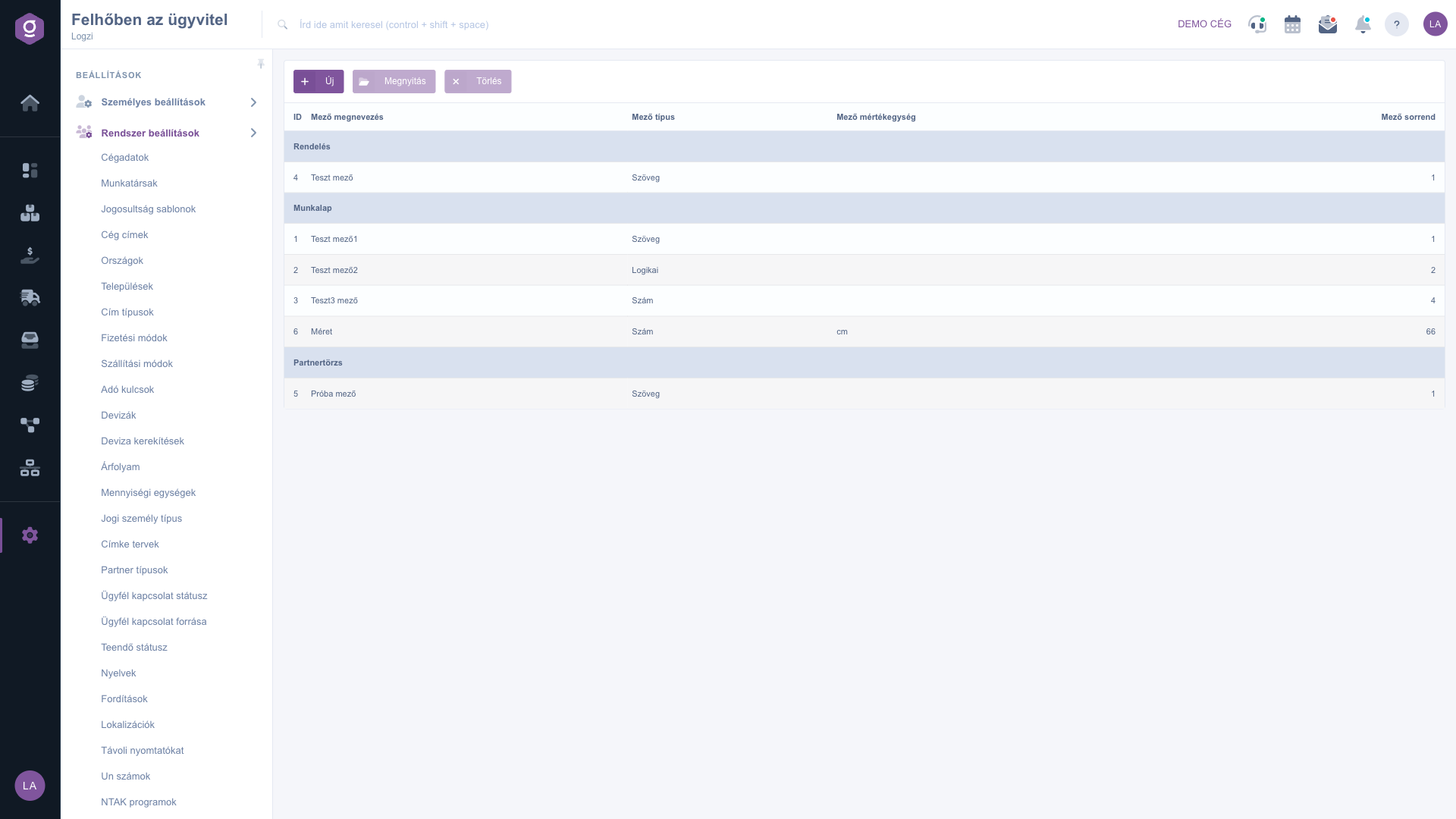
Click New, or select a row and click Open. On the Actions tab enter the Field name, choose the Document type and the Field type, if needed the Field unit, and enter the Field order number. If the field type is list-like, the Field value set field appears, where you can enter the selectable values. Use Save to save, or Close to close the window without saving.
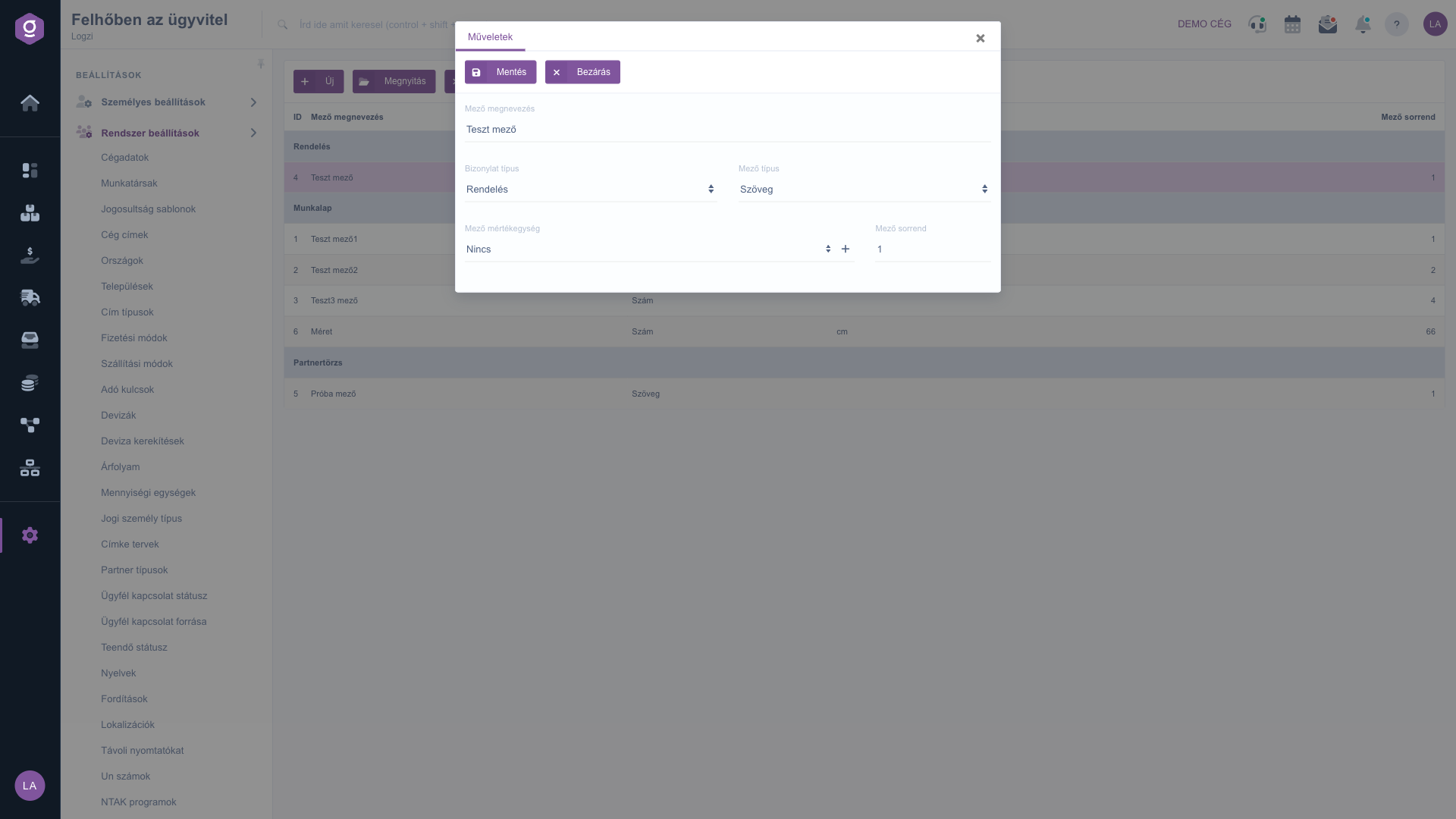
Select the row you want to remove, click Delete and confirm the action.
Fields follow each other in the order you give, so it is worth numbering them in tens, which lets you insert a new field between two existing ones later.
The following fields are available when editing a schema.
| Field | Required | Description |
|---|---|---|
| Field name | Name of the additional field, at least 2 characters long. | |
| Document type | The kind of document the field appears on. | |
| Field type | The nature of the data that can be entered. For the list type the value set is shown. | |
| Field unit | The unit belonging to the field, or None. The plus button next to it lets you add a new unit. | |
| Field order | A number that defines the display order of the fields. | |
| Field value set | For a list-type field, the selectable values, which you add one by one. |
For recording custom data that the basic document fields are not suited for, for example shipping or project-specific information.
Only if the Field type is list-like. In that case you add the selectable values one by one, and you can choose from them on the document.
No, the Field unit field can also be left as None.
Open the field and change its Field order number. Fields with a smaller number come first.
The menu item is located under Main menu / Settings / System settings. If you cannot see it, you probably do not have permission, so ask your administrator to enable it.
Don't want to spend hours searching for a solution? Choose the most efficient way: book a personalized, 45-minute online training session dedicated entirely to you. Whether it's a walkthrough of the basics or a detailed setup of a specific module, our expert colleague will guide you through the whole process, step by step.
Don't waste your time - ask for help!
Our goal is to get you using our system as quickly and efficiently as possible. Whether you're completely new to us or stuck on a specific setting, don't hesitate to ask for help!
Create your account now,
pay later!


