The screenshots were taken from the Hungarian demo interface; the names of buttons and fields appear in the language you have set.
1. Opening a new warranty letter and filling in the header
Click Main menu / Sales / Warranty letters / New, or the New button on the list page. In the header of the sheet the Document number, the Document date and the Status are filled in by the system and cannot be changed (the document number appears after saving). You need to enter the Performance date and the Partner company name; Partner contact person, Partner address and Employee are optional.
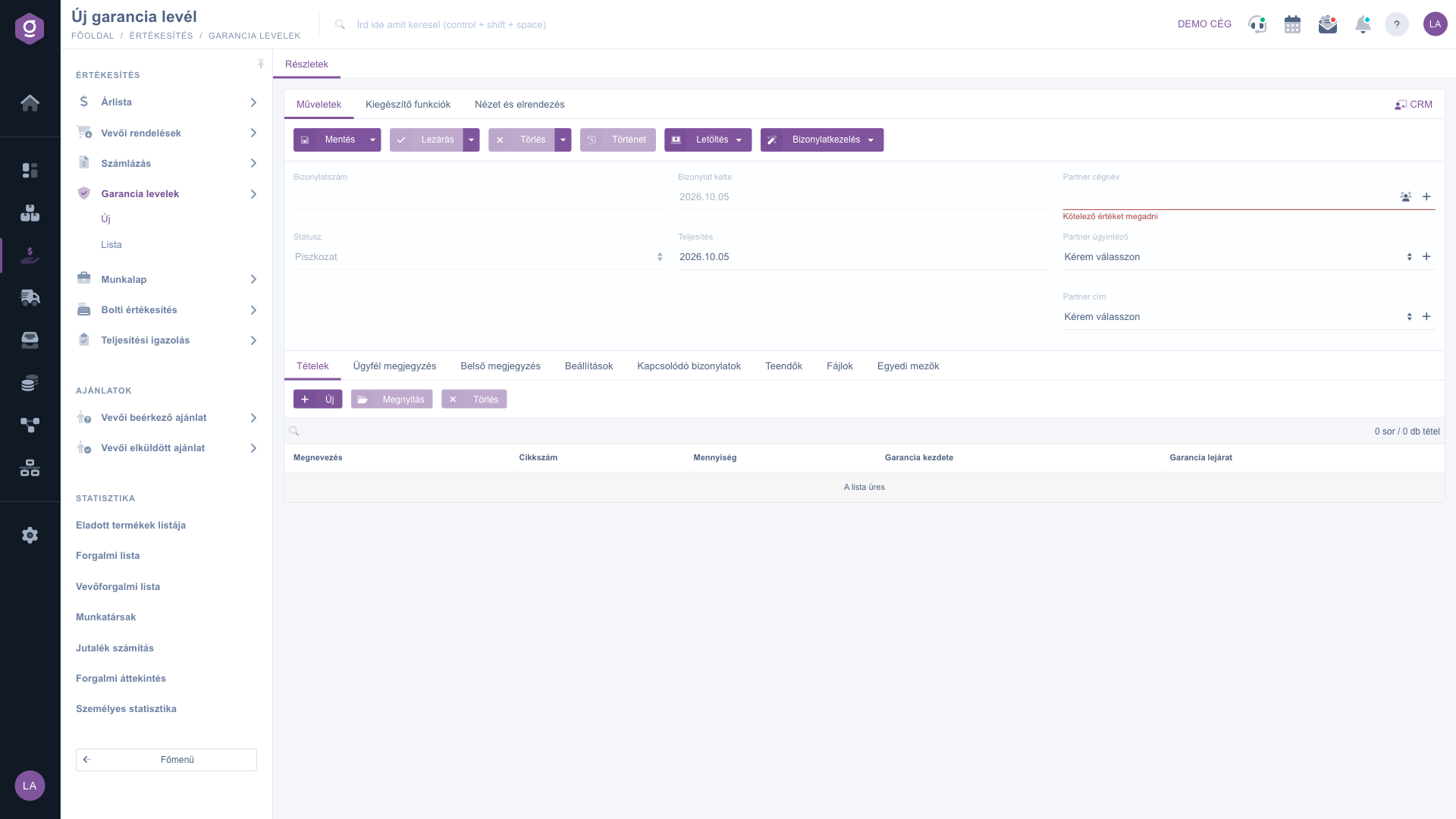
Warranty letters sheet – header data and Actions tab (empty, new document)
2. Adding items
On the Items tab you manage the warranty products. The buttons of the tab are: New (add a new product to the document), Open (edit the selected item) and Delete (remove the selected item). The New button opens a separate window where you can enter:
- Item number: the item number of the product, by which it can be identified.
- Name: the name of the warranty product (required).
- Quantity: the quantity of the warranty product.
- Warranty start: the date from which the warranty is valid (required).
- Warranty expiration: the date until which the warranty is valid (required).
- Comment: a free-text note for the item.
With the Add button the item is added to the document, with Close you close the window without adding. At least one item must be on the document before you can save it.
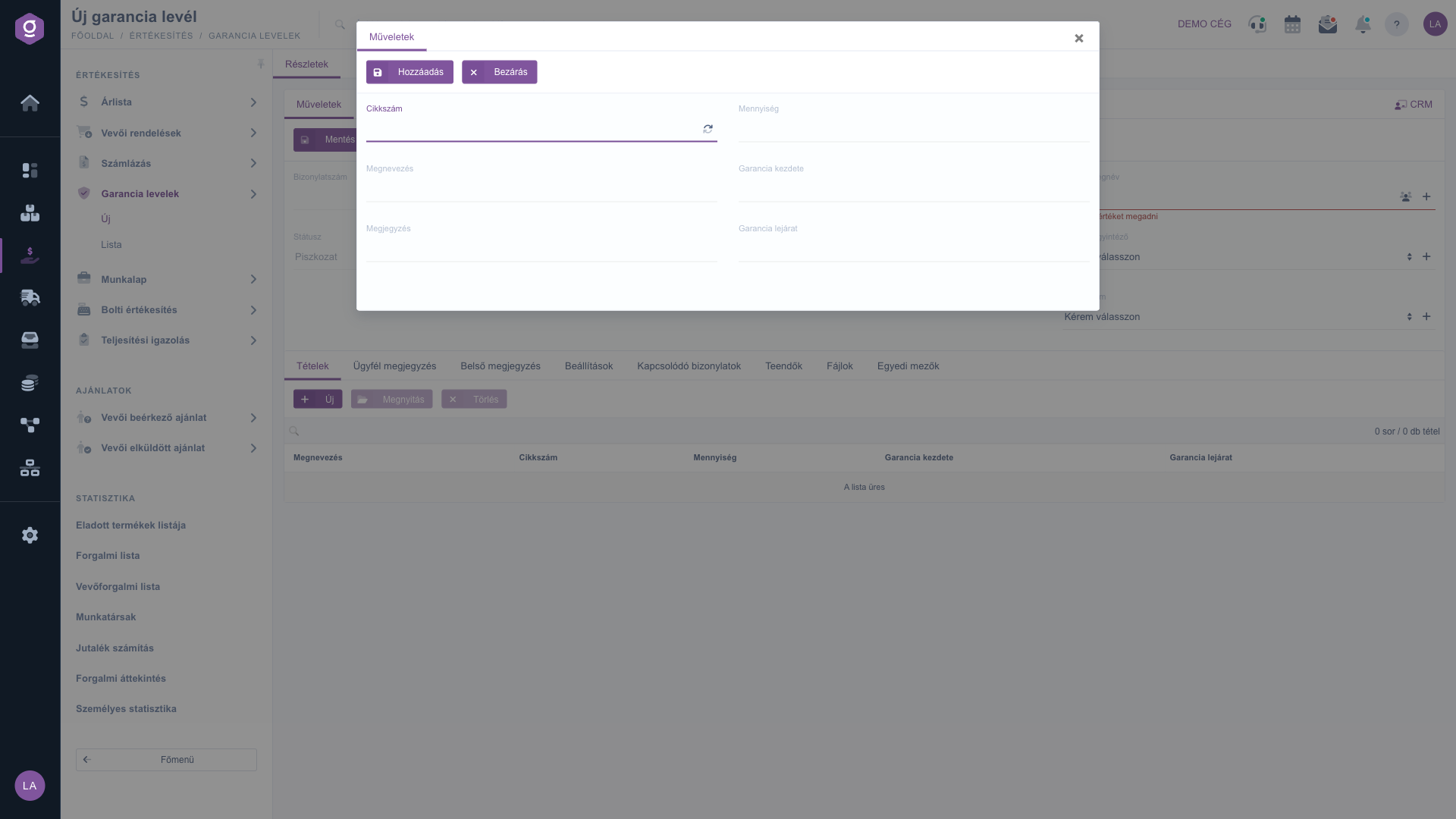
Warranty letters sheet – item window
3. Further tabs
Besides the items, you can complete the document on further tabs:
- Customer comment: a comment that is also visible to the customer.
- Internal comment: a comment visible only within the company.
- Settings: enter the Billing address, the Project, the Job number and the Department number.
- Related documents: other documents related to the warranty letter.
- Tasks: tasks assigned to the document.
- Files: files attached to the document.
- Custom fields: additional fields tailored to your company.
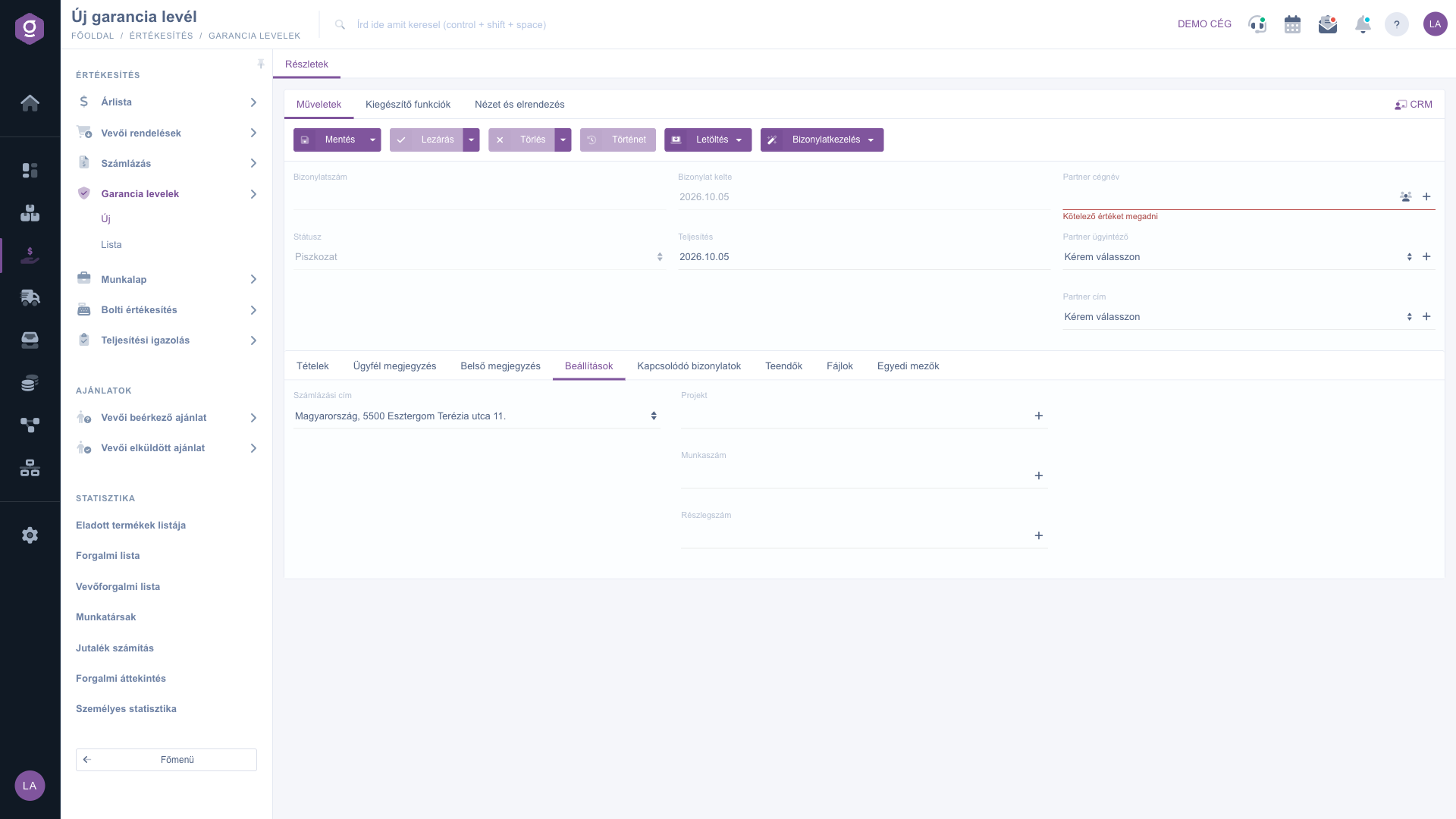
Warranty letters sheet – Settings tab
4. Saving, closing and the Actions tab
At the top of the sheet, the Actions tab holds the buttons of the document:
- Save: records the data without finalizing. With the arrow you can also choose Save and close.
- Close: finalizes the document. With the arrow you can choose between Close, Close and print and Close and download. When closed, the document is finalized, no further modification is possible.
- Delete: deletes the document, or with Delete and copy deletes it and creates a new copy in one step.
- History: shows the history of the document.
- Download: downloads the document as CSV, XLSX or PDF, or opens the PDF preview. PDF and CSV are available only for closed documents.
- Document management: starts Invoicing, Delivery note and Worksheets from the warranty letter; these can be chosen only for closed documents.
- Send email: sends the closed document by email.
On the Additional functions tab you find Sent items, New email, New product, New partner, New task and Partner card; on the View and layout tab you can adjust how the page looks. With the CRM link at the partner name you can jump to the partner CRM sheet.
Tip
If you give the same warranty period on several products, after adding the first item record the document with Save before closing, then add the other products with New on the Items tab. Before closing, use PDF preview to check what the printed warranty letter will look like.
You find the warranty letters you have created on the list page, where you can search, filter and manage them:
Warranty letters list.



