The screenshots were taken from the Hungarian demo interface; the names of buttons and fields appear in your own language setting.
1. Viewing the list and the actions available for warranty letters
Click Main menu / Sales / Warranty letters / List to see all the warranty letters created so far. Above the table, the buttons on the Actions tab work on the selected warranty letter:
- New: create a new warranty letter on an empty form.
- Open: open the selected warranty letter to view or edit its items and header data.
- Close: finalize the warranty letter. The arrow next to the button offers Close, Close and print and Close and download — available only for Draft documents.
- Delete: delete the warranty letter, or use Delete and copy to delete it and create a new copy in one step. Deletion cannot be undone.
- Cloning: create a new document based on the data of the selected warranty letter.
- History: view the history (related documents) of the selected warranty letter.
- Send email: send the closed warranty letter by email — available only for Closed documents.
- Download: export the list or the selected warranty letter. The List operation group contains XLSX list and XLSX item list, the Document operation group contains XLSX items and XLSX serial number list; you can also download the PDF, the PDF preview and the Download attachments. The PDF is available only for closed documents.
- Document management: start Invoicing, Delivery note or Worksheets from the selected warranty letter, or Cloning. The first three can be chosen only for Closed documents.
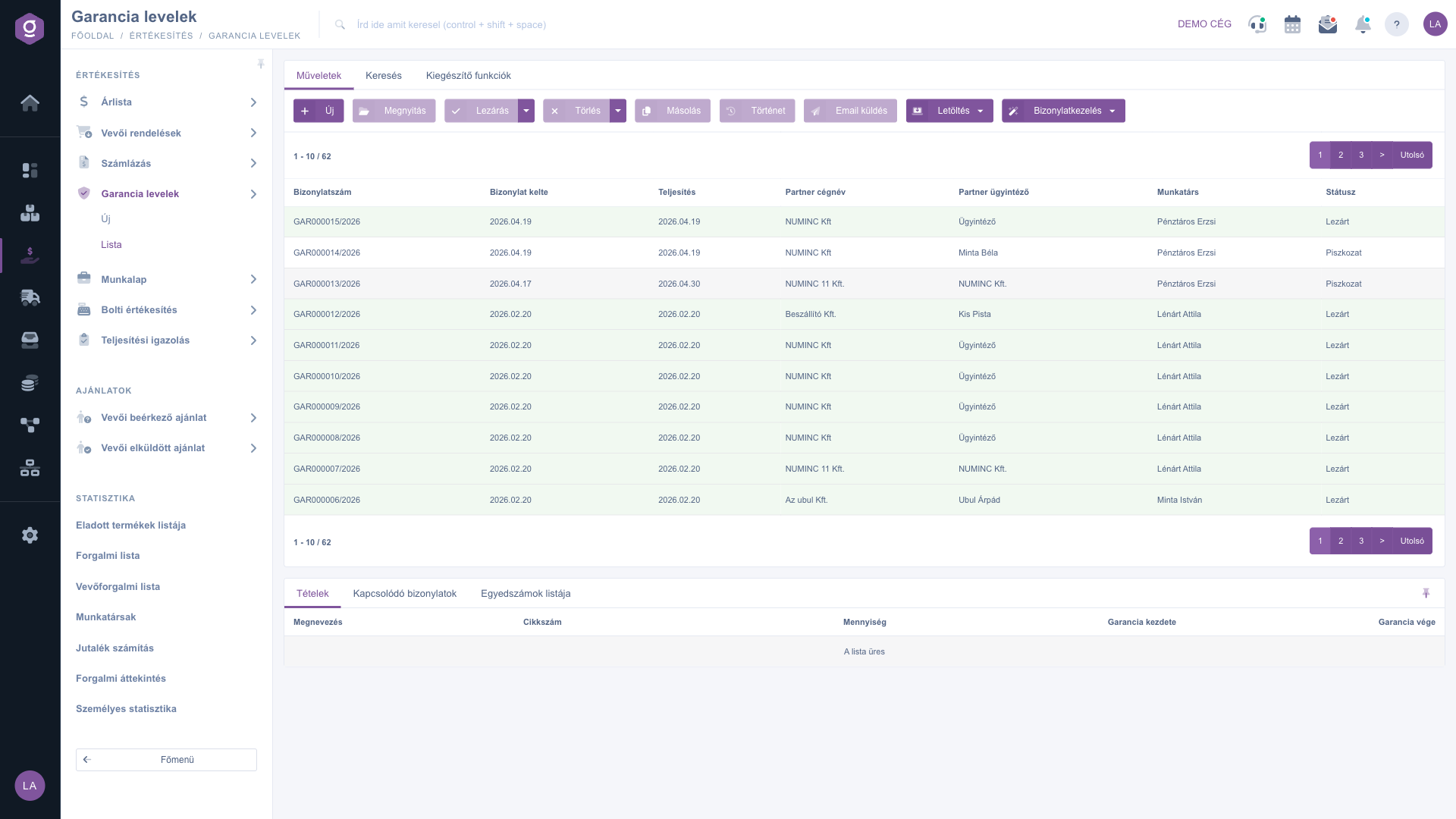
Warranty letters list – Actions tab
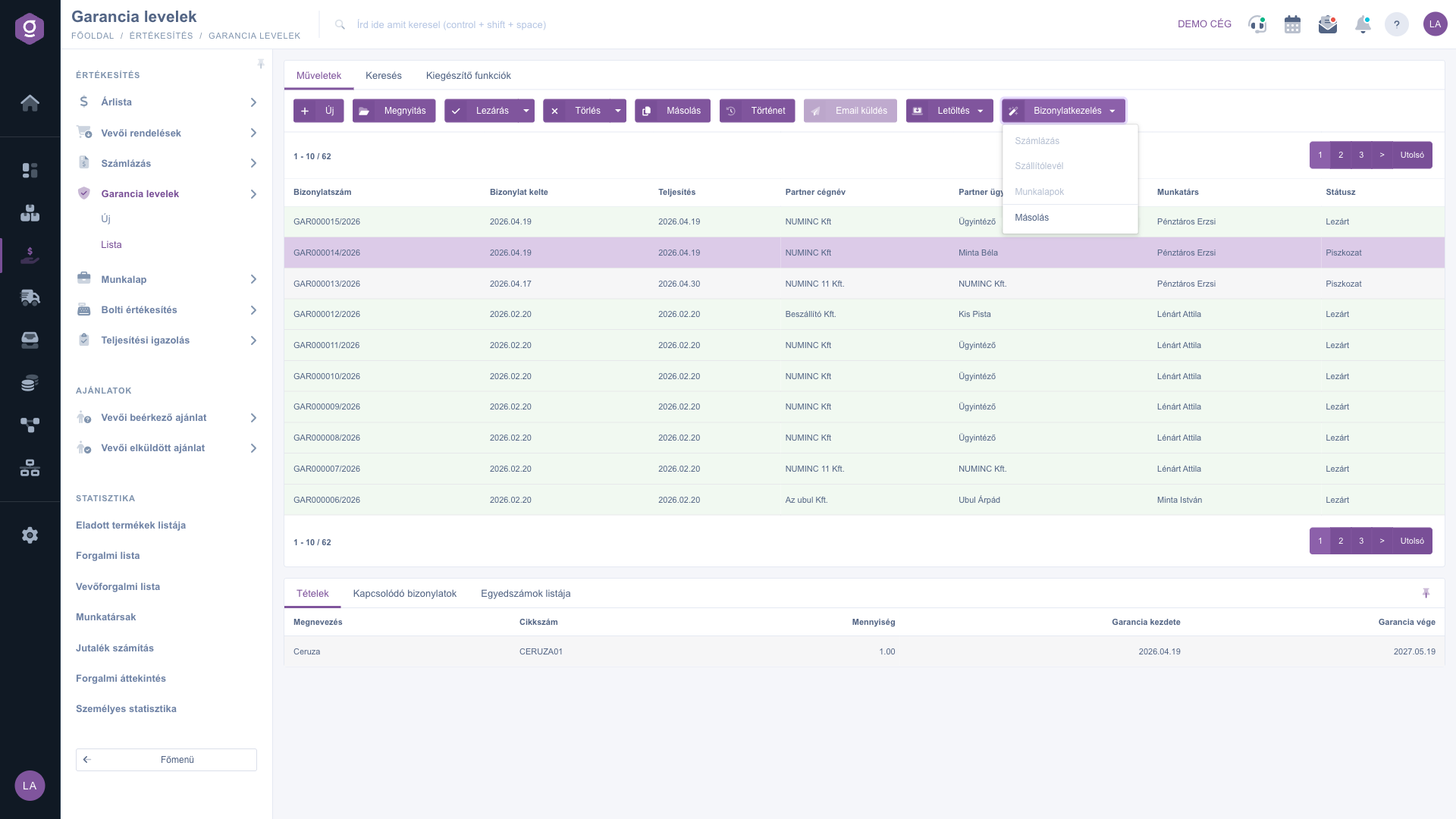
Warranty letters list – Document management menu for a Draft document (Invoicing, Delivery note and Worksheets are greyed out)
Searching among warranty letters
Click the Search tab above the table to see the filter options. Partner company name, Document number and Status (several can be selected at once) are visible immediately. The "Expand" button opens more filters: Document date and Performance date (for a period), Employee, Project, Job number, Department number, Customer comment and Internal comment. Click the Search button to apply the conditions.
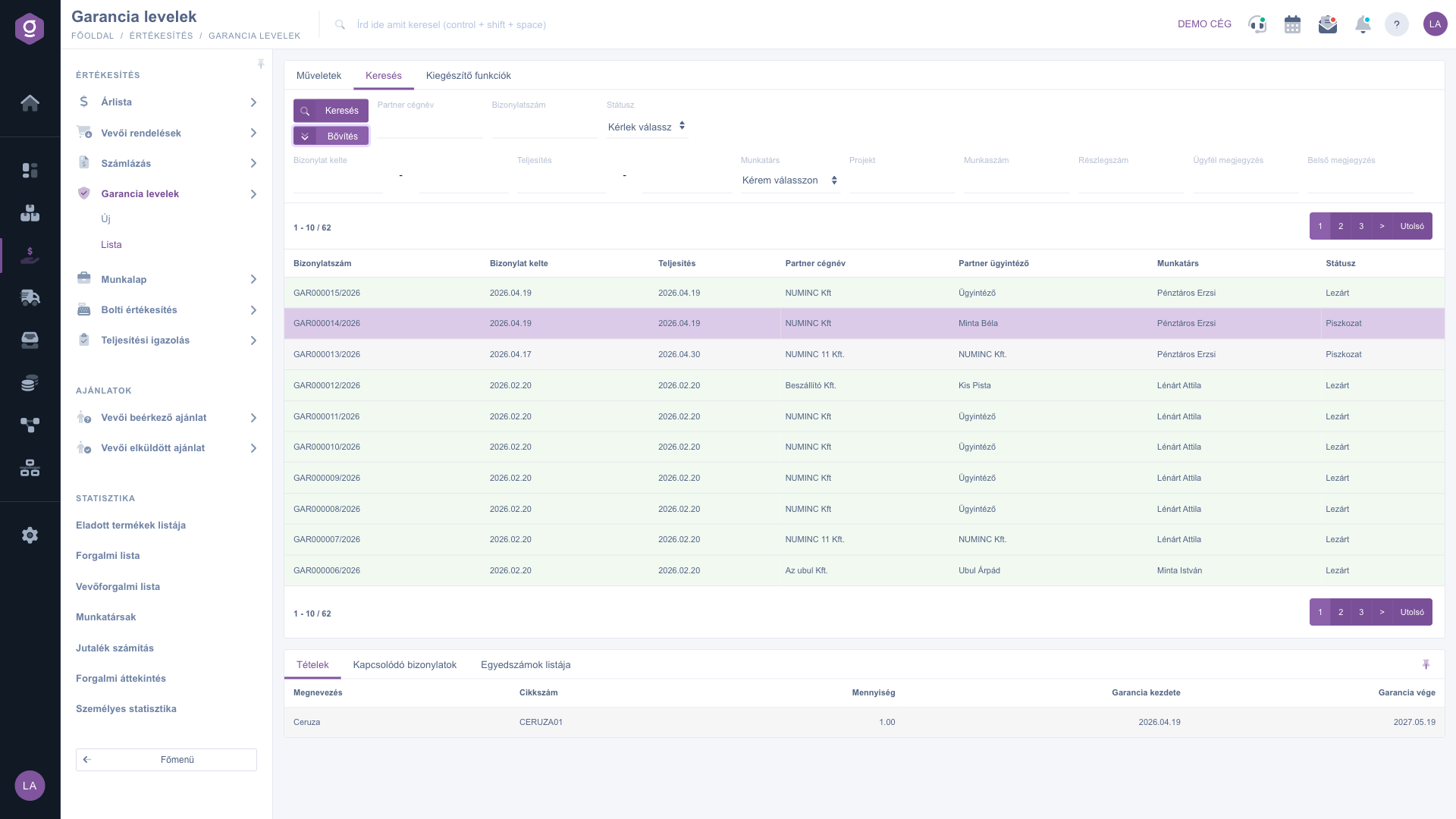
Warranty letters list – Search tab with expanded filters
The preview panel
When you select a warranty letter in the table, the panel below the list shows its details so you do not have to open it. The tabs of the panel:
- Items: the products on the warranty letter with Name, Item number, Quantity, Warranty start and Warranty end.
- Related documents: other documents linked to the warranty letter.
- List of serial numbers: the breakdown by the unique identifiers (serial numbers) recorded for the items.
With the icon in the top right corner of the panel you can pin or unpin it.
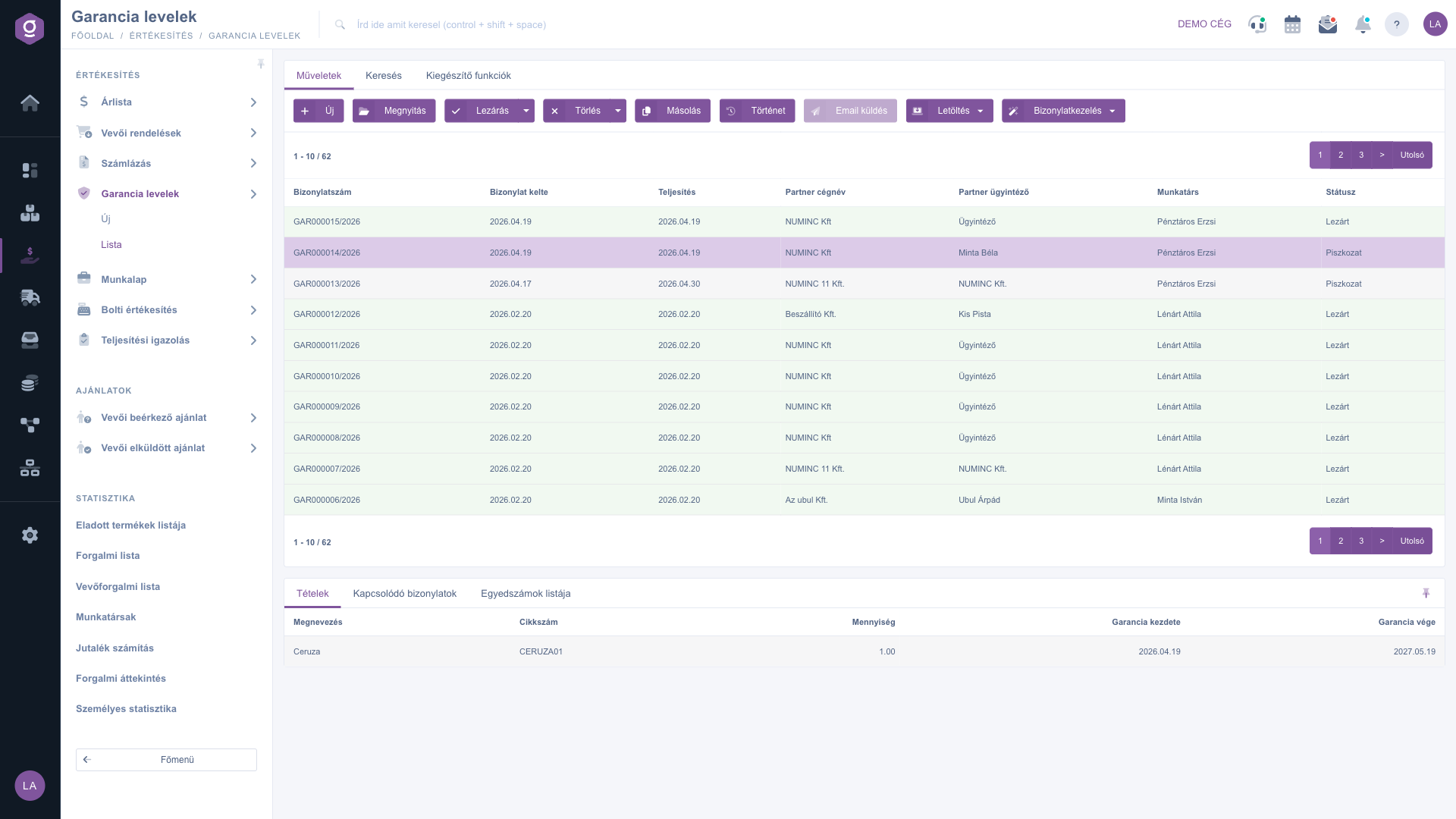
Warranty letters list – selected row and preview panel
Additional functions
On the Additional functions tab you find extra options related to the selected warranty letter:
- Sent items: view the emails previously sent for the warranty letter.
- New email: write a new email related to the warranty letter, using the External mail client or the Internal mail client.
- New task: create a task related to the warranty letter.
If you right-click a warranty letter row, the most common actions (New, Open, Close, Delete, Cloning) are also available from a context menu.
Tip
You can quickly check when a product warranty expires: find the partner warranty letter on the Search tab by Partner company name, select the row, and the Items tab of the preview panel immediately shows the Warranty end date — without opening the document.



