1. Setting up a recurrence for an invoice
Open Main menu / Sales / Invoicing / List, select the invoice you want to issue regularly (the invoice must be in Closed status), then click the Document management button and choose the Recurrence command. In the window that opens you can specify the following:
- Recurrence start: the day of the first recurrence (required).
- Recurrence end: the last day until which invoices can be issued — leave it empty if you do not want to set an end date.
- Fulfillment date, counted from the document's date: how many days after the invoice date the fulfillment date should be (0–30 days, required).
- Payment deadline, counted from the document's date: how many days after the invoice date the payment deadline should be (0–30 days, required).
- Frequency: at what interval a new invoice should be created (required).
- Recurring invoice comment: a free-text comment that is also carried over to the issued invoices.
You can record the settings with the Save button, and close the window without saving with the Close button.
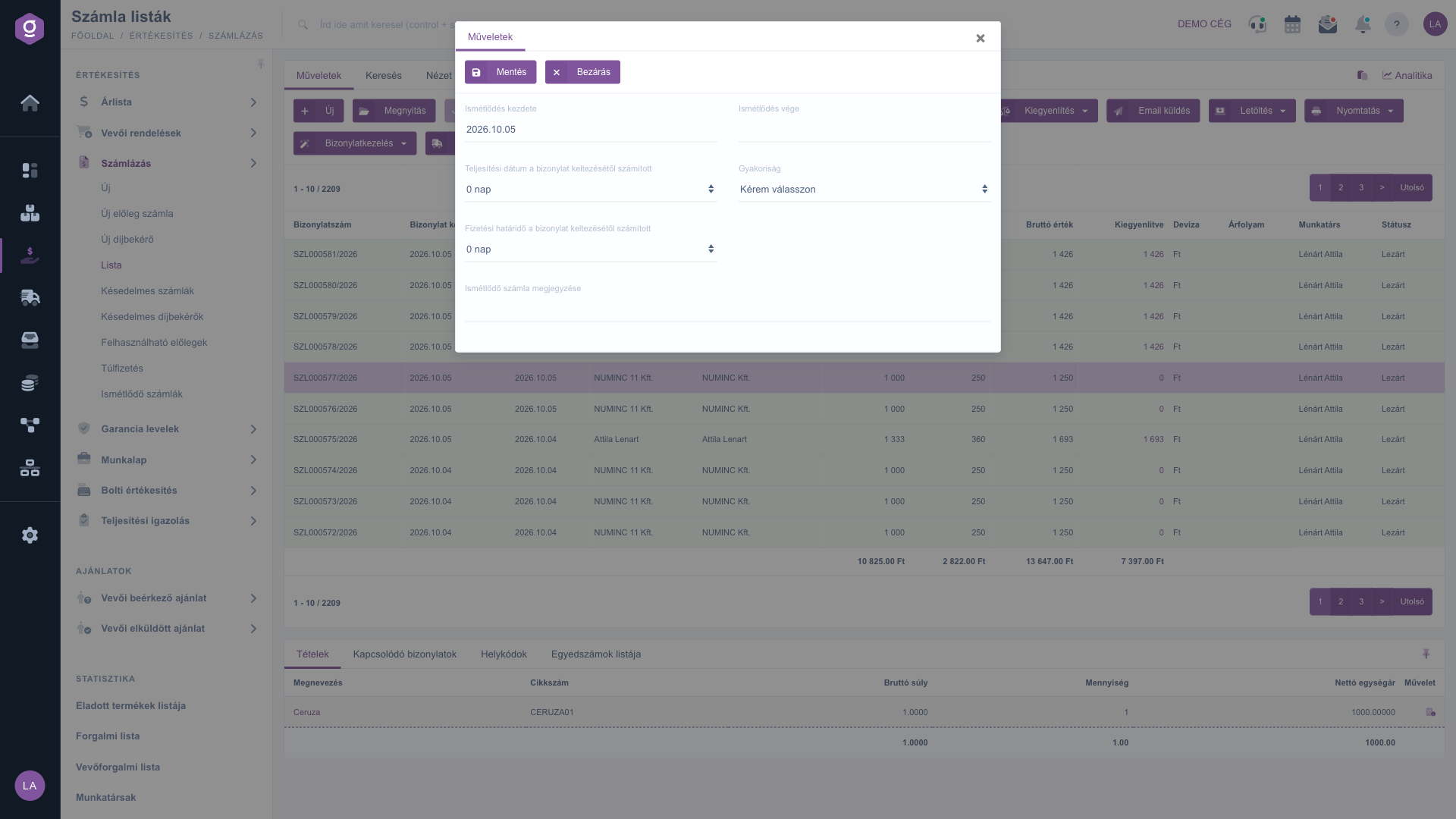
Setting up a recurrence from the invoice list
2. Reviewing the configured recurrences
Click Main menu / Sales / Invoicing / Recurring invoices and all the configured recurrences are displayed. On the Actions tab above the table there are two buttons:
- Open: opens the details page of the selected recurrence, so you can change its settings and view the issued invoices.
- Delete: deletes the selected recurrence. Deleting only stops further automatic issuing — the invoices already issued are kept.
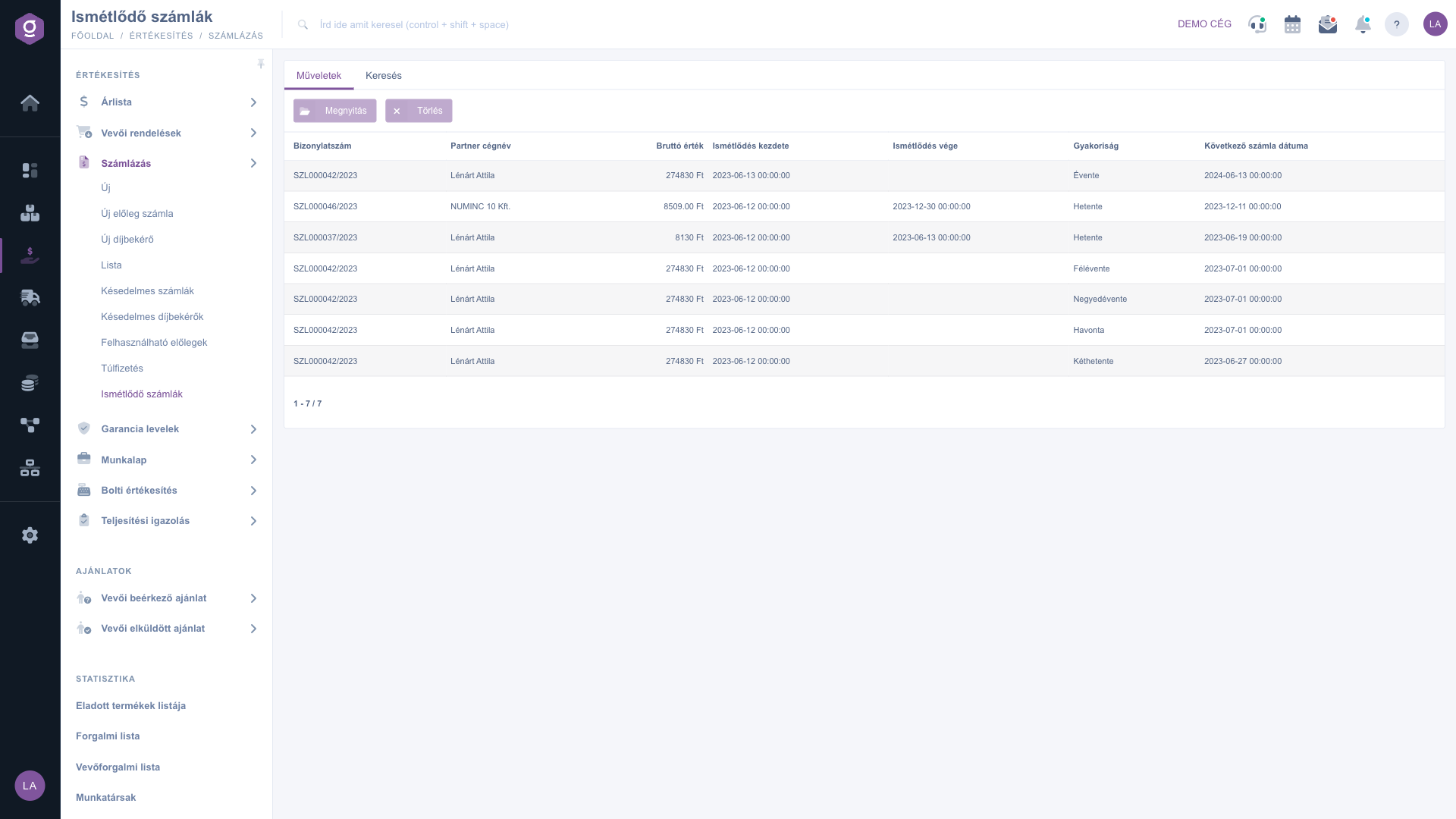
Recurring invoices list – Actions tab
Searching among the recurrences
Click the Search tab among the tabs above the table to show the filtering options. The Partner company name and Document number fields are visible immediately. Click "Expand" to open an additional filter: the start and end date of the Document date field. Use the Search button to filter by the conditions you set.
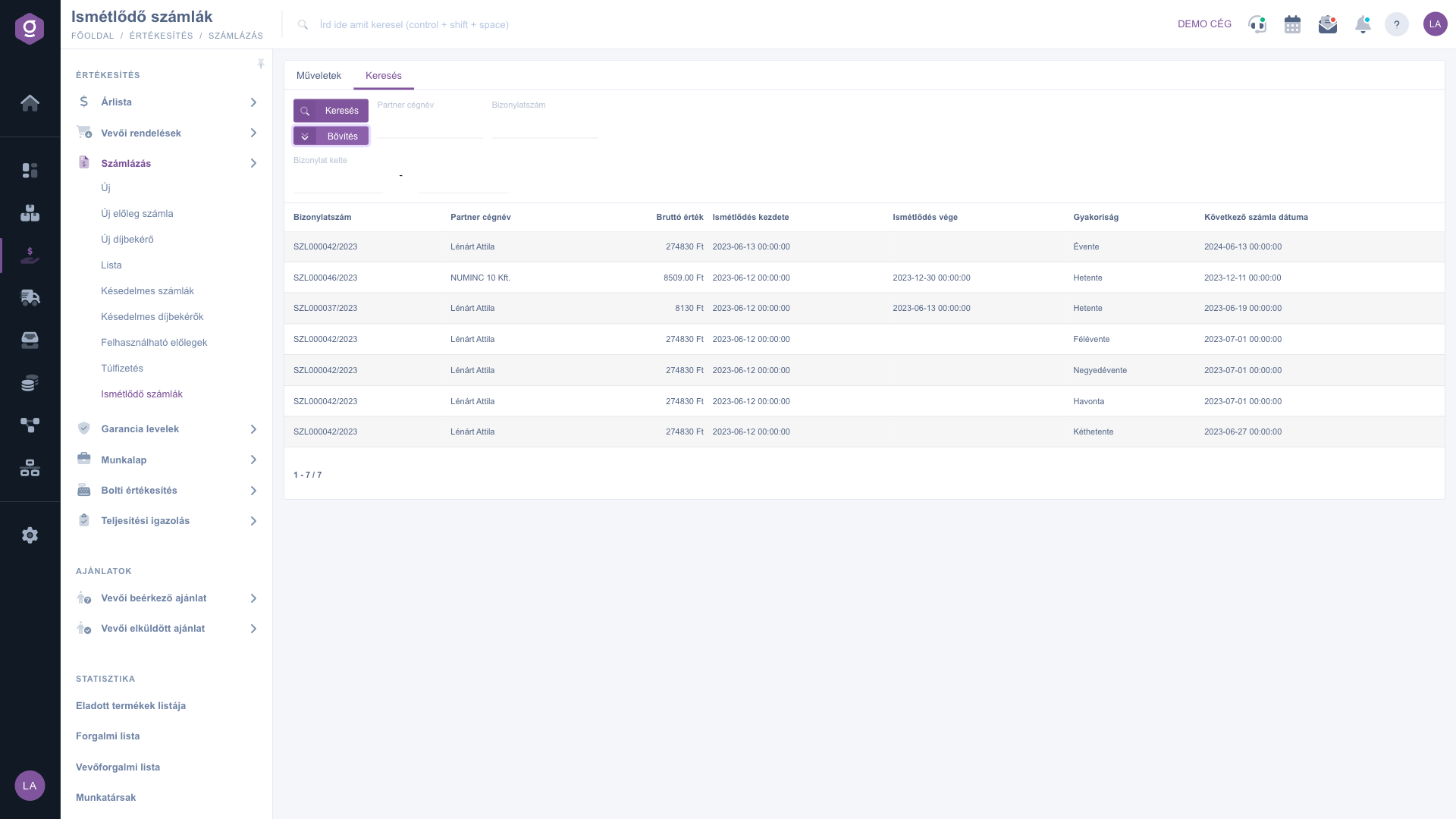
Recurring invoices list – Search tab
3. The details page of a recurrence
After selecting a row, use the Open button (or open the row) to get to the details page of the recurrence. With the Save button you record your changes, with the Delete button you delete the recurrence. On the details page you can change the Recurrence end, the number of days for the fulfillment and payment deadline, the Frequency and the comment; the Recurrence start field can no longer be edited after creation. At the bottom of the details page, the Issued invoices tab shows the list of invoices issued from the recurrence so far (Document number, Document date, Document type), and with the icon at the end of the row you can open the given invoice.
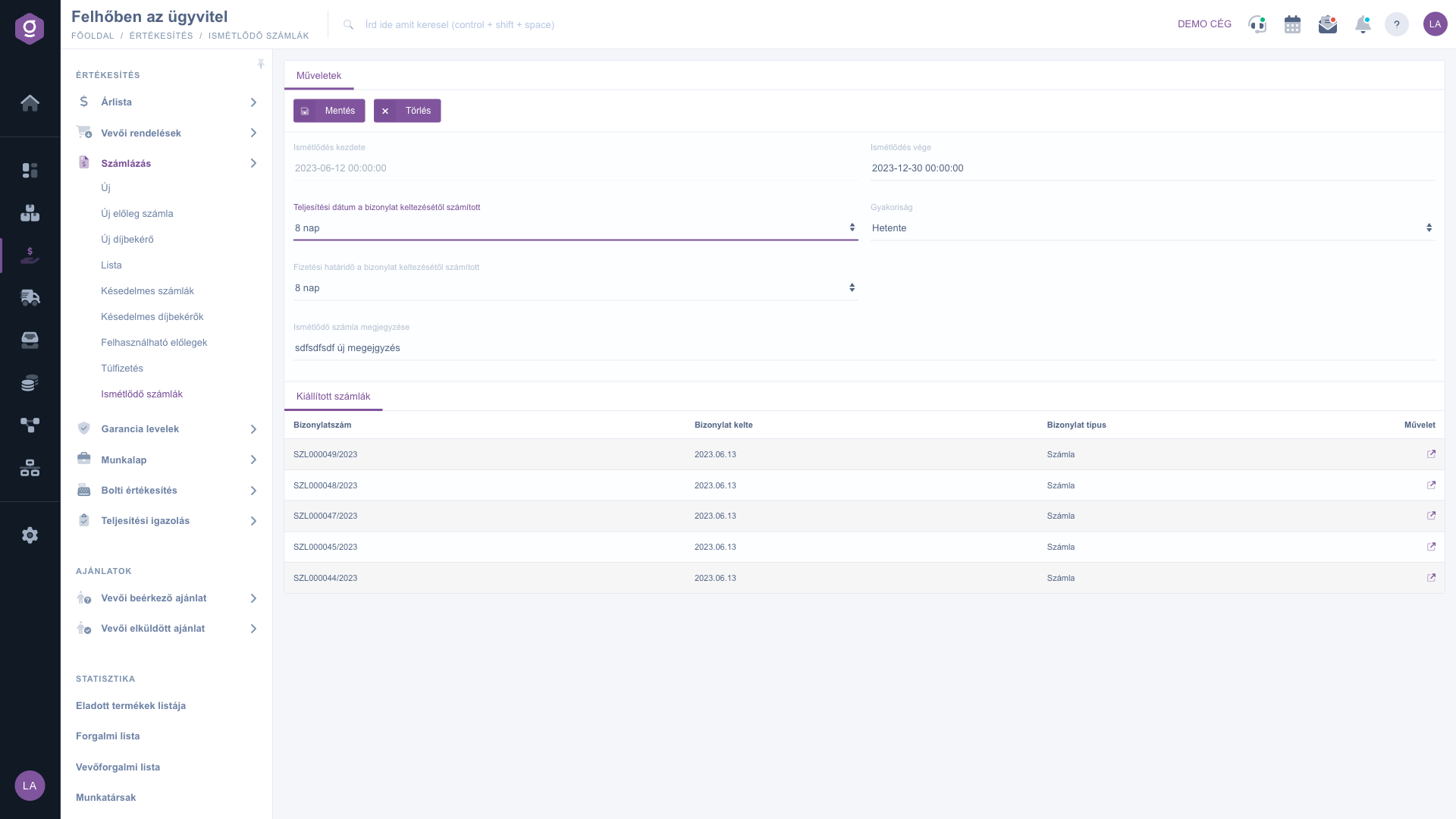
Recurrence details page – issued invoices
4. How does the automatic issuing work?
On the day given in the recurrence, the system automatically creates a new invoice as a copy of the source invoice: it takes over the partner and item data, sets the invoice date to the current day, adjusts the fulfillment date and payment deadline to the given number of days, and then closes the invoice. After that, the Next invoice date is recalculated according to the following rule:
- Weekly (shown in the system as Hetente): one week later.
- Every two weeks (Kéthetente): two weeks later.
- Monthly (Havonta): on the first day of the next month.
- Quarterly (Negyedévente): on the first day of the next quarter.
- Semi-annually (Félévente): on the first day of the next half-year.
- Annually (Évente): one year later.
Tip
If the regular invoicing only lasts for a set period (e.g. a one-year contract), always enter the Recurrence end date as well, so you do not have to remember to delete the recurrence. Before starting the recurrence, check the items and VAT rates of the source invoice, because the automatically issued invoices will be copies of it.
A recurrence starts from closed invoices — you can read about using the invoice list in the
Invoice list guide, and about issuing and handling an invoice in the
Invoice sheet guide.



