1. Opening the page
Open the page from Main menu / Sales / Statistics / Traffic overview. You can also find it under Main menu / Analytics / Traffic overview. Two tabs appear at the top of the page: General and Current statistics. The page always opens on the General tab.
The screenshots below were taken in the Hungarian interface; the layout is the same in English. A few labels on the page (for example the Today tab, Turnover and List) are currently displayed in Hungarian: Ma, Forgalom, Lista.
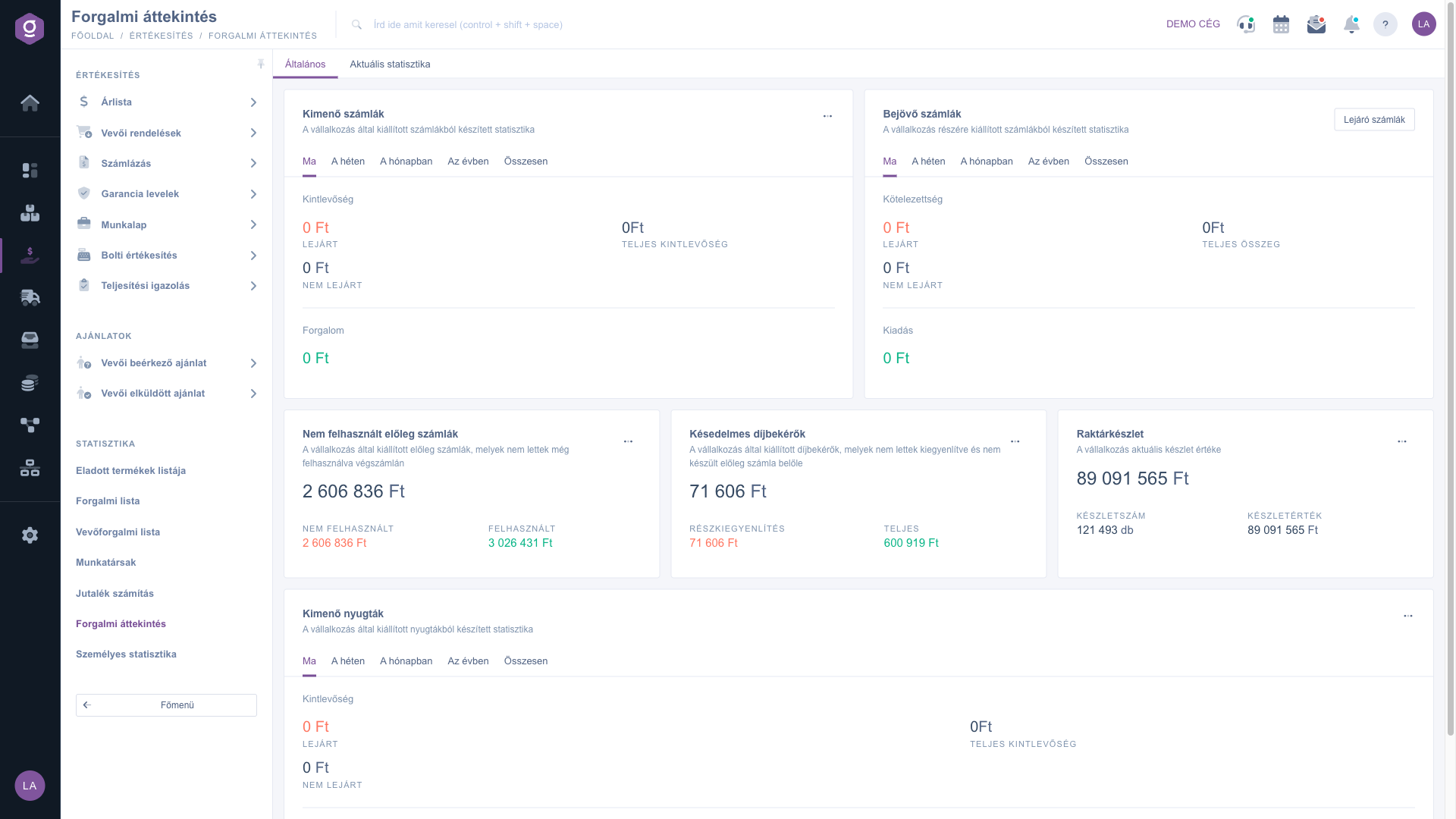
The General tab of the Traffic overview: cards for outgoing and incoming invoices, deposit invoices, proforma invoices, warehouse stock and receipts
2. The Outgoing and Incoming invoices cards
The two top cards summarize your invoices. Use the tabs at the top of the card to choose the period: Today, This week (Monday to Sunday), This month, This year or Total. The period is based on the creation date of the document. Every tab has the same layout, only the amounts change.
- Outgoing invoices: in the Receivables block, Overdue is the unpaid amount whose payment deadline has already passed; Total receivables is everything that has not been paid yet; Not overdue is the difference, i.e. what is still within its deadline. Forgalom (turnover) is the gross total of the invoices issued in the period.
- Incoming invoices: the same layout for your own debts — the Liability block shows Overdue, Total amount and Not overdue, with Expense below it. With the Expiring invoices button in the top right corner of the card you can jump to the list of incoming invoices that are about to fall due.
Example: if Total receivables is 1,200,000, of which Overdue is 300,000, then Not overdue is 900,000.
The three-dot menu of the Outgoing invoices card contains three quick actions: New invoice, Lista (the list of overdue outgoing invoices) and Receivables list (the list of outgoing invoices that have not been fully paid yet). The menu opens the target page in a new tab, so the overview stays open.
3. Deposit invoices, proforma invoices and warehouse stock
The three cards in the second row are not tied to a period, they show the current state:
- Unused deposit invoices: the big number is the deposit amount that you have not yet used on a final invoice. Not used (red) is the same amount, Used (green) shows the total value of the deposit invoices. Three-dot menu: New deposit and Lista (the list of deposit invoices not yet used).
- Overdue proforma invoices: proforma invoices that have not been fully settled yet. Partial settlement is the part that has already been paid, Teljes (total) is the full value of the proforma invoices. Three-dot menu: New proforma invoice and Lista (the list of overdue proforma invoices).
- Warehouse stock: the big number is the value of the products in stock, based on the last incoming price. Stock count is the quantity (db) and Stock value is the same in currency. Only stockable products with a positive physical stock are counted. Three-dot menu: Warehouse stock list and Warehouse stock overview.
4. The Outgoing receipts card
The full-width card at the bottom summarizes the receipts issued from retail sales, with the same period tabs as the invoices. Overdue is always 0 here, because receipts have no payment deadline. The three-dot menu contains the New retail sale and Lista quick actions.
5. The Current statistics tab
Click the Current statistics tab to see the live state of orders and retail sales. This page refreshes itself every minute, so you do not need to reload it.
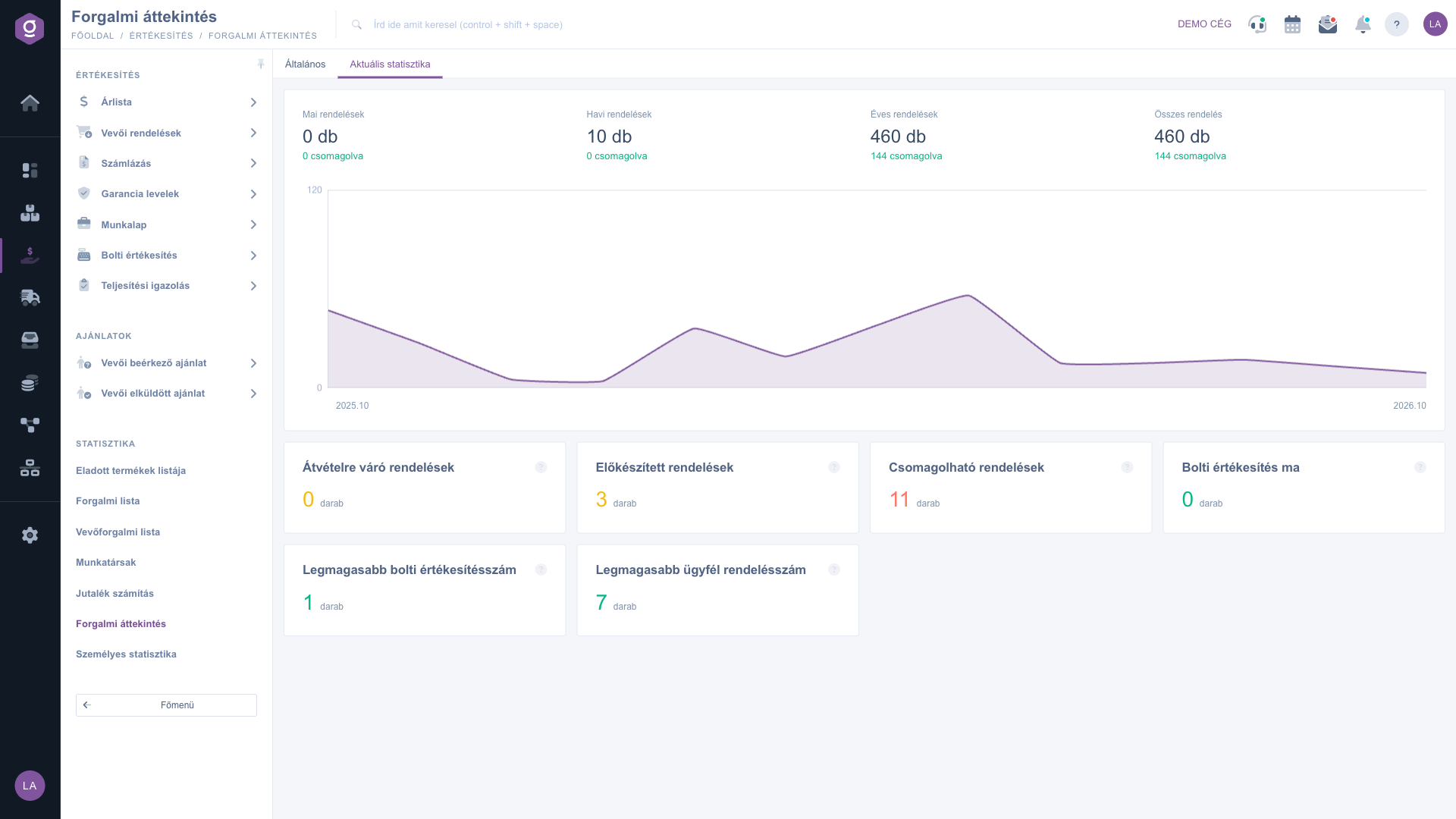
The Current statistics tab of the Traffic overview: order counts, 12-month chart and cards for orders in progress
- Order counts: the top bar shows the number of Today’s orders, Monthly orders, Yearly orders and All orders. Below each one, in green, is the number of parcels recorded in that period (shown as csomagolva).
- Chart: the line chart shows customer orders of the last 12 months, month by month (draft and cancelled orders are not included). Below the chart you see the first and the last month, for example 2025.10 and 2026.10. Hover over a point with the mouse to see the exact count for that month.
- Orders in progress: the Orders awaiting pickup, Prepared orders and Orders that can be packed cards show how many orders are currently in the given phase of order picking. These numbers tell you how much work is waiting in the warehouse.
- Retail sales: Retail sales today is the number of retail sales recorded today.
- Record values: the Highest retail sales count and Highest customer order count cards show the largest number of documents that were recorded with the same creation time.
Tip
Keep a browser window open on the Current statistics tab on a second monitor or in the warehouse: the page refreshes every minute, so you can see live how many orders are waiting for pickup, preparation or packing. On the financial side, check the Overdue amount of the Outgoing invoices card every morning, then open the overdue invoices with the Lista item of the three-dot menu and call the customers who are late.



