Event types and priority

Learn about the Event types page: per type you see the number of pending and sent events, and you can set how urgent each type is.

Function overview

On the Event types page you see, per type, how many of the events that Logzi sends to the extensions are still waiting to be sent and how many the system has already sent. Each type has a Priority number: the higher the number, the sooner an event of that type is processed when sending. You can change this value here.

  • Summary cards: the types that have pending events are shown.
  • List: all types in descending order of priority.
  • Changing the priority: by opening the type, and, on request, re-prioritising the already pending events.

Step by step

1. Opening the page

Click Main menu / Integrations / Extensions / Event types. At the top of the page you see cards, below them the list of types. The screenshots were taken in the Hungarian interface.
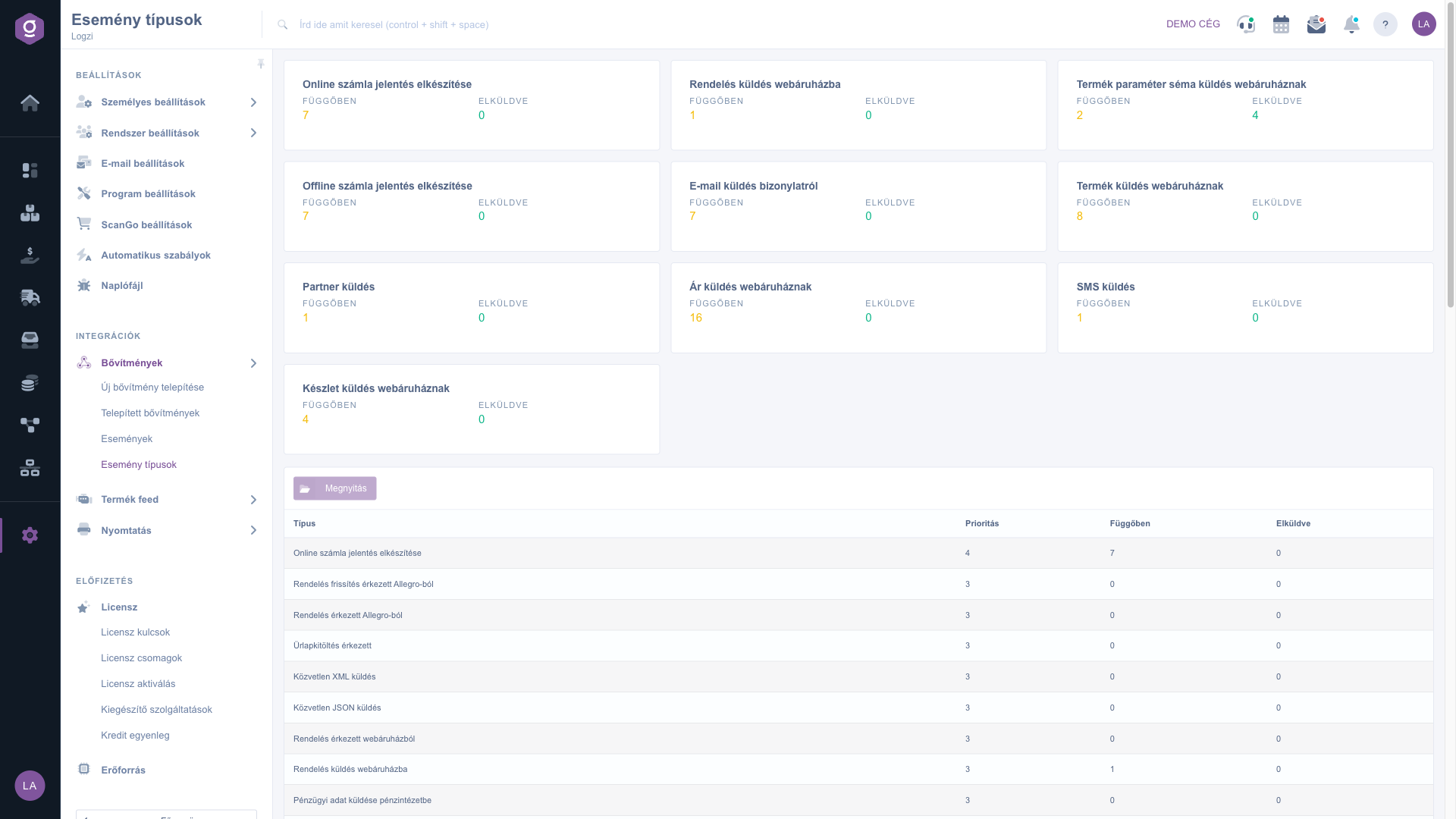
The Event types page with the summary cards and the list of types

2. The summary cards

Each card stands for an event type, for example Ár küldés webáruháznak (sending a price to the webshop) or Termék küldés webáruháznak (sending a product to the webshop). On the card Pending (yellow number) shows how many events are still waiting to be sent, and Sent (green number) shows how many the system has already sent. Only the types that currently have a pending event get a card, so you see right away where processing is piling up.

3. The list of types

The columns of the list: Type, Priority, Pending and Sent. The list is shown in descending order of priority, so the most urgent types are at the top. The names of the types come from the system, so they are shown in Hungarian.

4. Changing the priority

Click the row of the type you want to change, then the Open button. A window opens in which the Type is read-only, and in the Priority field you can enter a new whole number. With the Save button you save the change, and with the Close button you leave the window without saving.
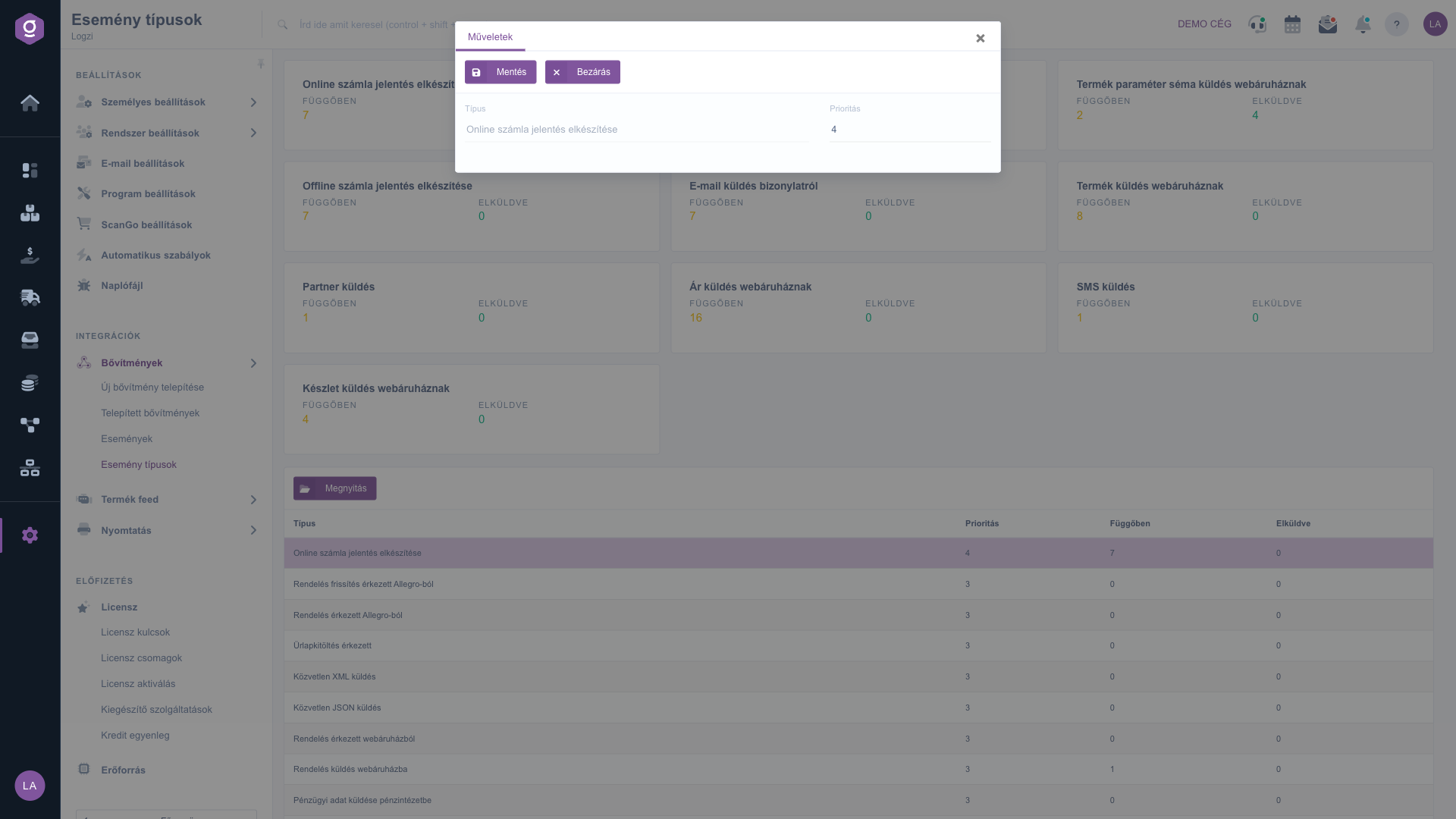
The window for changing the priority with the Save and Close buttons

5. Re-prioritising the pending events

If you changed the priority value and click Save, the system asks: Should the already pending events also be re-prioritized to the new value? With the Igen (Yes) button the currently waiting events also join the queue with the new priority; with the Nem (No) button only the events created later get the new value. If you did not change the priority value, the question does not appear and the save happens immediately.

Tip


If the events of a type wait for a long time because other types go before them, raise its priority and answer yes to the question, so that the already waiting events also move forward. You can follow whether they have gone out as described in the Events help.

You can find the details of the individual events, resending and running immediately in the Extension events help.

Field description

The cards of the Event types page, the columns of the list and the fields of the editing window.

Field / ColumnRequiredDescription
TypeThe name of the kind of event (for example Ár küldés webáruháznak). Read-only in the editing window.
PriorityThe urgency of the type as a whole number: the higher the value, the sooner an event of that type is processed. It must be filled in when you change it.
PendingThe number of events of the type that are still waiting to be sent.
SentThe number of events of the type that have already been sent.

Frequently asked questions

It decides which type of the waiting events is processed first when sending. A higher number means more urgent, so for example a type with priority 4 goes before one with priority 3.

A card appears only for the types that currently have a pending event. You find all the types in the list below.

The priority is saved, but only the events created afterwards get the new value; the ones already waiting stay in the queue with the old priority.

The types are part of the system, and their names cannot be changed. You can only set their priority.

The menu item is under Main menu / Integrations / Extensions. If you cannot see it, the required permission is probably not assigned to your user; ask your administrator to check the settings.

Need personalized help?

Don't want to spend hours searching for a solution? Choose the most efficient way: book a personalized, 45-minute online training session dedicated entirely to you. Whether it's a walkthrough of the basics or a detailed setup of a specific module, our expert colleague will guide you through the whole process, step by step.

Don't waste your time - ask for help!
Our goal is to get you using our system as quickly and efficiently as possible. Whether you're completely new to us or stuck on a specific setting, don't hesitate to ask for help!

Logzi warehouse management software

Get in touch with us

Interested in our software? Feel free to write to us!

Need help?

If you can't find the answer and need assistance

Create your account now,
pay later!

Try it free for 3 days, no risk, no obligation!

