1. Opening a new CMR
Click Main menu / Transport / CMR / New, or the New button on the Main menu / Transport / CMR / List page. The empty CMR form opens. In the top bar you see two tabs: on the Actions tab you will find the buttons for saving, closing and other operations, and on the Additional functions tab the extra options related to the document. At the right end of the bar, the CRM link opens the CRM notes of the partner.
2. Filling in the header
On the left side of the header you will find the identifying data of the document:
- Document number: the field cannot be edited, the identifier is assigned by the system.
- Status: also not editable, it shows the current state of the document.
- Currency and Exchange rate: choose the currency of the document (required) and, if necessary, enter the exchange rate. After the document has been saved these fields can no longer be changed.
- Document date: the date the document was created, not editable.
- Performance date: enter the date on which the shipment is performed (required); the calendar helps you pick it.
On the right side of the header you enter the partner data:
- Partner company name: start typing the name of the partner and choose from the results. With the buttons next to the field you can open the partner data sheet, or add a new partner with the + button without leaving the page.
- Partner contact person: you can choose from the contacts of the selected partner, and add a new one with the + button.
- Partner address: you can choose from the recorded addresses of the partner, and add a new address with the + button.
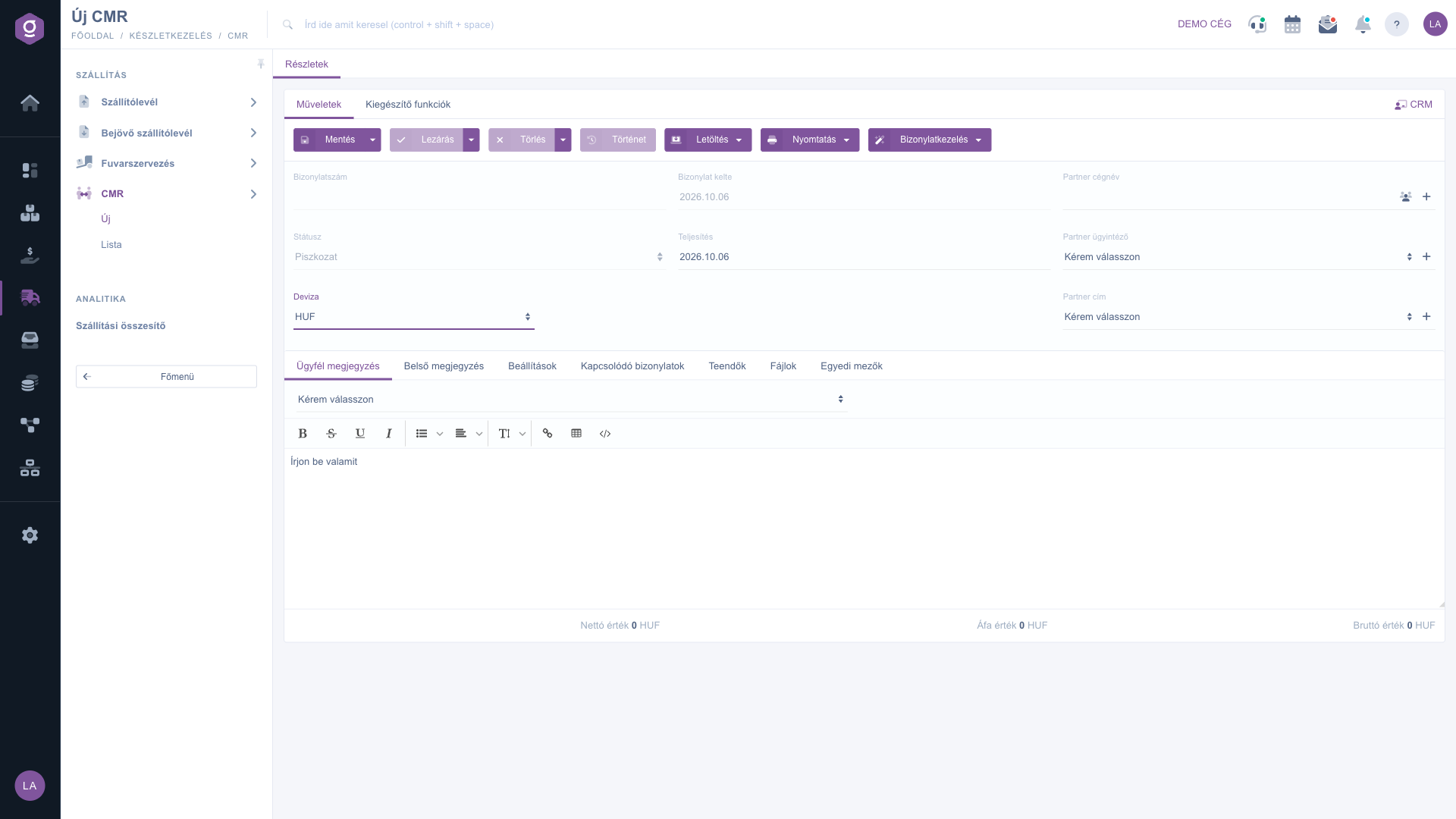
CMR document – header of a new CMR
3. Comments
Among the tabs below the header, on the Customer comment tab you can write the text that also appears on the printed version of the document. The text of the Internal comment tab is for the company own use. On both tabs you can also choose a previously saved comment from the drop-down list above the text field.
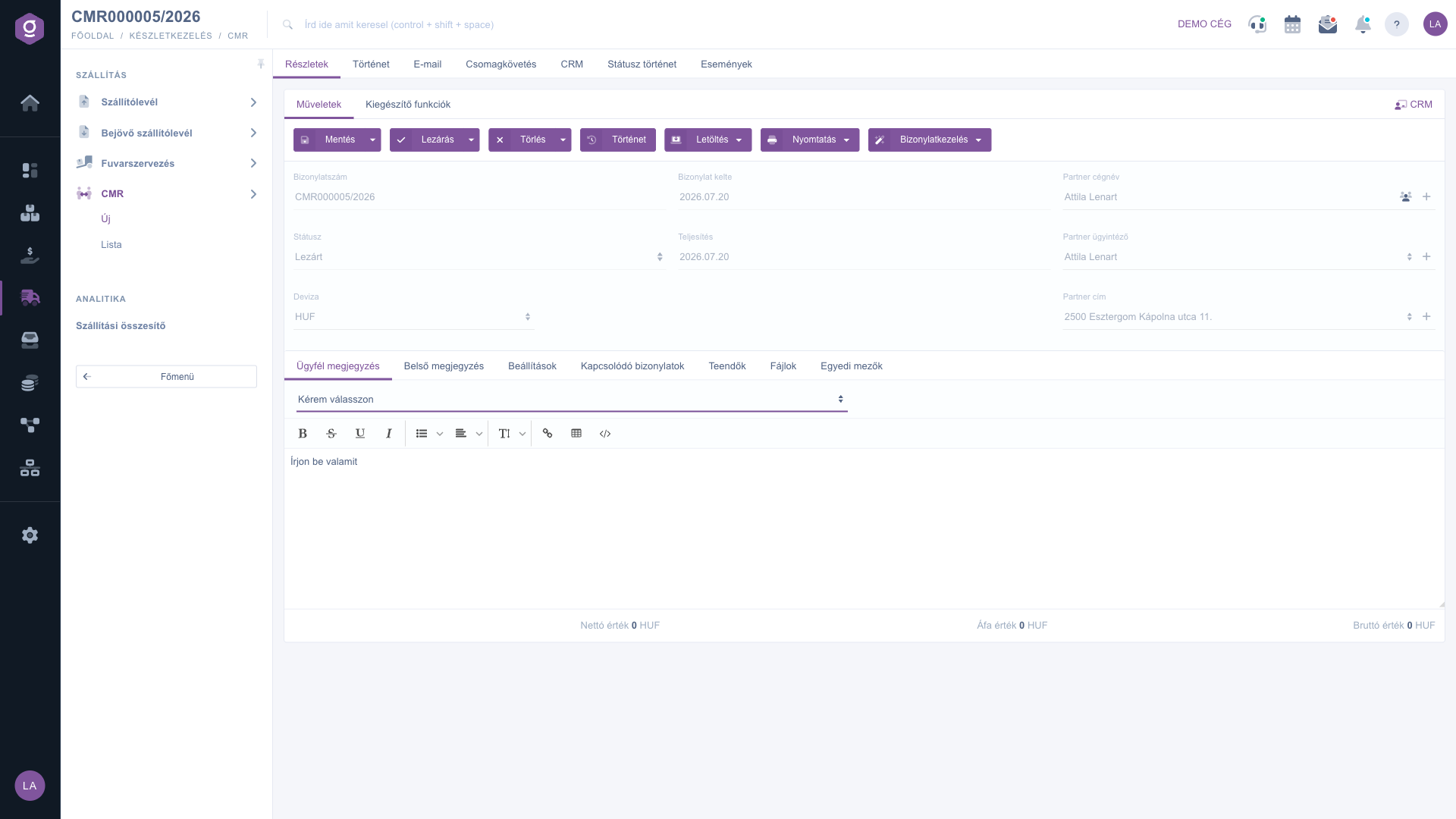
CMR document – saved, closed CMR (Customer comment tab)
4. Settings and further tabs
- Settings: here you specify the Billing address (required) and, optionally, the Project, Job number and Department number values. For all three you can add a new value with the + button next to the field. You can also filter by these later in the list.
- Related documents: lists the other documents belonging to the CMR (for example the invoice or delivery note started from it). For a new CMR the list is empty.
- Tasks: the table of tasks created for the document, with the columns Document date, Subject, Comment and Issuing employee.
- Files: the files attached to the document. On this tab you manage the files with the New, Open, Delete, Classification and Browse buttons.
- Custom fields: additional data fields defined by the company, if any have been set up.
At the bottom of the form, below the table, you will see the Net value, VAT value and Gross value totals. Since a CMR has no items, these values are always 0.00.
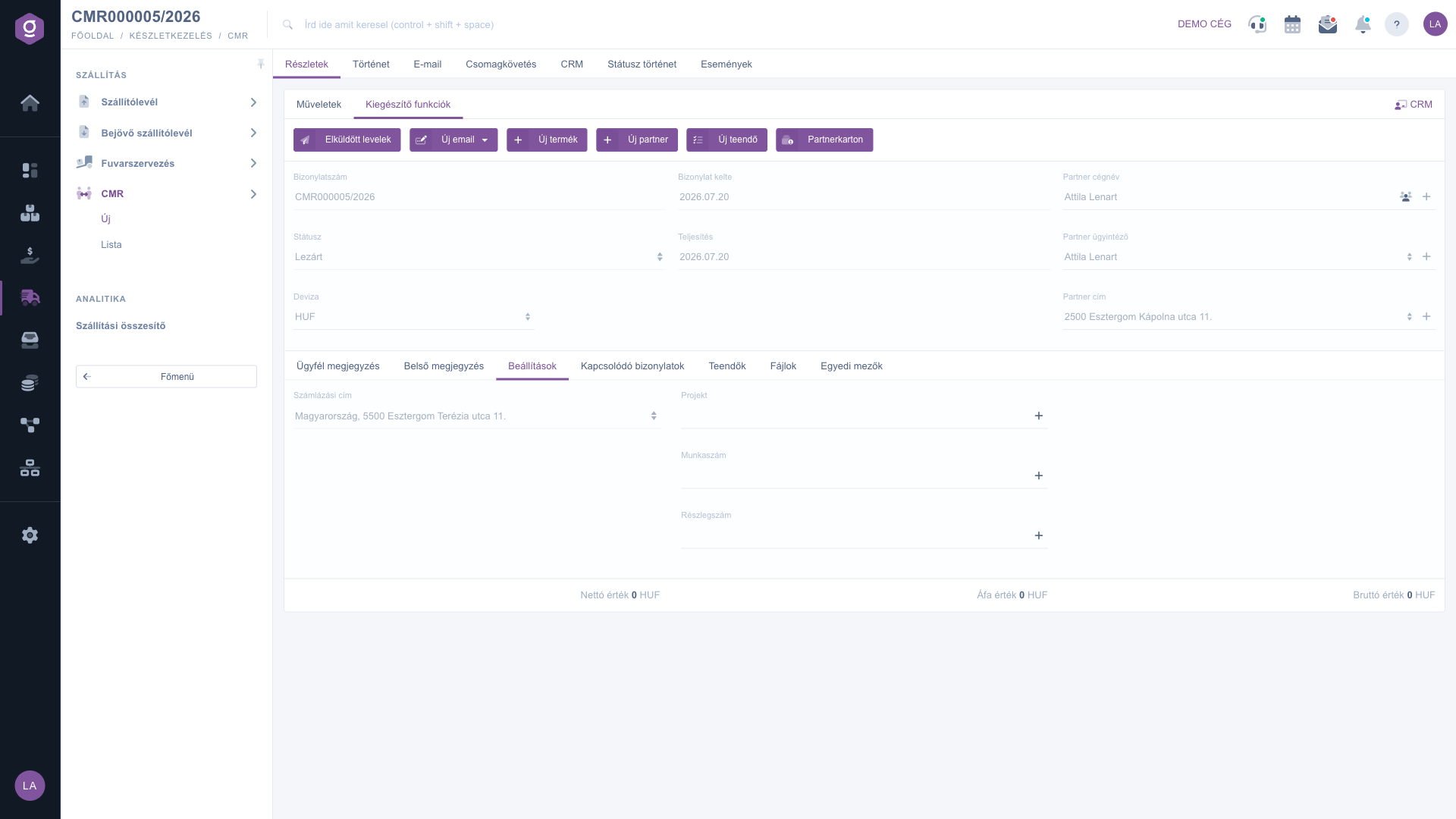
CMR document – Settings tab
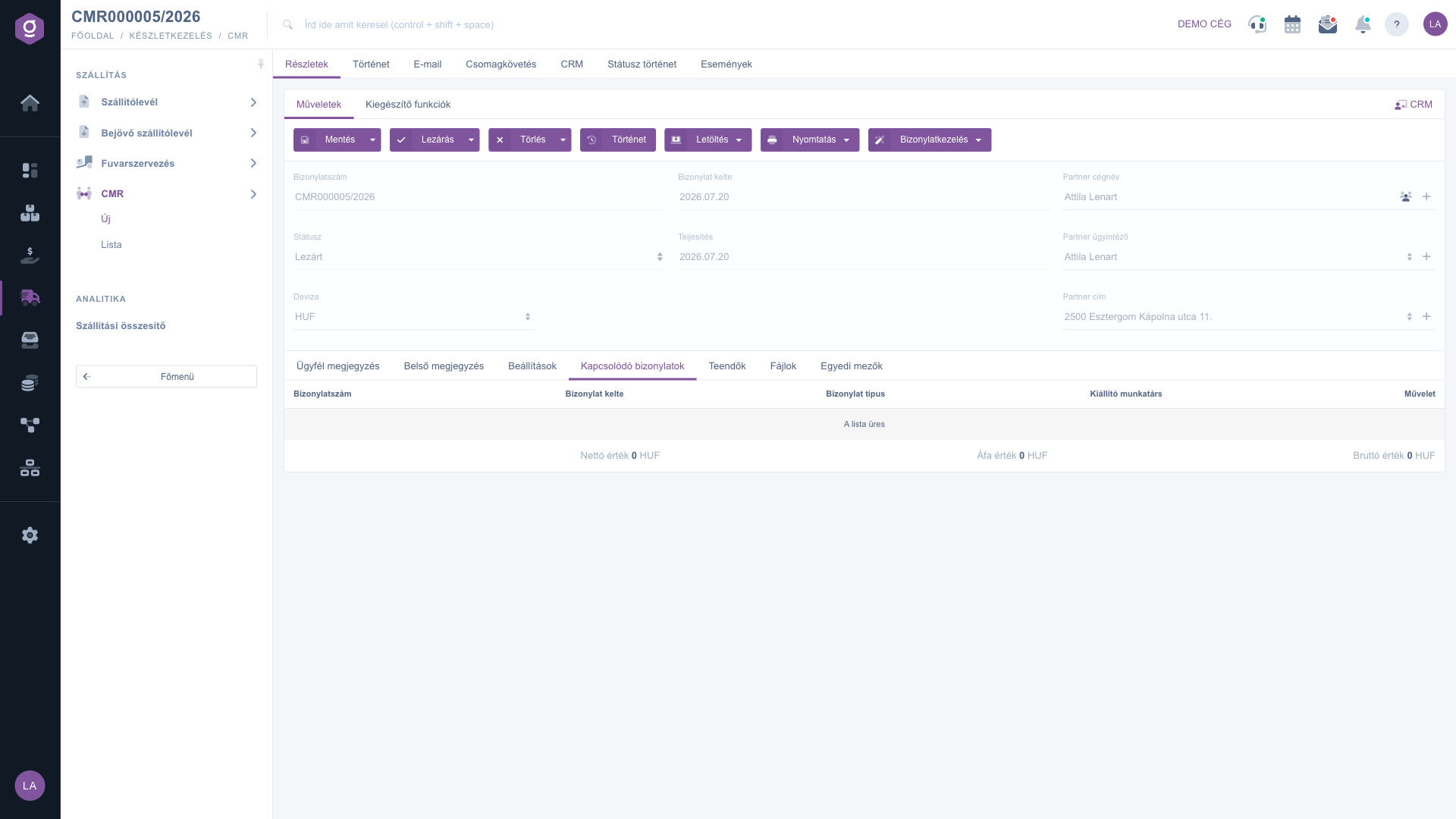
CMR document – Related documents tab
5. Saving, closing, deleting
On the Actions tab you will find the following buttons:
- Save: saves the document as a draft and you stay on the page. From the arrow next to the button the Save and close option is also available, which closes the document together with saving it.
- Close: closes the document (only in Draft status). From the arrow you can also choose Close and print and Close and download.
- Delete: deletes the document. The Delete and copy option creates a copy of the document right after deleting it, so you can re-create a wrongly entered CMR in one step.
- History: shows the further documents related to the document and its history.
For a new, not yet saved CMR the Close, Delete and History buttons are greyed out, because there is nothing yet to close, delete or look at. They become available after saving.
6. Download, print and Document management
- Download: you can download the document in CSV, XLSX or PDF format, and with the PDF preview option you can see what it will look like even in draft state.
- Print: the Document option prints the CMR, the Product label option prints the related labels.
- Document management: based on a closed CMR you can start a new document: Invoice, Incoming invoice, Delivery note, or with the Cloning option a new CMR with the current data. The invoice, the incoming invoice and the delivery note open with the new, not yet saved form, pre-filled with the data of the CMR. Since a CMR has no items, you need to add the items on the new document.
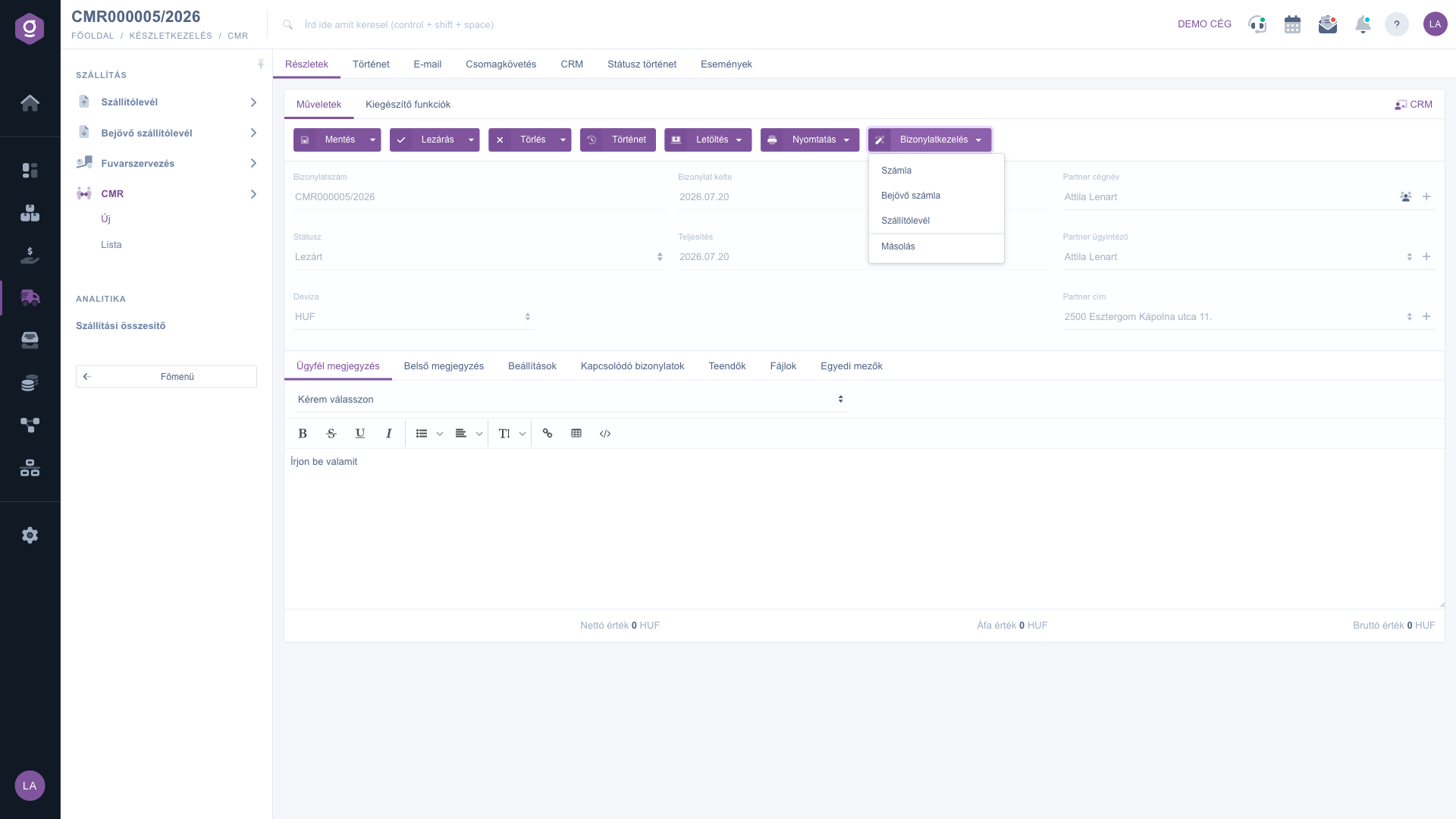
CMR document – Document management menu
7. Additional functions
On the Additional functions tab you will find the following extra options:
- Sent items: the emails previously sent for the document.
- New email: writing a new email for the document with the External mail client or the Internal mail client.
- New product and New partner: creating a new product or partner in a new tab, without leaving the CMR.
- New task: creating a task related to the document.
- Partner card: the detailed data sheet of the partner on the document.
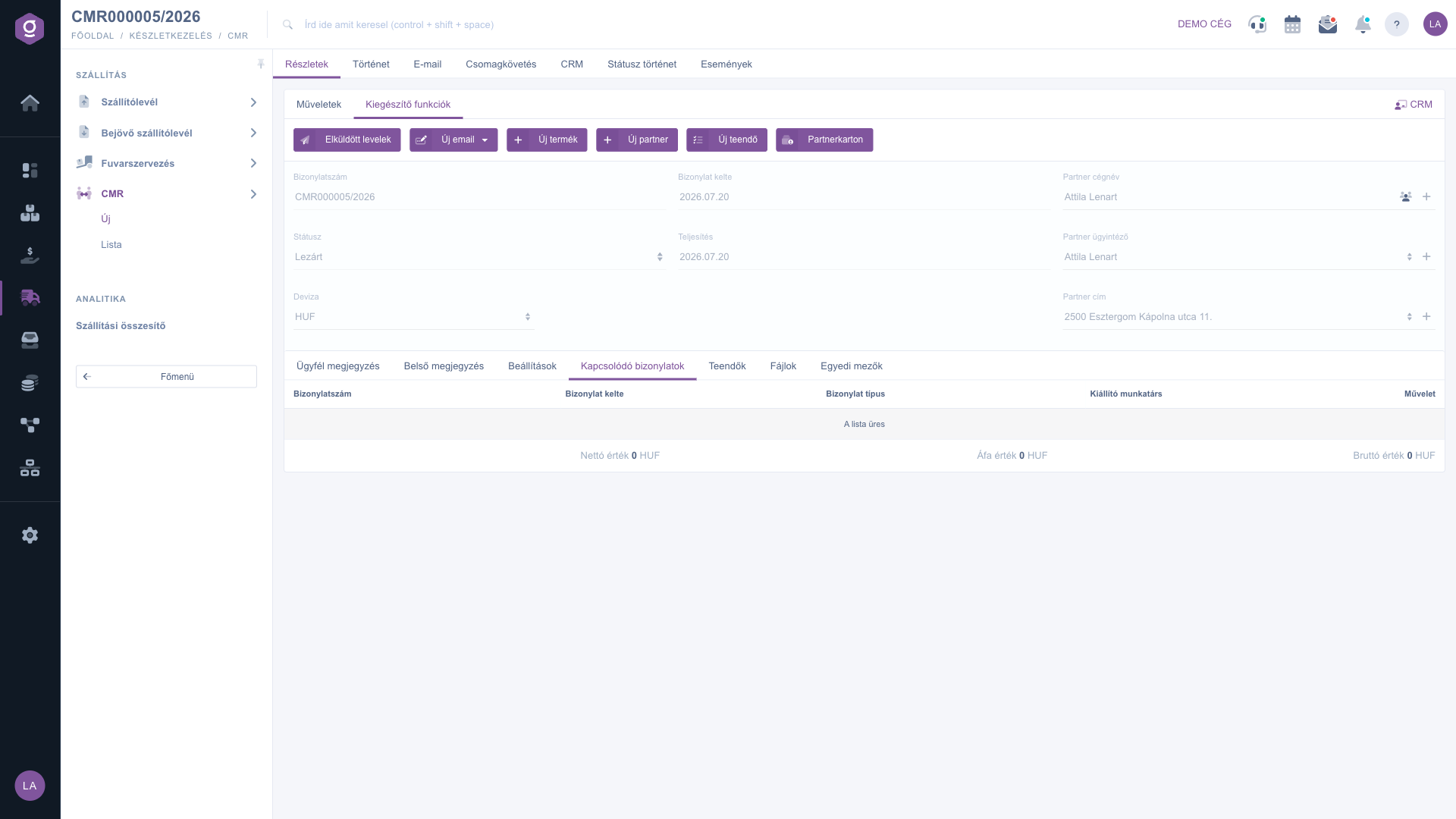
CMR document – Additional functions tab
Tip
If you also need to issue an invoice or a delivery note based on the CMR, first save and close the CMR, then start the new document from the Document management menu: the data arrives pre-filled. For recurring shipments you can start from an earlier CMR with the Document management / Cloning option, so you do not have to type everything again. Do not forget to select the Billing address on the Settings tab, because without it saving will not succeed.
If you would like to review, filter or export the CMR documents you have already recorded, read the
CMR list help.



