1. Opening the page and the summary cards
Click Main menu / Stock management / Stocktaking / Evaluation to open the Stocktaking evaluation page. At the top you see three summary cards, and below them the list of evaluated items:
- Shortage (red): the number of items where less was found than recorded, with their combined value in the base currency below (Difference value in base currency).
- Surplus (green): the number of items where more was found than recorded, with their combined value in the base currency below.
- Match: the small text shows the number of matching items; the big number on the card is the Total evaluated items, that is the shortage, surplus and matching items together.
The cards always refer to the current filter, not only to the visible page: if you filter by a site on the Search tab, the cards show the result of that site only. The Shortage and Surplus values are shown separately, each as a positive amount; they are not netted into one balance.
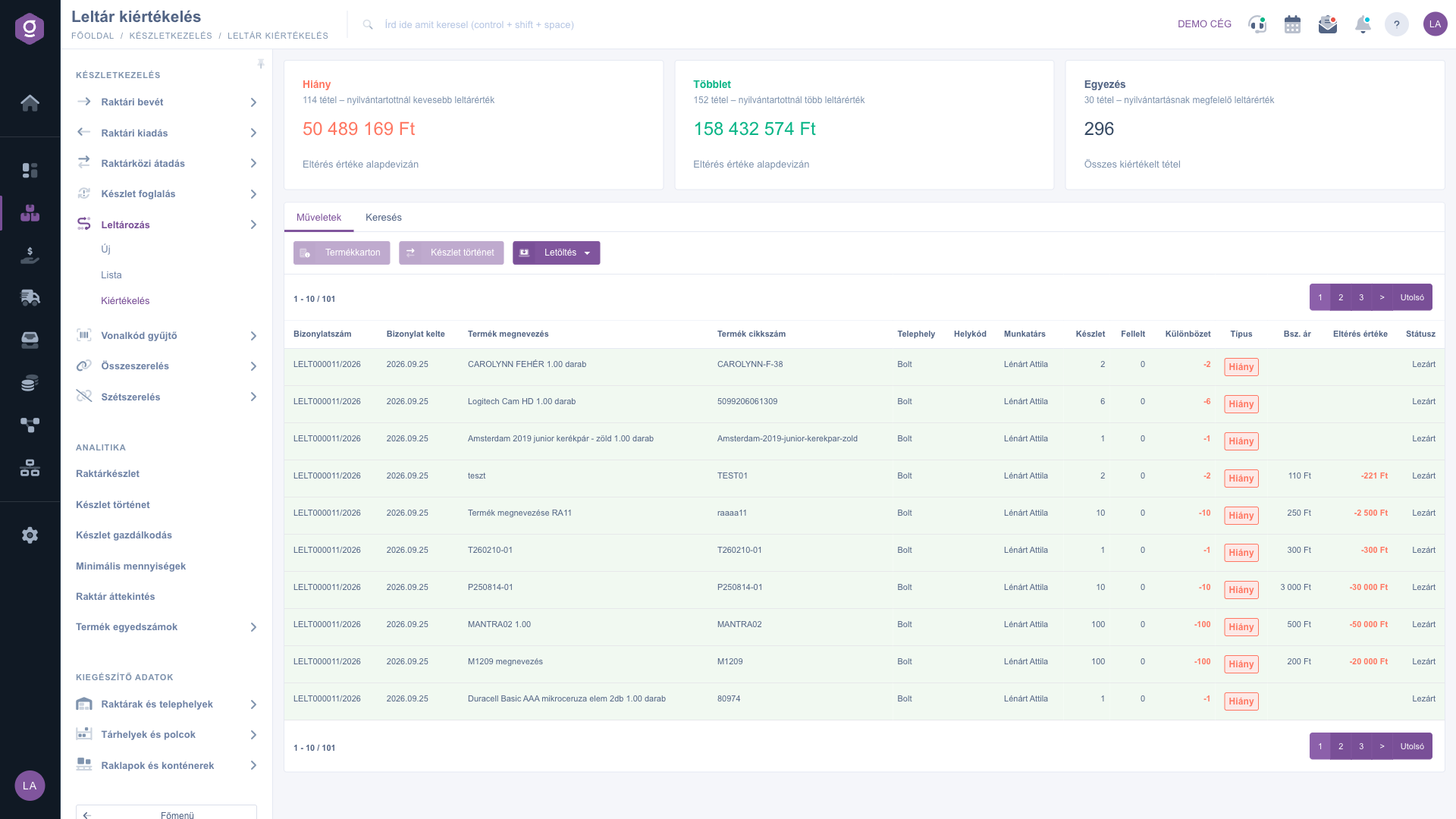
Stocktaking evaluation – summary cards and the list of evaluated items
The list rows and the Type badges
In the list, one row is one stocktaking item, that is one product (and location code) on one stocktaking document. If the same product was counted in several stocktakings, each stocktaking has its own row. The Difference column is the difference between Found and Stock (Found − Stock), with a sign:
- Shortage (red badge, red negative number, e.g.
-10): less was found than the records showed.
- Surplus (green badge, green positive number, e.g.
+3): more was found than recorded.
- Match (grey badge,
0): the counted and the recorded quantity are equal.
Pagination appears above and below the list (e.g. 1 - 10 / 101). Click a row to select the item — the Product card and Stock history buttons work with this selected item. On narrow screens (e.g. a phone) the less important columns are hidden, but Document number, Product part number, Stock, Found and Difference are always visible.
2. Searching among stocktakings and items
Click the Search tab above the table to show the filters. The fields visible immediately are Document number (the number of the stocktaking document or a part of it), Status (several states can be selected) and Site. Click "Expand" to open more filters: Document date and Performance date (start and end date), and Colleague. Apply the conditions with the Search button; the filter also applies to the cards and the downloads.
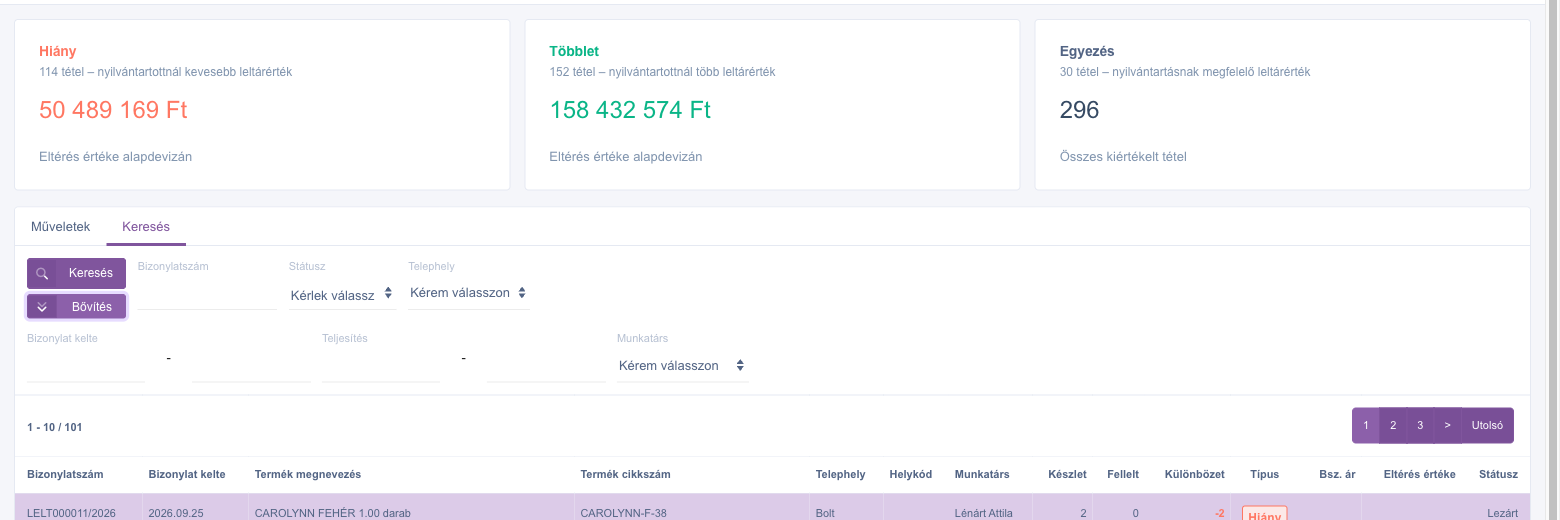
Stocktaking evaluation – Search tab expanded
3. Actions: product card, stock history and download
On the Actions tab you find three buttons. Before using Product card or Stock history, click a row in the list, because these refer to the product of the selected item:
- Product card: opens the card of the selected item's product in a pop-up window — use it when you want to understand a suspicious shortage or surplus from the product data and stock levels.
- Stock history: takes you to the Stock history page, filtered for the selected product's part number — use it when you want to see which stock movements (receipts, issues, transfers) led to the recorded quantity, and where the product may have been lost or gained.
- Download: a drop-down menu with three downloads. All of them respect the filter set on the Search tab and contain the whole filtered result, not just the current page:
- XLSX list: the table of items in Excel — use it when you want to calculate or filter further. In the file the Purch. price and Difference value have two decimals, and the Type is written as text (Shortage, Surplus, Match).
- PDF - List: a printable landscape A4 list of the evaluated items with the summary data — use it when you need the itemised result on paper or to share.
- PDF - Record (in the interface: PDF - Jegyzék in Hungarian): a portrait A4 summary record with the company data and the total shortage and surplus values, without item rows — use it when the result of the stocktaking has to be closed or signed as a document.
4. How is the difference value calculated?
The Difference value is the Difference multiplied by the Purch. price, always in the company base currency. The Purch. price is the purchase unit price stored in the product price list; if it is not given in the base currency, the system converts it with the latest recorded exchange rate of that currency. Example: if a product has a Purch. price of 250, a Stock of 10 and a Found quantity of 0, the Difference is -10 and the Difference value is -2 500. The list shows values rounded to whole numbers. If the product has no purchase price (or the difference is 0), the Purch. price and/or Difference value cell stays empty.
To learn how to record stocktaking items and found quantities, and how to close a stocktaking, see the
Stocktaking document guide. The list of stocktaking documents is described in the
Stocktaking list article.
Tip
To evaluate a closed stocktaking, set the Status field on the Search tab to Closed, choose the Site, then click Search. After that, use Download / XLSX list to export the shortages and surpluses for accounting in one step — the card totals and the file content are based on the same filter. For a suspicious shortage, click the row, then use the Stock history button to see when and by which movement the product stock last changed.



