1. Enter the identifier
Click Main menu / Stock management / Barcode collector / Packing and check. At the top of the page the first step, 01 Enter identifier, is active, and the cursor is placed in the Box ID/Collector ID field automatically. Type or scan the identifier, then click Next. Instead of Next you can also press Enter, space, comma or semicolon, so you can work quickly with a barcode scanner.
- As identifier you can enter the collector identifier, the related customer order number or the barcode of the box (pallet) belonging to the collector.
- If the order is not settled financially, or no such collector box or order is found, a warning window appears, which you can close with its confirmation button (labelled Rendben on screen).
- Below the field you see the cards of the packable collectors. A card shows the collector identifier, the name of the handler, the customer order number, the partner, the payment and shipping method, the box and the date. If you click a card, you go straight to the item check. The page lists up to 20 collectors.
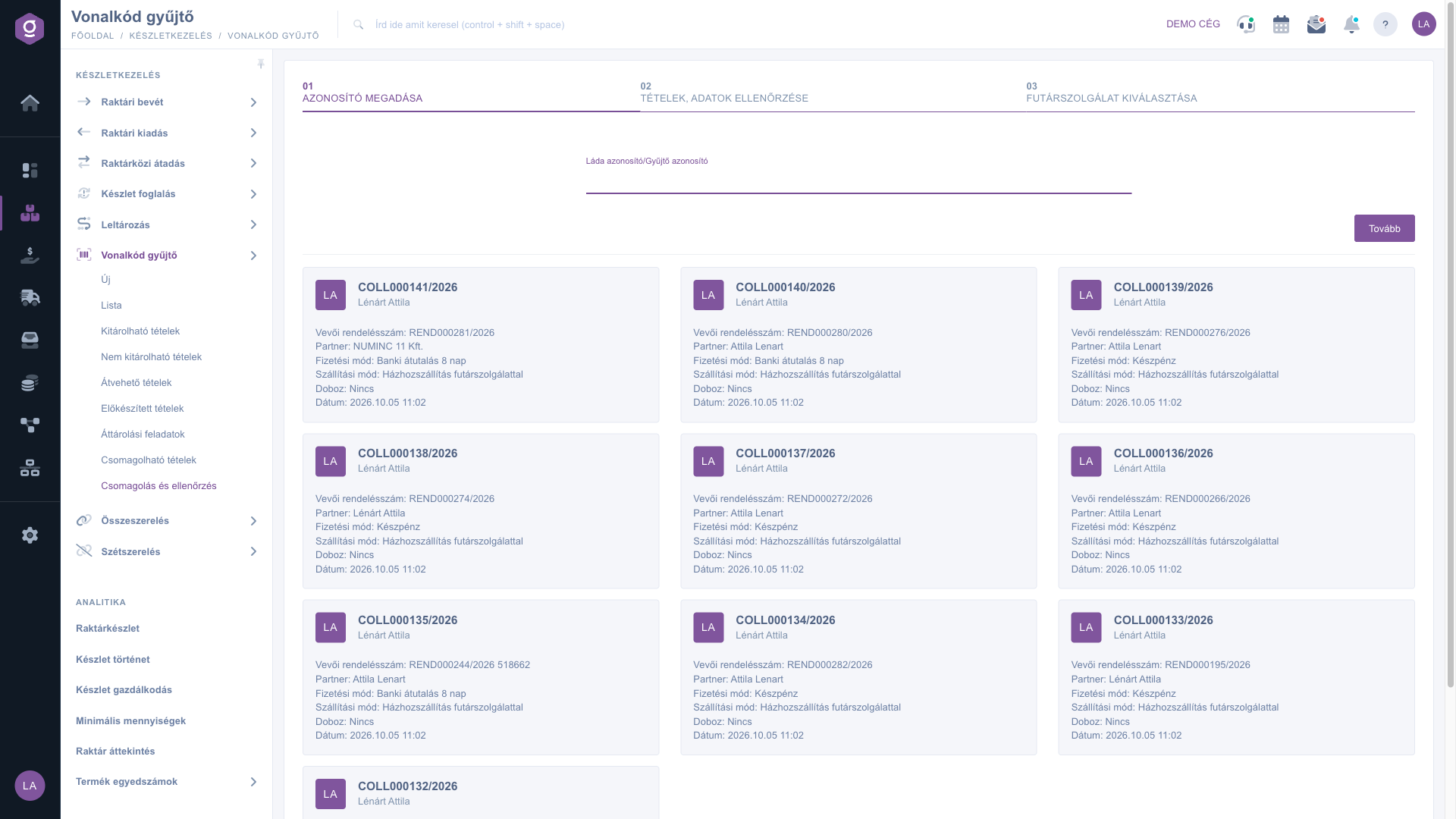
Entering the identifier and the cards of packable collectors
2. Reviewing the data
In step 02 Checking items and data you see read-only data at the top:
- Customer order identifier, Customer order date and Customer order internal comment. With the icon next to the field you can open the customer order in a new tab.
- Goods issue identifier and Goods issue date. The icon next to the field opens the goods issue document.
- Shipping method and Payment method.
- Partner company name, Partner contact person, Partner billing address and Partner shipping address. Next to the partner you can open the partner data sheet and the partner card.
If the payment status of the linked customer order is not settled, the page warns you to check it before packing. If somebody else is using the task at the moment, the Task locked window appears, from which you can return to the list of collectors with the Back button.
3. Checking items by barcode or item number
The cursor is placed in the Barcode/part number check field automatically. Scan the barcode of the packed product or type its item number, then press Enter. The system identifies the hit among the items by barcode or item number.
- Every hit decreases by one the remaining quantity shown in red in the Quantity column of the item.
- When the remaining quantity reaches zero, the row turns green, the mark in the Checked column changes from Nem (no) to Igen (yes), and the system saves the check as well.
- By clicking the mark you can also switch the item between Igen and Nem manually, for example if the barcode cannot be read.
- The table shows the Image of the product, the Item number and the Name, the Site and the Location code, the Item status and the Colleague. If the item has a packing note, you see it in a red box under the name. The small info button opens further data of the item.
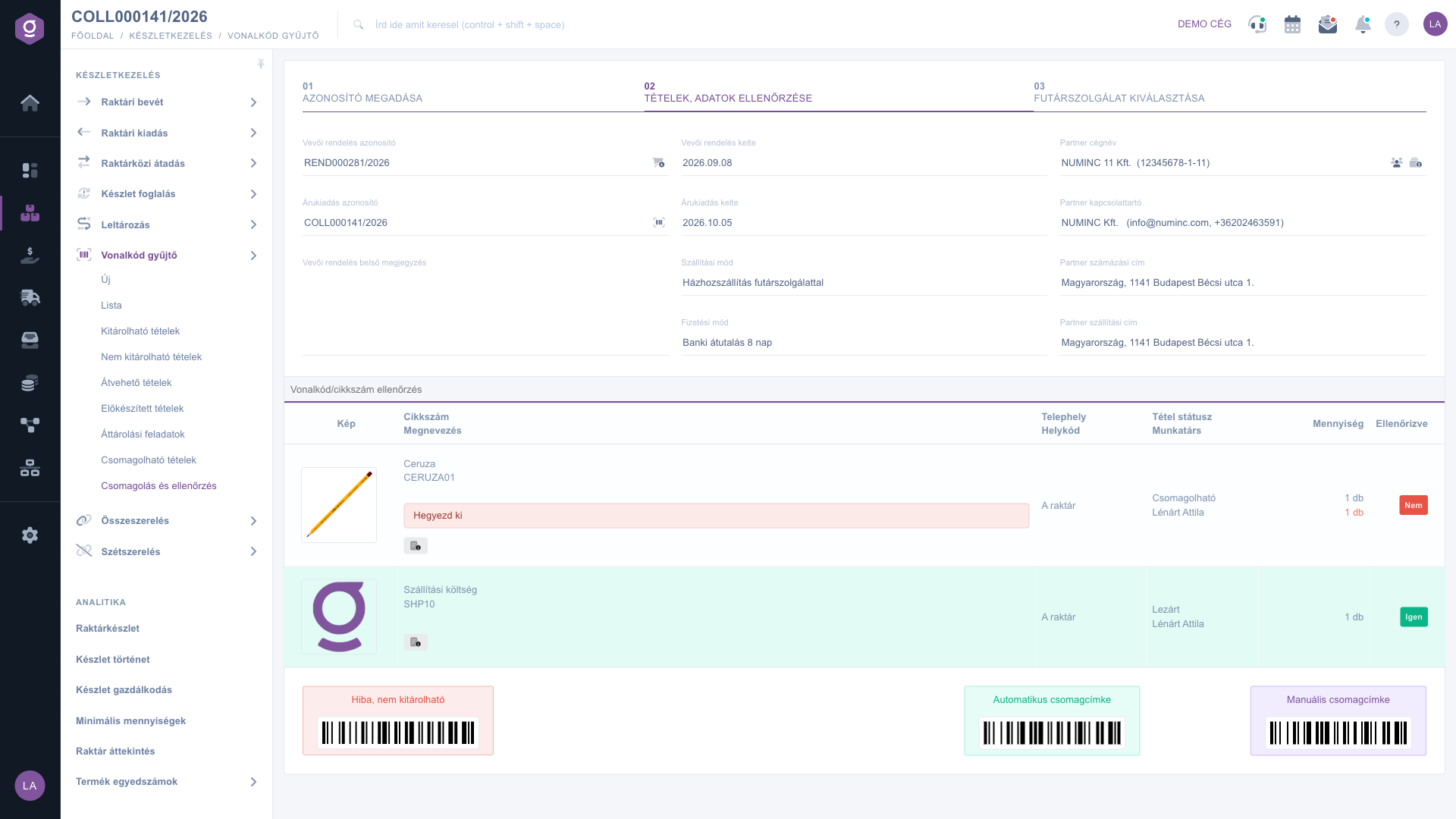
Checking items and data on the Packing and check page
4. Reporting an error: cannot be released
If during packing it turns out that something is wrong (for example a product is missing or damaged), click the Error, cannot be released button at the bottom of the page. In the window that opens, the Actions tab contains the Save and Close buttons, and below them is the Comment field. Briefly describe the problem, then click Save. The system sets the collector to Not ready to ship status and returns to the list of packable collectors. With Close you can leave the window without any change. Entering a comment is not mandatory, but it is worth filling in so that your colleagues can see what the problem is.
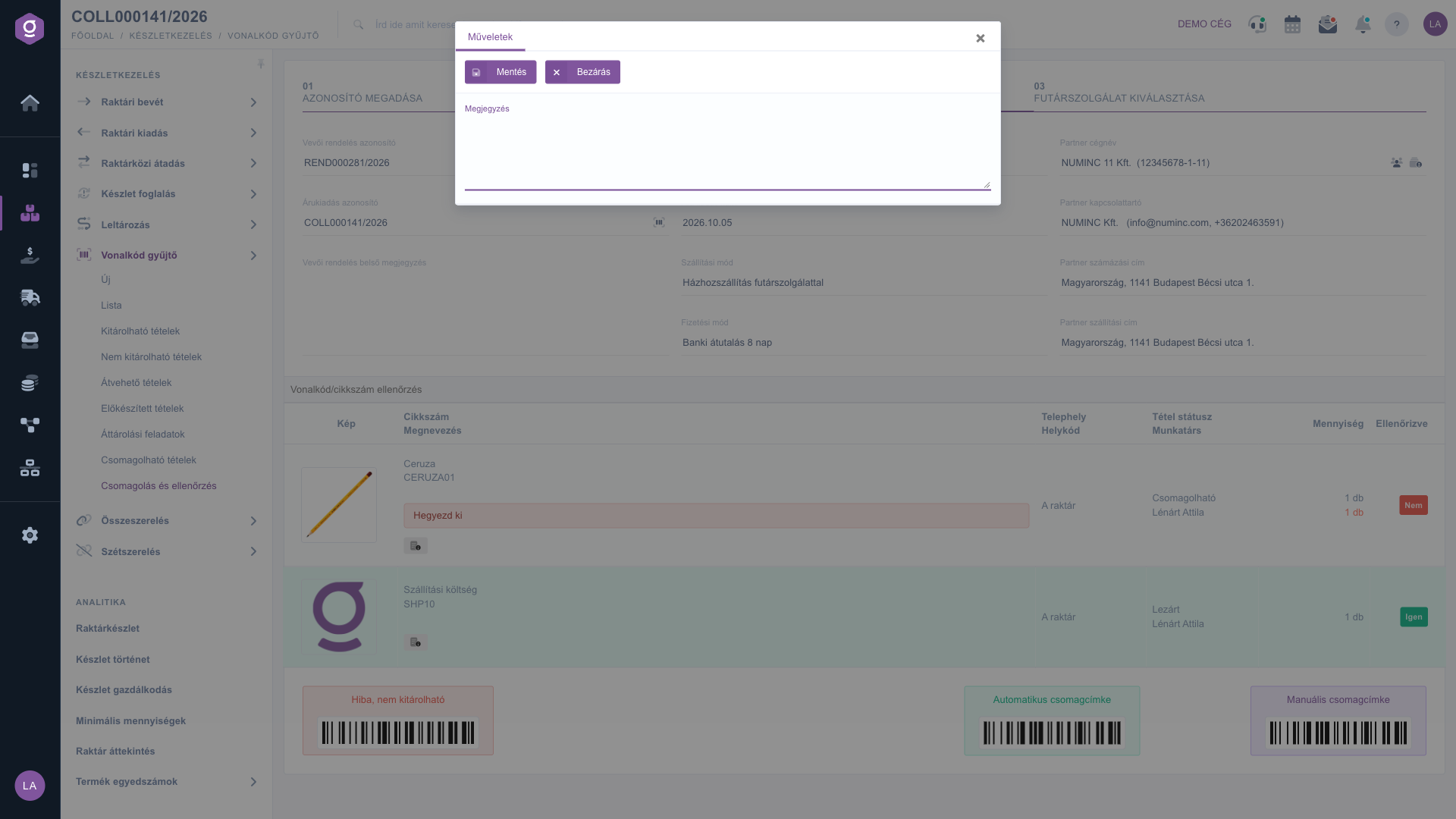
Entering a comment in the Error, cannot be released window
5. Creating the parcel label
If every item is in order, you can choose between two buttons at the bottom of the page:
- Automatic parcel label: the system sets the collector to Shipped status, creates the next document, and automatically creates the parcel label with the most recently used shipping data. If there is no earlier data available, the manual shipment window opens.
- Manual parcel label: the system sets the collector to Shipped status, creates the next document, then opens the shipment creation window, where you enter the data of the label yourself.
The barcodes shown on the buttons and on the Error, cannot be released button can also be scanned with a handheld scanner, so you can work with a single movement, without a mouse.
6. Selecting the courier service
In step 03 Select courier service the courier services appear in three groups: Home delivery, Csomagautomata (parcel locker) and Fixpont (pick-up point). The courier belonging to the shipping method of the order is preselected, and the groups of the other shipping methods are grey and cannot be selected. In the Number of packages section at the bottom of the page you can select the Printer and set the number of packages with the plus and minus buttons. The red Invalid shipping method button cannot be used, and with the Create invoice and package label button you create the invoice and the parcel label for the selected courier service.
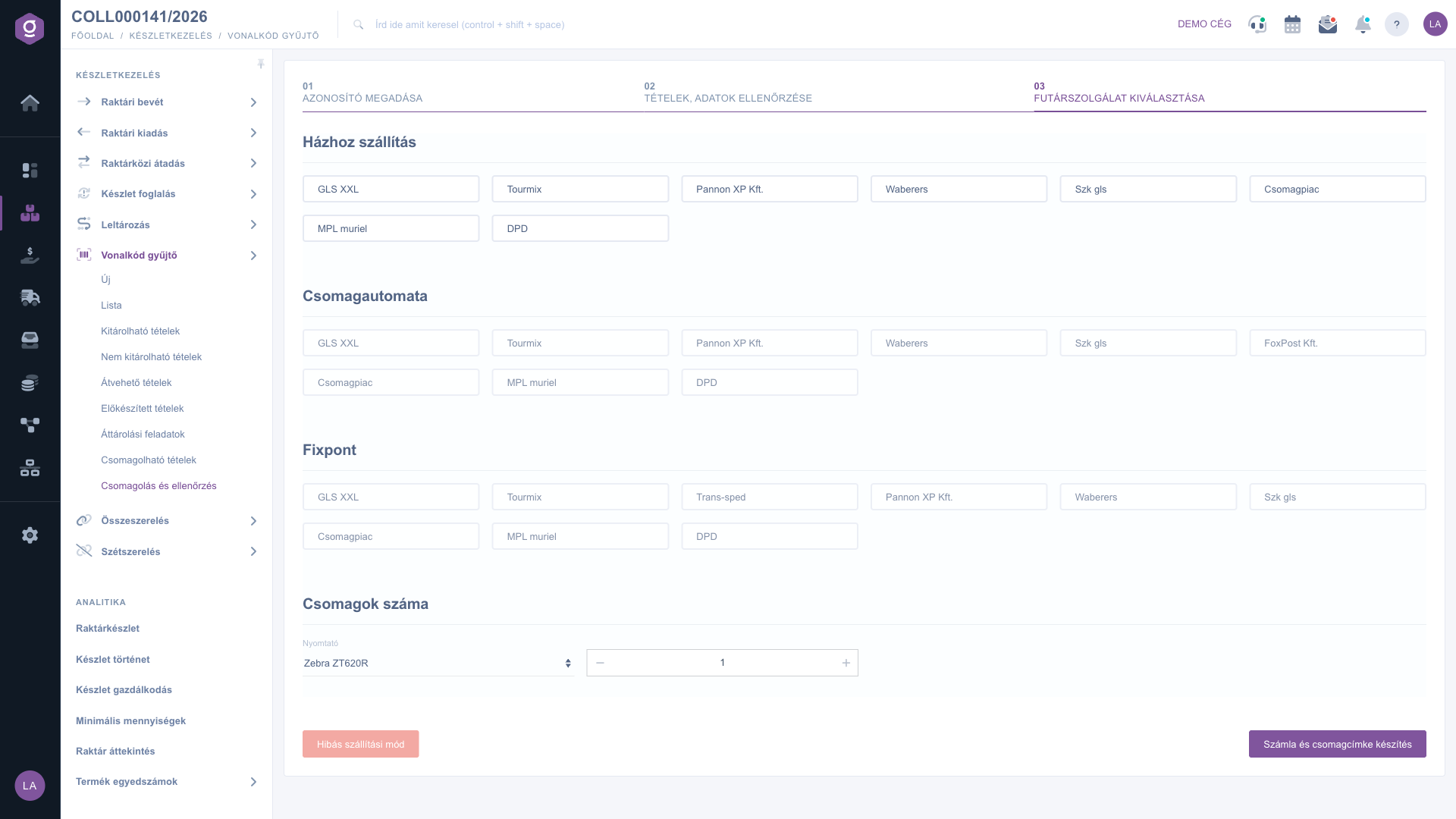
Selecting the courier service, the printer and the number of packages
Tip
If you work with a barcode scanner, you can go through the whole process with one hand: scan the collector identifier, then the barcodes of the products, and finally the barcode of the parcel label. If a product has no readable barcode, type its item number into the Barcode/part number check field, or click the Checked mark.



