On the Tax rates page you manage the VAT and tax rates you use on products, services and the item lines of documents. The system calculates net, VAT and gross amounts from the data of the rate, and the invoice data sent to the Hungarian tax authority (NAV) is also based on it.
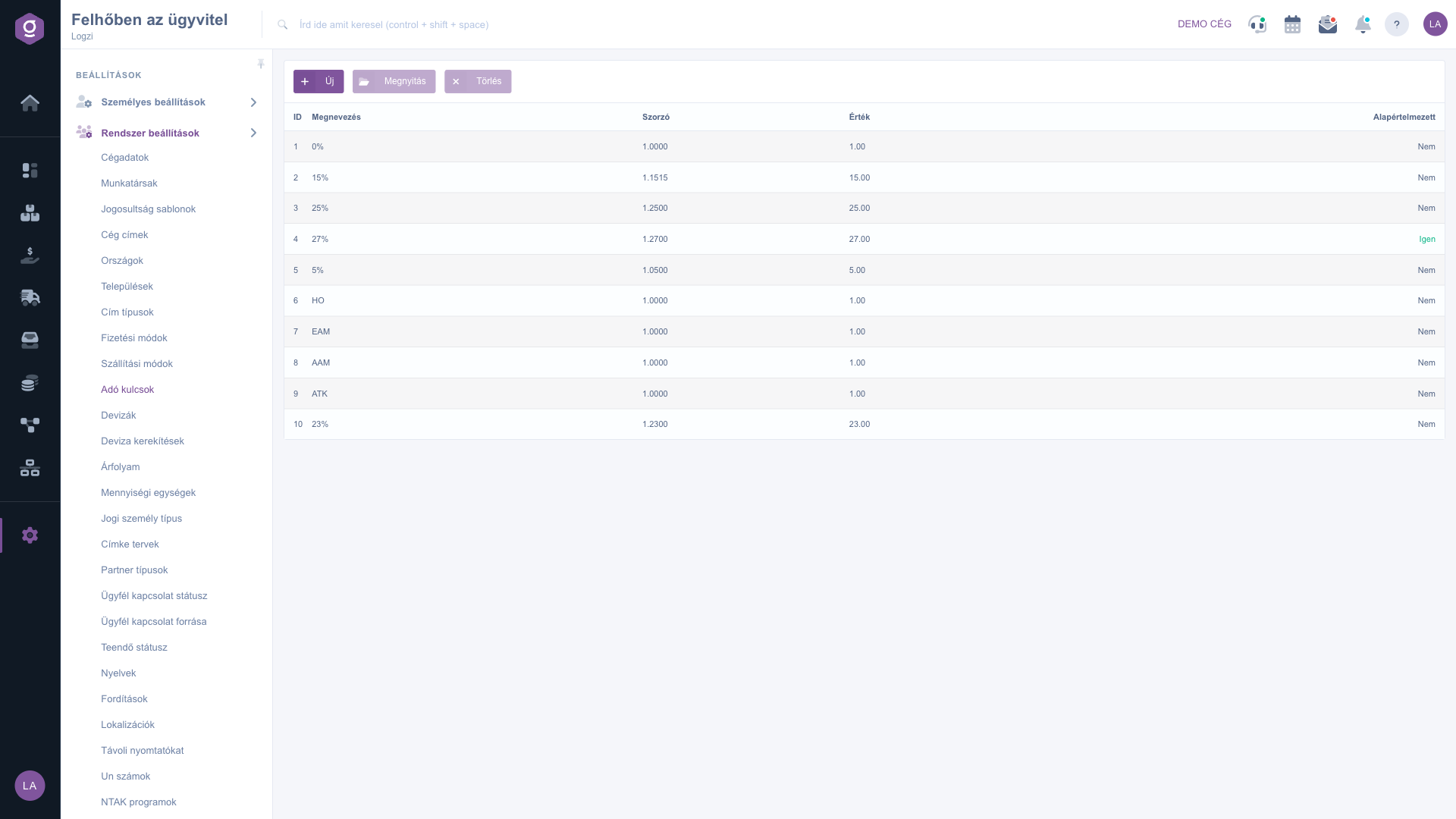
Click Main menu / Settings / System settings / Tax rates. At the top you see the New, Open and Delete buttons, and below them the list with the ID, Name, Multiplier, Value and Default columns. Click a row to select the rate. The screenshots were taken in the Hungarian interface.
Click New, or select a row and click Open. Enter the Name (at least 2 characters), the NAV name, the Cash register name/code, the Multiplier and the Value. If needed, set the Default field and the Incoming ledger number and Outgoing ledger number. Use Save to store the rate.
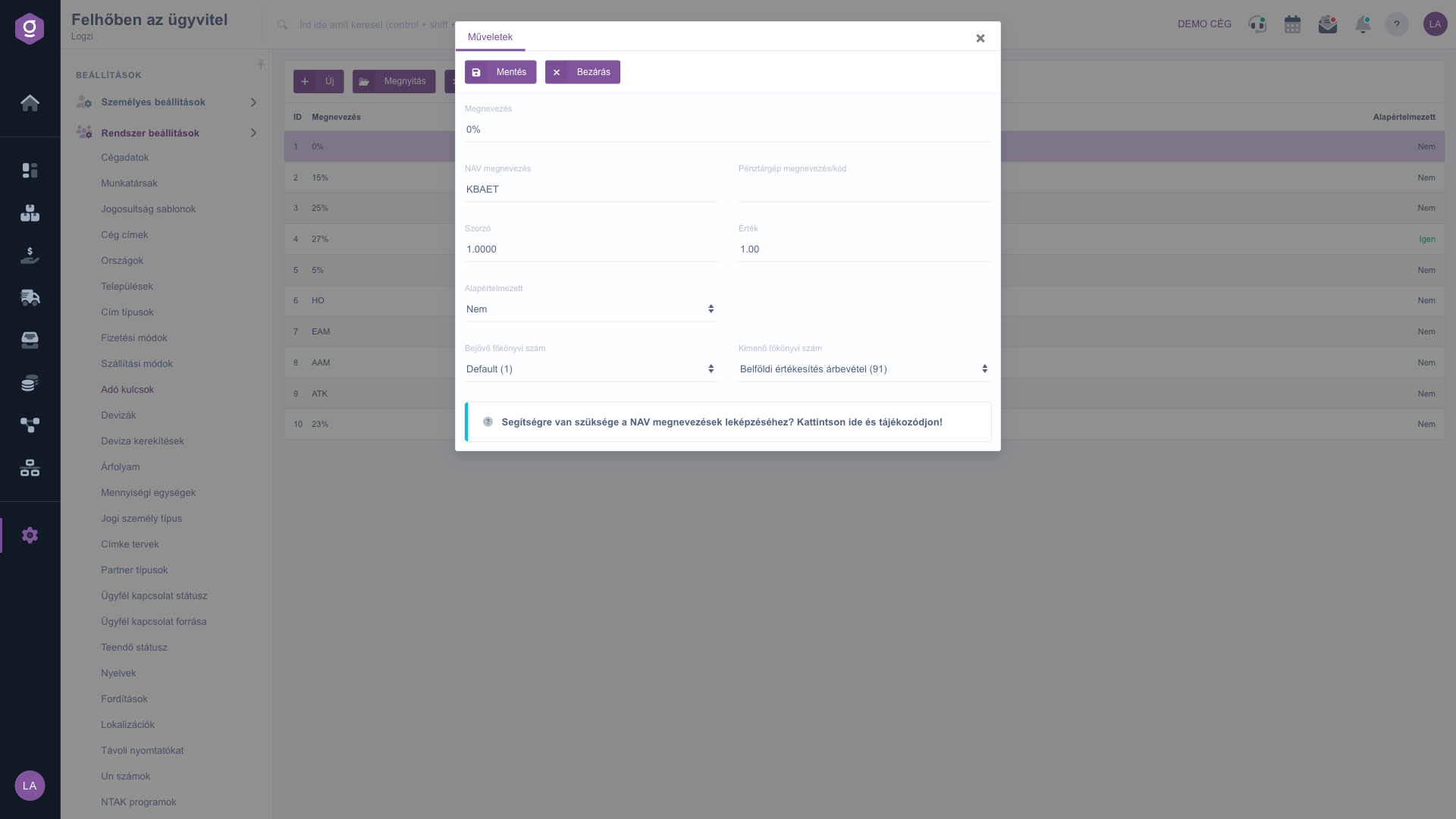
In the NAV name field enter the label the system uses in the invoice data sent to NAV (according to the help of the field, a sample value is 16.50). The Cash register name/code is the identifier required for cash register reports. The help link on the page assists you with mapping the NAV names.
Keep the Multiplier and the Value consistent: the multiplier is the number by which you multiply the net amount to get the gross amount (1.27 for 27 %). Before saving a new rate, calculate it and compare it with the amounts of a known invoice.
The fields of the tax rate sheet.
| Field | Required | Description |
|---|---|---|
| Name | The name of the rate, at least 2 characters; it appears in selection lists. | |
| NAV name | The label of the rate in the invoice data sent to NAV (sample value: 16.50). | |
| Cash register name/code | The identifier required for the cash register report. | |
| Multiplier | The factor from net to gross amount; decimal and negative values are allowed (for example 1.16). | |
| Value | The value of the rate as a number (for example 16.50). | |
| Default | If Yes, this rate is preselected for a new item. | |
| Incoming ledger number | The ledger number for the VAT of received invoices. | |
| Outgoing ledger number | The ledger number for the VAT of issued invoices. |
The Name must be at least 2 characters long, and the Multiplier and Value must be entered as numbers. Check that you used a dot as the decimal separator.
The one you use for most of your products, typically the standard VAT rate. The system offers it for a new item.
The label you have to use for the given rate in the NAV data reporting. The help link on the page assists you.
Yes, but the change applies to later documents. If a rate changes, it is better to create a new tax rate and keep the old one for earlier documents.
The menu item is under Main menu / Settings / System settings. If you cannot see it, the required permission is probably not assigned to your user; ask your administrator to check the settings.
Don't want to spend hours searching for a solution? Choose the most efficient way: book a personalized, 45-minute online training session dedicated entirely to you. Whether it's a walkthrough of the basics or a detailed setup of a specific module, our expert colleague will guide you through the whole process, step by step.
Don't waste your time - ask for help!
Our goal is to get you using our system as quickly and efficiently as possible. Whether you're completely new to us or stuck on a specific setting, don't hesitate to ask for help!
Create your account now,
pay later!


