On the Product fees page you manage the product fee items that Logzi calculates on documents based on the weight of the products.
Click Main menu / Settings / System settings / Product fees. At the top you see the New, Open and Delete buttons, below them the list with the ID and Name columns. The page also shows the How to set up the product fee correctly? guide. The screenshots were taken in the Hungarian interface.
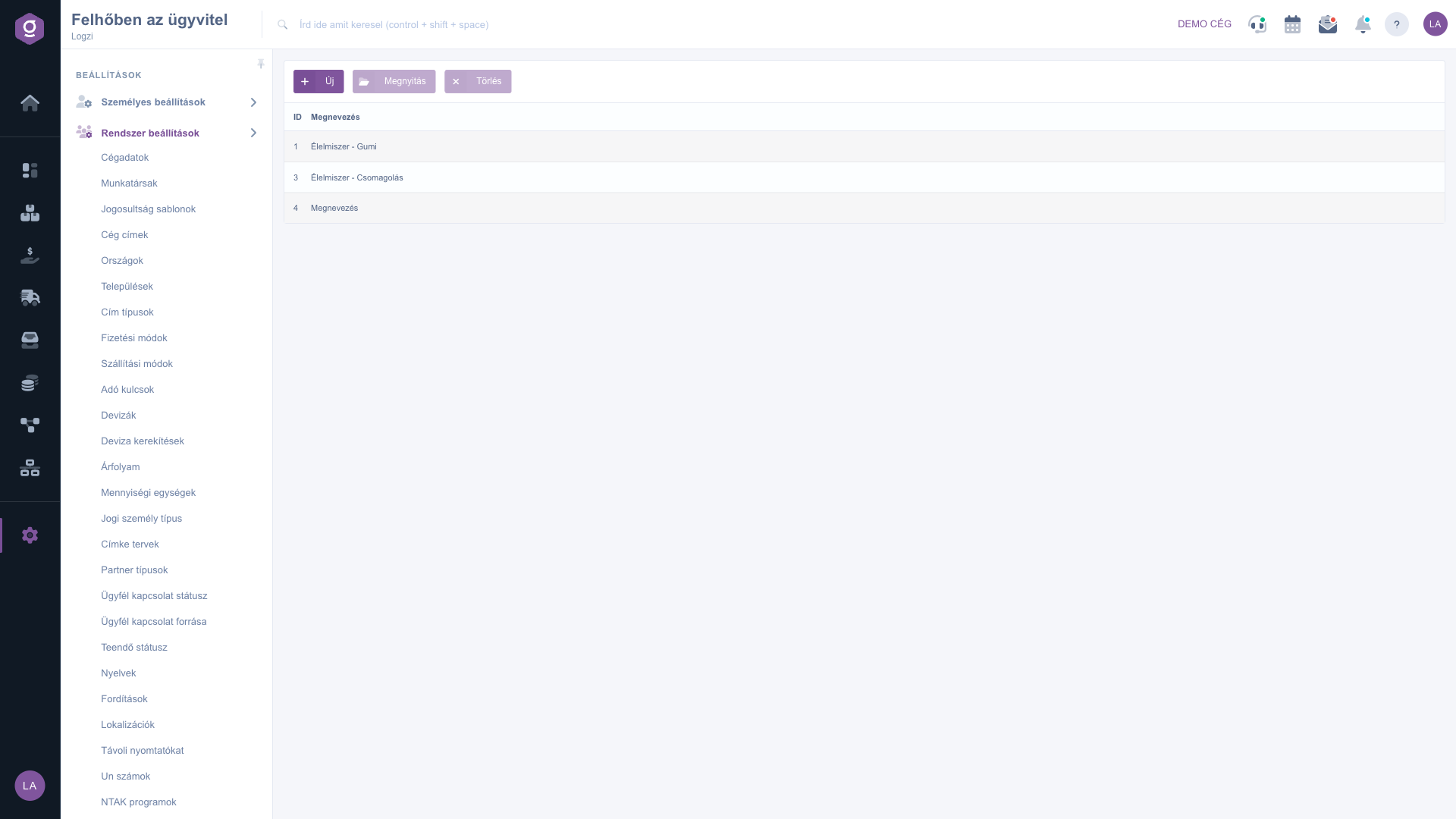
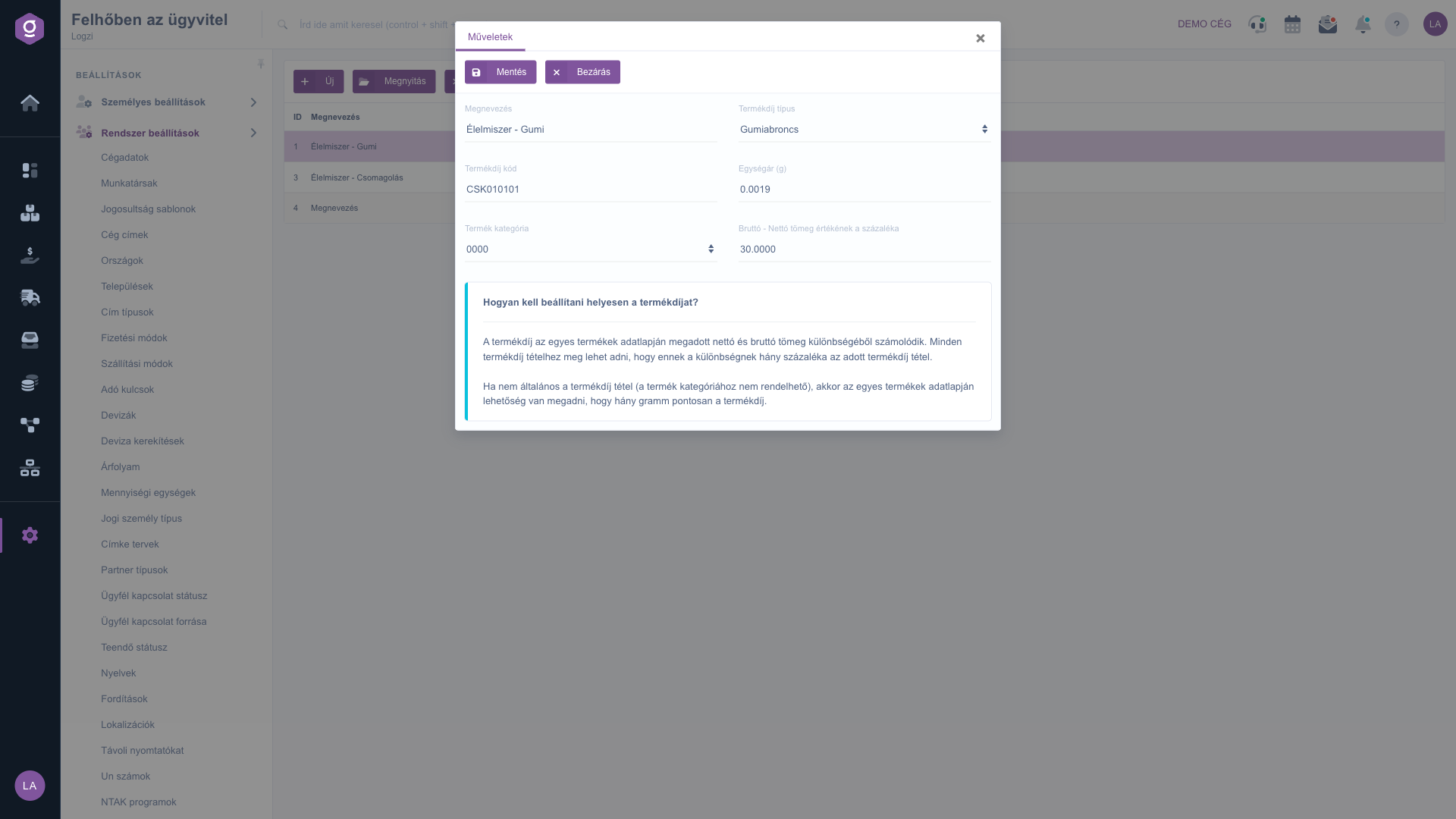
Click New, or select a row and click Open. In the window that opens, on the Actions tab enter the Name (at least 2 characters), choose the Product fee type and the Product category, then if needed fill in the Product fee code, the Unit price (g) and the Percentage of the gross - net weight value field. Click Save to save the data and Close to close the window.
To delete, select the row and click Delete.
The product fee is calculated from the difference between the net and gross weight specified on the product data sheet. If an item is not general and cannot be assigned to a product category, you can also specify the exact grams of the fee on each product data sheet.

The fields of the product fee editor window.
| Field | Required | Description |
|---|---|---|
| Name | The name of the product fee item, at least 2 characters. | |
| Product fee type | The type of the product fee from the Product fee types page. | |
| Product fee code | The code of the product fee. | |
| Unit price (g) | The unit price of the product fee per gram, as a number with a decimal point. | |
| Product category | The product category the product fee item applies to. | |
| Percentage of the gross - net weight value | Specifies what percentage of the difference between gross and net weight the given product fee item is. |
The Name must be at least 2 characters long, choosing the Product fee type and the Product category is required, and the Unit price and the percentage must be numbers with a decimal point.
The list contains the types recorded on the Product fee types page. If there is no type yet, add it there first.
From the difference between the net and gross weight specified on the product data sheet; the system takes the percentage of it that you set on the item.
In that case enter the exact grams of the product fee on each product data sheet.
The menu item is located under Main menu / Settings / System settings. If you do not see it, your user probably does not have the required permission; ask your administrator to check the settings.
Don't want to spend hours searching for a solution? Choose the most efficient way: book a personalized, 45-minute online training session dedicated entirely to you. Whether it's a walkthrough of the basics or a detailed setup of a specific module, our expert colleague will guide you through the whole process, step by step.
Don't waste your time - ask for help!
Our goal is to get you using our system as quickly and efficiently as possible. Whether you're completely new to us or stuck on a specific setting, don't hesitate to ask for help!
Create your account now,
pay later!

