Label designs

Creating label print templates in Logzi: size, orientation and the HTML template of the label.

Function overview

On the Label designs page you manage the templates with which Logzi prints product, package or location labels.

  • Size and orientation: you set the width and height of the label in millimetres and whether it is portrait or landscape.
  • HTML template: you describe the look of the label in HTML code and place the variables in square brackets.
  • Several designs: you can add separate designs for different label sizes and purposes.

Step by step

1. Opening the page

Click Main menu / Settings / System settings / Label designs. At the top you see the New, Open and Delete buttons, below them the list with the Name column of the label designs. The screenshots were taken in the Hungarian interface.
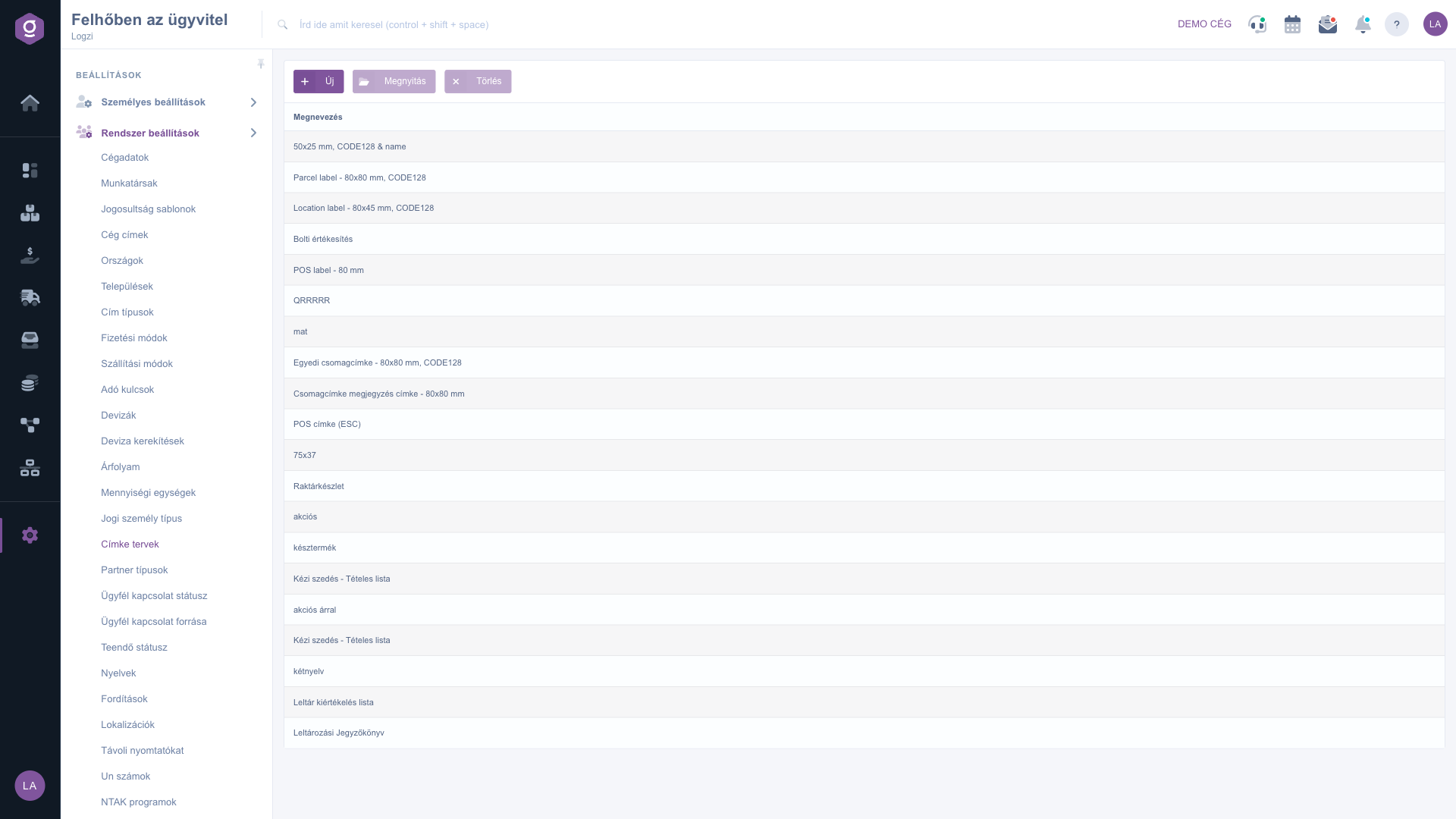
The list of label designs

2. Creating or editing a label design

Click New, or select a row and click Open. In the window that opens, on the Actions tab, enter the Name, choose the Orientation (portrait or landscape format), then enter the Width (mm) and Height (mm) of the label. In the Template (HTML code) field enter the HTML code of the label; you can insert product data with variables in square brackets, for example [$name] or [$price]. Click Save to save the design and Close to close the window.
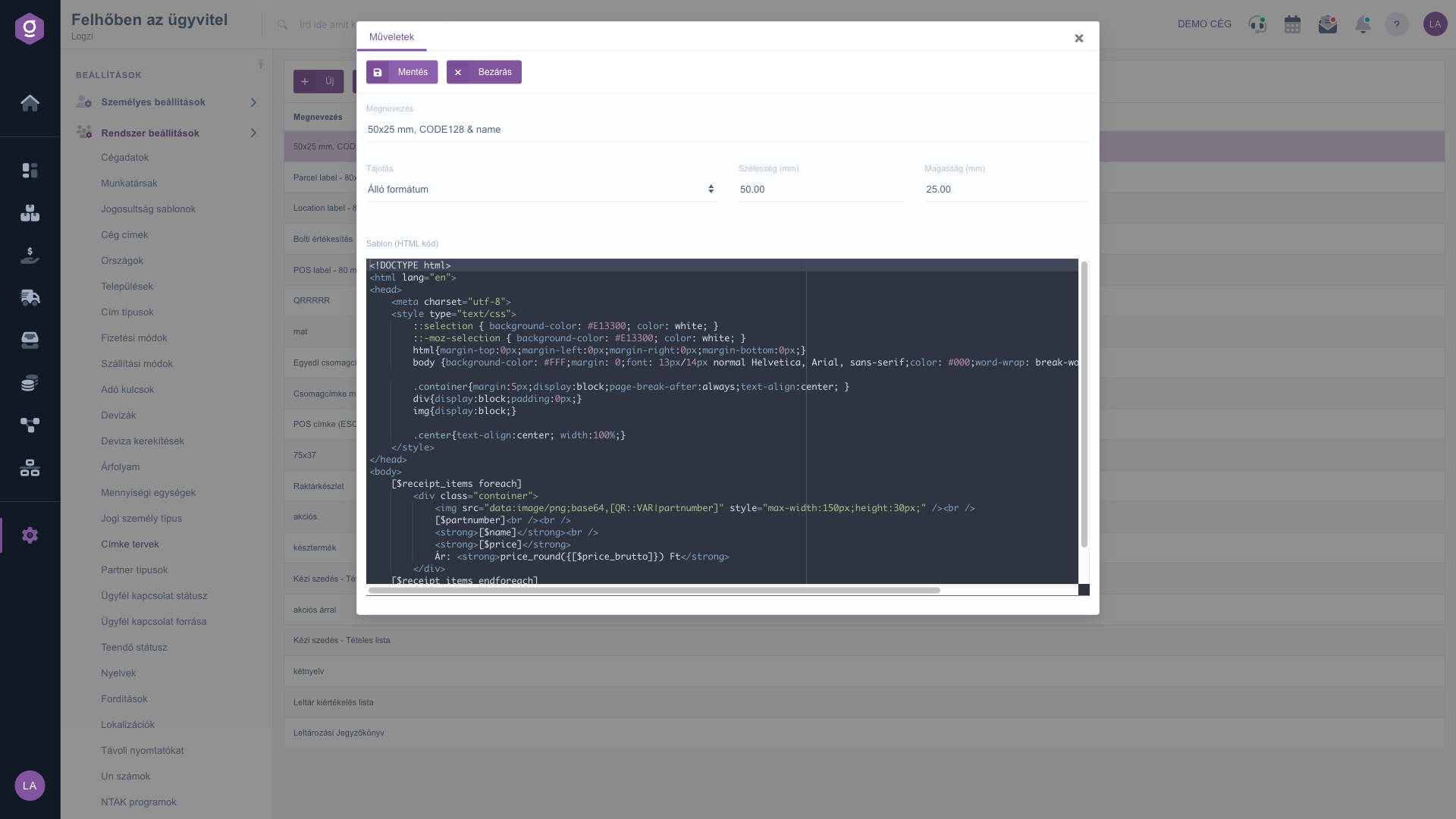
Editing a label design

3. Deleting a label design

To delete a design, select the row and click Delete.

Tip


The easiest way to make a new label is to open an existing design and rework its HTML code: the variables and the structure are already there, you only need to adjust the size and the look.


Field description

The fields of the label design editor window.

FieldRequiredDescription
NameThe name of the label design, at least 2 characters.
OrientationPortrait or landscape format.
Width (mm)The width of the label in millimetres.
Height (mm)The height of the label in millimetres.
Template (HTML code)The HTML template of the label; variables are given in square brackets.

Frequently asked questions

The Name, Width (mm), Height (mm) and Template (HTML code) fields are required and must be at least 2 characters long.

Variables are given in square brackets, for example the name or the price of the product. When creating a new design, it is worth using the code of an existing design as a model.

Portrait means a taller label, landscape a wider one. The actual size is given by the Width and Height fields.

Yes, you can modify any design with the Open button. The change applies from the next print.

The menu item is located under Main menu / Settings / System settings. If you do not see it, your user probably does not have the required permission; ask your administrator to check the settings.

Need personalized help?

Don't want to spend hours searching for a solution? Choose the most efficient way: book a personalized, 45-minute online training session dedicated entirely to you. Whether it's a walkthrough of the basics or a detailed setup of a specific module, our expert colleague will guide you through the whole process, step by step.

Don't waste your time - ask for help!
Our goal is to get you using our system as quickly and efficiently as possible. Whether you're completely new to us or stuck on a specific setting, don't hesitate to ask for help!

Logzi warehouse management software

Get in touch with us

Interested in our software? Feel free to write to us!

Need help?

If you can't find the answer and need assistance

Create your account now,
pay later!

Try it free for 3 days, no risk, no obligation!
