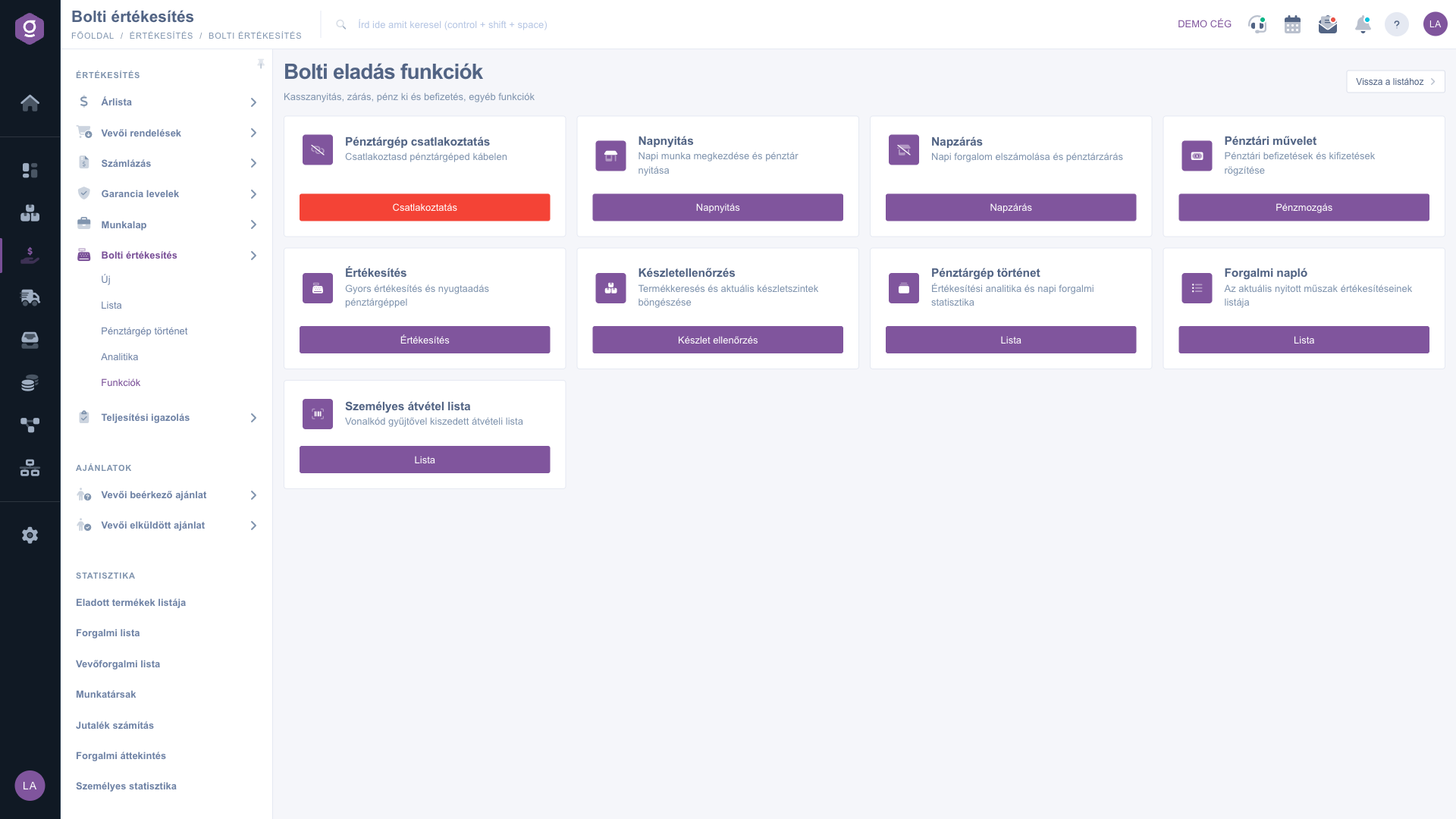
The Retail sale functions page is the starting point of the cash desk work. Here you open and close the day, record cash deposits and withdrawals, connect the cash register machine, and from here you reach quick sales, the stock check, the cash register machine history and the turnover log. The page consists of nine cards, each with a title, a short description and a button.
In the top right corner of the page, the Back to the list button takes you back to the list of in-store sales.
Click Main menu / Sales / In-store sale / Functions. At the top of the page you see the title and the subtitle Cash register opening, closing, cash withdrawal and deposit, other functions, and below them the nine cards. In the screenshot the Connect button is red because no cash register machine is connected in this environment.
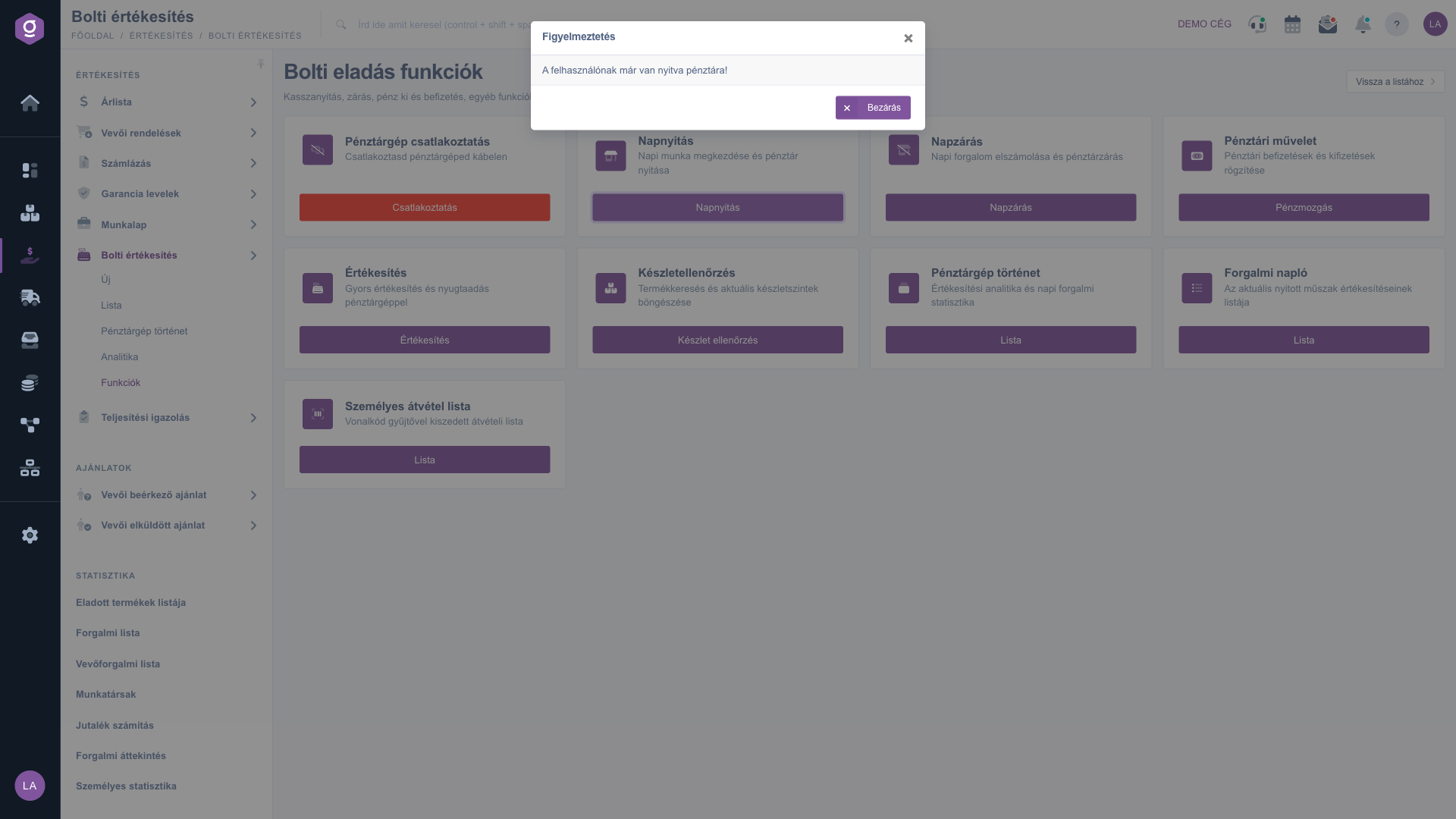
Click the button of the Day opening card. In the window that appears, choose the cash register from the Cash register drop-down list; the Previous closing amount field is read-only, and in the Cash register opening amount field enter the amount you start the day with. Click Rendben (OK) to record the day opening. If the user already has an open cash register, the system shows the message A felhasználónak már van nyitva pénztára! (The user already has an open cash register!) in a warning window. You can close the window with the Bezárás (Close) button.
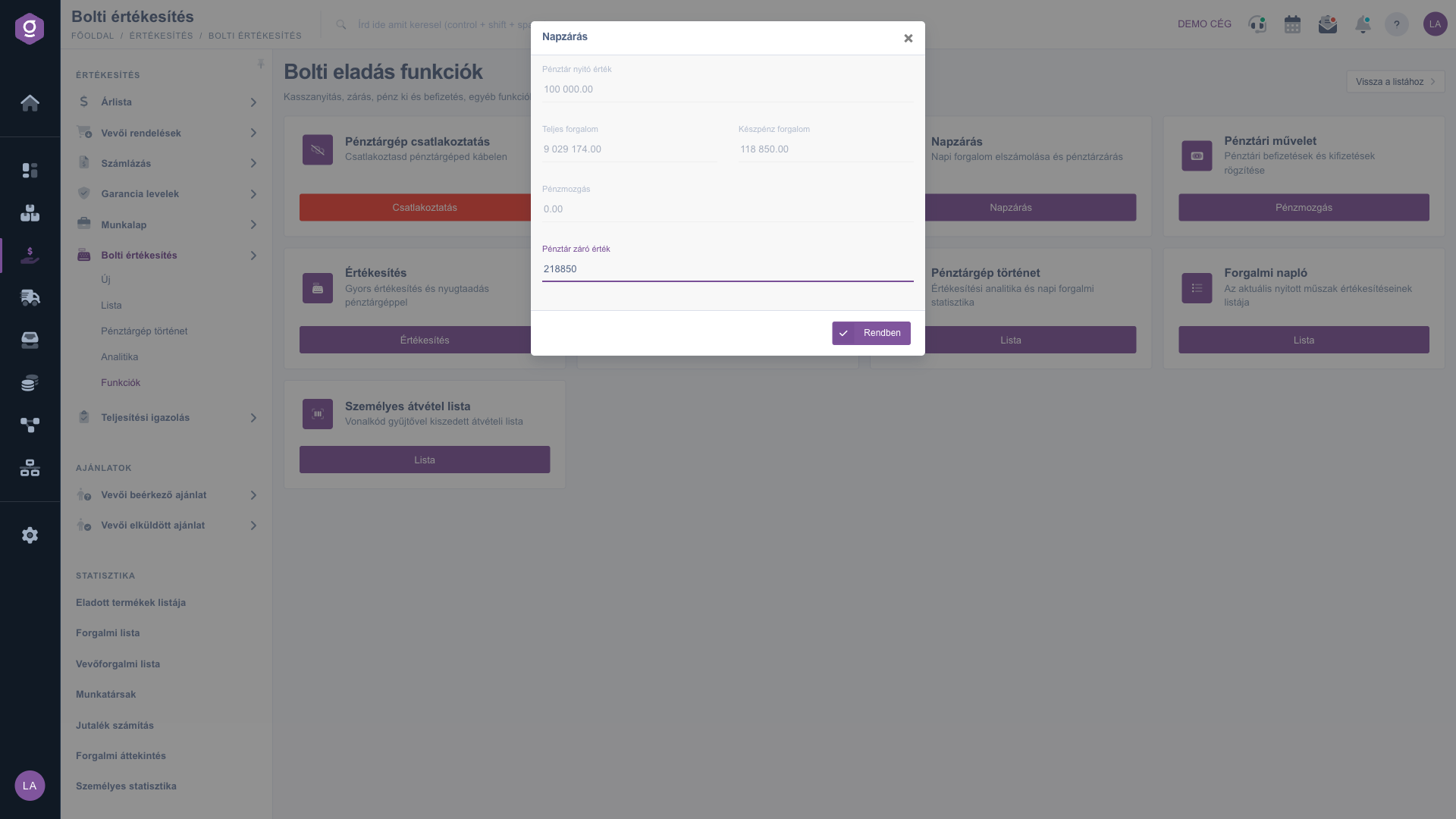
Click the button of the Day closing card. The window shows the data of the day: Cash desk opening amount, Total turnover, Cash turnover and Money movement are read-only. The Cash desk closing amount field is editable; its default is the sum of the opening amount, the cash turnover and the money movements (in the screenshot 100 000 + 118 850 + 0 = 218 850). If the actual amount in the cash desk differs, overwrite it, then click Rendben (OK).
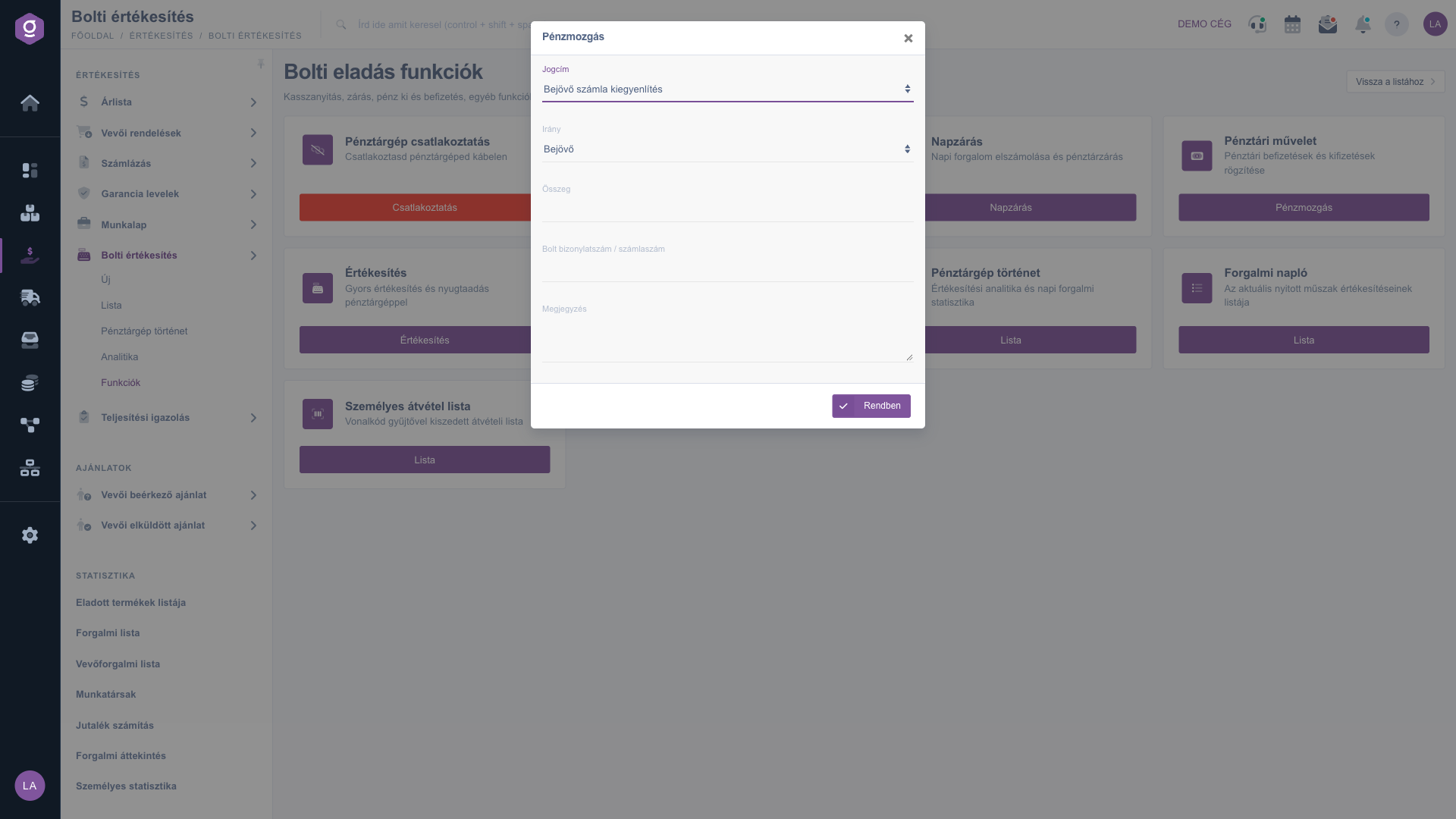
With the Money movement button of the Cash operation card you can record a cash deposit or withdrawal. Choose the value of Title (for example Bejövő számla kiegyenlítés, incoming invoice settlement), choose Incoming or Outgoing in the Direction field, enter the amount in the Sum field, if needed fill in the Store document number / Invoice number and Comment fields, then click Rendben (OK).
The Sales button takes you to the quick sale screen. The Stock check button opens the warehouse stock list for product search. The list button of the Cash register machine history card takes you to the list of cash days, the list button of the Turnover log card to the list of sales of the open shift, and the list button of the Personal pickup list card to the pickup list collected with the barcode collector. With the Connect button you can connect the cash register machine with a cable.
At the end of the day, before the Day closing, count the cash in the cash desk and adjust the Cash desk closing amount field accordingly. The window titles and the Rendben and Bezárás buttons stay in Hungarian whichever language you use.

The fields of the Day opening, Day closing and Money movement windows:
| Field / Element | Required | Description |
|---|---|---|
| Cash register | At day opening: the cash register you open. | |
| Previous closing amount | At day opening: the closing amount of the previous day; read-only. | |
| Cash register opening amount | At day opening: the amount you start the day with. | |
| Cash desk opening amount | At day closing: the opening amount of the day; read-only. | |
| Total turnover | At day closing: the total turnover of the day; read-only. | |
| Cash turnover | At day closing: the cash turnover; read-only. | |
| Money movement | At day closing: the sum of the cash deposits and withdrawals of the day; read-only. | |
| Cash desk closing amount | At day closing: the closing amount in the cash desk; its default is the sum of the opening amount, the cash turnover and the money movement, and it can be modified. | |
| Title | At money movement: the title of the deposit or withdrawal (for example Bejövő számla kiegyenlítés). | |
| Direction | At money movement: Incoming or Outgoing. | |
| Sum | At money movement: the amount deposited or withdrawn. | |
| Store document number / Invoice number | At money movement: the number of the related store document or invoice. | |
| Comment | At money movement: a free-text comment. |
The cards of the page:
| Card | Description |
|---|---|
| Cash register connection | Connect your cash register with a cable; button: Connect. |
| Day opening | Start of daily work and cash register opening; button: Day opening. |
| Day closing | Daily turnover settlement and cash register closing; button: Day closing. |
| Cash operation | Recording of cash deposits and withdrawals; button: Money movement. |
| Sales | Quick sale and receipt issuance with the cash register; button: Sales. |
| Stock check | Product search and browsing of current stock levels; button: Stock check. |
| Cash register machine history | Sales analytics and daily turnover statistics; button: list. |
| Turnover log | List of sales for the currently open shift; button: list. |
| Personal pickup list | Pickup list collected with the barcode collector; button: list. |
The button of the Cash register connection card is red as long as no cash register machine is connected.
The menu item only appears if the in-store sale permission is assigned to your user and your package includes the module. If you cannot find it under Main menu / Sales / In-store sale, ask your system administrator to check your permissions.
The system does not let you open a new day while the user has an open cash day. The message itself appears in Hungarian (A felhasználónak már van nyitva pénztára!). Close the open day with the Day closing card, then open a new one with the Day opening card.
The sum of the Cash desk opening amount, the Cash turnover and the Money movement. If the actual amount in the cash desk differs, you can overwrite the field before pressing Rendben (OK).
For every cash deposit or withdrawal that is not part of a receipt, for example settling an invoice. Enter the Title, the Direction (Incoming or Outgoing) and the Sum. The Day closing window adds these up in the Money movement field.
The list of cash days opens with the list button of the Cash register machine history card, or with the Main menu / Sales / In-store sale / Cash register machine history menu item.
Don't want to spend hours searching for a solution? Choose the most efficient way: book a personalized, 45-minute online training session dedicated entirely to you. Whether it's a walkthrough of the basics or a detailed setup of a specific module, our expert colleague will guide you through the whole process, step by step.
Don't waste your time - ask for help!
Our goal is to get you using our system as quickly and efficiently as possible. Whether you're completely new to us or stuck on a specific setting, don't hesitate to ask for help!
Create your account now,
pay later!

