The Cash register machine history list shows the cash days of the in-store sale: each row is the period from one cash register opening to its closing, with a document number (prefixed PNZ), cash register, employee, opening and closing amount and gross turnover. In the list you can check when a day was opened and closed, how much money was in the register at opening and closing, and how much turnover went through it. In the Register closing column of a day that is not yet closed you see the text Not closed.
The statuses of a cash day are: Draft (open day), Closed, Cancellation, Cancelled. Until closing you see the day as Draft; after closing it becomes Closed.
Click Main menu / Sales / In-store sale / Cash register machine history. The list starts with the latest cash day, and at the bottom of the page you see the number of results and the pager. The top bar has three tabs: Actions, Search and View and layout.
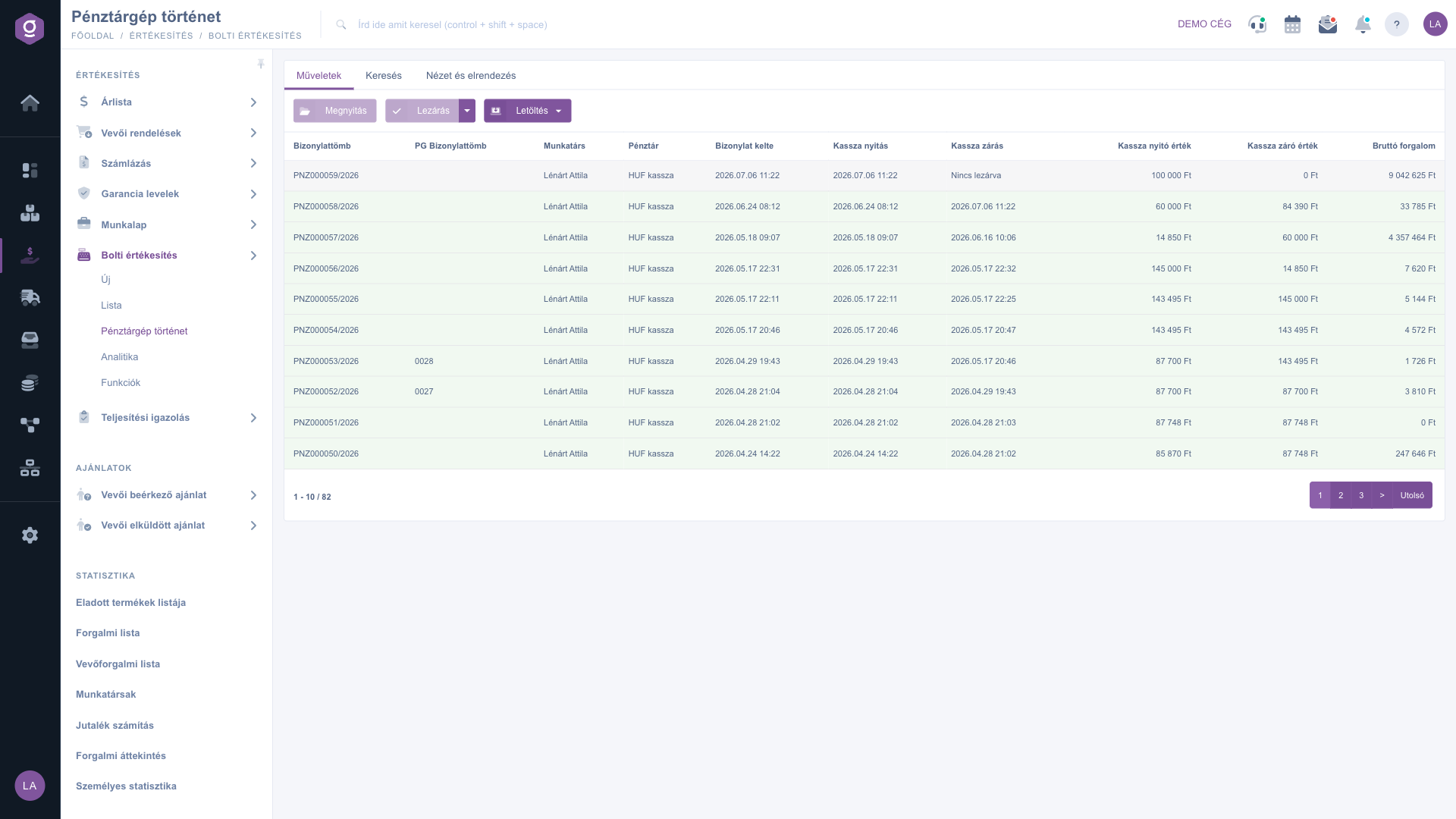
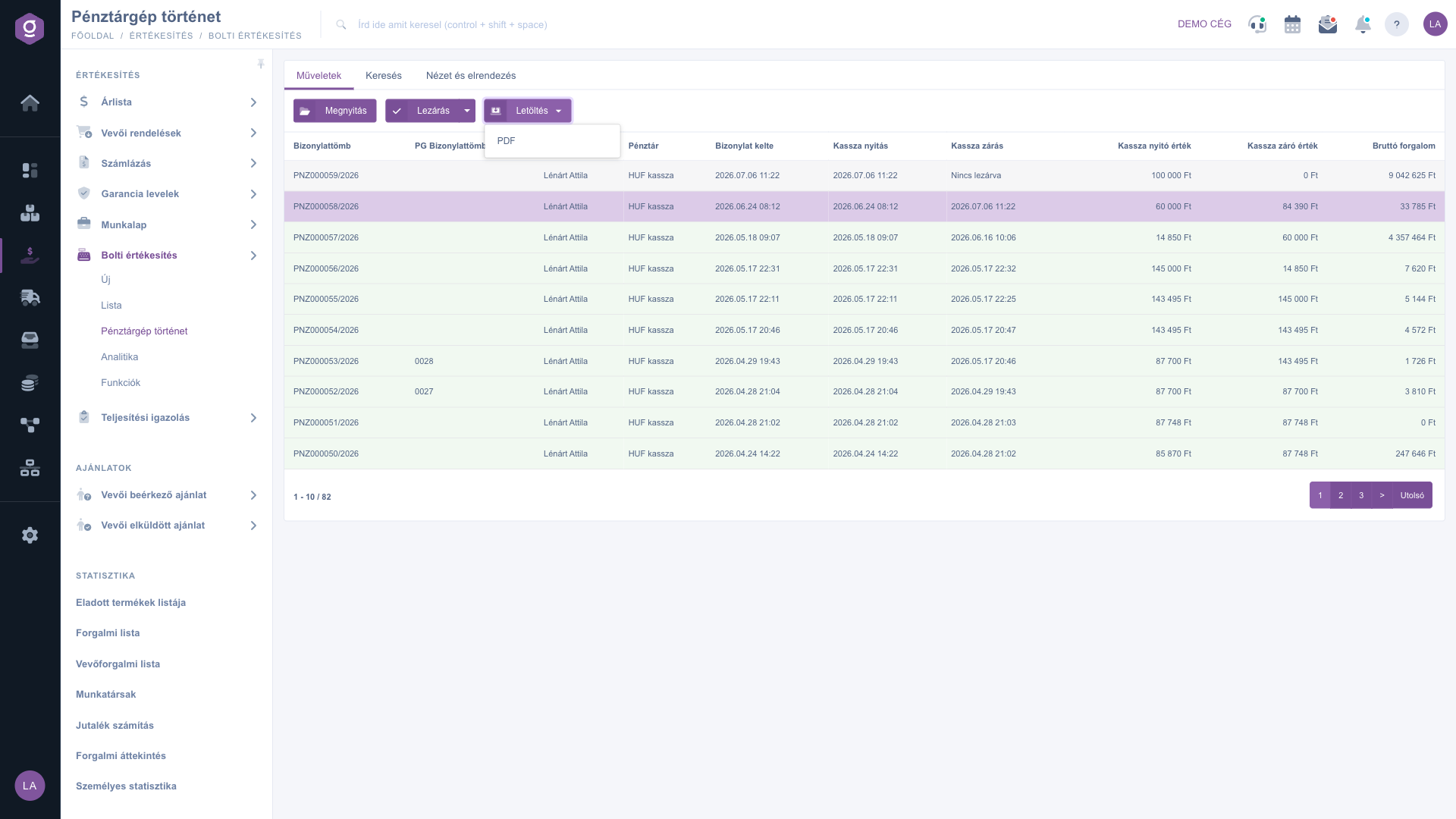
Select a row in the list, then choose on the Actions tab: the Open button opens the document of the cash day, where you see the turnover by payment method and the items. The arrow next to the Close button offers two options: Close and print or Close. When closing, the document is finalized and no further modification is possible. The dropdown menu of the Download button has a single item, PDF.
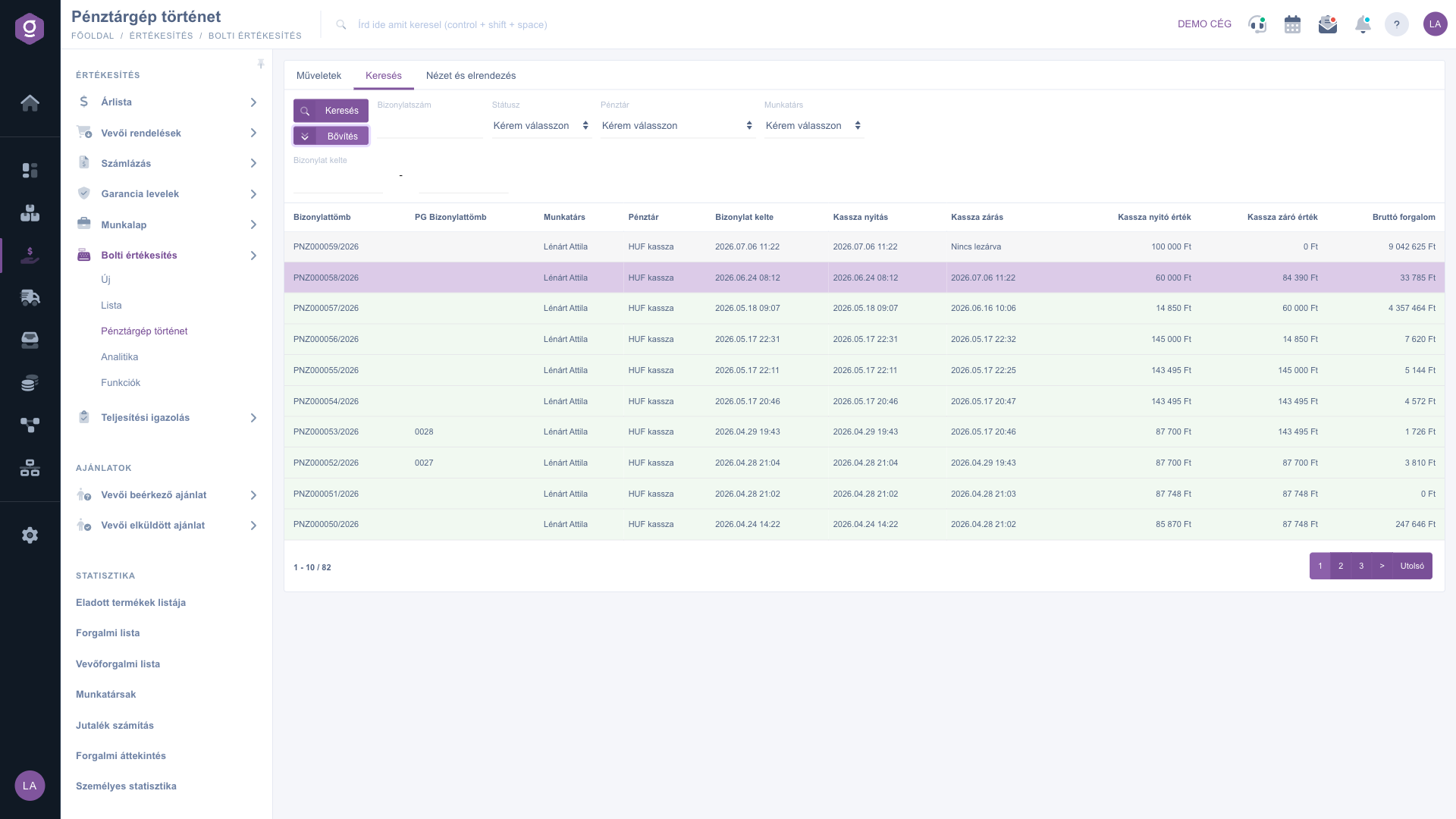
On the Search tab you can type a number into the Document number field (for example PNZ000058/2026) and filter with the Status, Cash register and Employee dropdowns. The Expand button shows the fields of the Document date interval, with which you can list the cash days of a period. Run the filter with the Search button.
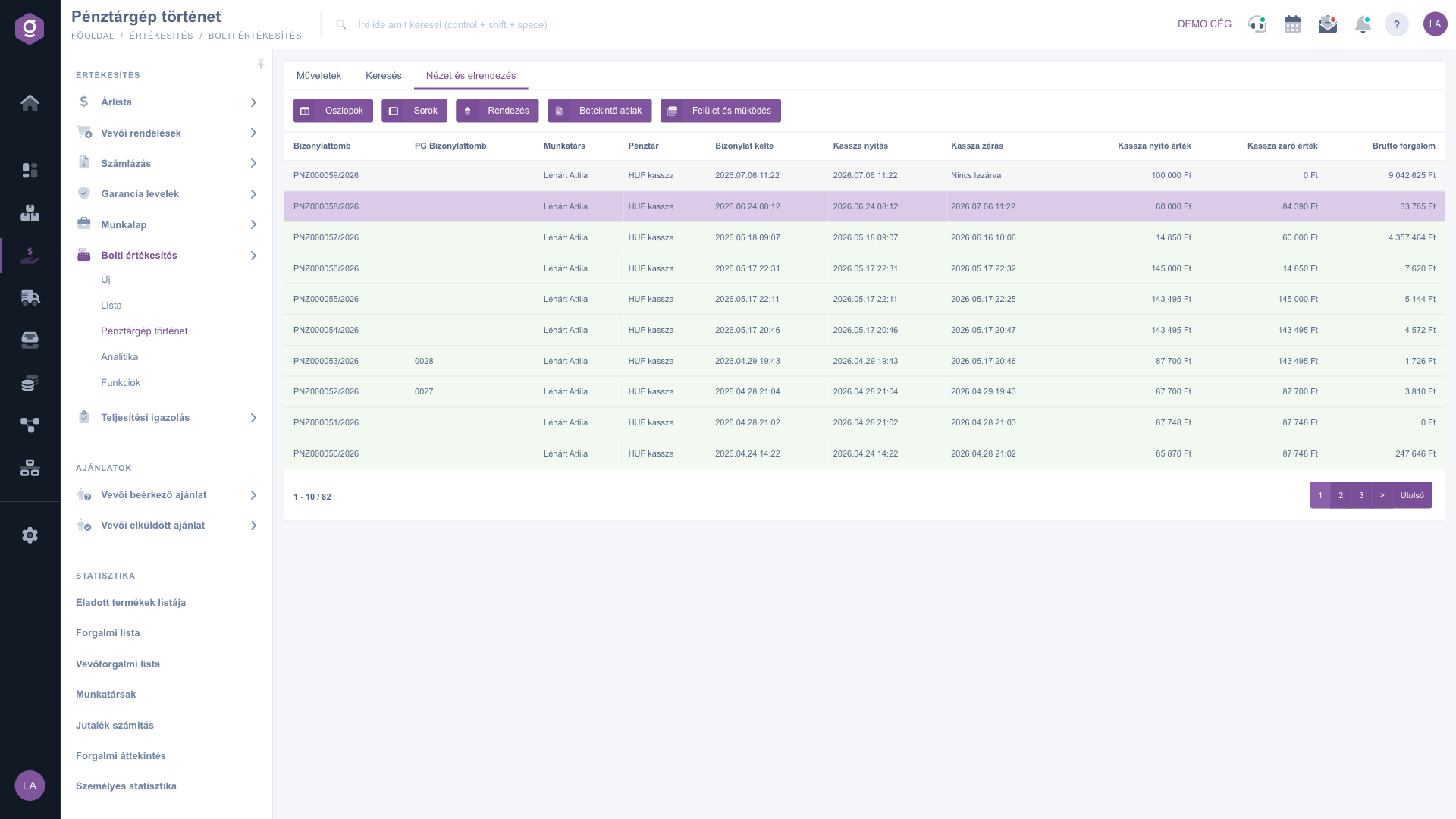
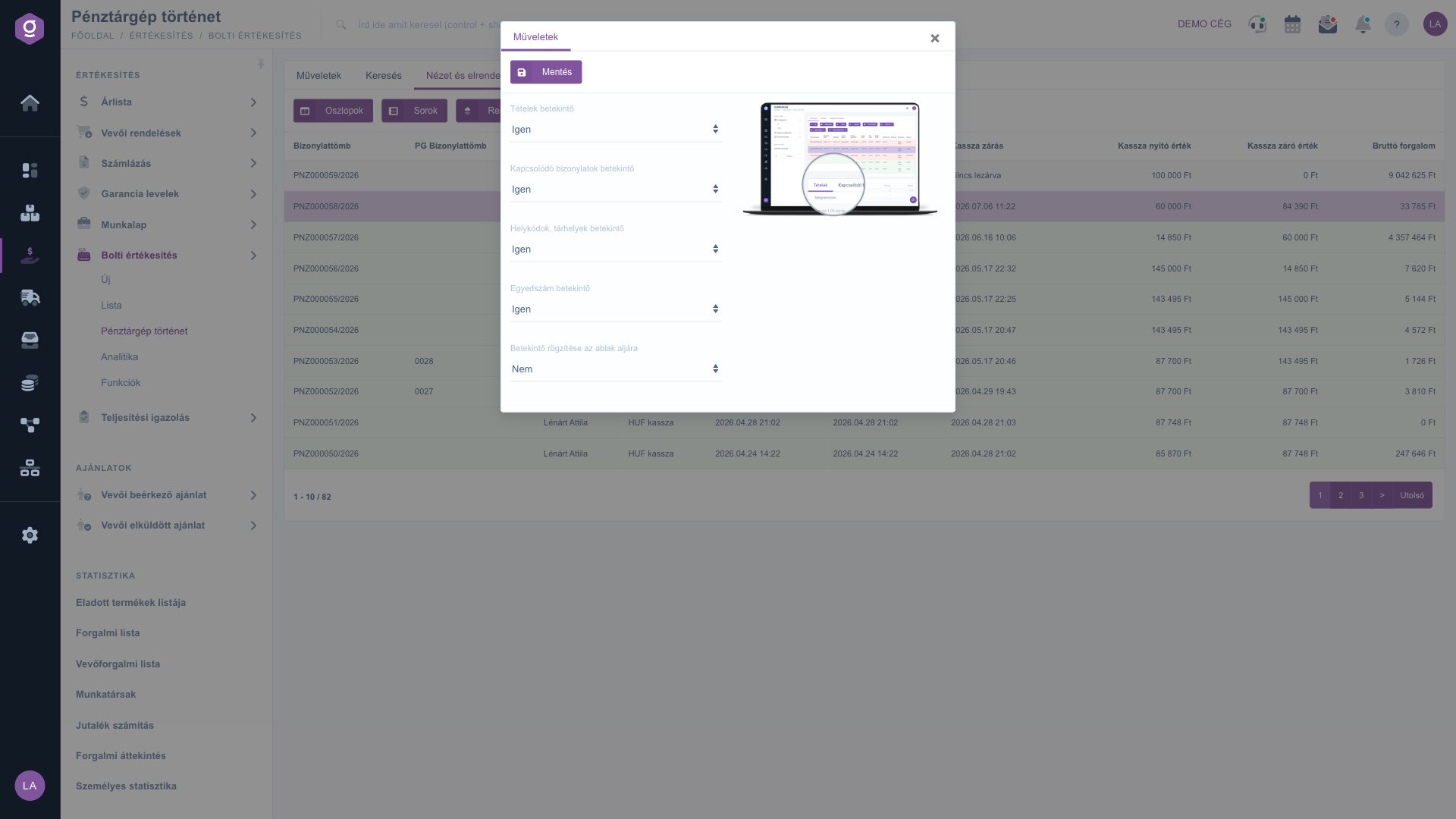
On the View and layout tab you can personalize the list: with the Columns button you choose which columns are visible, with Rows the behavior of the displayed rows, with Sorting the order, with Preview window the preview panels, and with Interface and behavior the general behavior of the list.
The settings of the Preview window: Items preview, Related documents preview, Location codes, storage preview, Serial number preview (each Yes / No), and the option Pin preview to the bottom of the window. You save the settings with the Save button.
If during the daily settlement you are looking only for the day that is still open, filter the Status field to Draft, or look at the Register closing column: where it says Not closed, the day closing has not happened yet.

The fields of the Search tab:
| Field / Element | Required | Description |
|---|---|---|
| Document number | The number of the cash day document (prefixed PNZ, for example PNZ000058/2026); a part of it is enough. | |
| Status | Filter by the status of the cash day: Draft, Closed, Cancellation, Cancelled. | |
| Cash register | Filter by the cash register the day belongs to. | |
| Employee | Filter by the employee who opened the day. | |
| Document date | A time interval (from and to) for the document date; it appears with the Expand button. |
The default columns of the list:
| Column | Description |
|---|---|
| Document block | The document number of the cash day (prefixed PNZ). |
| PG document block | The document number given by the cash register machine, if there is one; otherwise empty. |
| Employee | The name of the employee who opened the day. |
| Cash register | The name of the cash register (for example HUF kassza). |
| Document date | The time the document was created. |
| Register opening | The time the cash day was opened. |
| Register closing | The time of closing; Not closed for an open day. |
| Cash register opening amount | The amount in the register at opening. |
| Cash register closing amount | The amount recorded in the register at closing; 0 Ft for an open day. |
| Gross turnover | The gross turnover of the day in forints. |
With the Columns button you can switch on further columns or hide the unnecessary ones.
The menu item appears only if the in-store sale permission is assigned to your user and your package includes the module. If you cannot find it under Main menu / Sales / In-store sale, ask your system administrator to check your permissions.
The cash day is still open, that is, the day closing has not happened. In that case the Cash register closing amount is 0 Ft, and the Gross turnover shows the sales so far. You can close the day with the Close button of the list or with the Day closing card of the Retail sale functions page.
When closing, the document is finalized and no further modification is possible. Therefore, before closing, check the opening and closing amounts and the turnover by payment method.
If the list is empty, a filter is probably set: on the Search tab check the Status, Cash register, Employee and Document date fields, and clear the filters. If you have never opened a day, the list is indeed empty; you can open the day on the Retail sale functions page.
Select the row, then in the Download menu of the Actions tab choose PDF. No other format is available for this list.
Don't want to spend hours searching for a solution? Choose the most efficient way: book a personalized, 45-minute online training session dedicated entirely to you. Whether it's a walkthrough of the basics or a detailed setup of a specific module, our expert colleague will guide you through the whole process, step by step.
Don't waste your time - ask for help!
Our goal is to get you using our system as quickly and efficiently as possible. Whether you're completely new to us or stuck on a specific setting, don't hesitate to ask for help!
Create your account now,
pay later!

