Items awaiting procurement

Learn how to find the customer order items you still have to procure, and how to start a supplier order from them in Logzi.

Function overview

The Items awaiting procurement page shows which items of your closed customer orders you do not have enough stock for, that is, what you still have to buy from your suppliers. From here you can start a supplier order from the selected item: manually, checking the item data, or automatically with one click.

How does it work?

The supplier order process is built on three item-level worklists that follow the procurement one after another:

  1. Items awaiting procurement (this page): what you still have to order from the supplier.
  2. Itemized confirmations: whether the supplier has confirmed the ordered item and when it promises delivery; the customer can receive an email about the confirmation.
  3. Incoming items: what is on its way, what you are still waiting for, and what has arrived.

An item is listed here if you have not yet started a supplier order for the customer order item. As soon as you save the procurement in the Open window or run the Automatic purchase function, the item disappears from here and continues on the next lists.

  • Default filtering: by default the page shows only items that are not in stock and whose customer order is financially settled.
  • Stock picture in one place: in the procurement window you see the physical, reserved, available and incoming stock together with the selling and purchase price.
  • Manual and automatic procurement: you can order one item at a time, or select several and let Automatic purchase create the supplier orders.
  • Dismissing an item: if an item does not have to be procured, you can remove it from the waiting list with the Delete button.

Step by step

1. Opening the page

Click Main menu / Procurement / Supplier orders / Items awaiting procurement to open the page. At the top you see the Actions, Search and View and layout tabs, and below them the table of items awaiting procurement. Because the default filters are set, the page opens on the Search tab. The screenshots in this guide were taken in the Hungarian interface; in the captions the Hungarian labels are given in parentheses.
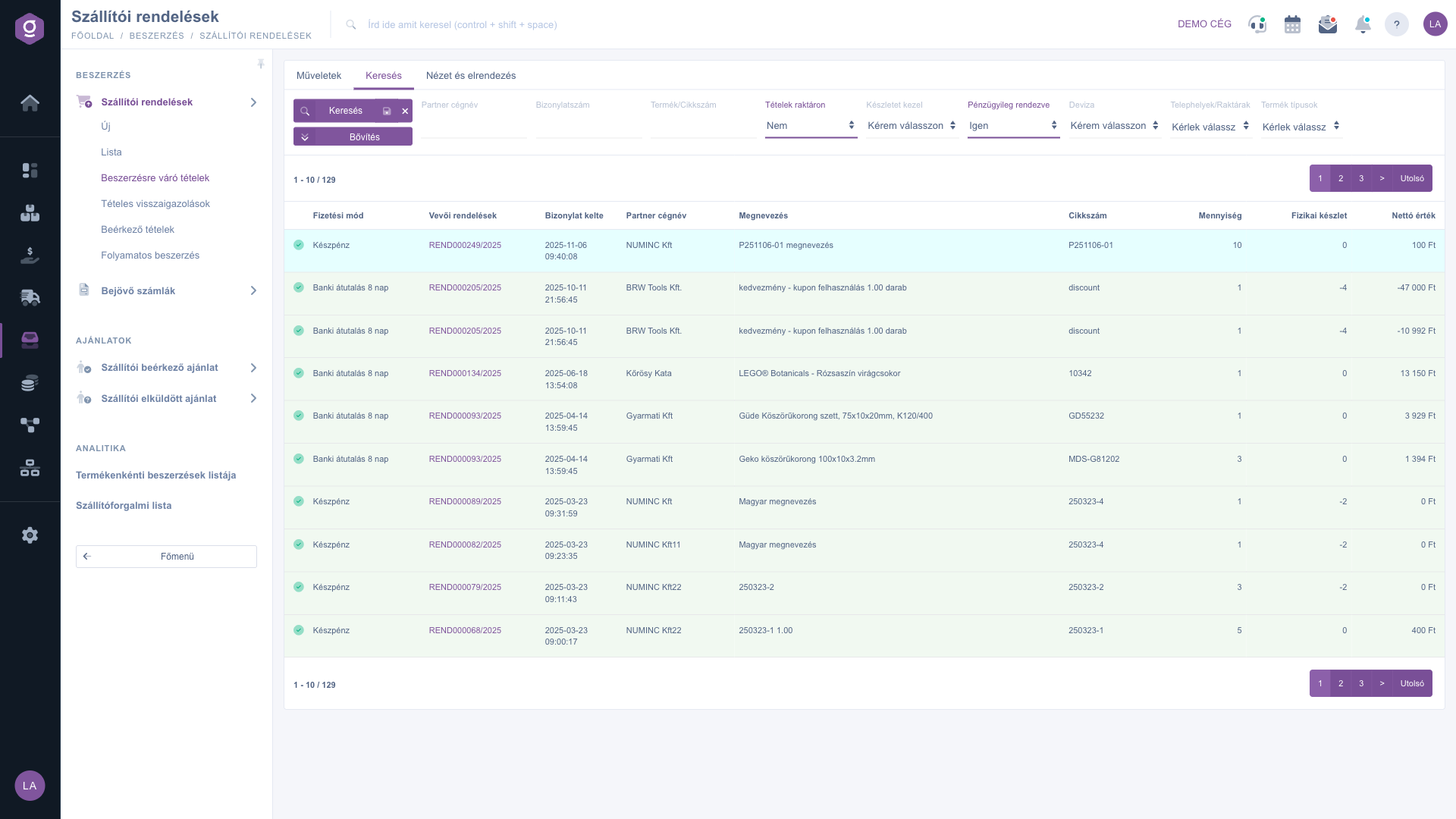
Items awaiting procurement – Search tab (Keresés) with the default filters

2. When does an item appear in the list?

A customer order item is listed if all of the following conditions are met:

  • both the customer order and the item are Closed or Partially fulfilled;
  • the ordered quantity of the item is greater than the quantity already completed;
  • the item has no active procurement link yet, that is, you have not started a supplier order from it (and have not dismissed it with Delete);
  • the product type is not the service type (this can be changed with the Product types filter);
  • according to the default filters, the item is not in stock (the physical stock is lower than the ordered quantity) and the customer order is financially settled.

The physical stock is summed over all non-virtual warehouses, unless you choose with the Sites/Warehouses filter which warehouses should count.

3. Filtering the list

On the Search tab you can narrow down the results. Two filters are active by default: Items in stock is set to No and Financially settled is set to Yes. If you also want to see items that are in stock, or whose payment has not been settled, change or clear these. The Expand button opens further filters (for example Primary supplier, Product manufacturer, By incoming). You can also save a search: the page then loads with the saved filters next time.
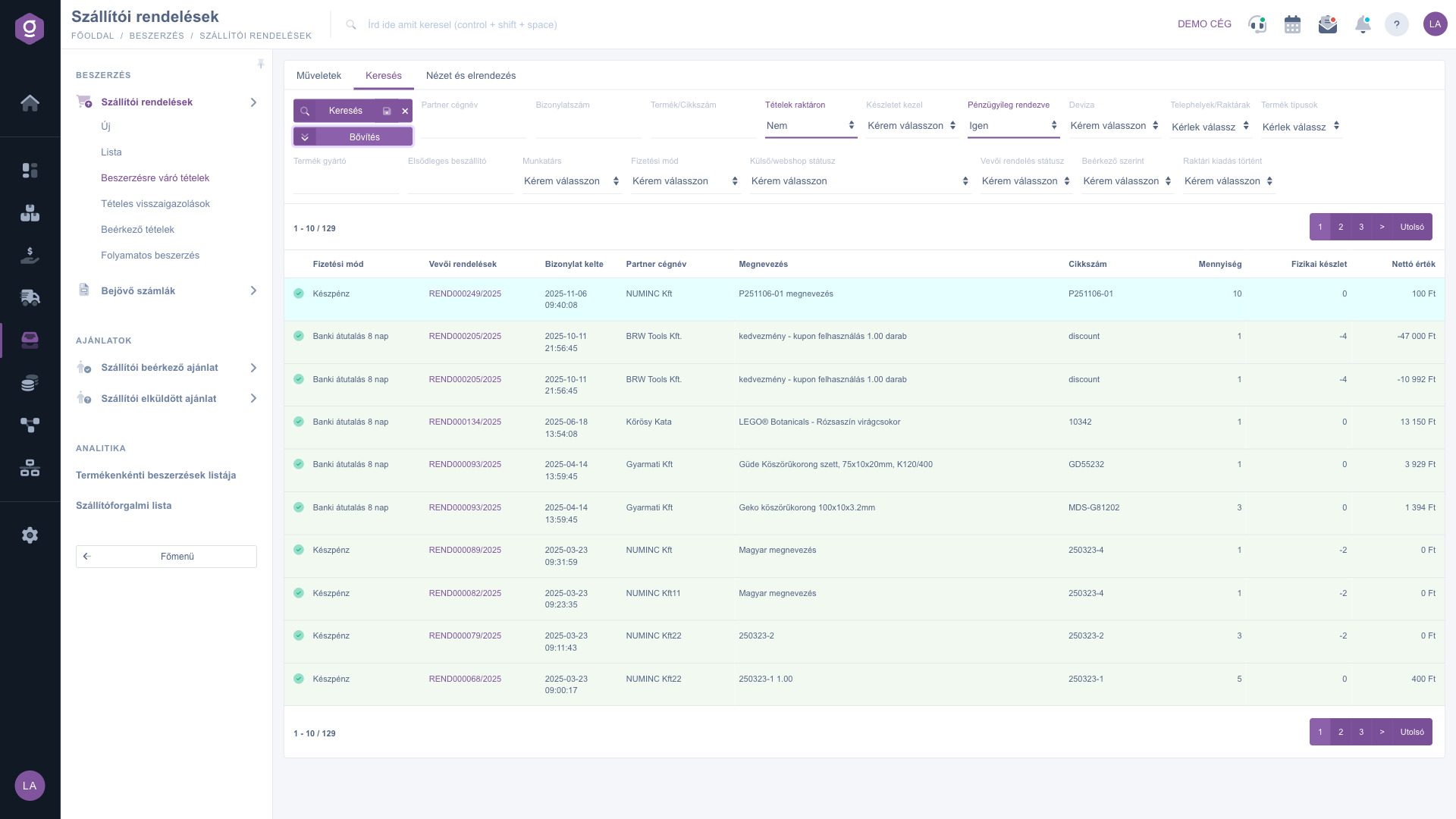
Search tab (Keresés) with the filters opened by the Expand button (Bővítés)

4. Selecting an item and the actions

Select the item (or items) in the table, then choose one of the buttons on the Actions tab:

  • Open: opens the procurement window where you can order the item from the supplier one at a time, with checked data (see step 5). Choose this if you also want to review the quantity, the price or the supplier.
  • Product card: opens the card of the selected product in a window: stock, stock history, price list and related customer orders in one place.
  • Open order: opens the customer order the item belongs to in a new tab.
  • Delete: after confirmation, dismisses the item from the waiting list, so it will not be procured. It does not delete the customer order.
  • Automatic purchase: creates the supplier orders from the selected items at once, without extra settings. Choose this if many items have to be sent to order quickly and the supplier data is already set up on the products.
  • Issue to barcode collector: issues the selected item to a barcode collector.
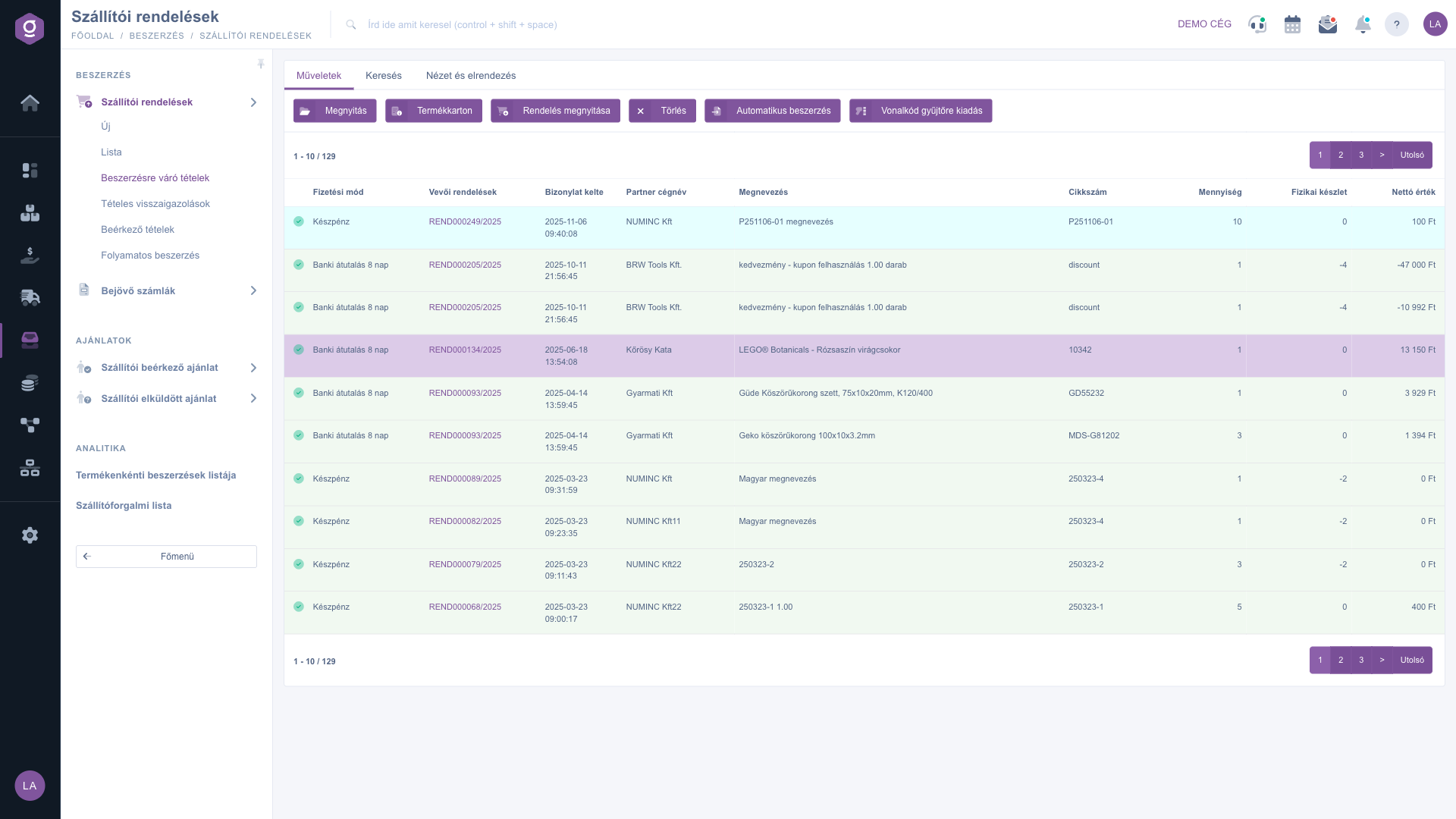
Actions tab (Műveletek) with a selected item
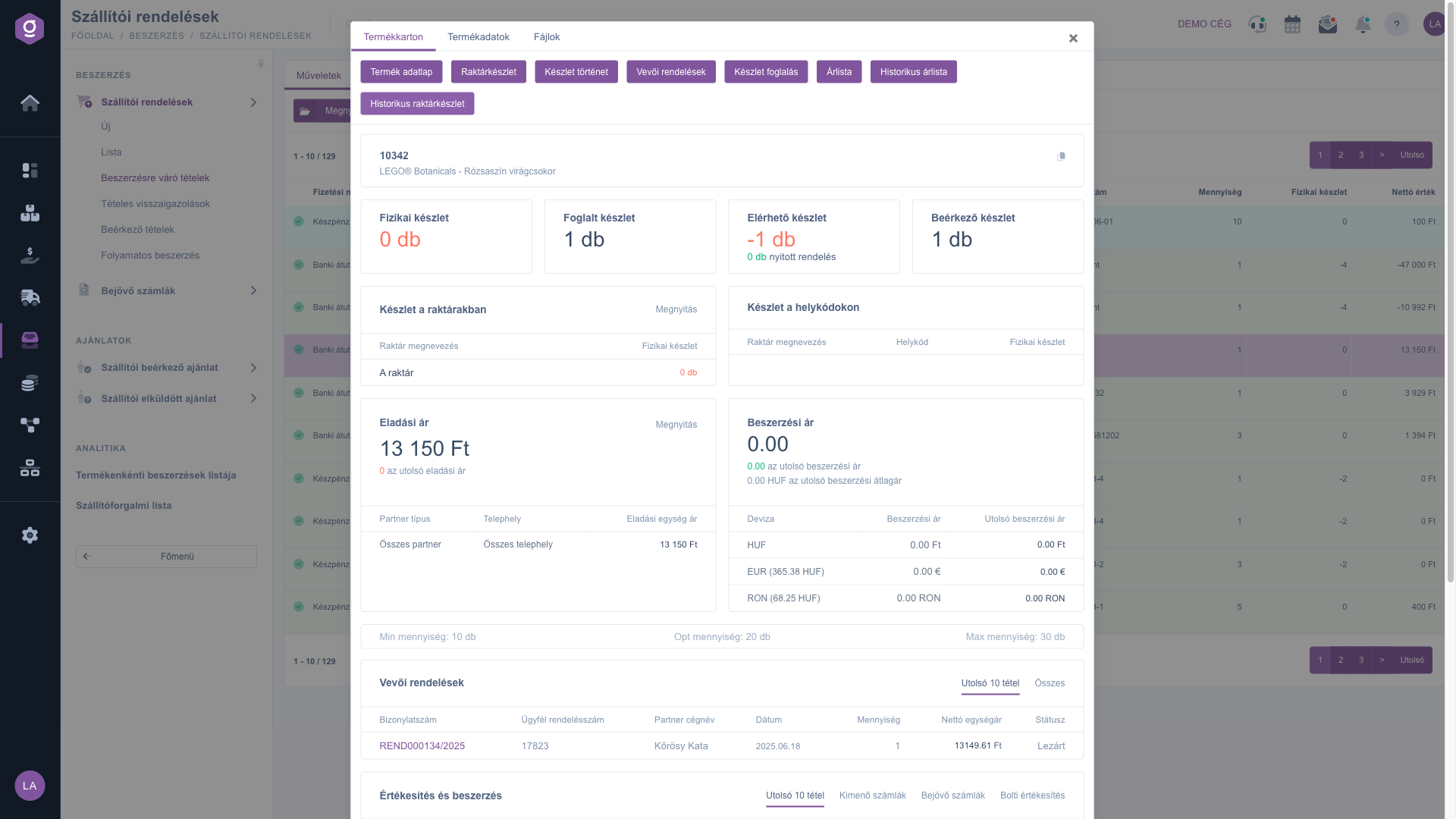
Product card (Termékkarton) window

5. Procurement in the Open window

The Open button opens the procurement window of the selected item. At the top four cards show the stock: Physical stock, Reserved stock, Available stock (with the quantity of the open order) and Incoming stock. Below them you see the item data: Item number, Name, Selling net price, Selling currency, Purchase net price, Purchase currency. Enter or check three fields: Quantity to purchase, Shipping company (the supplier) and Comment. The Save button saves the procurement, that is, the supplier order item is created and the item disappears from this list. The Close button leaves without saving.
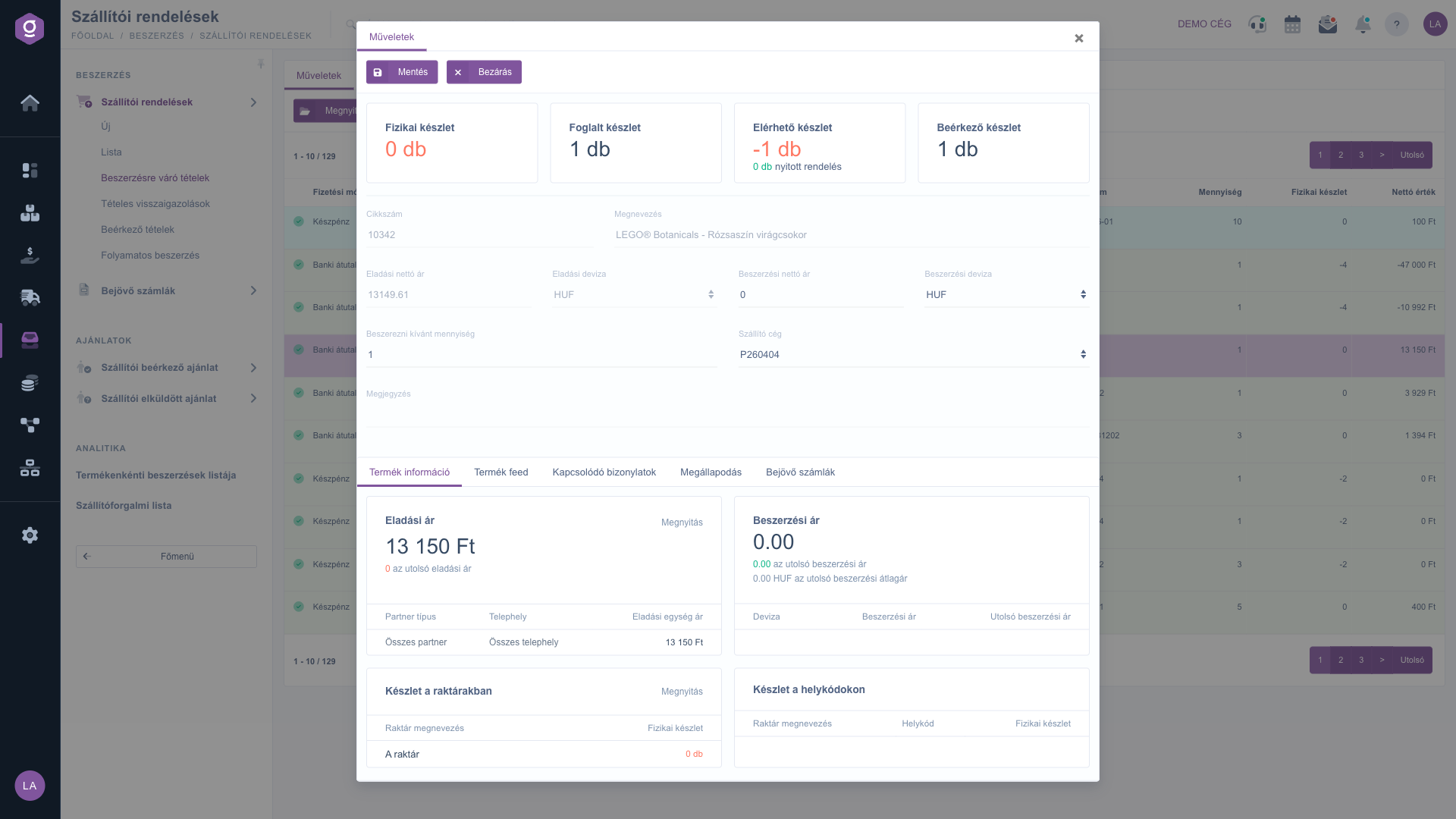
Procurement window after the Open (Megnyitás) button

The window has more tabs to support your decision: Product information, Product feed, Related documents, Agreement and Incoming invoices. The panels show the data of Selling price, Purchase price, Stock in warehouses and Stock in location codes.

6. Columns, rows, sorting

On the View and layout tab the Oszlopok (columns), Sorok (rows) and Sorting buttons let you customize which columns are visible, how many rows appear on a page and in what order. The names of the first two buttons are shown in Hungarian only. This page has no preview window.
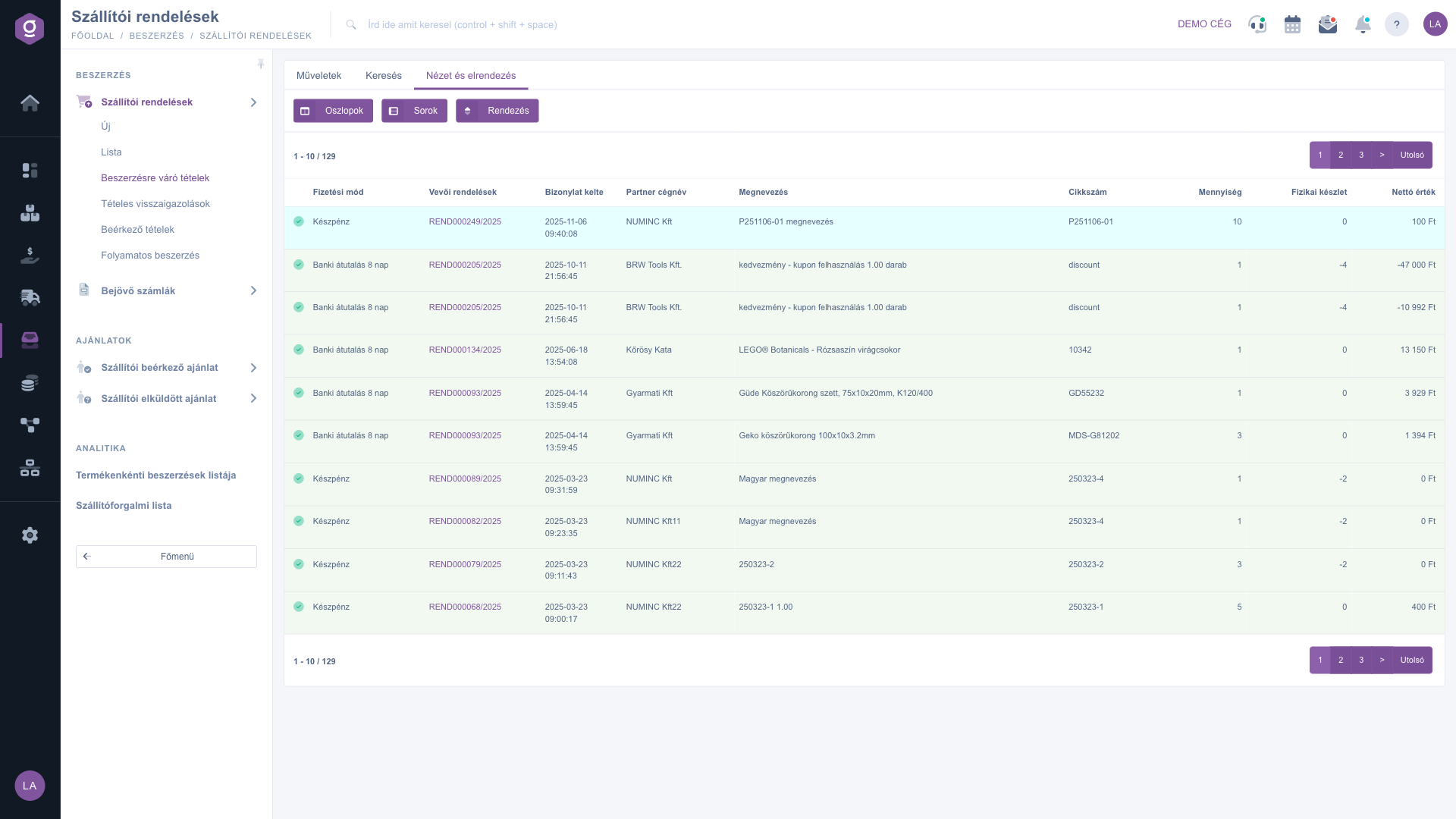
View and layout tab (Nézet és elrendezés)

Tip


If you want to order all missing items of one customer order together, filter by the Document number of the order (for example REND000254/2023), select all items and use the Automatic purchase button. With the By incoming filter you can also hide items for which stock is already on its way, so you do not order twice.


You can read about the original customer order of the item in the Customer orders list and Customer order document guides. The goods receipt of delivered goods is covered by the Warehouse receipt document guide.

Field descriptions

Basic filters of the Search tab (none of them is required):

Field / ElementRequiredDescription
Partner company nameThe name, or part of the name, of the partner who placed the customer order.
Document numberThe identifier of the customer order.
Product/Item numberThe name or item number of the product of the item.
Items in stockWith No only items without enough physical stock are shown; with Yes only items that are in stock. Default: No.
Manages stockFilters by whether the product is stock-managed.
Financially settledWith Yes only items of financially settled customer orders are shown. Default: Yes.
CurrencyThe currency of the customer order.
Sites/WarehousesWhen the stock is calculated, only the stock of the selected sites or warehouses counts.
Product typesNarrows down the product type of the listed items; several can be selected.

Further filters opened by the Expand button:

Field / ElementRequiredDescription
Product manufacturerThe name of the manufacturer of the product.
Primary supplierThe name of the primary supplier of the product; this way you can group procurement by supplier.
EmployeeThe employee who issued the customer order.
Payment methodThe payment method given on the customer order.
External/webshop statusThe status sent by the webshop or an external system.
Customer order statusThe status of the customer order.
By incomingWith Yes only items where the available stock minus the incoming stock is lower than the ordered quantity are shown. A tooltip appears when you hover over the field.
Stock issue doneWith Yes only items for which a warehouse issue has already been made; with No those for which it has not.

Columns of the result table:

Field / ColumnRequiredDescription
Payment methodThe payment method given on the customer order.
Customer ordersThe identifier of the customer order.
Document dateThe day the customer order was created.
Partner company nameThe partner who placed the order.
NameThe name of the item.
Item numberThe item number of the item.
QuantityThe quantity ordered by the customer.
Physical stockThe current physical stock of the product.
Net valueThe net value of the item.

Fields of the procurement window (Open):

Field / ElementRequiredDescription
Physical stock, Reserved stock, Available stock, Incoming stockInformation cards; the available stock also shows the quantity of the open order, and the incoming stock is the quantity of supplier orders that have not arrived yet.
Item number, NameThe identifying data of the item.
Selling net price, Selling currencyThe net price and currency invoiced to the customer.
Purchase net price, Purchase currencyThe net price and currency expected from the supplier.
Quantity to purchaseThe quantity you want to order from the supplier.
Shipping companyThe supplier the supplier order is created for.
CommentA free-text comment for the procurement.

Columns, rows and sorting can be customized on the View and layout tab.

Frequently asked questions

Check the following in order:

  • whether the customer order and the item are Closed or Partially fulfilled (Draft orders are not shown);
  • whether you have already started a supplier order from it, or dismissed it with the Delete button;
  • whether a filter hides the item: by default only items that are not in stock (Items in stock: No) and are financially settled (Financially settled: Yes) are shown;
  • whether the Sites/Warehouses filter changes how the stock is calculated;
  • whether the product type is included in the Product types filter.

Open opens a single item where you enter or check the quantity, the price and the supplier. Automatic purchase goes through the selected items one by one and creates the supplier orders by itself, so it is faster for a large number of items. Before using automatic purchase, check the supplier and purchase price data of the products, because you cannot change them in the process.

No. Delete only records that the item does not have to be procured, so it leaves the items awaiting procurement. The customer order and the item remain untouched, and you can look at them any time with the Open order button.

The system creates the supplier order item, and the item disappears from the items awaiting procurement. You can record the supplier confirmation on the Itemized confirmations page and follow the arrival of the goods on the Incoming items page.

The page is available under Main menu / Procurement / Supplier orders / Items awaiting procurement, if the module is assigned to your user. If it is missing, ask your company administrator to check the module assignment of your user.

Need personalized help?

Don't want to spend hours searching for a solution? Choose the most efficient way: book a personalized, 45-minute online training session dedicated entirely to you. Whether it's a walkthrough of the basics or a detailed setup of a specific module, our expert colleague will guide you through the whole process, step by step.

Don't waste your time - ask for help!
Our goal is to get you using our system as quickly and efficiently as possible. Whether you're completely new to us or stuck on a specific setting, don't hesitate to ask for help!

Logzi warehouse management software

Get in touch with us

Interested in our software? Feel free to write to us!

Need help?

If you can't find the answer and need assistance

Create your account now,
pay later!

Try it free for 3 days, no risk, no obligation!
