Task status

The master list of task statuses in Logzi: entering the name and assigning the status to a task board, editing and deleting.

Function overview

On the Task status page you manage the states that tasks go through (for example New, In progress, Done). You can assign each status to a task board, so different boards can follow their own process.

  • Name: the name of the status.
  • Board: the task board the status belongs to.
  • Maintenance: you can add a new status at any time and edit or delete an existing one.

Step by step

1. Opening the page

Click Main menu / Settings / System settings / Task status. At the top you see the New, Open and Delete buttons, below them the list of statuses with the Name column. Click a row to select the status. The screenshots were taken in the Hungarian interface.
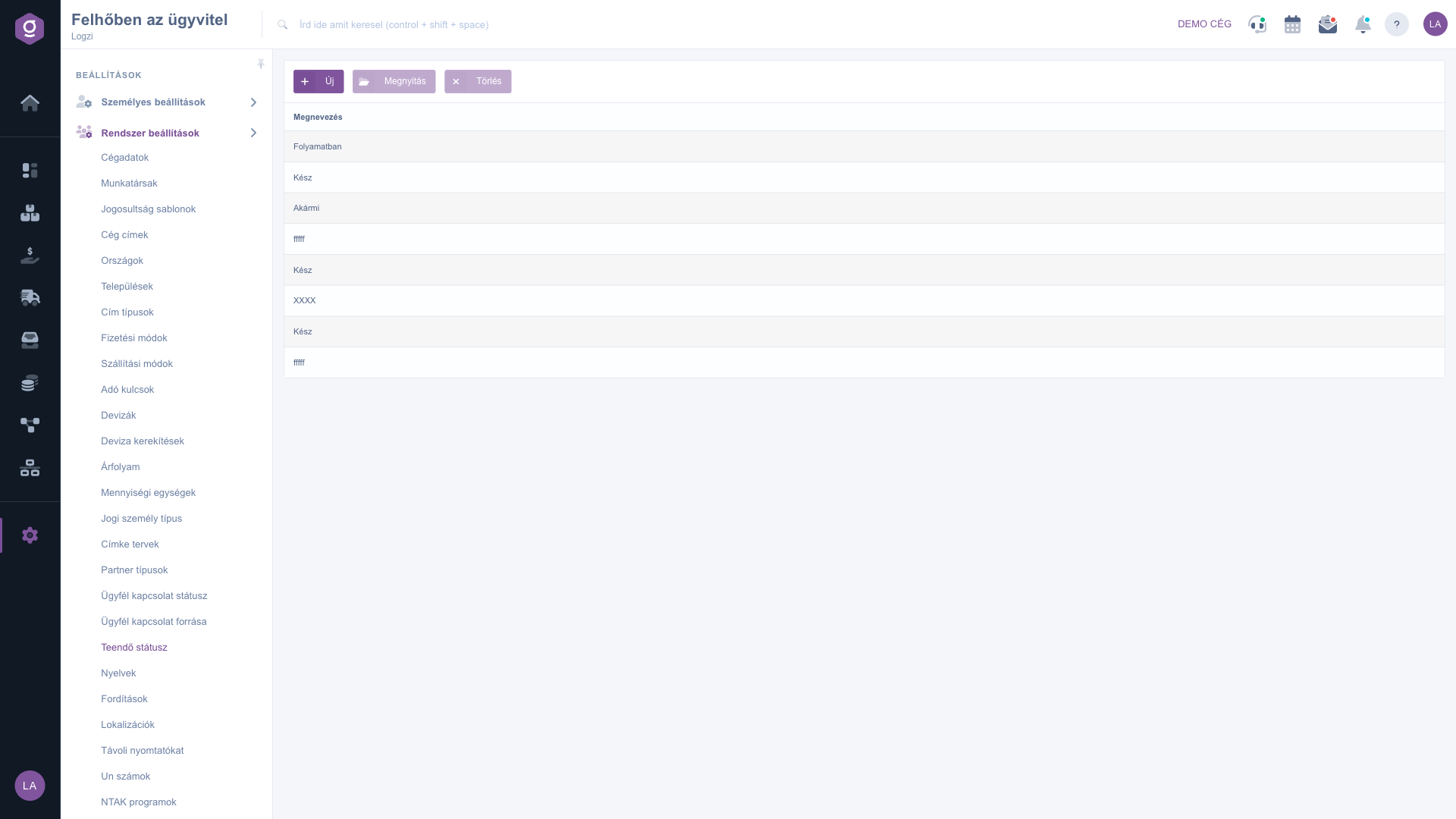
The Task status list

2. Adding or editing a status

Click New, or select a row and click Open. In the window that opens, fill in the Name field, then choose in the Board field which task board the status belongs to. Click Save to store the status and Close to close the window.
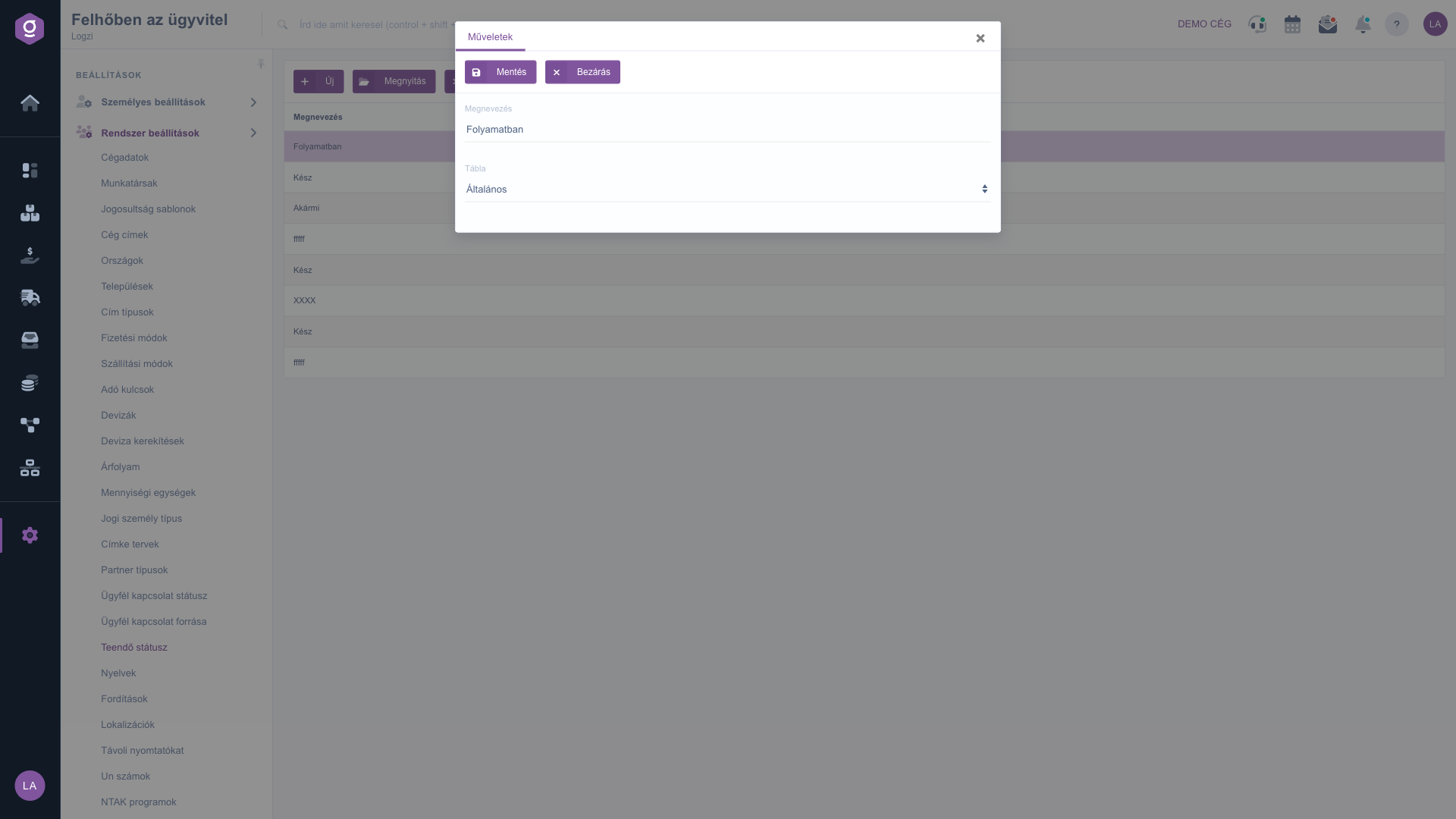
Task status form with name and board

3. Deleting a status

Select the row and click Delete. Before deleting, check whether any task still uses this status.

Tip


Name the statuses so that they reflect the path of a task clearly (for example New, In progress, Waiting for review, Done), and assign each of them to the right board.


Field description

The fields of the task status form.

FieldRequiredDescription
NameThe name of the status.
BoardThe task board the status belongs to; chosen from the list.

Frequently asked questions

Fill in the Name field and click Save. If the window does not close, check that all required fields are filled in.

With the Board field you choose the task board on which the status can be used, so you can set up a different process for different boards.

You can delete the selected status with the Delete button. Before deleting, check whether any task still uses it.

Yes, select the row, click Open, change the name and save.

The menu item is located under Main menu / Settings / System settings. If you do not see it, your user probably does not have the required permission; ask your administrator to check the settings.

Need personalized help?

Don't want to spend hours searching for a solution? Choose the most efficient way: book a personalized, 45-minute online training session dedicated entirely to you. Whether it's a walkthrough of the basics or a detailed setup of a specific module, our expert colleague will guide you through the whole process, step by step.

Don't waste your time - ask for help!
Our goal is to get you using our system as quickly and efficiently as possible. Whether you're completely new to us or stuck on a specific setting, don't hesitate to ask for help!

Logzi warehouse management software

Get in touch with us

Interested in our software? Feel free to write to us!

Need help?

If you can't find the answer and need assistance

Create your account now,
pay later!

Try it free for 3 days, no risk, no obligation!
