Payment methods

Setting up payment methods (for example cash, bank transfer, bank card) in Logzi: NAV and NTAK mapping, payment rule, automatic settlement, ledger numbers and integrations.

Function overview

On the Payment methods page you set up the payment methods you use on documents, at the cash register and for webshop orders. The rules of the payment method determine the payment term, the name sent to the Hungarian tax authority (NAV), the way of settlement and the accounting.

  • Mapping: the NAV name, the NTAK code and the cash register code.
  • Payment rule: how many days later the payment term of a new document is.
  • Automatic settlement: creating a simple settlement, a cash document or a bank document.
  • Accounting and integrations: ledger numbers and linking the integrations to payment methods.

Step by step

1. Opening the page

Click Main menu / Settings / System settings / Payment methods. At the top you see the New, Open and Delete buttons, and below them the list with the ID, Name, Payment rule (days) and Default columns. Click a row to select the payment method. The screenshots were taken in the Hungarian interface.
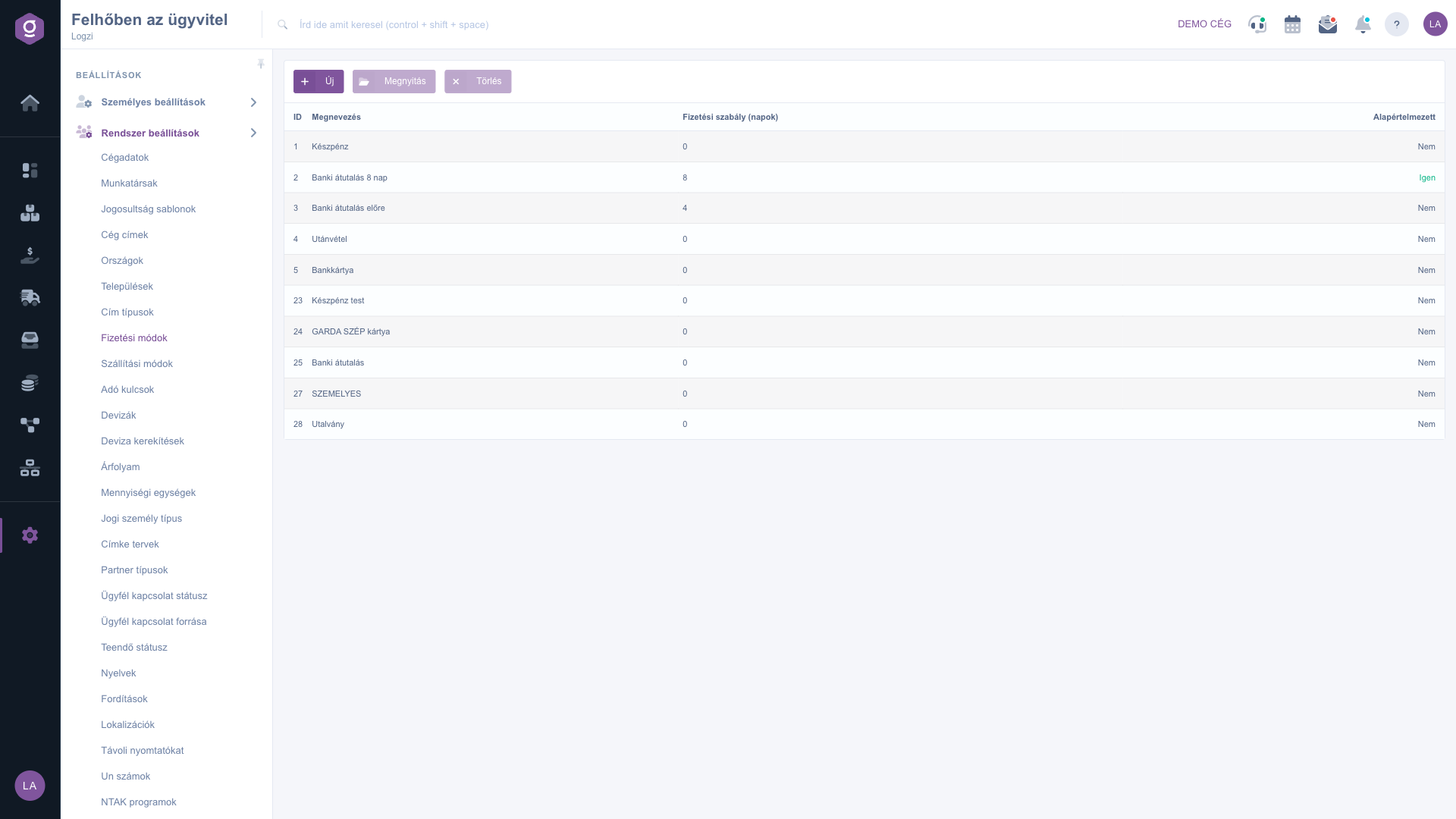
The Payment methods list

2. Adding a new payment method

Click New, or select a row and click Open. On the Actions tab fill in the basic data: the NAV name is required (at least 2 characters), because it determines which payment method appears on the invoice sent to NAV. On the Name tab enter the name of the payment method in every language. Use Save to store it and Close to close the window.
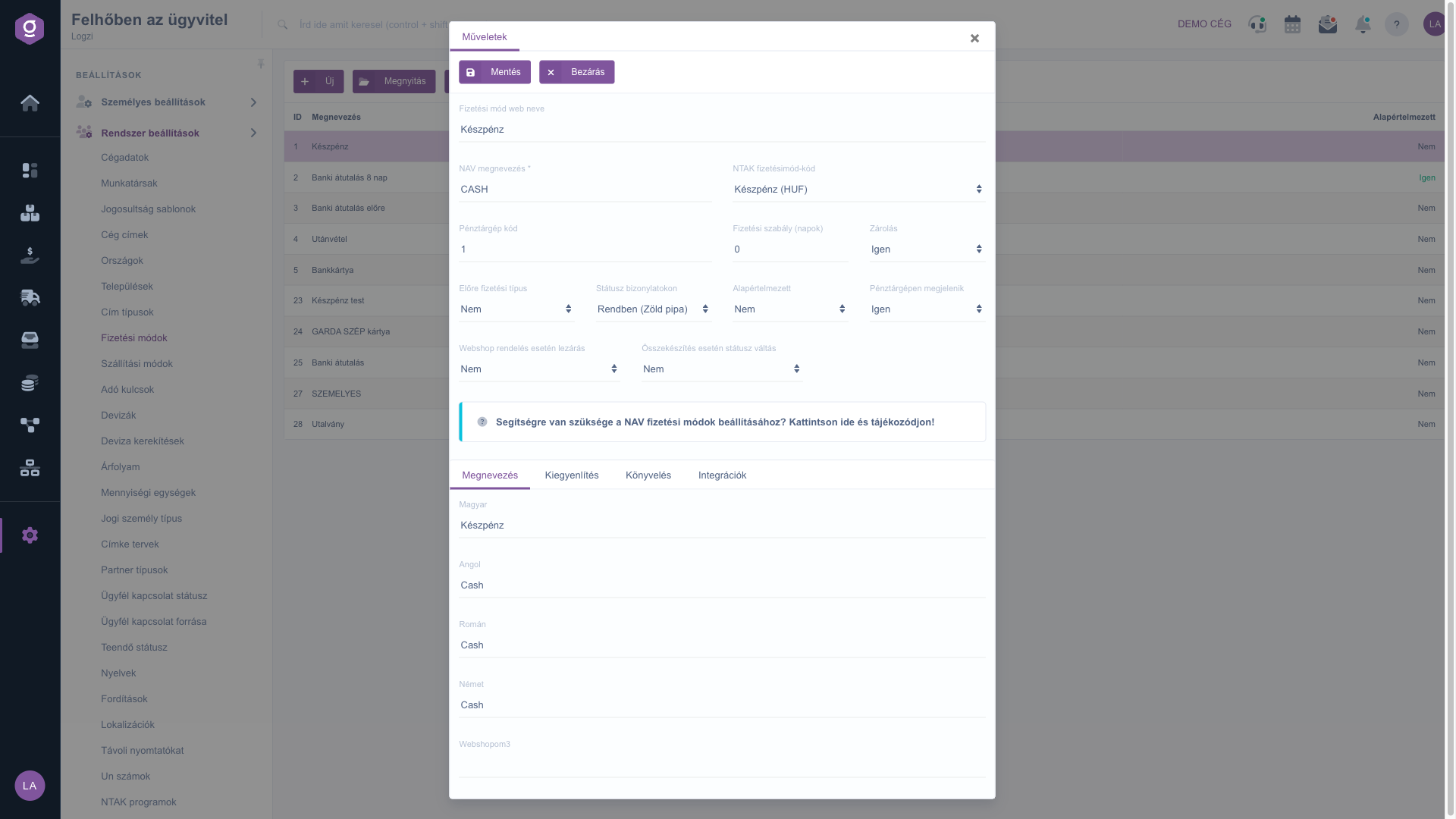
Payment method sheet on the Actions tab

3. The payment rule and locking

The payment term of a new document is the number of days entered in Payment rule (days) after the document date (for example with 8 days it is the document date plus 8 days). If you set Locking to Yes and the document remains unpaid, the system locks further invoices of the partner. With Prepayment type set to Yes the system automatically creates a proforma invoice when an order is closed.

Tip


Fill in the NTAK payment method code only if you use the NTAK integration. Choose the matching code from the list (for example KESZPENZHUF, BANKKARTYA, ATUTALAS).

4. Settlement, accounting and integrations

On the Settlement tab, the Automatic settlement field lets you choose what happens when the document is issued: No, Simple settlement, Cash document or Bank document. With a cash or bank document the Title, Direction and Bank account number selectors appear. On the Accounting tab you set the Supplier ledger number and the Customer ledger number, and on the Integrations tab the link between the integrations and the payment methods.


You can create the ledger numbers on the Ledger numbers page.
You can read about the NTAK settings on the NTAK programs page.

Field description

The main fields of the payment method sheet.

FieldRequiredDescription
NAV nameThe name of the payment method on the invoice sent to NAV, at least 2 characters.
Web name of the payment methodThe name used in the webshop, up to 100 characters; it helps synchronize orders.
NTAK payment method codeThe NTAK code (for example KESZPENZHUF, BANKKARTYA, ATUTALAS); relevant only with the NTAK integration.
Cash register codeThe code used at the cash register.
Payment rule (days)The payment term of a new document is this many days after the document date.
LockingIf Yes and the document is unpaid, the system locks further invoices of the partner.
Prepayment typeIf Yes, the system automatically creates a proforma invoice when the order is closed.
Status on documentsThe indicator shown on documents: OK (green check), Warning (yellow exclamation mark) or Error (red cross).
DefaultIf Yes, this payment method is preselected for a new document.
Shown on cash registerDefines whether the payment method is available at the cash register.
Closing for webshop ordersDefines whether an order arriving from the webshop is closed with this payment method.
Status change when pickedNo, Prepared or Ready for pickup: the new state of the order when it is picked.
Automatic settlementNo, Simple settlement, Cash document or Bank document.

Frequently asked questions

Filling in the NAV name is required and it must be at least 2 characters long. You must also enter the name of the payment method in every language on the Name tab.

The payment term of a new document is the number of days entered in Payment rule (days) after the document date. For example with 8 days, payment is due 8 days after the document date.

If it is Yes and the document remains unpaid, the system locks further invoices of the partner until the debt is settled.

On the Settlement tab set the Automatic settlement field to Simple settlement, Cash document or Bank document. For the last two also enter the title, the direction and the bank account number.

The menu item is under Main menu / Settings / System settings. If you cannot see it, the required permission is probably not assigned to your user; ask your administrator to check the settings.

Need personalized help?

Don't want to spend hours searching for a solution? Choose the most efficient way: book a personalized, 45-minute online training session dedicated entirely to you. Whether it's a walkthrough of the basics or a detailed setup of a specific module, our expert colleague will guide you through the whole process, step by step.

Don't waste your time - ask for help!
Our goal is to get you using our system as quickly and efficiently as possible. Whether you're completely new to us or stuck on a specific setting, don't hesitate to ask for help!

Logzi warehouse management software

Get in touch with us

Interested in our software? Feel free to write to us!

Need help?

If you can't find the answer and need assistance

Create your account now,
pay later!

Try it free for 3 days, no risk, no obligation!
