Installing Facebook

How to install the Facebook extension in Logzi: the installation steps, the description of the fields to fill in, and frequently asked questions.

Function overview

The Facebook extension generates a product feed address that you must enter in the Facebook system to load your products; this way your products and prices in Logzi are automatically available there.

  • You can start the extension from the Extensions menu with the Install button on its card.
  • The Save button also saves and installs the extension at the same time; there is no separate installation step.
  • You can check the result of the installation on the Log tab of the extension.

Step by step

1. Open the installation of a new extension

Go to the Main menu / Integrations / Extensions / Install new extension menu item. Among the cards, find the Facebook card and click its Install button.

2. Enter the basic data

On the page that opens, under the Actions tab you see three basic fields: the API name field is prefilled (in the form “… integráció”), the Facebook type is selected in the Type field, and the Active field is set to Yes. You can rewrite the API name, for example if you install several extensions of the same integration.
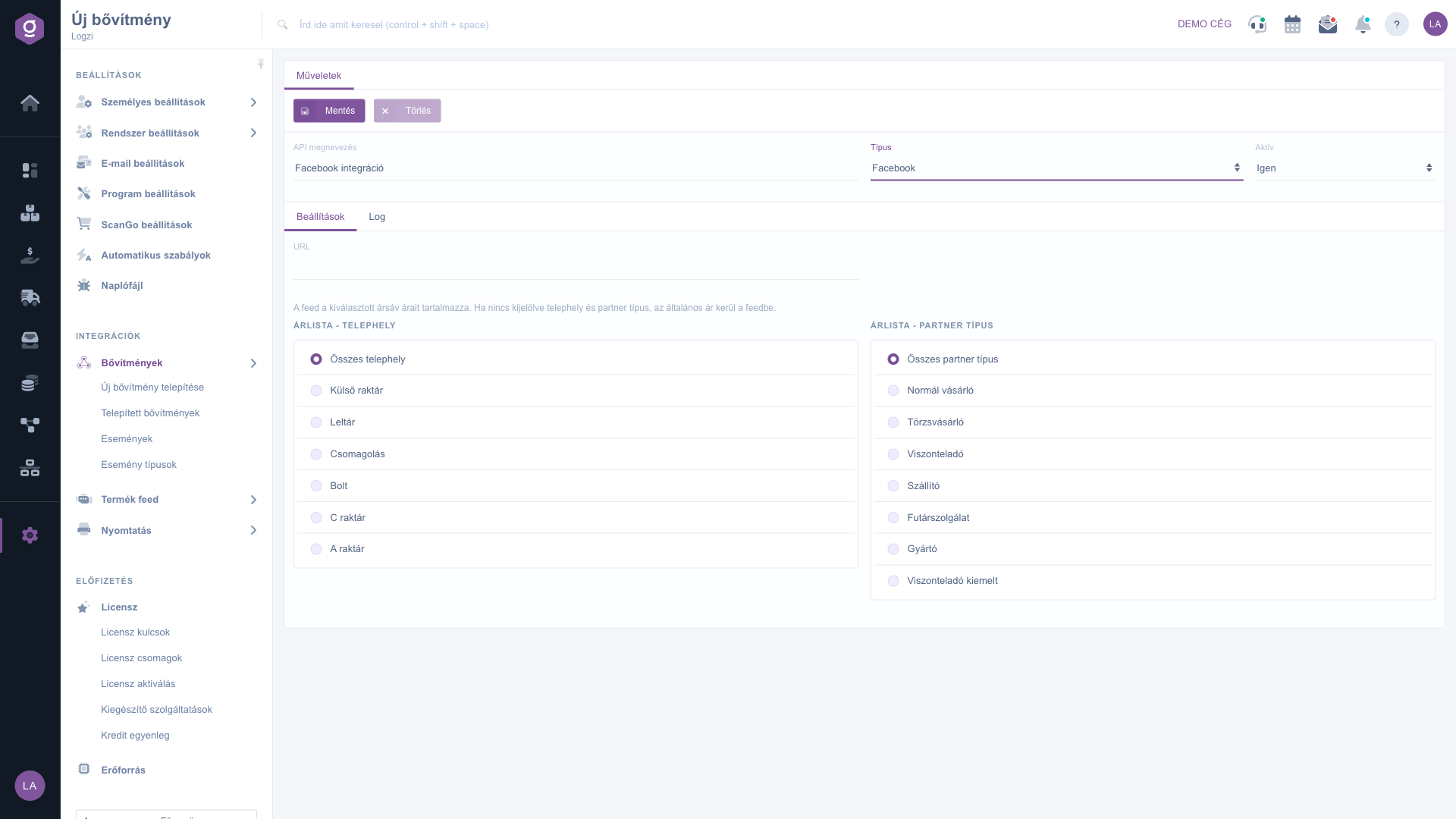
Installation form of the Facebook extension

3. Fill in the settings

On the Settings tab, the URL field of the feed is still empty at installation: the system generates the address after saving. Here you can choose which price band goes into the feed: select the desired value in the Price list - Site and Price list - Partner type selectors (default: All sites and All partner types). The feed contains the prices of the selected price band; if no site and partner type is selected, the general price is used.

4. Save and install

Click the Save button. Saving also performs the installation: after a successful operation the message “A bővítmény telepítése/módosítása sikerült!” (“The extension was installed/modified successfully!”) appears, which you can close with the Rendben (OK) button; this popup text is shown in Hungarian in every language. After saving, the feed address appears in the URL field: copy it and enter it in the Facebook system as the product source.

5. Check the result

If you receive the warning “A bővítmény telepítése nem sikerült vagy már telepítve van!” (“The extension could not be installed or is already installed!”, shown in Hungarian), or you are unsure about the result, open the Log tab of the extension: there you see the status, date and message of the events in chronological order. You can also open the installed extension later from the Installed extensions list.

Tip


Do not share the feed URL with unauthorised people: anyone can download your product data with it.


You can manage your installed extensions on the Installed extensions page. You can read about the card list of extensions on the Install new extension page.

Field description

Field / ElementRequiredDescription
API nameThe name of the extension in the Installed extensions list. Prefilled at installation in the form “… integráció”; you can freely rewrite it, so you can tell apart several extensions of the same type.
TypeThe type of the extension; it is preset based on the selected card (Facebook).
ActiveWith Yes the extension works, with No it is paused. The default at installation is Yes.
URLThe address of the feed; a read-only field that is empty at installation and generated by the system after saving. This is the address you must enter in the Facebook system.
Price list - SiteYou can choose which site’s price band goes into the feed; the default is All sites.
Price list - Partner typeYou can choose which partner type price band goes into the feed; the default is All partner types.

Frequently asked questions

The appearance of the menu item depends on your permissions. If you cannot see it, ask the administrator to check your permissions.

This message is shown in Hungarian in every language and means that the extension could not be installed or is already installed. Either the data entered are wrong, or you already have this extension installed with the same settings. Check the Installed extensions list and the Log tab of the extension; if necessary, correct the data and save again.

At installation the URL field is empty. After Save, the system generates the feed address, which you can find in the URL field when you open the extension (Installed extensions list).

Open the extension on the Installed extensions page and use the Delete button, or set the Active field to No if you only want to pause it.

Need personalized help?

Don't want to spend hours searching for a solution? Choose the most efficient way: book a personalized, 45-minute online training session dedicated entirely to you. Whether it's a walkthrough of the basics or a detailed setup of a specific module, our expert colleague will guide you through the whole process, step by step.

Don't waste your time - ask for help!
Our goal is to get you using our system as quickly and efficiently as possible. Whether you're completely new to us or stuck on a specific setting, don't hesitate to ask for help!

Logzi warehouse management software

Get in touch with us

Interested in our software? Feel free to write to us!

Need help?

If you can't find the answer and need assistance

Create your account now,
pay later!

Try it free for 3 days, no risk, no obligation!
