The Cashbook extension creates the data connection between Logzi and the external service; installation requires the access data received from the provider.
Go to the Main menu / Integrations / Extensions / Install new extension menu item. Among the cards, find the Cashbook card and click its Install button.
On the page that opens, under the Actions tab you see three basic fields: the API name field is prefilled (in the form “… integráció”), the Cashbook type is selected in the Type field, and the Active field is set to Yes. You can rewrite the API name, for example if you install several extensions of the same integration.
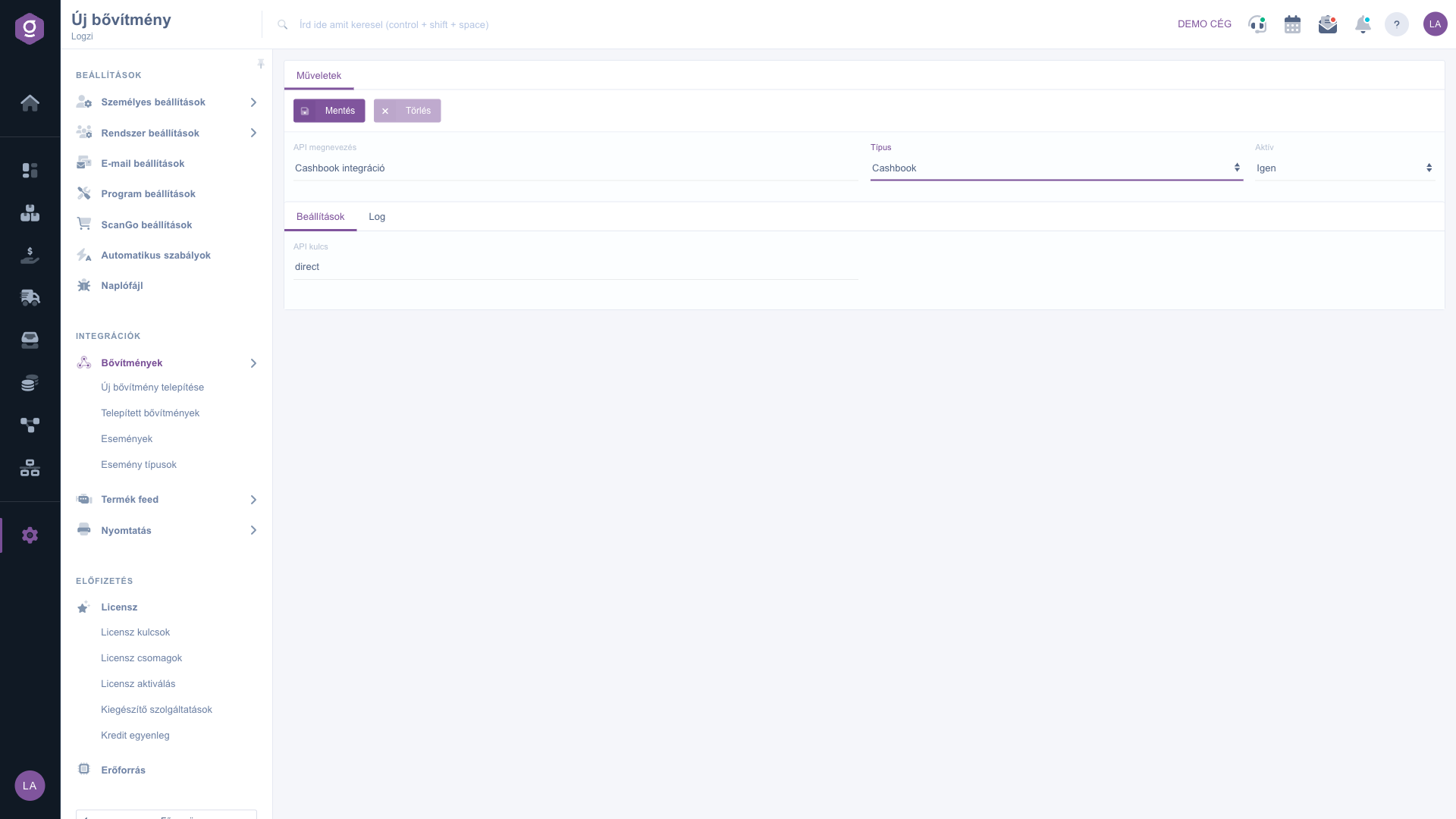
On the Settings tab, enter the access data received from the provider (see the field table). You can obtain the required data in the Cashbook interface or from its customer service.
Click the Save button. Saving also performs the installation: after a successful operation the message “A bővítmény telepítése/módosítása sikerült!” (“The extension was installed/modified successfully!”) appears, which you can close with the Rendben (OK) button; this popup text is shown in Hungarian in every language.
If you receive the warning “A bővítmény telepítése nem sikerült vagy már telepítve van!” (“The extension could not be installed or is already installed!”, shown in Hungarian), or you are unsure about the result, open the Log tab of the extension: there you see the status, date and message of the events in chronological order. You can also open the installed extension later from the Installed extensions list.
Treat keys and passwords as confidential; if you replace them at the provider, update them in the extension as well.

| Field / Element | Required | Description |
|---|---|---|
| API name | The name of the extension in the Installed extensions list. Prefilled at installation in the form “… integráció”; you can freely rewrite it, so you can tell apart several extensions of the same type. | |
| Type | The type of the extension; it is preset based on the selected card (Cashbook). | |
| Active | With Yes the extension works, with No it is paused. The default at installation is Yes. | |
| API kulcs | The API key (“API kulcs” is shown in Hungarian on the form) issued by Cashbook; copy it exactly, without extra spaces. |
The appearance of the menu item depends on your permissions. If you cannot see it, ask the administrator to check your permissions.
This message is shown in Hungarian in every language and means that the extension could not be installed or is already installed. Either the data entered are wrong, or you already have this extension installed with the same settings. Check the Installed extensions list and the Log tab of the extension; if necessary, correct the data and save again.
Based on your contract or registration with the provider, you receive them in the Cashbook interface (usually in the account, API or integration settings) or from its customer service.
Open the extension on the Installed extensions page and use the Delete button, or set the Active field to No if you only want to pause it.
Don't want to spend hours searching for a solution? Choose the most efficient way: book a personalized, 45-minute online training session dedicated entirely to you. Whether it's a walkthrough of the basics or a detailed setup of a specific module, our expert colleague will guide you through the whole process, step by step.
Don't waste your time - ask for help!
Our goal is to get you using our system as quickly and efficiently as possible. Whether you're completely new to us or stuck on a specific setting, don't hesitate to ask for help!
Create your account now,
pay later!

