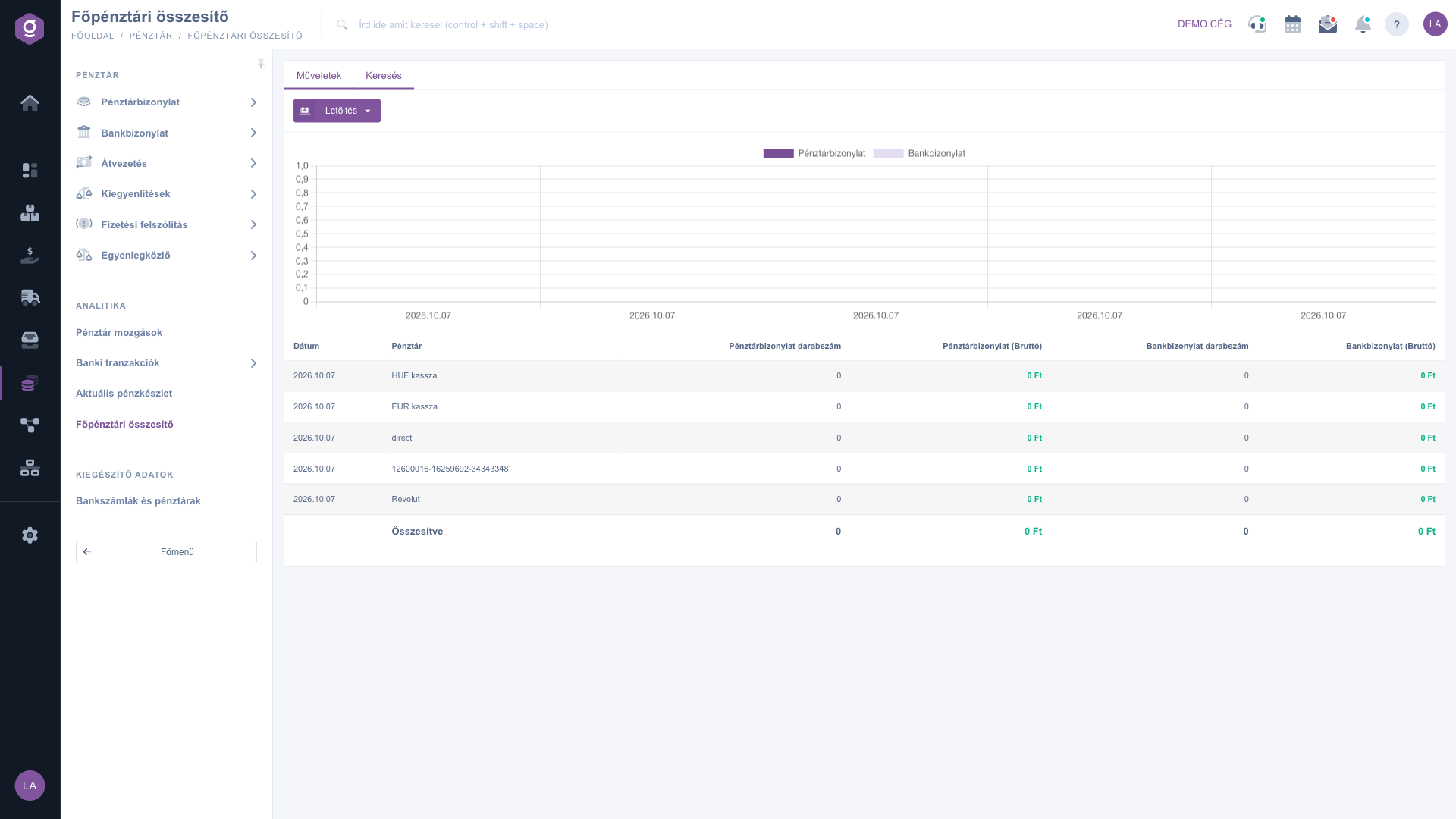
This page shows, broken down by day, how many cash receipts and bank documents were created in each cash register and bank account, and what their gross amount is. A bar chart is at the top, with a table below it; the last row of the table is the Summarized row. The page is view-only; you cannot change data here.
The states of the page:
If there is no row at all, you see this message instead of the table: the results list is empty or contains no items to display.
Click Main menu / Cash register / Main cash register summary (you find it in the Analytics group). The page shows all cash registers for today. The image shows the Actions tab, the bar chart and the table.
Open the Search tab. In the Cash registers list choose the cash register or bank account (by default Please choose is selected, and then all of them are shown), then enter the start and end of the period in the Document date field. Then click the Search button. The Expand button is inactive on this page; there is no further filter.
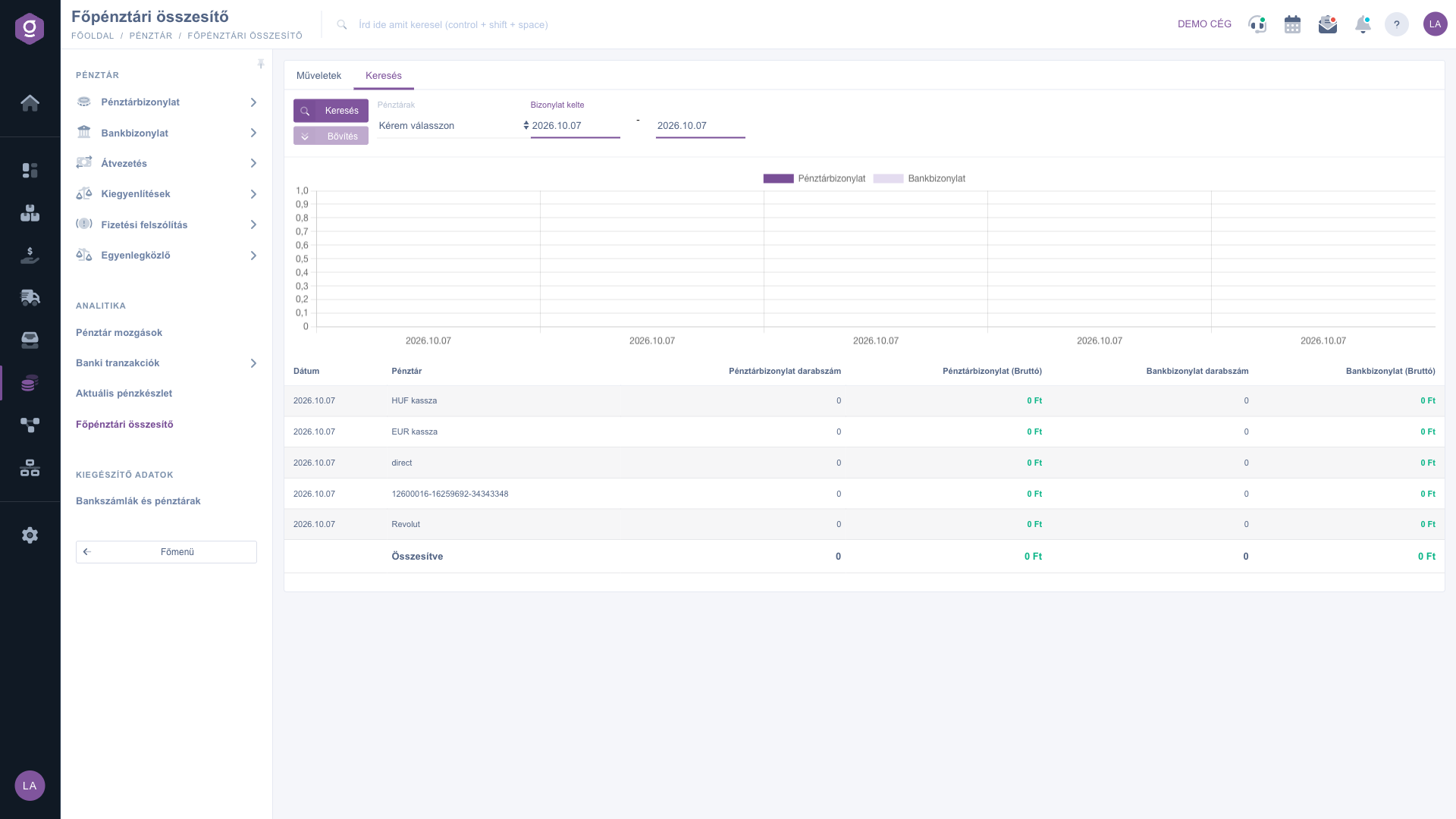
The bars of the chart show the gross amount of cash receipts and bank documents by day; the legend names are shown in Hungarian in every language (Pénztárbizonylat, Bankbizonylat). Each row of the table shows one day and one cash register: Cash receipt count and Bank document count show the number of documents, Cash receipt (Gross) and Bank document (Gross) show the gross amount, rounded to a whole number, in the currency of the cash register. The last row, Summarized, adds up the counts and amounts of the rows visible in the table.
On the Actions tab, click the Download button and the XLSX lista item appears. Please note that this button currently starts the colleague traffic export, so the downloaded file does not necessarily match the table you see. You can download the list of cash register items from the Cash register movements page.
If you want to examine one specific day, enter the same day in both date fields. For a longer period every day and every cash register has its own row in the table, so the list can be long.

The columns of the table and their meaning. The check mark shows that the column is visible by default; the page has no column picker, so every column is always visible.
| Column | Visible by default | Description |
|---|---|---|
| Date | The day the row refers to. | |
| Cash register | The name of the cash register or bank account. | |
| Cash receipt count | The number of cash receipts created in that cash register on that day. | |
| Cash receipt (Gross) | The gross amount of the cash receipts, rounded to a whole number, with the currency. | |
| Bank document count | The number of bank documents created at that place on that day. | |
| Bank document (Gross) | The gross amount of the bank documents, rounded to a whole number, with the currency. |
The page filters for today by default. If you want to see another period, enter the start and end of the period in the Document date field on the Search tab, then click the Search button.
The page only shows a summary. The numbers come from cash register and bank items, which you can view on the Cash register movements and Bank transactions pages.
Because there is no cash receipt or bank document on the selected day. Widen the period in the Document date field. If you see no row at all, no cash register or bank account has been added yet under Bank accounts and cash registers in the Cash register menu.
It adds up the counts and gross amounts of the rows visible in the table, separately for cash receipts and bank documents.
The Download / XLSX lista button currently starts the colleague traffic export, so the file does not necessarily match the table. You can download the cash register items from the Cash register movements page.
You find cash register items in the list described in the Cash register movements guide and bank items in the Bank transactions guide. For balances, read the Current cash balance guide.
The Main menu / Cash register / Main cash register summary item appears only if its module is assigned to your user. If you cannot find it, ask your system administrator to enable it.
Don't want to spend hours searching for a solution? Choose the most efficient way: book a personalized, 45-minute online training session dedicated entirely to you. Whether it's a walkthrough of the basics or a detailed setup of a specific module, our expert colleague will guide you through the whole process, step by step.
Don't waste your time - ask for help!
Our goal is to get you using our system as quickly and efficiently as possible. Whether you're completely new to us or stuck on a specific setting, don't hesitate to ask for help!
Create your account now,
pay later!

