Inter-warehouse Transfer List

Learn how to list, search and manage inter-warehouse transfer documents in Logzi.

Feature overview

This module lets you review and manage Inter-warehouse Transfer documents. A transfer document records the movement of a product from one site/storage location to another — the stock quantity does not change, only its physical location. The list view gives you a single place to see all previously created transfer documents, search among them, and directly trigger the most important actions (creating a new document, closing, deleting, sending by email, creating a task).

  • Clear list view: documents are shown in a paginated table sorted by identifier, creation date, fulfillment date and status.
  • Related document links: if the transfer automatically generated an Outgoing document (at the source site) or a Booking document (at the destination site), the list row links directly to them.
  • Quick actions: you can open, close, delete or download the selected document(s) with a single click, without entering each document individually.

Possible statuses of an Inter-warehouse Transfer: Draft, Closed, Cancelled, Cancelled (closed) — their meaning and restrictions are detailed in the FAQ section.

Step by step

1. Viewing the list and working with the documents

Opening Stock Management > Inter-warehouse Transfer > List (account/transmission/list) shows every transfer document created so far. Above the table, the Actions tab holds the buttons for working with the selected document(s):

  • New: create a new, individual inter-warehouse transfer document — choose this when relocating a single product.
  • Open: open the detailed view of the selected document.
  • Close: close the document, finalizing the relocation; use the dropdown arrow to combine it with immediate printing (Close and print) or download (Close and download).
  • Delete: delete the document; the dropdown arrow's Delete and clone option also creates a copy for a new document at the same time.
  • Send email: send the document by email to a colleague or an external partner.
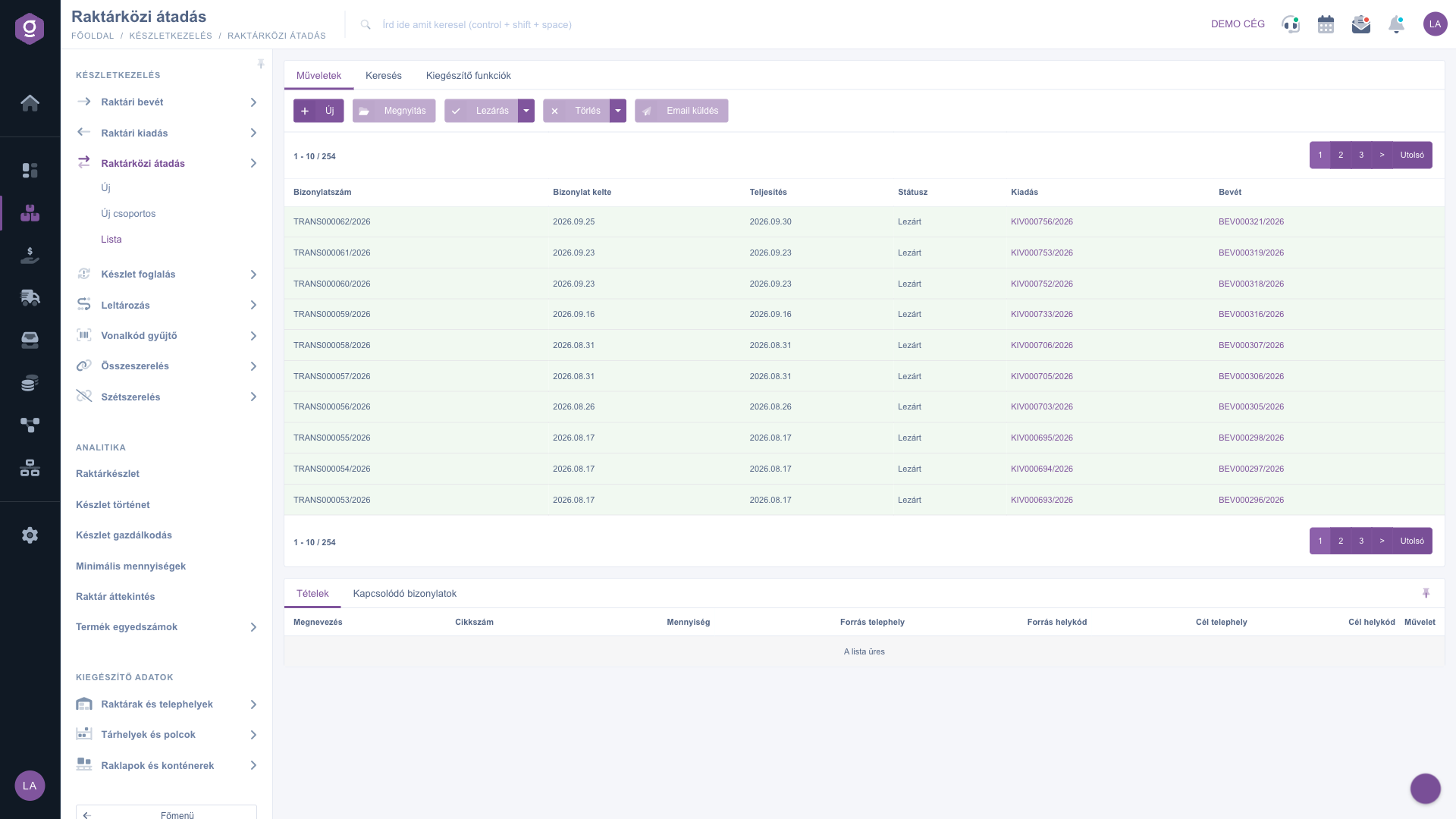
Inter-warehouse transfer list - Actions tab

If you need to relocate several products or larger quantities between multiple storage locations at once, choose Stock Management > Inter-warehouse Transfer > New group instead of plain New — it allows bulk, multi-item recording.

2. Searching among the documents

Clicking the Search tab above the table reveals the filtering options. By default, searching by Identifier and Status is available — clicking Expand reveals further, more detailed filters:

  • Creation date / Fulfillment date: search by date range.
  • Colleague: the colleague who recorded the document.
  • Item number: filter transfer documents containing a given item number.
  • Project / Job number / Department number: if the document was recorded against a given project, job or department.
  • Internal comment: based on the text in the document's internal comment field.
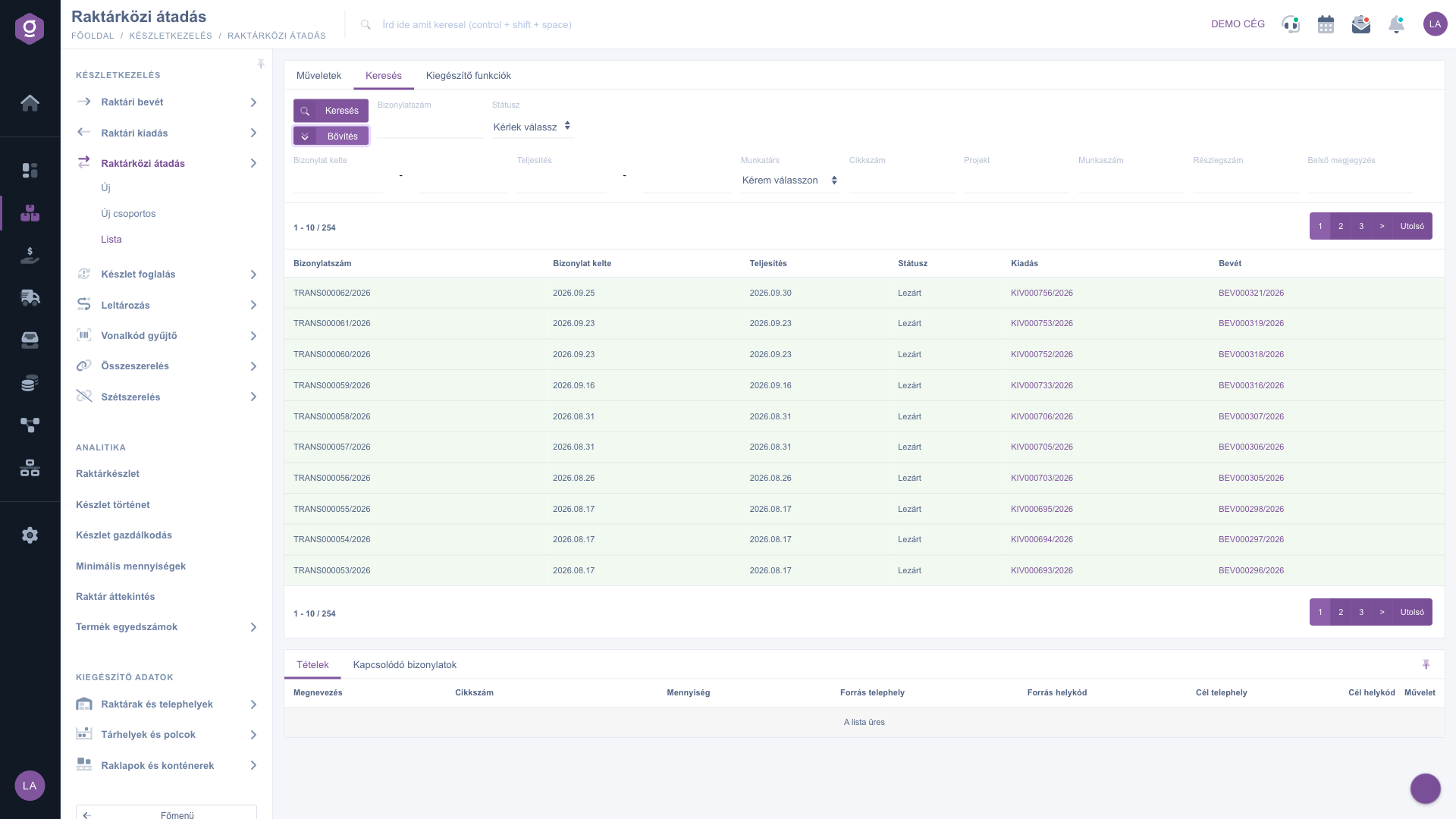
Inter-warehouse transfer list - Search tab

3. The preview panel

Clicking a document row lets you review its details in the preview panel below the list, without opening the document itself. The panel has two tabs:

  • Items: the products on the document (name, item number, quantity), plus Source site, Source location code, Destination site and Destination location code — i.e. where the product moves from and to.
  • Related documents: other documents linked to this one (e.g. the outgoing or booking document automatically created by the transfer).

The panel can be pinned (fixed in place) using the icon in its top-right corner, and its size can be adjusted by dragging the divider at the top of the panel.
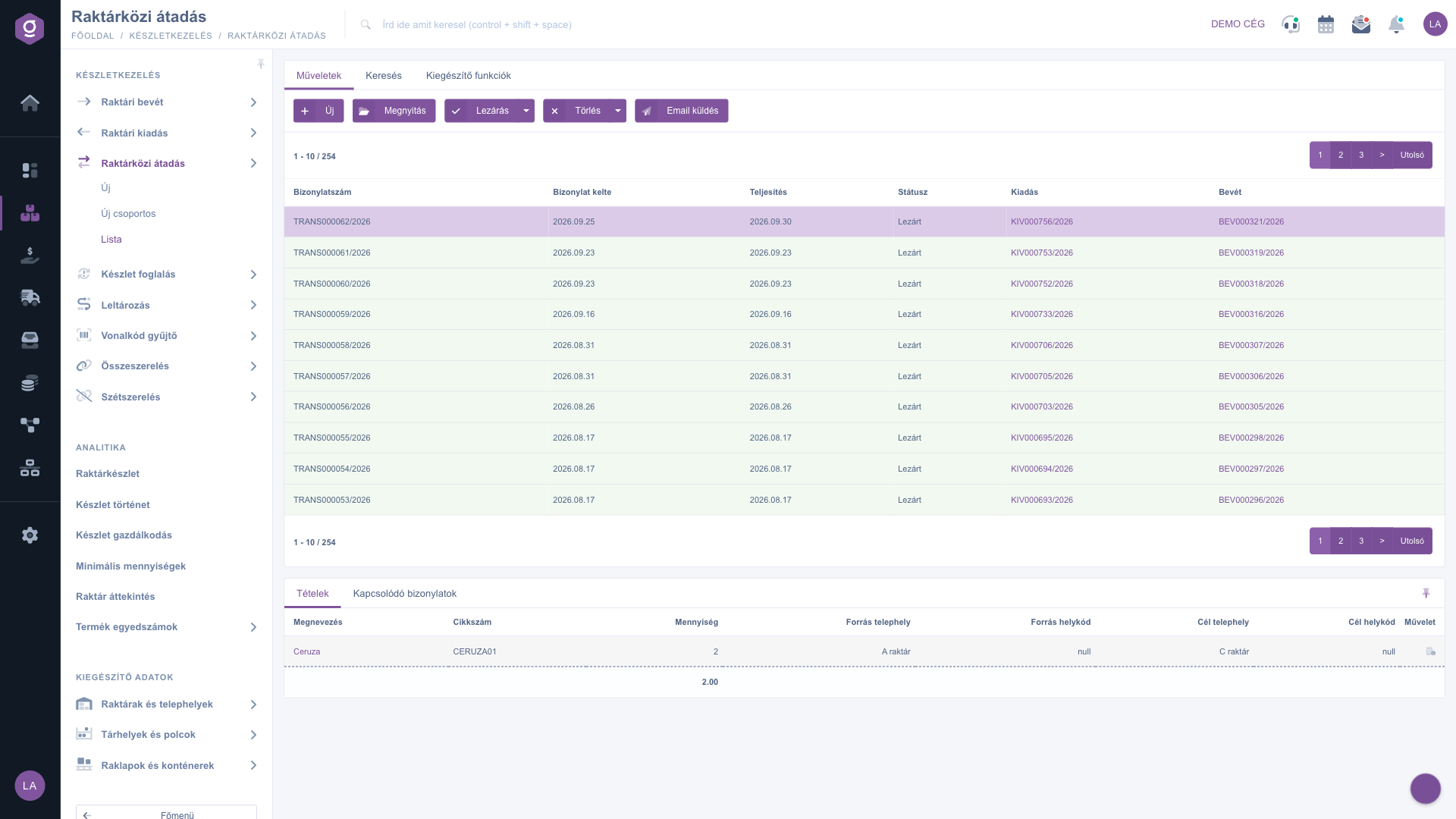
Inter-warehouse transfer list - Items preview panel

4. Additional functions

The Additional functions tab lets you create a new task linked to the selected document — a reminder for yourself or a colleague about further work related to the transfer.

When an inter-warehouse transfer is closed, the system automatically generates an Outgoing document at the source site and a Booking document at the destination site. To better understand how these work, see the Warehouse Outgoing List and Warehouse Booking List guides.

Tip


If the same products regularly move between two sites (e.g. from a central warehouse to a store), use New group to record multiple items and quantities within a single document, so you don't need to start a separate transfer for every product.


Field descriptions

Table columns and their meaning:

Field / Element Required Description
Identifier The unique identifier of the transfer document (e.g. TRANS000062/2026).
Creation date The date the document was recorded.
Fulfillment The date the transfer was actually fulfilled (the product physically moved).
Status The current state of the document (Draft, Closed, Cancelled, Cancelled (closed)).
Outgoing Link to the Warehouse Outgoing document automatically created at the source site when the transfer is closed, if it already exists.
Booking Link to the Warehouse Booking document automatically created at the destination site when the transfer is closed, if it already exists.

Columns of the preview panel's Items tab and their meaning:

Field / Column Required Description
Name The name of the relocated product.
Item number The product's unique item number.
Quantity The relocated quantity — may be a fraction depending on the product's unit of measure.
Source site The site the product is moved from.
Source location code The specific storage location code within the source site, if the site tracks locations by code.
Destination site The site the product is moved to.
Destination location code The specific storage location code within the destination site, if the site tracks locations by code.

Frequently asked questions

Once closed, the items and location codes can no longer be edited, since closing finalizes the stock relocation and automatically creates the linked outgoing and booking documents. If a correction is needed, use Delete and clone to create a new, still-open document with the corrected data.

Cancelled marks documents that were deleted while still open, while Cancelled (closed) refers to a document that was already closed and was later reversed/invalidated. In both cases the document remains in the list, but the associated stock movement is not valid.

The linked Warehouse Outgoing and Warehouse Booking documents are only created when the transfer is closed. While the inter-warehouse transfer is in Draft status, these columns remain empty — see the Warehouse Outgoing List documentation for more details.

The New button is ideal for recording a single document when you only need to relocate a few products. If you need to move several products or item groups to the same destination site at once, New group (https://www.logzi.com/account/transmission-group/0) allows for faster, clearer bulk recording.

Need personalized help?

Don't want to spend hours searching for a solution? Choose the most efficient way: book a personalized, 45-minute online training session dedicated entirely to you. Whether it's a walkthrough of the basics or a detailed setup of a specific module, our expert colleague will guide you through the whole process, step by step.

Don't waste your time — ask for help!
Our goal is to get you using our system as quickly and efficiently as possible. Whether you're completely new to us or stuck on a specific setting, don't hesitate to ask for help!

Logzi warehouse management software

Get in touch with us

Interested in our software? Feel free to write to us!

Need help?

If you can't find the answer and need assistance

Create your account now,
pay later!

Try it free for 3 days, no risk, no obligation!
