On the Ledger number settings page you specify which ledger number Logzi uses by default for each partner and product type.
Click Main menu / Settings / System settings / Ledger number settings. At the top of the page you see the Save button, below it four groups: Buyer (customer), Supplier, Product and Service. The screenshots were taken in the Hungarian interface.
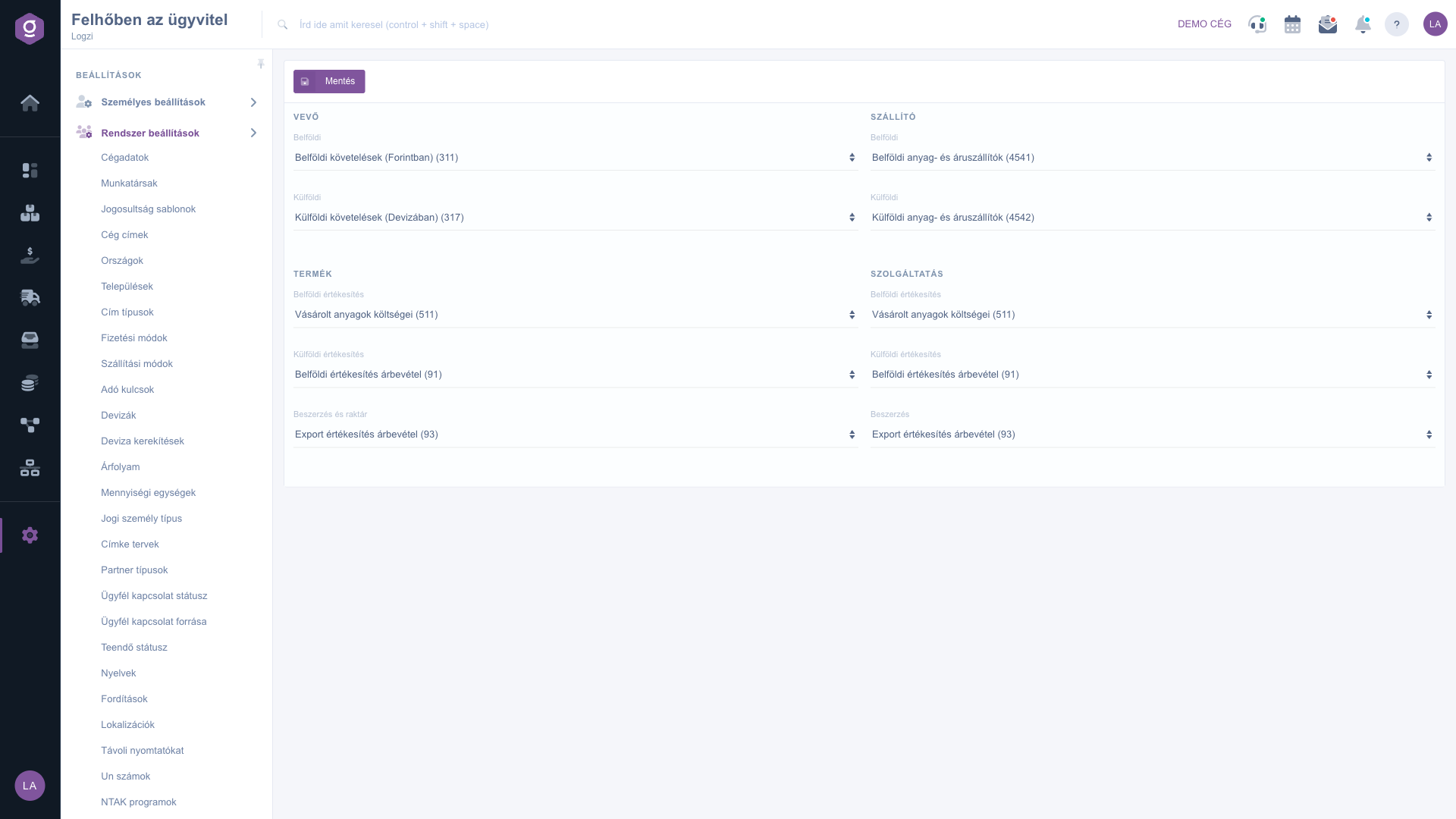
In the Buyer and Supplier groups choose the ledger number for Domestic and Foreign partners. In the Product group set the number for Domestic sales, Foreign sales and Purchasing and warehouse, and in the Service group the number for Domestic sales, Foreign sales and Procurement. The lists contain the numbers recorded on the Ledger numbers page.
To record the settings, click Save. The change applies to documents created afterwards.
If you cannot find the number you need in the list, first add it on the Ledger numbers page and then come back to this page.
The setting groups of the page.
| Field | Required | Description |
|---|---|---|
| Buyer – Domestic / Foreign | The ledger number used by default for domestic and foreign customers. | |
| Supplier – Domestic / Foreign | The ledger number used by default for domestic and foreign suppliers. | |
| Product – Domestic sales | The ledger number of products sold domestically. | |
| Product – Foreign sales | The ledger number of products sold abroad. | |
| Product – Purchasing and warehouse | The ledger number for purchasing and storing products. | |
| Service – Domestic sales | The ledger number of services sold domestically. | |
| Service – Foreign sales | The ledger number of services sold abroad. | |
| Service – Procurement | The ledger number for procuring services. |
When classifying a new document or item for bookkeeping, these values serve as defaults according to the type of the partner and the product.
The lists contain the numbers recorded on the Ledger numbers page. If a number is missing, add it there first.
Domestic applies to domestic, foreign to foreign partners or sales, so you can assign a separate number to each.
No, you need to click Save to record the changes.
The menu item is located under Main menu / Settings / System settings. If you do not see it, your user probably does not have the required permission; ask your administrator to check the settings.
Don't want to spend hours searching for a solution? Choose the most efficient way: book a personalized, 45-minute online training session dedicated entirely to you. Whether it's a walkthrough of the basics or a detailed setup of a specific module, our expert colleague will guide you through the whole process, step by step.
Don't waste your time - ask for help!
Our goal is to get you using our system as quickly and efficiently as possible. Whether you're completely new to us or stuck on a specific setting, don't hesitate to ask for help!
Create your account now,
pay later!


